Ever needed your WiFi password but it’s saved on a device you no longer have? If you regularly back up your devices to the cloud—Google Drive, iCloud, or OneDrive—you’re in luck. That password might be sitting in a backup file, waiting to be restored. This guide is for anyone who has ever backed up a Windows PC, Mac, or Android phone and now needs to retrieve the WiFi password from that cloud backup. By the end, you’ll have your password in hand without any sketchy third-party tools.
The process varies by platform, but the core idea is the same: locate the backup that contains your network settings, extract the relevant file, and read the password. We’ll cover the most common scenarios: restoring from a Windows system backup, recovering from iCloud Keychain on Mac, and pulling from an Android backup. Let’s get started.
What You’ll Need
- Access to the cloud account where your backup is stored (Google, Apple, or Microsoft)
- A computer or phone that can sign into that account
- Basic comfort with file explorer or terminal commands
- Patience—cloud backups can be large and slow to download
Step 1: Identify Your Cloud Backup Type
First, figure out which cloud service holds your backup. If you’re on Windows, look for a folder named “WindowsImageBackup” or files with .vhd extension in your OneDrive or Google Drive. On Mac, your iCloud backup is managed through System Preferences. Android backups go to Google Drive automatically. Knowing where to look saves time.

Step 2: Recover WiFi Password from a Windows Backup in Cloud
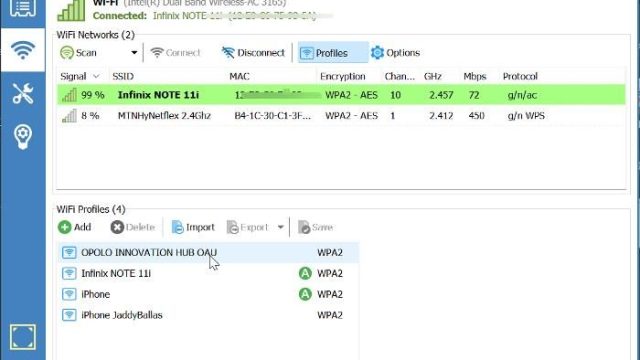
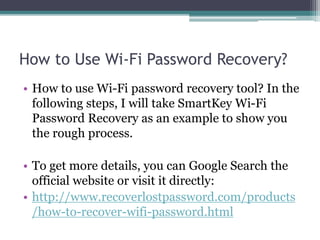
If you backed up your Windows PC using File History or a system image and stored that backup in the cloud (say, OneDrive), you can extract the WiFi password. Download the backup folder to a local drive. Then navigate to the backup’s WindowsSystem32config folder. Look for a file named “RegBack” or directly access the registry hive “SAM”. You’ll need to load this hive in Regedit to see the saved networks. Alternatively, use a tool like the free wifi password recovery utility mentioned elsewhere on this site.

Step 3: Recover WiFi Password from iCloud Keychain on Mac
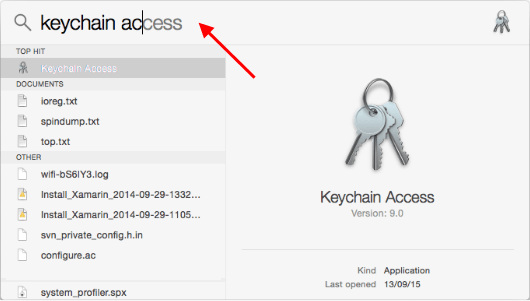
Mac users often sync WiFi passwords via iCloud Keychain. If you have an iCloud backup that includes Keychain, you can restore it to a Mac. Go to System Preferences > Apple ID > iCloud, then enable Keychain. Sign in with the same Apple ID. Then open Keychain Access app, search for your network name, and double-click it. Check “Show password” and authenticate. This is the easiest way to find saved wifi password from keychain.

Step 4: Recover WiFi Password from Android Google Backup
Android devices back up WiFi passwords to Google Drive automatically if you’ve enabled backup in Settings > Google > Backup. To retrieve them, you’ll need to restore that backup to a device (or use a method to extract the data). The easiest way is to factory reset a phone and restore the backup—but that’s drastic. Instead, you can use a computer to download the backup file (it’s encrypted) and then use tools like Android Backup Extractor. However, for most users, the simplest approach is to restore the backup to a device and then use the wireless password recovery windows method (or Android’s built-in share). For a step-by-step on the restore method, check the safest wifi password recovery method guide.

Step 5: Manual Extraction from Backup Files (Advanced)
If you’re comfortable with command line, you can extract the WiFi password directly from the backup file. On Windows, the backup’s registry hive contains the SSID and password in encrypted form (using DPAPI). You can use tools like `credwiz` or `netsh` once the hive is loaded. On Mac, the backup is a .sparsebundle or .dmg file; mount it and navigate to /Library/Keychains/. On Android, the backup is a .ab file that can be unpacked with `abe` tool. This is advanced but doable. For a more straightforward path, consider using a dedicated utility like restore wifi passwords from backup.

Step 6: Restore the Backup to a Device (Alternative Method)
If you don’t want to dig into files, simply restore the entire backup to a fresh device. On Windows, use the backup and restore center to restore a system image. On Mac, use Migration Assistant from a Time Machine backup. On Android, factory reset then restore from Google backup. After restoration, the WiFi password will be saved on that device. Then you can view it in network settings. This method works but requires you to wipe the device. It’s best if you have a spare phone or old computer.
Common Pitfalls
- Backup doesn’t include WiFi passwords: Not all backups save network credentials. For example, Android backup only includes WiFi if you opted in. Always check your backup settings ahead of time.
- Encryption or password protection: Cloud backups are often encrypted. You’ll need the password or recovery key used during the backup. If you lost that, you may be locked out.
- Cloud account syncing issues: If your cloud account is logged out or you’ve changed passwords, you might not be able to access the backup. Ensure you’re signed in correctly before starting.
Where to Next
Now that you’ve got your WiFi password back, consider taking steps to avoid this hassle in the future. Write it down in a secure password manager, or make a local backup. If you need to recover passwords from other scenarios, check out our guides on wifi password recovery after android update or wireless password recovery windows. Happy surfing!