Ever needed to connect a new device to your WiFi but couldn’t remember the password? If you’re on a Mac that’s already connected to that network, you’re in luck. macOS stores every WiFi password you’ve ever saved in its built-in Keychain—a secure database. This tutorial is for anyone who wants to quickly dig up a forgotten WiFi password without installing any third-party tools. By the end, you’ll know exactly how to use Keychain Access or a simple Terminal command to reveal your saved WiFi passwords.
We’ll cover two methods: the graphical Keychain Access app (perfect for beginners) and the Terminal (for power users who like speed). You don’t need any prior experience—just follow the steps. If you’re on Windows, check out our guide on wireless password recovery windows. For Android or other platforms, we have dedicated articles too.
What You’ll Need
- A Mac running macOS (any recent version works)
- Administrator access to that Mac (you’ll need to enter your login password)
- The exact name (SSID) of the WiFi network you want to recover
- Optional: Terminal app if you prefer command-line method
Step 1: Open Keychain Access
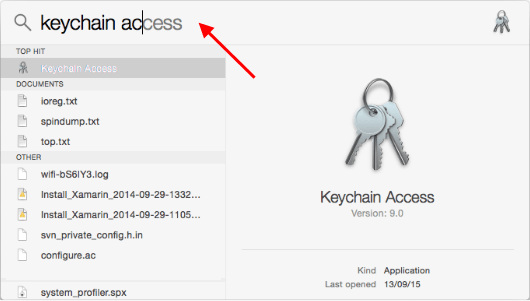
Keychain Access is the built-in password manager on macOS. You can find it by opening Spotlight (press Cmd+Space), typing “Keychain Access,” and hitting Enter. Alternatively, go to Applications > Utilities > Keychain Access. The app will show a list of all saved keychains, but you’ll focus on the “System” keychain (or sometimes “login” keychain) where WiFi passwords are stored.

Step 2: Search for Your WiFi Network
In the Keychain Access search bar (top right), type the name of your WiFi network (SSID). For example, if your network is called “HomeNetwork,” type that exactly. The list will filter to show matching entries. You should see an item with a key icon and the name of your network. If you have multiple entries, look for the one under “System” or “login” keychain. Double-click that entry to open its details.

Step 3: Show the Password
A new window will pop up with information about that network. Check the box that says “Show password” (it’s near the bottom). You’ll be prompted to enter your Mac’s administrator username and password. This is the same password you use to log in to your Mac. After authenticating, the password field will be revealed—write it down or copy it immediately. The password is stored in plain text at that moment.

Alternative: Use Terminal (Faster Method)
If you prefer the command line, open Terminal (Applications > Utilities > Terminal). Type the following command, replacing “YourNetworkName” with your actual SSID:
Press Enter. You’ll be asked for your Mac’s login password. Type it (you won’t see characters, that’s normal). Hit Enter again. The WiFi password will appear in the Terminal window, ready to copy.

Common Pitfalls
- Wrong keychain: Make sure you’re looking in the “System” keychain, not “iCloud” or “Local Items”. WiFi passwords are usually stored in System or login keychain.
- Admin password fail: If you can’t authenticate, ensure you have admin rights. Some corporate-managed Macs may block this—contact your IT department.
- Network not saved: Only networks you’ve previously connected to will appear. If you haven’t saved the network, you’ll need to use a free wifi password recovery utility or ask the router admin.
Where to Next
Now you can easily recover any saved WiFi password on your Mac. If you need to restore wifi passwords from backup on another device, check our guide. For other operating systems, we have tutorials on show wifi password linux and free wifi password recovery software for Windows. Keep this trick handy for when a friend asks for the password—you’ll be the hero without installing anything.



