Ever needed to connect a new device to your WiFi but couldn’t remember the password? If you’re using Linux, you’re in luck — your saved passwords are still there, just waiting to be revealed. This guide is for anyone who uses Linux and wants to quickly retrieve a WiFi password without resetting the router. By the end, you’ll know how to show WiFi passwords using the terminal, the GUI, and even by digging into config files.
We’ll keep it casual and practical. Whether you’re on Ubuntu, Fedora, or any other distro with NetworkManager, these steps should work. No need to install extra tools — everything is built in. Let’s get your WiFi password back.
What You’ll Need
- A Linux computer with a saved WiFi network (the one you want the password for)
- sudo or root access (you’ll be asked for your password)
- Terminal open (Ctrl+Alt+T on most distros)
Step 1: Show WiFi Password via Terminal (nmcli)
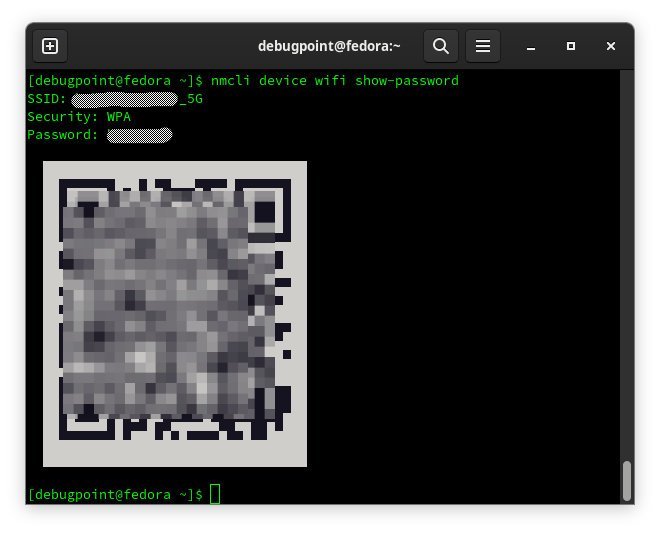
The easiest way is using the `nmcli` command, which is part of NetworkManager. First, list your saved connections to find the exact name of the WiFi network. Run:
Look for the connection name under the NAME column — it’s usually the SSID of the network. Note it down exactly (case-sensitive). Now run the following command to show the password (replace ‘MyWiFi’ with your actual connection name):
You’ll see a line like `802-11-wireless-security.psk: yourpassword`. That’s it! The password is right there after the colon. If you want to see all details, just use `sudo nmcli connection show MyWiFi` and scroll through.
Step 2: Show WiFi Password via GUI (NetworkManager)
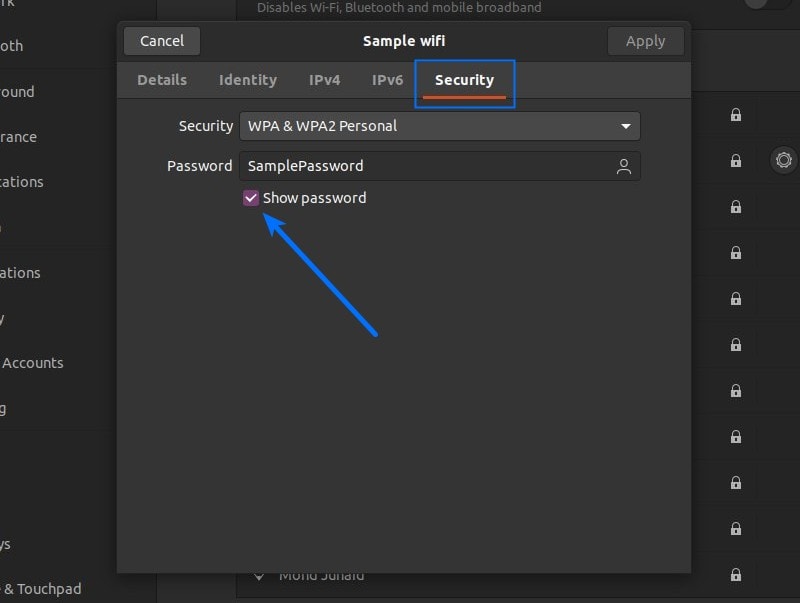
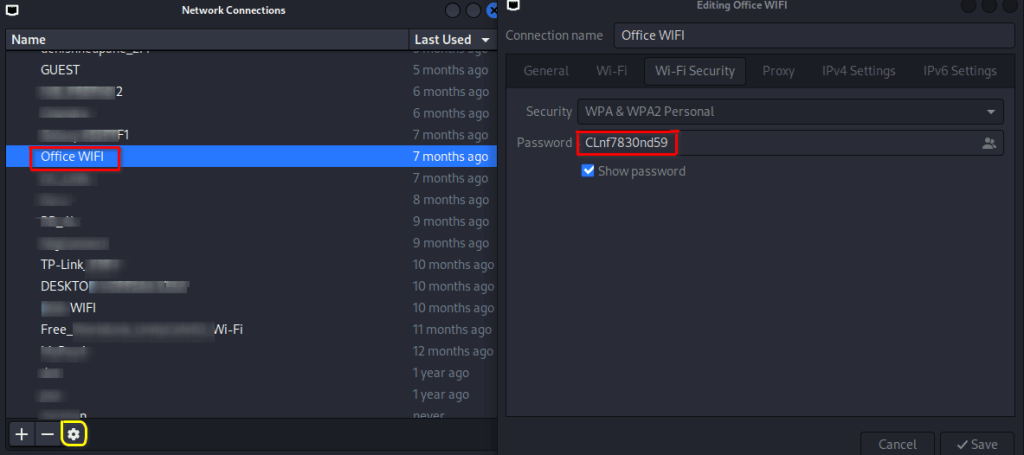
If you prefer a graphical approach, many Linux desktops have a network settings panel. On GNOME (Ubuntu default), go to Settings → Wi-Fi → click the gear icon next to your connected network → Security. The password is usually hidden, but there’s a checkbox to “Show password.” Check it and you’ll see the password in plain text.
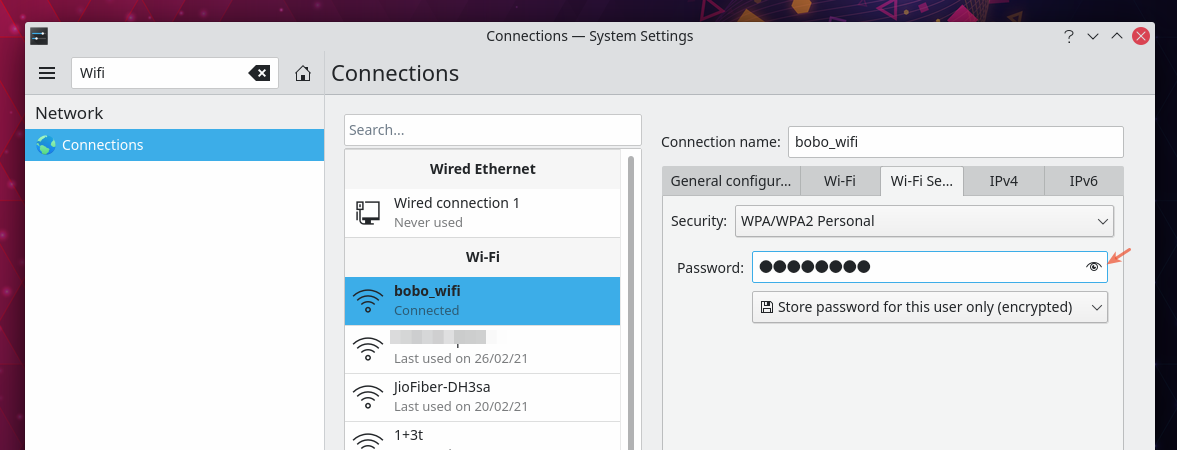
On KDE Plasma, open Network Settings → Connections → select your WiFi → click Edit → Security tab → check “Show password.” It’s simple and doesn’t require the terminal at all.
Step 3: Show WiFi Password from Config Files
For the adventurous or if the above methods don’t work, you can look directly at NetworkManager’s config files. They’re stored in `/etc/NetworkManager/system-connections/`. List them:
Find the file that matches your SSID (it might be named `YourWiFi.nmconnection`). Then view it with sudo:
Look for a line starting with `psk=`. That’s your password. Be careful — these files are sensitive, so don’t share them carelessly. This method works even if the GUI or nmcli fails.
Common Pitfalls
- Running into permission issues: The commands require sudo. If you get “Connection ‘MyWiFi’ does not exist” make sure you have the exact name (case-sensitive).
- NetworkManager not installed: Some minimal distros don’t have it. Install it with your package manager (e.g., `sudo apt install network-manager` on Debian/Ubuntu).
- Enterprise (WPA2-Enterprise) networks: If your WiFi uses 802.1x authentication, the password might be stored differently or not at all. In that case, check with your IT admin.
Where to Next?
Now you know how to recover your saved WiFi password on Linux. If you’re on another OS, check out our guides for Ubuntu desktop password recovery, Network Manager password recovery, and terminal WiFi recovery. For a more comprehensive approach, you might explore WiFi password recovery premium tools or admin WiFi recovery options. Happy networking!



