So you’re staring at a new phone or a friend’s laptop, and the WiFi password just won’t come to mind. Relax. If you’ve ever connected that network on a Windows PC, the password is still stored in your system. With one simple command, you can pull it out in plain text. This guide is for anyone who has a Windows computer (Windows 7 through 11) that has previously connected to the WiFi network you need the password for. No admin ninja skills required — just a few clicks and a couple of commands. By the end, you’ll have the exact password you can copy or type into any device.
We’ll be using the built-in netsh tool — no downloads, no sketchy software. It’s a command‑line utility that’s been part of Windows forever. The whole process takes under a minute. Ready? Let’s dig into that saved WiFi key.
What You’ll Need
- A Windows PC that has connected to the target WiFi network at least once.
- Administrator privileges (recommended — without them the password won’t show).
- Basic familiarity with the Command Prompt (or willingness to follow along).
Step 1: Open Command Prompt as Administrator
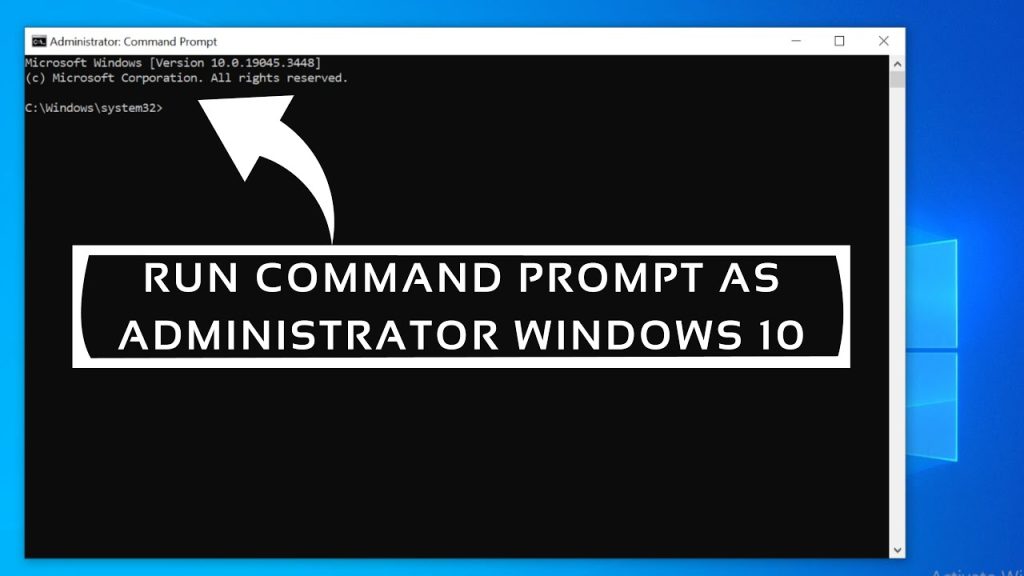
Click the Start button, type cmd, right‑click “Command Prompt” in the results, and select “Run as administrator”. If a UAC prompt appears, click Yes. This gives the command the permissions it needs to read the stored network profiles.
Step 2: List All Saved WiFi Profiles
In the Command Prompt window, type the following and press Enter:
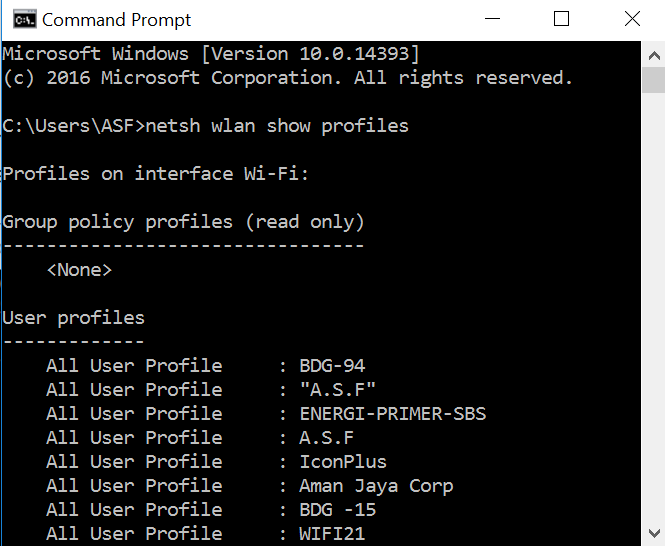
netsh wlan show profiles
You’ll see a list of every WiFi network your PC has ever connected to, under “User Profiles”. Each profile name is the network’s SSID (the name you see when scanning for WiFi). Make a note of the exact name of the network whose password you want to recover — it’s case‑sensitive.
Step 3: Retrieve the Password for a Specific Profile
Now run this command, replacing PROFILE_NAME with the exact SSID you noted (use quotes if the name has spaces):
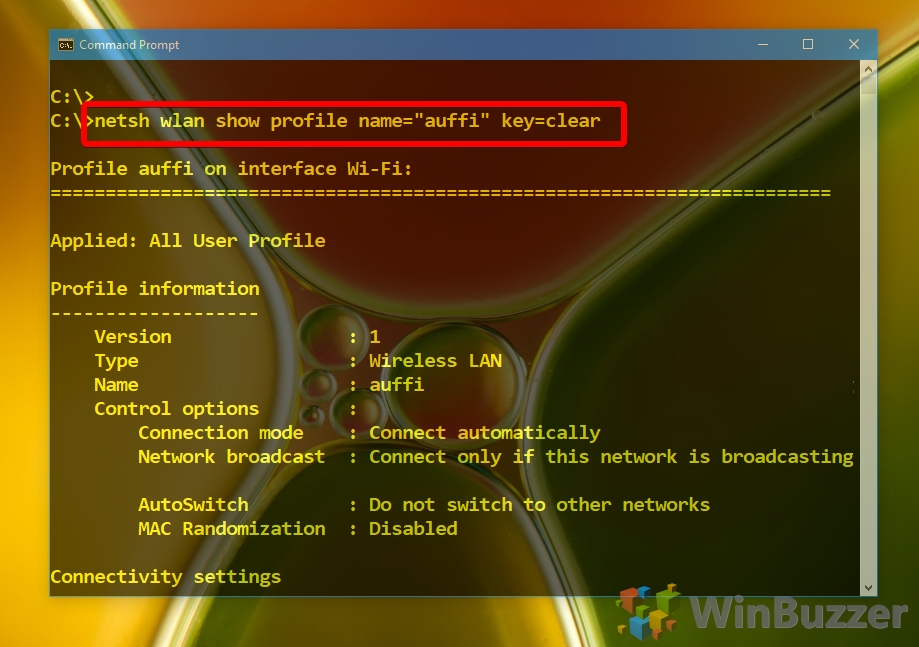
netsh wlan show profile name=”PROFILE_NAME” key=clear
Scroll through the output until you find the “Security settings” section. Look for the line labeled “Key Content” — that’s your WiFi password in plain text. You can now copy it or write it down.
Step 4: (Optional) Export All Profiles to a File
If you manage multiple networks or want a backup, you can export everything to an XML file. Run:
netsh wlan export profile folder=C:WiFiBackup key=clear
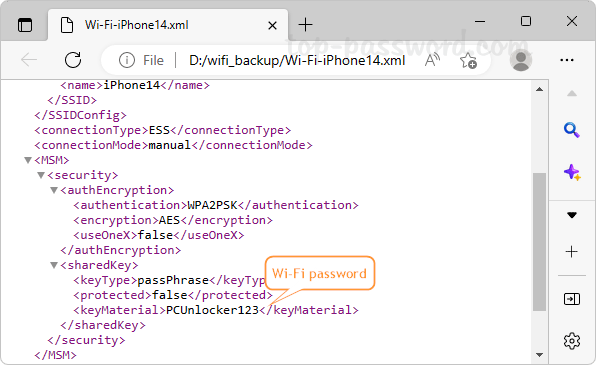
This creates XML files in C:WiFiBackup, one per saved network. Open any XML file in Notepad and search for “keyMaterial” — that’s the password. Be careful with these files; they contain plaintext passwords.
Common Pitfalls
- Access denied. If you see “Access is denied” when running the command, you didn’t launch Command Prompt as Administrator. Close and reopen it with admin rights.
- Profile name mismatch. If the profile name has spaces and you forget quotes, you’ll get an error. Always enclose names with spaces in double quotes.
- No saved profiles. If
netsh wlan show profilesreturns nothing, your PC never connected to a WiFi network, or the profiles were cleared. Try connecting once, then retry.
Where to Next
That command method works like a charm, but if you prefer a more visual approach, check out our guide on show wifi password windows for GUI alternatives. For a dedicated deep dive into the same topic, see recover forgotten wifi password using cmd. And if you’re more comfortable with PowerShell, we have a complete wifi password recovery powershell tutorial that automates the whole thing. Finally, for a general overview of different platforms, our wifi password recovery from saved network article covers Windows, Mac, and Android.



