Ever needed to connect a new device to your home WiFi but couldn’t remember the password? Or maybe a friend asked for the network key and you had no clue where to find it. This fast WiFi password recovery utility is your solution. In just a few clicks, you can see every WiFi password your Windows PC has ever saved – no guesswork, no router login required.
By the end of this guide, you’ll have a free tool that reveals all your saved network passwords instantly. Whether you’re a casual user or a tech enthusiast, this method works on Windows 10 and 11, and it’s way faster than digging through router settings or using command prompts.
What You’ll Need
- A Windows PC (Windows 7, 8, 10, or 11)
- Administrator access (you need to be able to install and run utilities)
- An internet connection to download the free utility
- Optional: a USB drive if you want to run the portable version
Step 1: Download the WirelessKeyView Utility
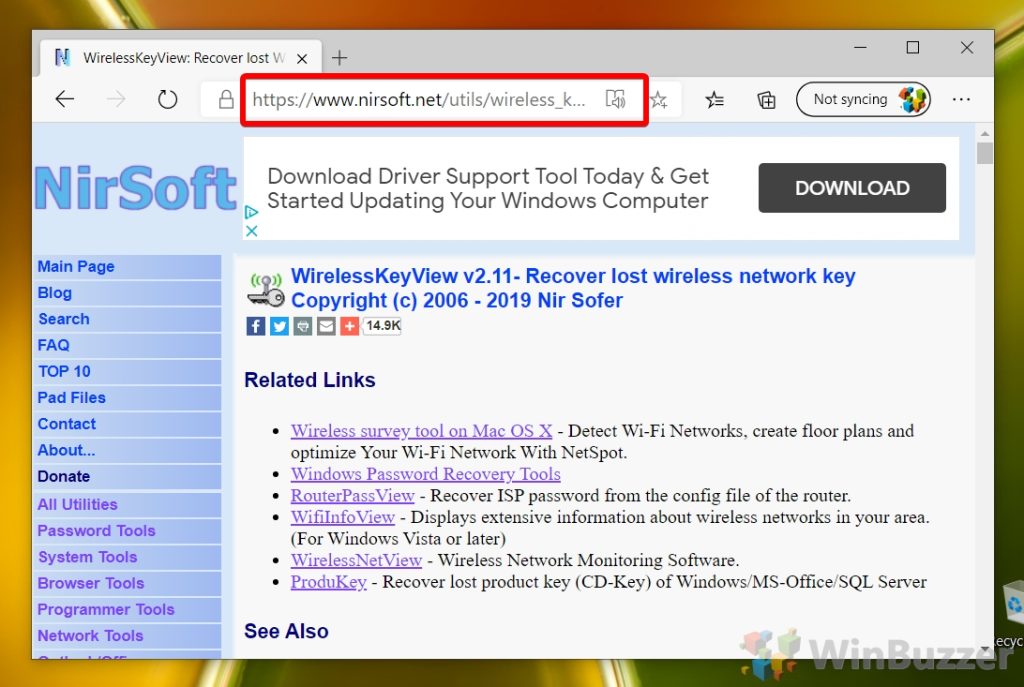
Head to the NirSoft website and download WirelessKeyView. It’s a tiny, portable tool that doesn’t require installation – just unzip and run. I recommend the 64-bit version for modern systems. Look for the download link on the official page to avoid shady copies.
Step 2: Run the Utility as Administrator
Right-click the executable file (WirelessKeyView.exe) and select “Run as administrator”. This is crucial – without admin rights, the tool can’t access the saved network profiles. Windows might show a security warning; click “Yes” to proceed. The main window will pop up immediately.
Step 3: Locate Your Network and Copy the Password
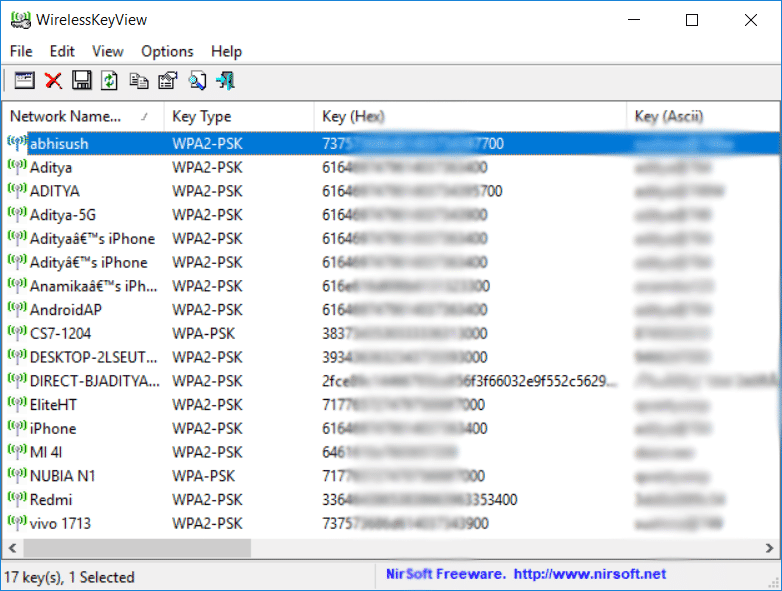
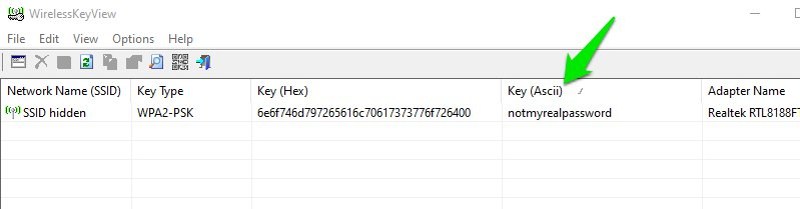
The utility displays every saved network with columns for SSID (network name), Key (password), and more. Scroll to find your network. If you have many saved networks, use the search bar or sort by SSID. Double-click the password field to copy it, or select the row and press Ctrl+C. You can also export the whole list to a text file via File > Save As.
Step 4: Use the Recovered Password
Now paste the password into your new device or share it with a friend. That’s it – you’ve recovered your WiFi password in under a minute! If you prefer a command-line approach, check out the PowerShell recovery method for a script-based alternative. For a broader overview, see our WiFi password recovery software comparison to pick the best tool for your needs.
Common Pitfalls
- **Missing admin rights**: If you don’t run the utility as administrator, it will show blank keys. Always right-click and choose “Run as administrator”.
- **Antivirus false positive**: Some antivirus programs flag WirelessKeyView as a potential threat because it accesses stored passwords. This is normal – add an exception if needed.
- **Only works for saved networks**: The tool only shows passwords that Windows has stored. If you’ve never connected to the network from this PC (or cleared the history), you’ll need to use a different method, like logging into your router.
This utility is a lifesaver for IT admins and home users alike. I’ve used it countless times to recover passwords for forgotten networks.
– A satisfied user on the NirSoft forums
Where to Next
Once you’ve recovered your password, you might want to back up your network profiles. Learn how to show saved WiFi password in Windows using built-in methods, or explore the Mac Terminal method if you also use macOS. For a comprehensive guide across all platforms, see our article on how to recover saved WiFi password on Windows, Mac, and Android.



