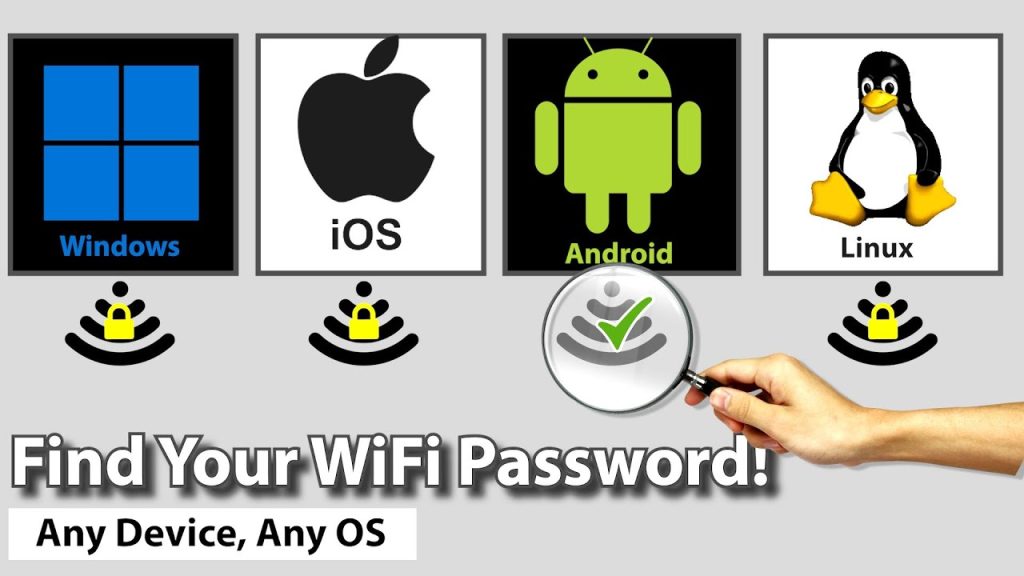
Ever found yourself staring at a grayed-out WiFi list, totally blank on what that password was? You’re not alone. This guide is for anyone who’s ever needed to dig up a forgotten WiFi password—whether it’s your home network, a friend’s place, or an office hotspot. By the end, you’ll know which recovery tool fits your device and skill level, and you’ll actually have that password back in hand.
We’ll walk through the most popular free and paid WiFi password recovery software for Windows, Mac, Android, and iPhone. I’ll compare their ease of use, features, and limitations—plus share real step-by-step instructions for each. No fluff, just practical comparisons you can use right now.
What You’ll Need
- A computer or smartphone that has connected to the WiFi network before (or access to a router with admin credentials)
- Administrator privileges on Windows or Mac (to run most recovery tools)
- A web browser to download software (or a working USB drive to transfer tools if you’re offline)
- Patience—some methods take a minute, especially on older devices
Step 1: Understand Your Options
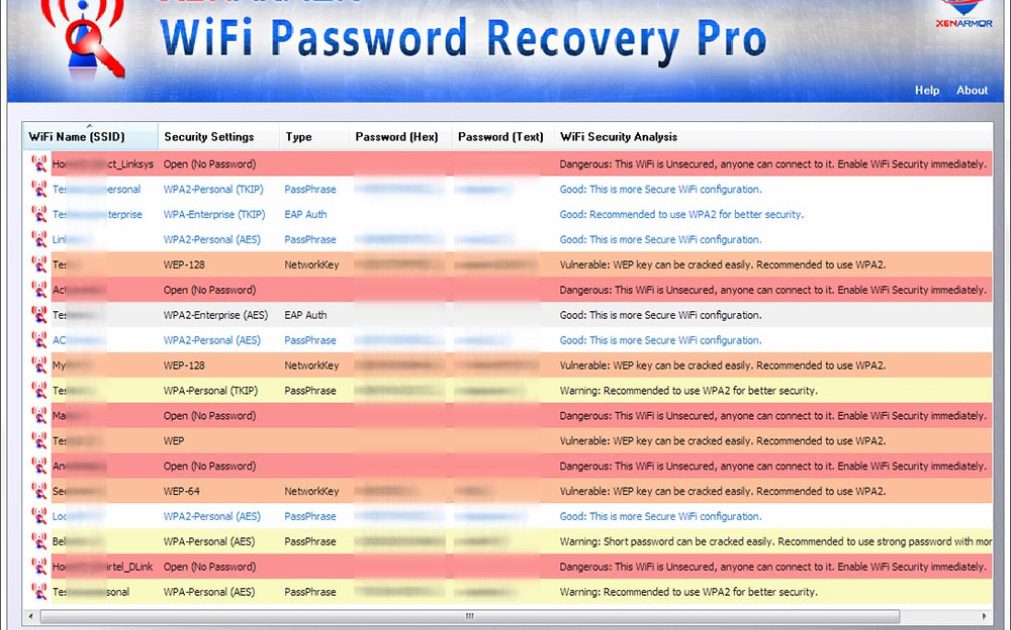
Before downloading anything, it helps to know what’s out there. The landscape boils down to three categories: built-in OS methods (like the keychain on Mac), third-party GUI tools (WirelessKeyView, WiFi Password Revealer), and command-line utilities (netsh on Windows, security find-generic-password on Mac). For Android, it’s often a mix of QR codes or rooted apps. For iPhone, you’re usually stuck with iCloud Keychain or a Mac workaround. Spend a minute thinking about your device and whether you can use our beginner wifi password recovery tutorial if you’re totally new to this.
Step 2: Use WirelessKeyView (Windows – Free)
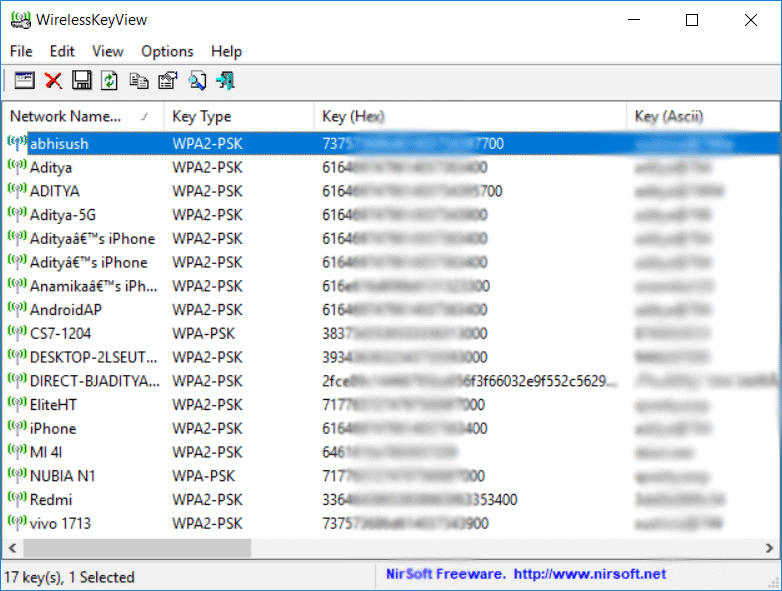
If you’re on Windows, WirelessKeyView by NirSoft is my go-to. It’s tiny, portable (no install needed), and shows every saved wireless profile with its password in plain text. Download it from the official NirSoft site, run as Administrator, and boom—all your saved passwords appear. To recover saved wifi password on Windows, just double-click a network and copy the key. It’s that simple. Pro tip: save the list as a text file for future reference.
Step 3: Try WiFi Password Revealer (Android – Free with Ads)
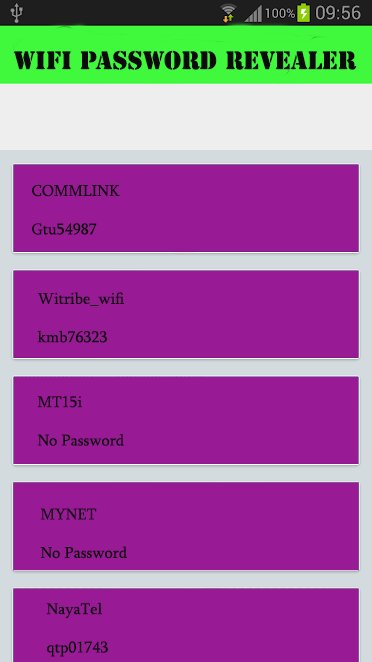
On Android, things get trickier because of permission restrictions. Most apps on the Play Store actually only show saved networks on older Android versions (pre-Android 10) or require root. WiFi Password Revealer is one of the better free alternatives that works without root on some devices—it reads the wpa_supplicant.conf file if accessible. To find saved wifi password on Android, open the app, grant location permission, and look for the QR code or text key. If that fails, you may need to recover wifi password without root via backup tricks.
Step 4: Go Command Line (Cross-Platform – Free)
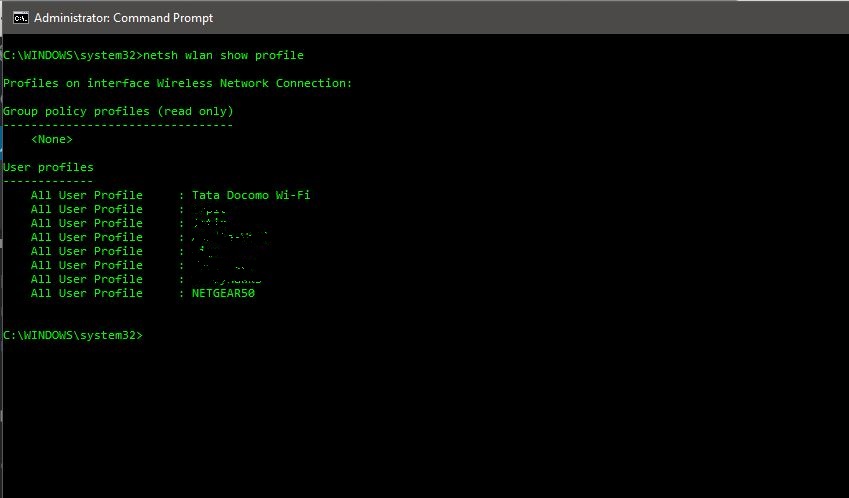
For the tech-savvy, command line is the most reliable. On Windows, open Command Prompt as admin and type netsh wlan show profile name="YourNetwork" key=clear. On Mac, open Terminal and run security find-generic-password -wa "YourNetwork". On Linux, check /etc/NetworkManager/system-connections/. This method never needs third-party software. If you’re an admin, check out wifi password recovery via settings for a graphical alternative.
Step 5: Export Batch Lists with CSV Tools
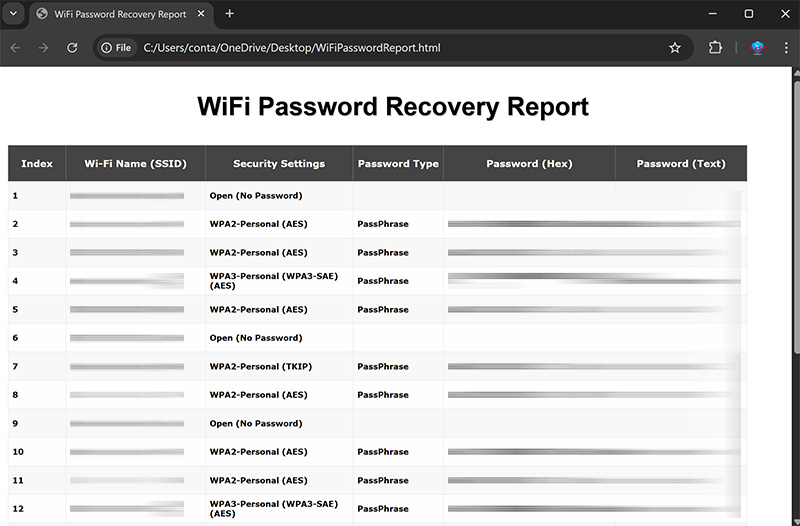
Need to recover more than one password? Tools like WirelessKeyView let you export all passwords to a CSV file—perfect for IT pros managing multiple devices. On Mac, you can script the security command to dump everything. If you’re building a master list, look at how to export wifi passwords to csv for a quick walkthrough. Doing this regularly saves headaches later.
Common Pitfalls
- Running the tool without Admin rights – most software won’t display passwords unless you run as Administrator (Windows) or enter your Mac password. Don’t forget to right-click and choose ‘Run as administrator’.
- Assuming one tool works for all OS versions – Android 10+ and iOS 15+ have locked down password viewing. That free app from two years ago might not work on your new phone. Always check the latest compatibility.
- Accidentally triggering antivirus – some recovery tools (especially from unknown sites) can be flagged as malware because they access protected system data. Use trusted sources like NirSoft’s official page, and whitelist if needed.
Where to Next
Once you’ve grabbed your password, consider backing it up securely—either with a password manager or an encrypted file. If the tool you tried didn’t work, double-check that you’re on a network you’ve connected to before (you can’t recover a password you never saved). For deeper dives, browse our other guides like the one on iPhone recovery or Mac-specific methods. And if you’re a network admin, definitely explore our advanced automation tips.



