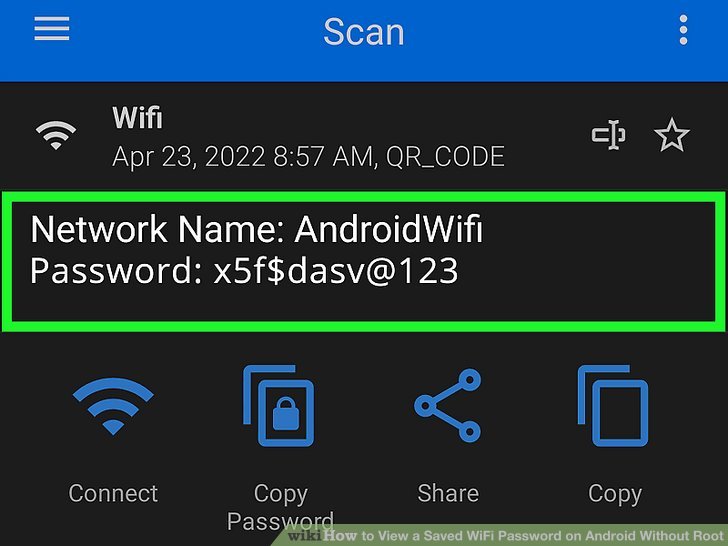
Have you ever needed the WiFi password for a network you’re already connected to, but you can’t find it written anywhere? Maybe a friend asked, or you want to set up a new device. If you have an Android phone that has previously connected to that network, you’re in luck—you can actually view the saved password right from your phone’s settings. This guide will walk you through the steps for both older and newer Android versions, no root required.
By the end of this tutorial, you’ll be able to fish out any forgotten WiFi password from your Android device. Whether you’re using Android 9 (Pie) or Android 10/11/12/13, we’ve got you covered. Let’s dive in.
What You’ll Need
- An Android phone or tablet that has previously connected to the WiFi network you want the password for.
- Access to the Settings app.
- For Android 10 and later: a QR code scanner (built-in or third-party) or another device to scan the QR code.
- Optional: a USB cable and a computer if you prefer using ADB (advanced users).
Step 1: Open Wi-Fi Settings
Unlock your Android device and open the Settings app. Scroll down and tap on “Network & internet” (or “Connections” on some devices). Then tap on “Wi-Fi”. This will show you a list of available networks and your current connection.
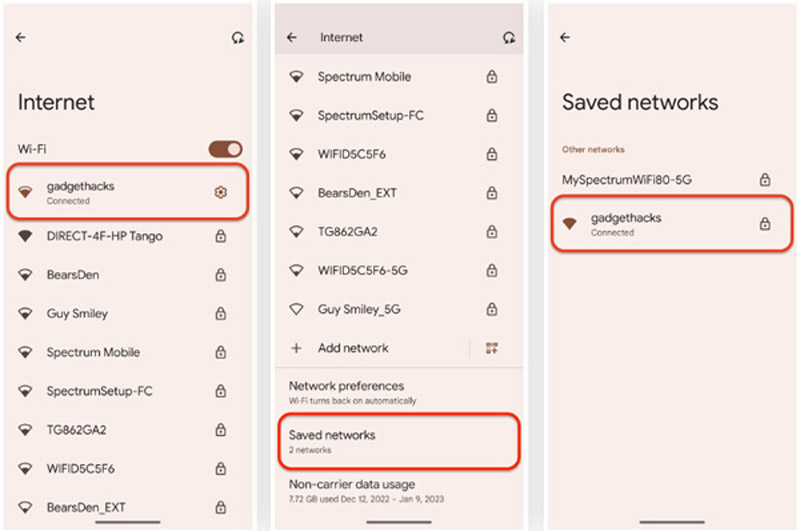
Step 2: Access Saved Networks
On the Wi-Fi screen, look for an option like “Saved networks” or “Saved Wi-Fi networks”. Tap on it to see all the networks your device has ever connected to. If you don’t see this option, tap on the network you are currently connected to (it will say “Connected”).
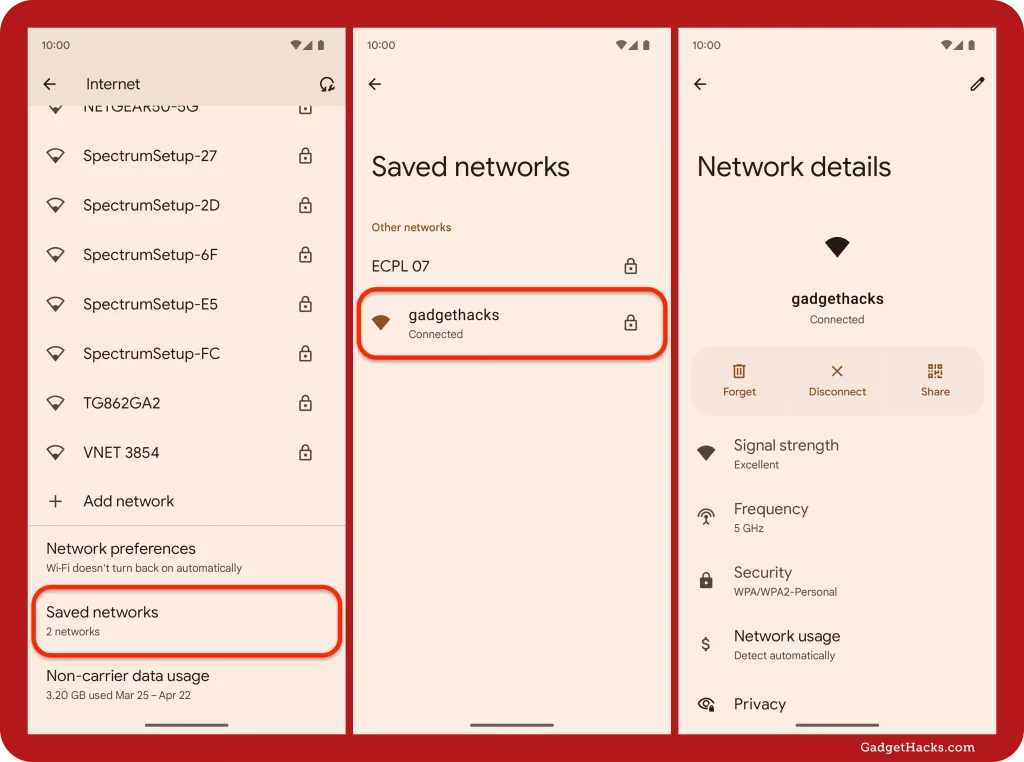
Step 3: View the Password
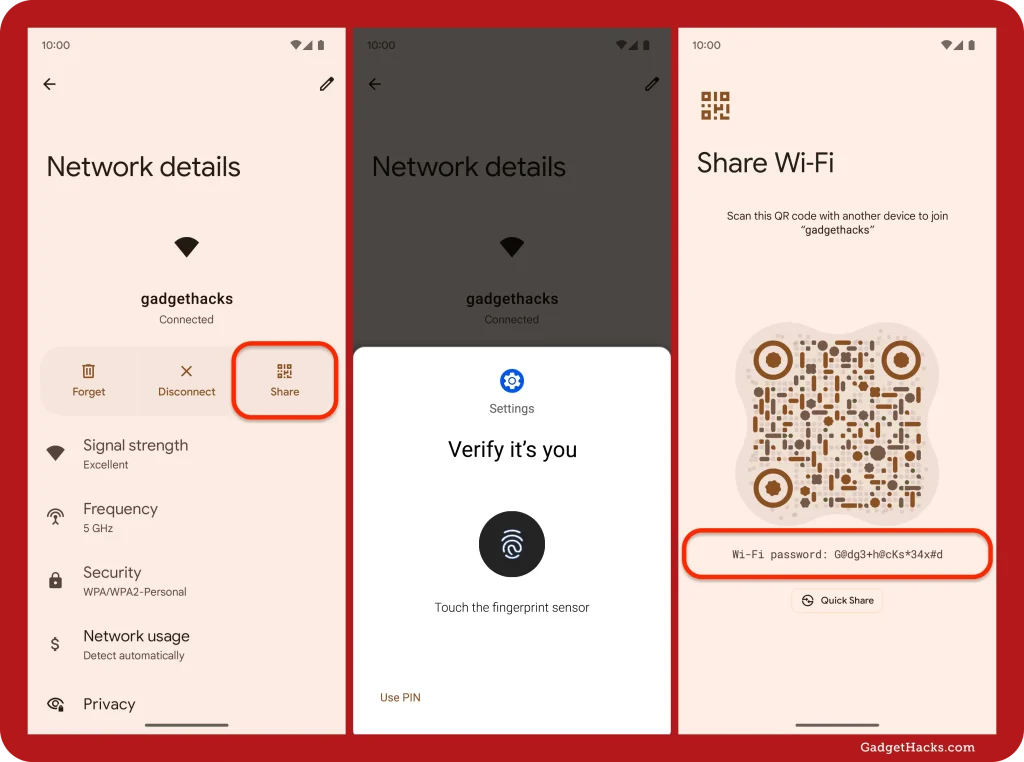
Now, depending on your Android version, the next step differs. For Android 9 and earlier: Tap on the network name. A details screen will appear. Look for a “Show password” checkbox or option. Check it, and the password will be displayed in plain text. For Android 10 and later: Tap on the network name. You’ll see a “Share” button (often with a QR icon). Tap “Share”. Your phone will generate a QR code that contains the network credentials. Below the QR code, you might see the password in plain text (sometimes hidden). On many phones, the password is shown as a series of dots or asterisks; you can tap the eye icon to reveal it. If not, you’ll need to scan the QR code.
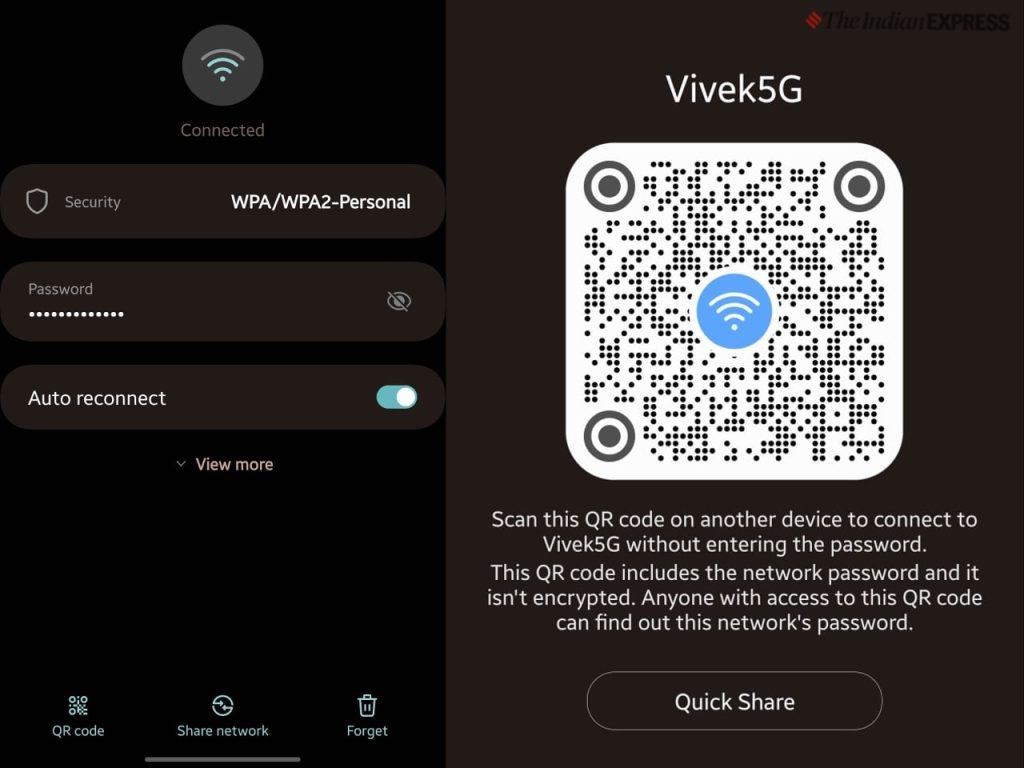
Step 4: Extract Password from QR Code (if needed)
If the password isn’t displayed directly, use another device (like a friend’s phone) to scan the QR code. Open the camera app on the second device and point it at the QR code. A notification should pop up with the network name and password. Alternatively, take a screenshot of the QR code and use a QR scanner app to read it. The scanner will decode the QR and show the password. That’s it! You’ve successfully retrieved your saved WiFi password.
Common Pitfalls
- “Show password” not available: Some Android skins (like Samsung One UI or Xiaomi MIUI) might hide this option. In that case, try the QR code method. If that’s also missing, you may need to use a third-party app with root access.
- QR code scanning fails: Ensure the QR code is fully visible and not obstructed. Use a dedicated QR scanner app if your camera doesn’t automatically detect it.
- Can’t find saved networks option: The location varies by manufacturer. Search for “Wi-Fi” in Settings and look for “Saved networks” or “Manage networks”. If all else fails, you can use ADB commands (requires USB debugging enabled and a computer).
Where to Next
If you found this guide helpful, you might also want to check out our beginner wifi password recovery tutorial for other devices. If you’ve lost your WiFi password entirely and don’t have a saved device, our lost WiFi password recovery guide can help you reset it. For those interested in recovering passwords without root, we have a detailed article on how to recover WiFi password without root access. And if you need to view saved WiFi passwords on a laptop, see our guide to view saved WiFi password on laptop. Finally, if you’re an iPhone user, we cover recover WiFi password on iPhone as well.



