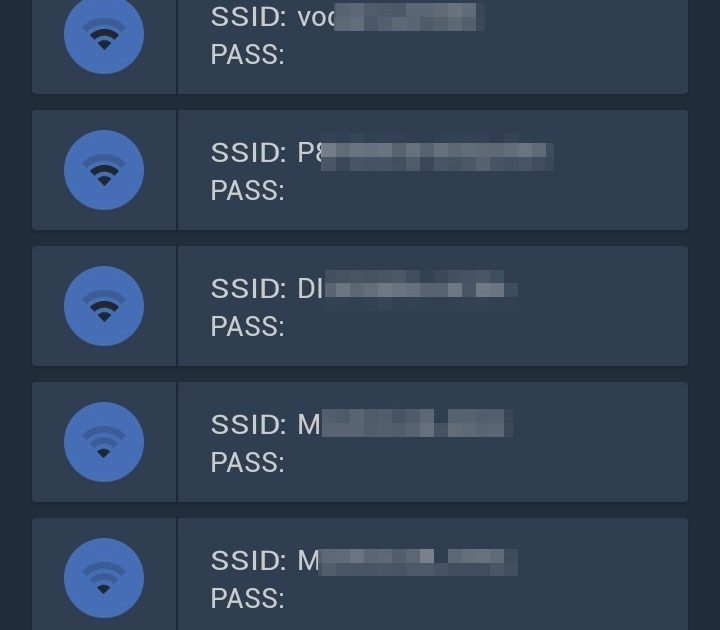
Ever had that moment where your friend asks for the WiFi password and you blank? Or you just got a new device and can’t remember the password you set years ago? Don’t worry — if you already have a device connected to that network, the password is still there, just hidden. This tutorial is for beginners with zero tech experience. By the end, you’ll know how to find any saved WiFi password on Windows, Mac, Android, iPhone, and even directly from your router.
We’ll walk through each method step by step. No command line magic, no hacking — just point and click. You’ll have your password in under five minutes.
What You’ll Need
- A device (Windows PC, Mac, Android phone/tablet, iPhone, or iPad) that is currently connected to the WiFi network
- Access to the router’s admin panel (optional, if no device is connected)
- Admin username and password for the router (if using the router method)
- About 5 minutes of your time
Step 1: Recover WiFi Password on Windows 10 / 11
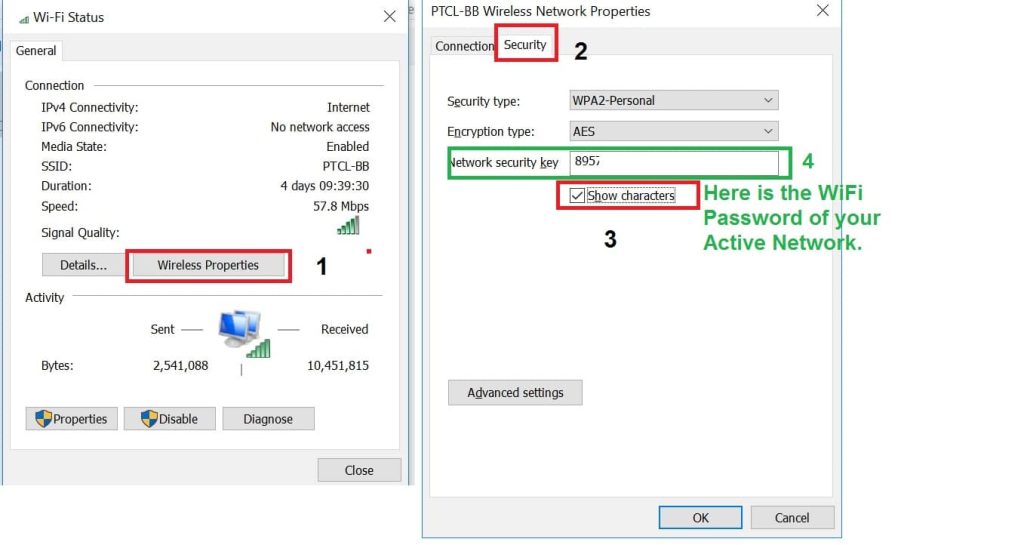
If you have a Windows laptop or desktop that’s already connected to the WiFi, this is the quickest method. For more detail, check out our full guide on WiFi password recovery via settings for other options.
Click the WiFi icon in the system tray (bottom right), then click “Network & Internet settings”. In the new window, click “Status” on the left, then “Network and Sharing Center”. Click on your WiFi network name (the blue link next to “Connections”). In the pop-up, click “Wireless Properties”, then the “Security” tab. Check the box that says “Show characters” — your password will appear in the “Network security key” field.
Step 2: Recover WiFi Password on macOS
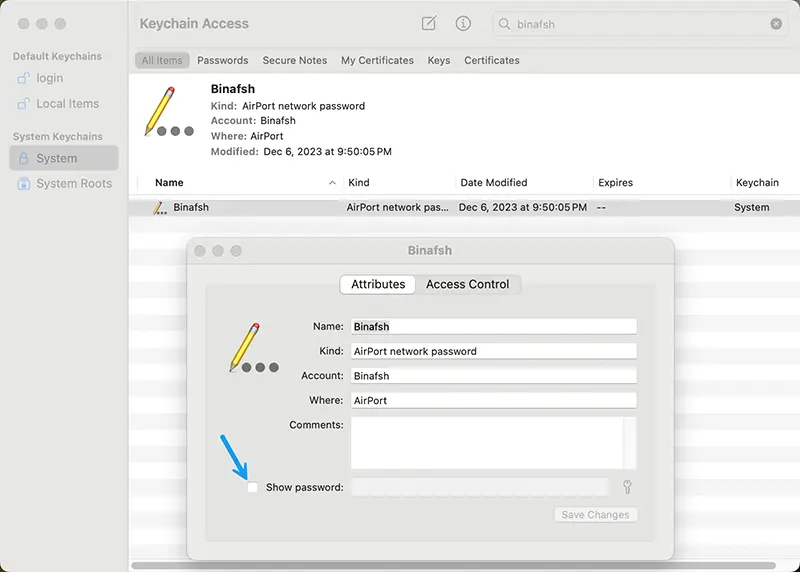
On a Mac, open “Keychain Access” from Applications > Utilities (or search with Spotlight). In the search bar, type your WiFi network name. Double-click the entry that appears. Check the box “Show password” and enter your Mac’s administrator username and password when prompted. Your WiFi password will be revealed. For alternative methods, you can view saved WiFi password on laptop as well.
Step 3: Recover WiFi Password on Android (No Root)
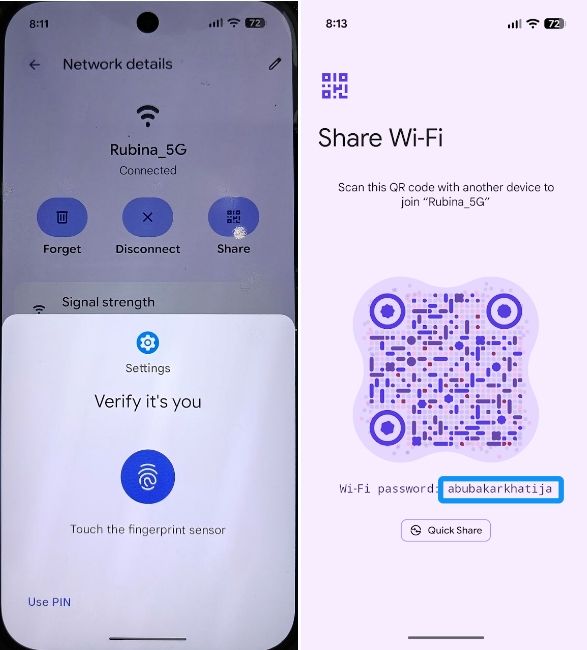
On Android (version 10 or later), go to Settings > Network & Internet > WiFi. Tap the gear icon next to your connected network. Tap “Share” or “QR code” — you may need to verify your fingerprint or PIN. The next screen shows a QR code and, below it, the network password in plain text (look for “WiFi password: …”). If you’re using an older Android, you might need root access; check our guide on how to recover WiFi password without root for alternatives.
Step 4: Recover WiFi Password on iPhone / iPad
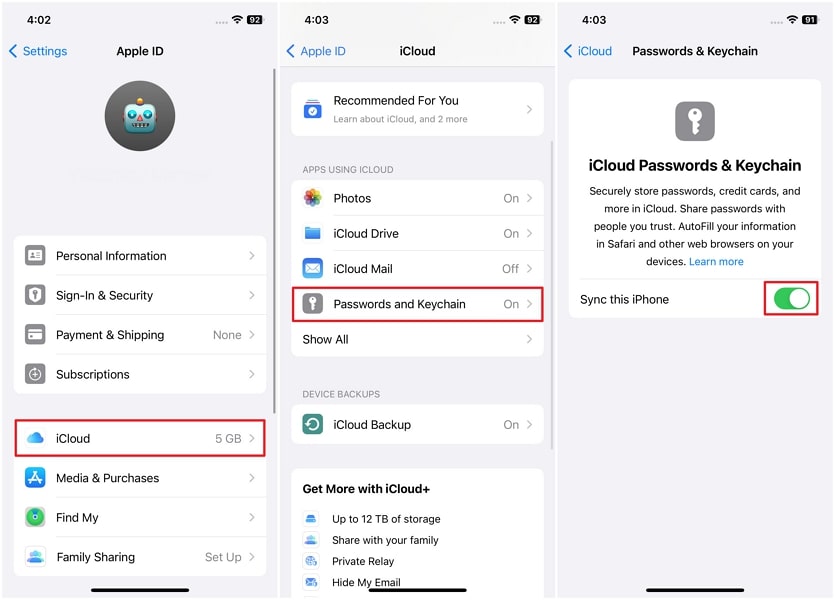
Apple doesn’t let you view saved WiFi passwords directly in Settings, but you can use iCloud Keychain synced with a Mac. On your Mac, open Keychain Access (as in Step 2) and search for your network name. If you don’t have a Mac, you can recover WiFi password on iPhone using a workaround like sharing the password with another Apple device. Alternatively, check your router’s admin panel.
Step 5: Recover WiFi Password from the Router
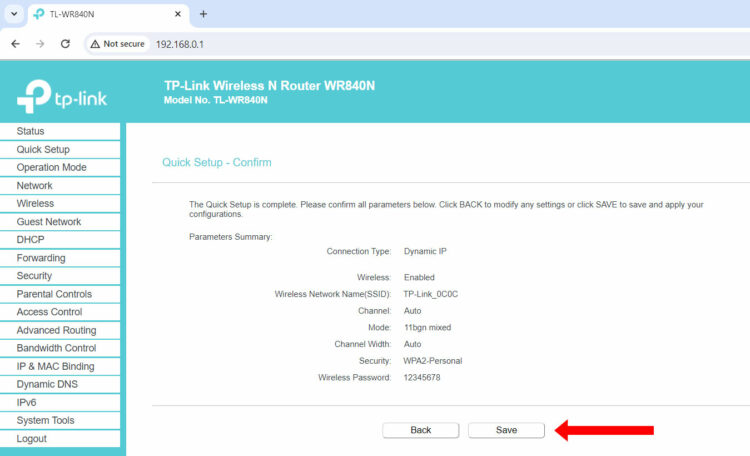
If you have no devices connected, or you prefer seeing the password from the source, log into your router. Find your router’s IP address (usually 192.168.1.1 or 192.168.0.1 — check the sticker on the router). Open a browser, enter that IP, and log in with the admin username and password (also often on the sticker). Look for “Wireless” or “WiFi” settings. The password will be in a field like “Pre-Shared Key” or “Passphrase”. This method works on any platform and is a key part of WiFi password recovery for lost password scenarios.
Common Pitfalls
- You’re not logged into the correct admin account on your computer. On Windows or Mac, you need admin rights to view the password.
- The WiFi network is saved but not currently connected. Some methods require an active connection; try reconnecting first or use the router method.
- You changed your router’s admin password and forgot it. If you can’t log in, you may need to reset the router to factory defaults (press the reset button with a paperclip for 10 seconds).
Where to Next
Now that you’ve recovered your password, maybe you want to find saved WiFi password on Linux, or learn how to use the best open source WiFi password recovery tool for advanced scenarios. We’ve got you covered with more step-by-step guides.



