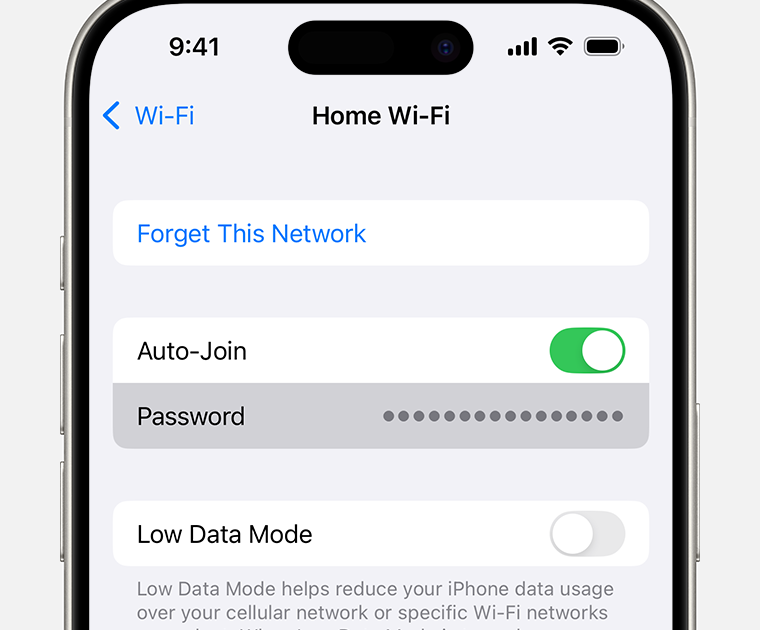
So you’ve forgotten your WiFi password, and your iPhone is already connected to the network. No worries—you’re not locked out forever. Whether you need to share the password with a friend or set up a new device, there are several ways to recover that saved password directly from your iPhone or using other devices linked to your account. This guide walks you through the easiest methods, from a simple iOS 16+ trick to using your Mac’s Keychain or even your router.
By the end of this tutorial, you’ll have your WiFi password in hand, no jailbreak required. We’ll cover built-in iOS features, iCloud Keychain sync, and a few backup plans. Plus, we’ll point you to other guides for related scenarios, like how to recover WiFi password on iPhone without jailbreak or view saved WiFi passwords on laptop.
What You’ll Need
- An iPhone running iOS 16 or later (for direct password viewing) OR an older iOS version (alternative methods work too).
- A Mac logged into the same Apple ID (for Keychain Access method).
- Access to your router’s admin interface (username/password usually on sticker).
- Optional: A second device that can scan QR codes (Android or another iPhone) for the share method.
Step 1: View WiFi Password Directly on iPhone (iOS 16+)
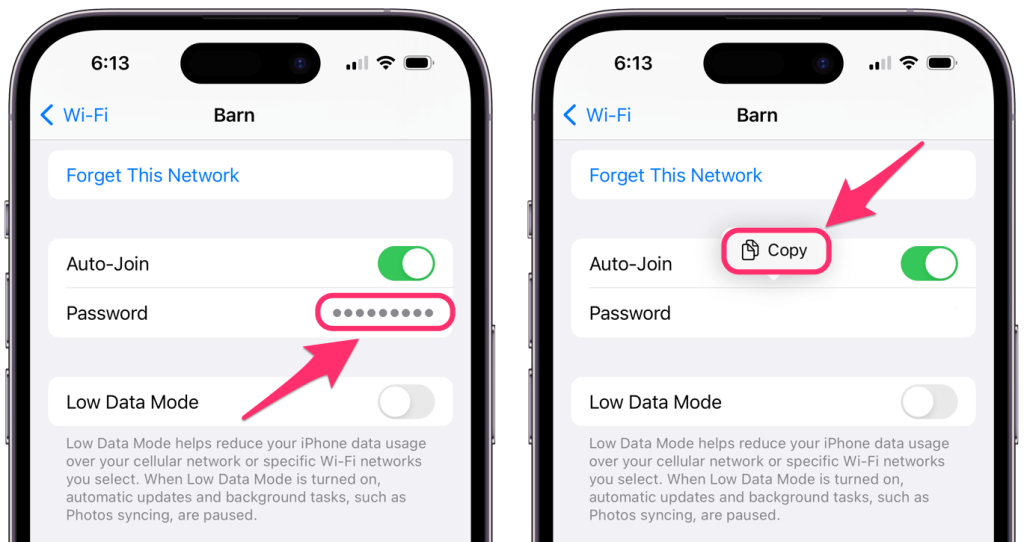
If your iPhone is running iOS 16 or later, Apple finally added the ability to see saved WiFi passwords right in Settings. Here’s how:
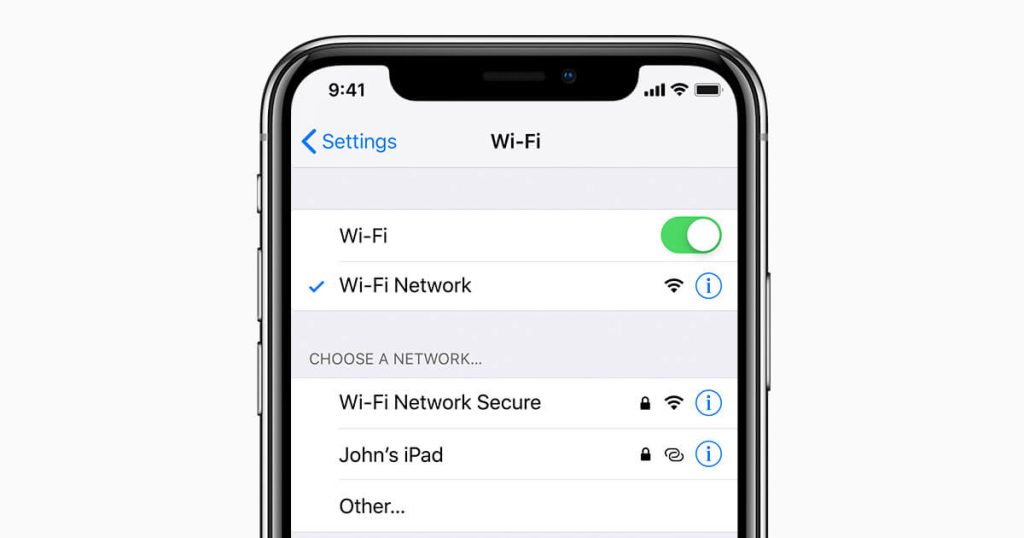
- Open the Settings app on your iPhone.
- Tap Wi-Fi (iOS 16) or (actually it’s just ‘Wi-Fi’ in Settings).
- Find the network you’re connected to (it will have a blue checkmark). Tap the blue ‘i’ icon next to it.
- Tap the Password field. Use Face ID, Touch ID, or your passcode to authenticate.
- The password will be revealed. You can tap and hold to copy it.
This is the quickest method if you have a compatible iOS version. If you don’t see the option, your iPhone may be on an older iOS—move to Step 2.
Step 2: Recover WiFi Password via Keychain Access on Mac
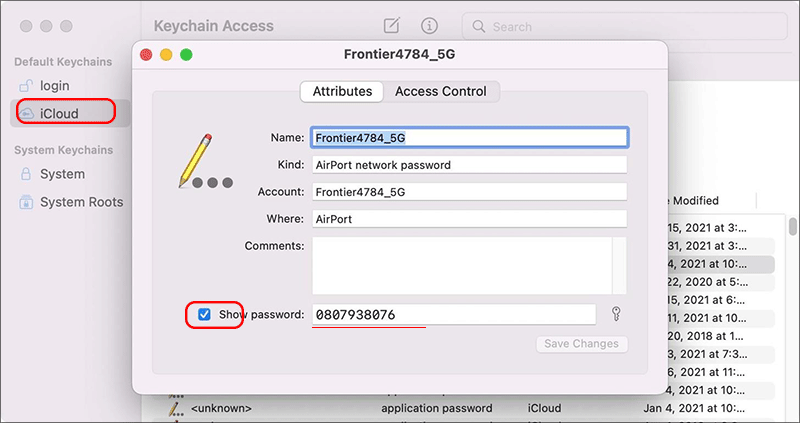
If you have a Mac signed into the same Apple ID, iCloud Keychain syncs your saved WiFi passwords. You can find the password using the Keychain Access app. This method works even if your iPhone is on an older iOS. For a detailed walkthrough, check out our guide on how to recover WiFi password on Mac.
- On your Mac, open Finder > Go > Utilities, then double-click Keychain Access (or use Spotlight by pressing Cmd+Space and typing ‘Keychain Access’).
- In the top-right search bar, type the exact name of your WiFi network.
- Double-click the network entry. A window will pop up.
- Check the box ‘Show password’. You’ll be prompted to enter your Mac’s admin username and password (the one you use to log in).
- The WiFi password will appear in the field. Write it down or copy it.
This method is reliable but requires a Mac. If you don’t have one, skip to Step 3.
Step 3: Find Password on Router’s Sticker or Admin Page
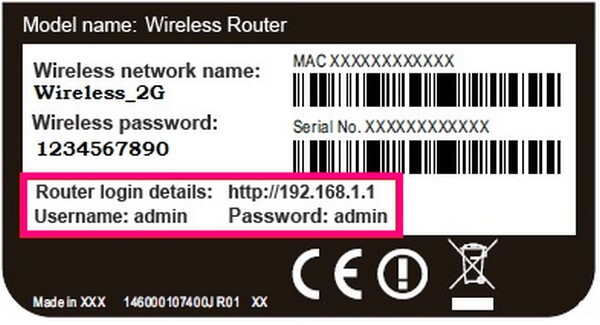
If the password was never changed from the default, you can find it printed on a sticker on the router itself. Look for a label labeled ‘WiFi Password’, ‘Network Key’, or ‘SSID/Password’. If that’s not the case, you can log into your router’s admin interface:
- Connect to the WiFi from any device (even if you don’t know the password, you can use an Ethernet cable or the router’s default password).
- Open a web browser and type your router’s IP address (common ones are 192.168.1.1, 192.168.0.1, or 192.168.1.254).
- Enter the router’s admin username and password (often ‘admin’/’admin’ or found on the router sticker).
- Navigate to Wireless or Wi-Fi settings. Look for a field like ‘Pre-Shared Key’ or ‘Passphrase’ – that’s your WiFi password.
If you’ve changed the router password and forgotten it, you may need to reset the router to factory defaults (hold the reset button for 10 seconds). For more on that, see our secure WiFi password recovery process guide.
Step 4: Share WiFi via QR Code from Another Device
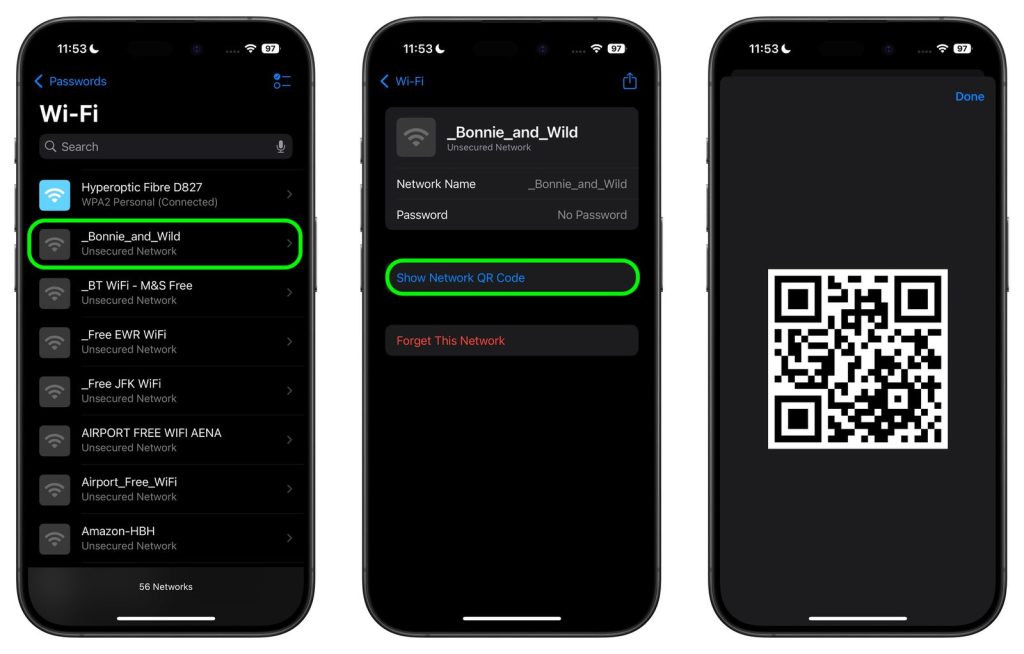
If someone else has the password on their iPhone, they can share the network with you via Apple’s built-in QR code feature (no need to type). Here’s how:
- On the other person’s iPhone (iOS 16+), go to Settings > Wi-Fi and tap the ‘i’ next to the network.
- They should see a ‘Share Password’ option. Tap it, then hold your iPhone near theirs (make sure Bluetooth and Wi-Fi are on). The password is transferred automatically.
- Alternatively, they can generate a QR code using third-party apps or Shortcuts. Many routers also have QR codes on the sticker.
This method works seamlessly between Apple devices and even with Android devices if using a QR code scanner.
Step 5: Use a Third-Party Tool (Last Resort)
If none of the above methods work, you can try a free WiFi password recovery tool. Be cautious: only use reputable tools from the App Store (like those that export passwords via iCloud Keychain). However, most true recovery apps require a jailbreak for iOS, so we recommend sticking with the built-in methods. For more options, see our free WiFi password recovery tool guide.
Common Pitfalls
- **Older iOS version**: If you’re on iOS 15 or earlier, you won’t see the password in Settings. Use the Mac Keychain method instead, or upgrade to iOS 16+ (if your device supports it).
- **iCloud Keychain not enabled**: If Keychain Access on your Mac shows no results, make sure iCloud Keychain is turned on for both devices (Settings > [your name] > iCloud > Keychain).
- **Router password changed without updating saved password**: If the router’s WiFi password was changed but your iPhone still connects, the saved password is the old one. You’ll need to forget the network and re-enter the new password. To avoid this, consider using a password manager to store your credentials.
Always keep a backup of your WiFi password in a secure password manager to avoid future lockouts.
WiFi Password Recovery Expert
Where to Next
Now that you’ve recovered your WiFi password, you might want to learn how to share it with others or manage your network. Check out our guides on advanced WiFi password recovery methods (like command line tricks) or how to back up your WiFi passwords automatically. If you ever lose access again, you’ll have a system in place.



