So you’ve got a D-Link router and you can’t remember the WiFi password. Maybe a friend changed it, or you just haven’t looked at it in years. No worries—this guide is for you. By the end, you’ll either have your original password back or a brand new one set up, and you’ll be back online in no time.
We’ll start with the easiest methods (checking the sticker on the router) and work our way up to accessing the router’s admin panel. If all else fails, we’ll do a factory reset. Let’s get your WiFi working again.
What You’ll Need
- Your D-Link router (obviously)
- A computer or smartphone connected to the router (wired or wireless)
- An Ethernet cable (optional, but handy if you can’t connect via WiFi)
- A paperclip or similar object for the reset button
Step 1: Check the Router Label
Many D-Link routers have a sticker on the bottom or back that shows the default WiFi network name (SSID) and password. Look for it—seriously, it’s often the quickest solution. If the password was never changed, you’re done. If it was changed, move to Step 2.

Step 2: Access the Router Admin Page
Open a web browser and type in your router’s IP address. For most D-Link routers, that’s 192.168.0.1 or 192.168.1.1. Press Enter. You should see a login screen. If you don’t, make sure your device is connected to the router (try using an Ethernet cable if WiFi is down).

Step 3: Log In with Default Credentials
Try the default username and password. For D-Link, it’s usually admin for the username and either blank or admin for the password. If those don’t work and you never changed them, check the sticker again—some models have a unique password printed. If you changed the admin password and forgot it, you’ll need to reset the router (see Step 6).

Step 4: Find the Wireless Settings
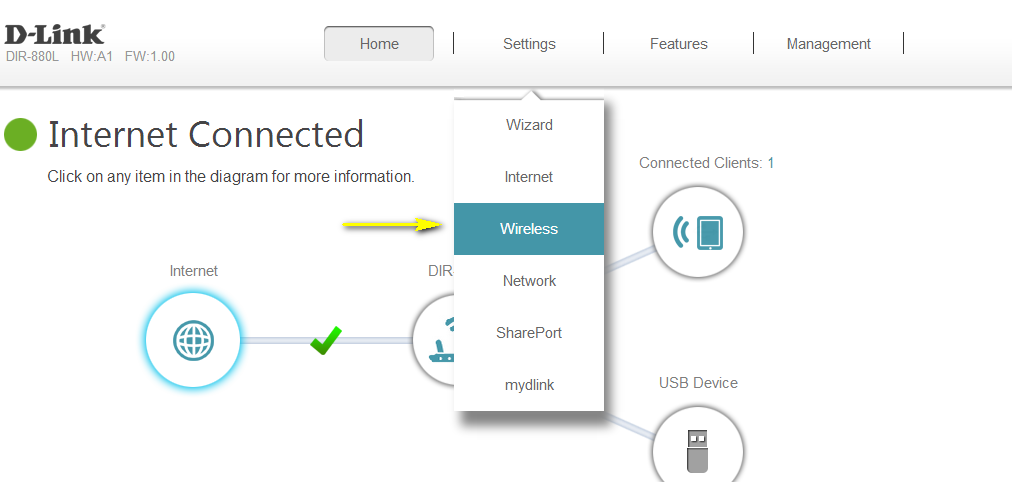
Once logged in, look for a section called Wireless or WiFi. It might be under Setup or Advanced. Click on it to see your wireless network settings.

Step 5: View or Change the WiFi Password
Look for a field labeled Pre-Shared Key, Passphrase, or Security Key. This is your current WiFi password. You can copy it down or change it to something new. If you change it, save the settings and reconnect all your devices with the new password.

Step 6: Factory Reset (Last Resort)
If you can’t log into the admin page and don’t know the password, you’ll need to reset the router to factory defaults. Find the small reset button (usually a pinhole) on the back or bottom of the router. Use a paperclip to press and hold it for about 10 seconds while the router is powered on. The lights will flash and the router will reboot. Now you can log in with the default credentials from Step 3, and you’ll need to set up your WiFi network again from scratch.
Common Pitfalls
- Wrong IP address: Not all D-Link routers use 192.168.0.1 or 192.168.1.1. Check your router’s manual or look up the specific model online.
- Forgot admin password: If you changed the admin password and can’t remember it, the only way in is a factory reset—that’ll wipe all your custom settings.
- Resetting without backing up: Before resetting, if you can still access the admin page, back up your configuration. Otherwise, you’ll have to reconfigure everything manually.
Where to Next
Now that you’re back online, consider taking steps to avoid this headache in the future. You can use a free wifi password recovery tool to save your passwords locally, or follow a secure wifi password recovery process to keep them safe. If you’re on a computer, you can also view saved wifi password on laptop or use wifi password recovery using cmd. And for a broader approach, check out our guide to recover wifi password on desktop.



