Ever been that moment when a friend asks for your WiFi password and you just blank? You know it’s saved on your Windows 10 laptop, but you can’t see it anywhere. Don’t worry – this tutorial is for you. By the end, you’ll be able to pull up any saved WiFi password in under a minute using built-in Windows tools. No extra software, no hacking skills required. Just follow these simple steps.
We’ll cover three methods: the easy graphical way via Settings, the classic Control Panel route, and the geeky Command Prompt/PowerShell approach. Each works on any Windows 10 version, as long as your PC has connected to the network before. Let’s dive in.
What You’ll Need
- A Windows 10 computer that has previously connected to the WiFi network (the password must be saved).
- Administrator access (optional for some methods, but recommended).
- A few minutes of patience – you’re not a tech wizard? No problem.
Step 1: Recover WiFi Password via Settings (Easiest Method)
This is the most straightforward way if you’re already connected to the network. It works only for the network you’re currently using.
- Click the WiFi icon in the system tray (bottom-right corner).
- Select ‘Network & Internet settings’ (or right-click the network name and choose ‘Properties’).
- In the Settings window, click ‘Network and Sharing Center’ (under Related settings).
- Next to your active WiFi network, click the blue link with the network name.
- In the new window, click ‘Wireless Properties’.
- Go to the ‘Security’ tab and check ‘Show characters’. Your password will appear in the ‘Network security key’ field.

That’s it! Jot it down or take a photo. If you’re not currently connected, move to Step 2.
Step 2: Recover Any Saved WiFi Password Using Control Panel
This old-school method works for all networks your PC has ever saved, even if you’re not connected right now.
- Open Control Panel (search for it in the Start menu).
- Go to ‘Network and Internet’ > ‘Network and Sharing Center’.
- Click on ‘Manage wireless networks’ in the left sidebar.
- You’ll see a list of all saved networks. Right-click the one you want and select ‘Properties’.
- Go to the ‘Security’ tab and check ‘Show characters’ to reveal the password.

Step 3: Recover WiFi Password Using Command Prompt (CMD)
For those who prefer the keyboard, the CMD method is fast and powerful. It’s also the most reliable way to see passwords for all saved networks at once.
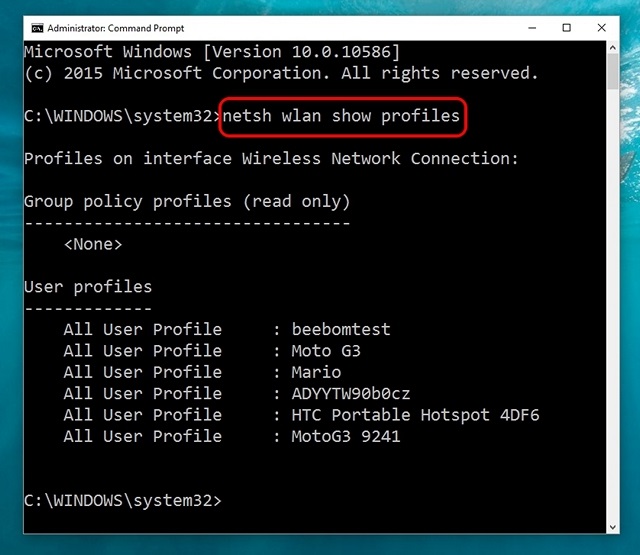
- Press Windows Key + R, type ‘cmd’, and press Ctrl+Shift+Enter to run as Administrator.
- Type the following command and press Enter:
netsh wlan show profiles - You’ll see a list of all saved WiFi profiles. Note the exact name of the network you need (case-sensitive).
- Now type this command, replacing ‘NETWORK_NAME’ with the actual name:
netsh wlan show profile name="NETWORK_NAME" key=clear - Look for the line ‘Key Content’ under ‘Security settings’. That’s your password.
Pro tip: You can export all passwords at once using a PowerShell script, but the basic CMD method above will cover most needs. For a deeper dive, check out our dedicated guide on the CMD method.
Step 4: Recover WiFi Password Using PowerShell (Alternative)
PowerShell gives you a bit more flexibility. The PowerShell approach is similar to CMD but uses different syntax. If you’re already in PowerShell, open it as Administrator and run:
This will loop through all profiles and show each password. Alternatively, you can use the simpler netsh command as in Step 3.

Common Pitfalls
- Not running as Administrator: The CMD and PowerShell methods will fail or show no passwords if you don’t run them with admin rights. Always use Ctrl+Shift+Enter or right-click ‘Run as administrator’.
- Profile name mismatch: If the network name has spaces or special characters, you must enclose it in quotes in the netsh command. Copy the exact name from the profile list.
- Network profile deleted: If you cleared your saved networks or reset your PC, the password is gone. In that case, you’ll need to recover it from the router or an offline recovery method.
I was able to recover 5 years’ worth of saved passwords in seconds using CMD. No more locked out guests!
A happy Windows 10 user
Where to Next?
Now that you’ve got your WiFi password back, why not explore more? If you need to recover a password without a PC nearby, check out our offline recovery guide. For extra security, learn about the secure recovery process. And if you ever get stuck, our support guide has got your back. Happy surfing!