You’re not alone. Most of us have that one Wi-Fi password we wrote on a sticky note and then lost. Whether you need to connect a new device or help a friend, recovering a forgotten Wi-Fi password is easier than you think. This guide is for anyone who wants to retrieve their network key without resetting the router or calling support. By the end, you’ll know how to dig up saved passwords on your laptop, access your router’s admin page, and use free tools—all without breaking a sweat.
We’ll cover methods for Windows, Mac, and popular router brands like TP-Link, Asus, and Netgear. No complicated jargon, just clear steps. If you’re in a hurry, jump to the method that matches your situation. Otherwise, let’s start from the beginning.
What You’ll Need
- A Windows or Mac computer that has already connected to the Wi-Fi network at least once.
- Router’s model number and, if possible, its default admin username and password (often on a sticker on the router).
- Optional: A USB drive if you plan to use portable recovery software.
- Patience—some steps involve navigating a few menus.
Step 1: Recover Saved Password on Windows
This is the quickest method. If your Windows PC is already connected or was connected before, the password is stored internally. You can find it in just a few clicks.
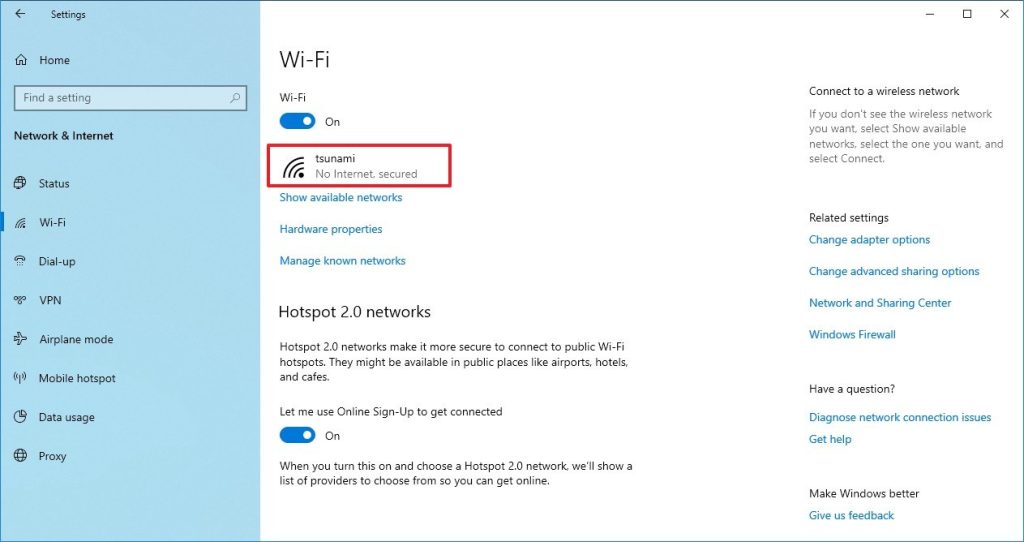
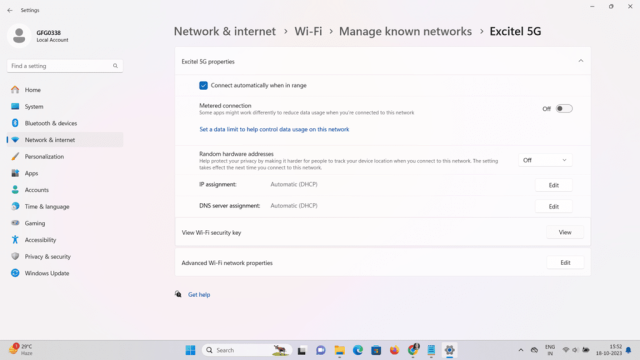
Open the Control Panel and go to Network and Sharing Center. Click on your active Wi-Fi connection (the blue link next to ‘Connections’). In the Wi-Fi Status window, select ‘Wireless Properties’, then the ‘Security’ tab. Check the box ‘Show characters’ to reveal the password. That’s it. For a deeper look at this method, check our guide to find saved wifi password from registry, which also works when the standard option isn’t showing.
Step 2: Use Command Prompt or PowerShell
If you prefer the command line, Windows gives you another way. This is especially handy if you’re managing multiple networks or want to export passwords.
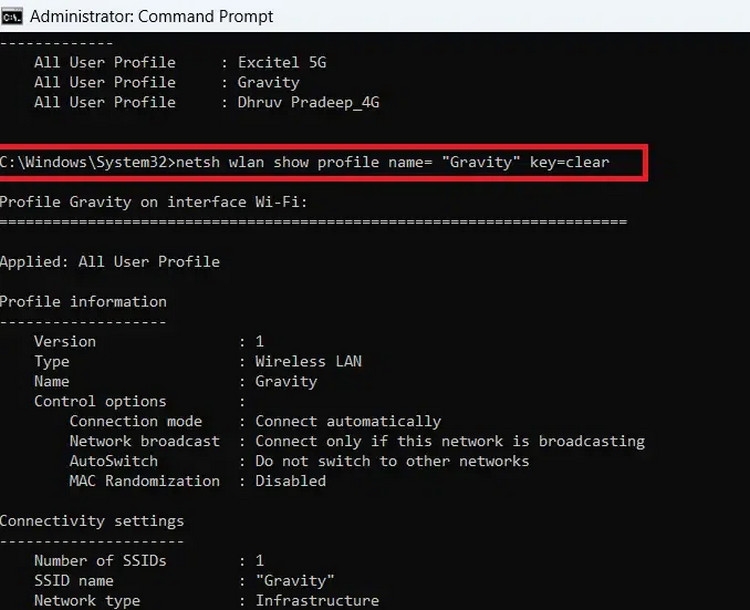
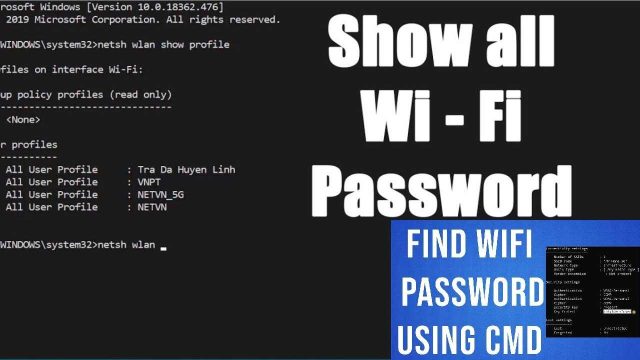
Open Command Prompt as administrator. Type ‘netsh wlan show profiles’ to list all saved networks. Then type ‘netsh wlan show profile name=”your-network-name” key=clear’—replace with your network name. Look for ‘Key Content’ under Security settings. That’s your password. For an even more automated approach, try our guide on wifi password recovery via powershell, which makes this process a breeze.
Step 3: Recover on Mac via Keychain Access
Mac users, you’re up next. macOS stores Wi-Fi passwords in the Keychain, and you can view them without any third-party tools.
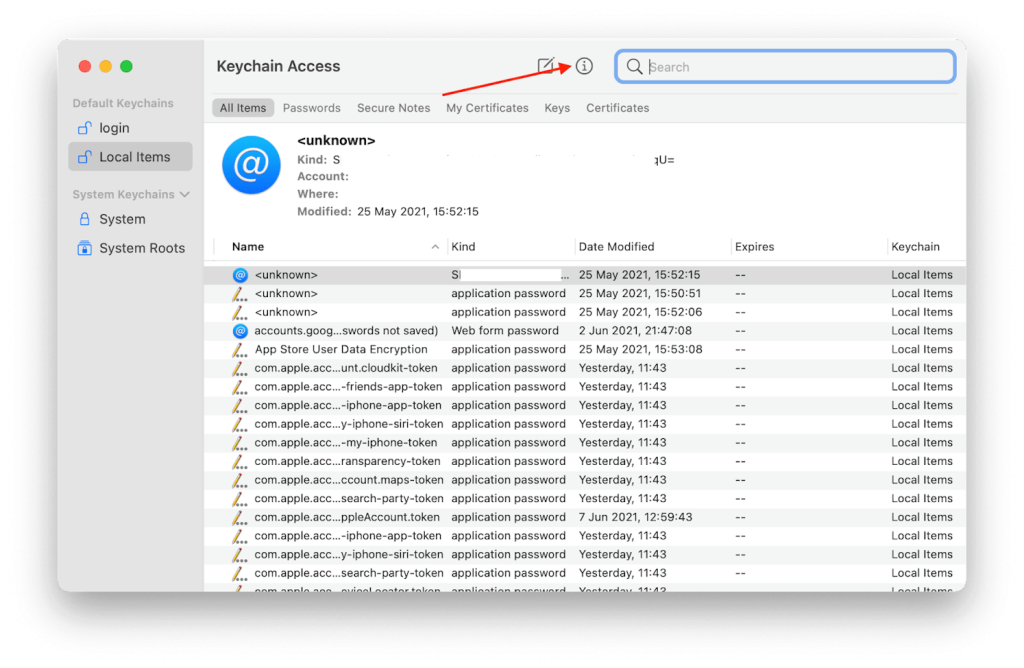
Open Keychain Access (from Applications > Utilities). In the search bar, type your network name. Double-click the entry for your Wi-Fi network. Check the box ‘Show password’ and enter your Mac’s admin username and password when prompted. The password will be revealed. If you’ve recently updated your Mac, see our piece on forgotten wifi password recovery mac that covers post-update quirks.
Step 4: Recover from Your Router’s Admin Panel
If you have physical access to the router, this is the most direct way to see or reset your Wi-Fi password. The interface varies by brand, but the steps are similar.
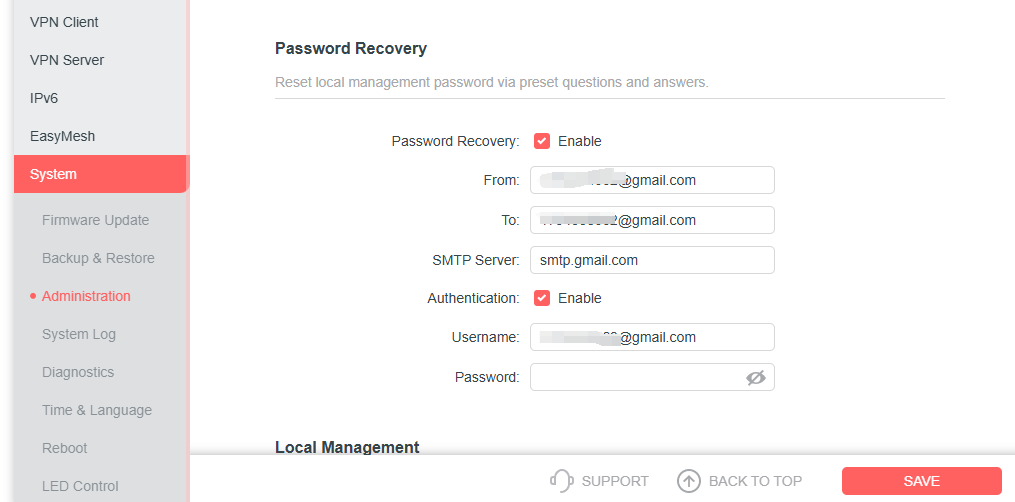
Open a browser and type your router’s IP address (often 192.168.0.1 or 192.168.1.1). Log in with the admin credentials (default are usually on the router sticker). Once inside, look for ‘Wireless’ or ‘Wi-Fi Settings’. The password is typically labeled ‘Passphrase’ or ‘Network Key’. Depending on your router, you may want to check separate guides: for example, wifi password recovery for tp link, or recover wifi password from asus router.
Step 5: Use QR Codes or Portable Software
Modern phones can share Wi-Fi via QR codes, and portable tools can recover passwords on the go without installation.
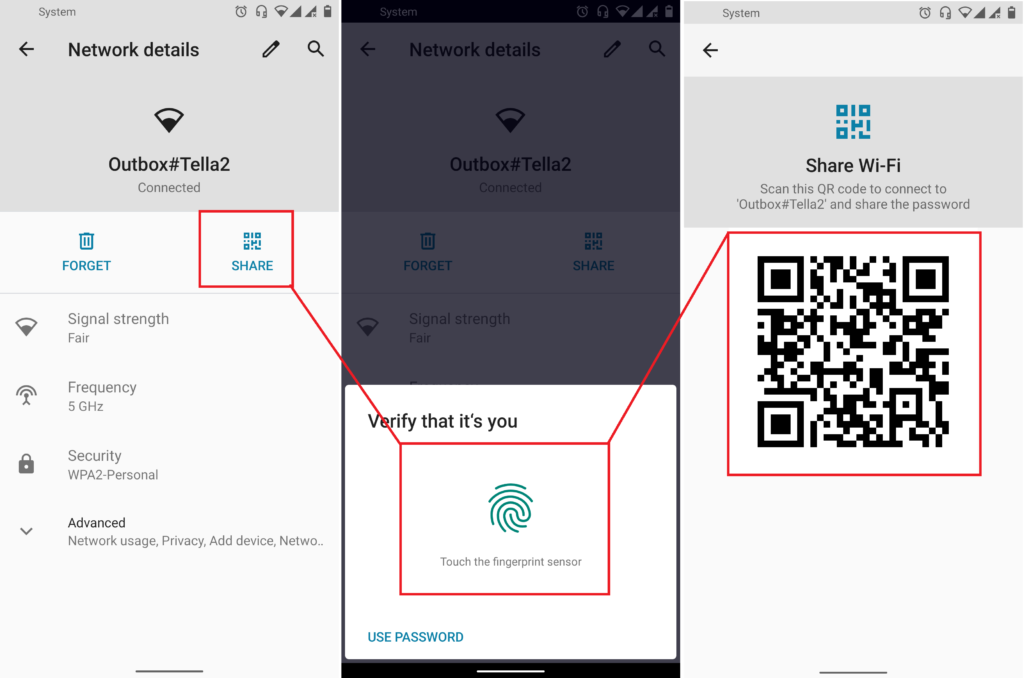
If you have an Android phone that’s already connected, go to Wi-Fi settings, tap the network, and choose ‘Share’ to generate a QR code. Scan it with another device to connect instantly. On the computer side, portable software like the one covered in our wifi password recovery software portable can be run from a USB stick—no installation needed. This is perfect for helping a friend without leaving a trace.
Common Pitfalls
Even with the right steps, things can go sideways. Here are three common hiccups and how to avoid them.
- You forgot the router’s admin password: Most routers have a hard reset button (a pinhole) that restores factory settings. Hold it for 10 seconds with a paperclip. After reset, use the default credentials on the sticker. You’ll have to set up your Wi-Fi again from scratch.
- Windows says ‘Key not found’: This usually means your PC never actually connected to that network with that profile. Double-check that you’re on the correct PC and that the network name is typed exactly (case-sensitive). If you’re still stuck, try the registry method mentioned earlier.
- Mac Keychain asks for a password you don’t know: Keychain uses your Mac login password. If you don’t know that, you may need to reset your Mac user password via Recovery Mode. Alternatively, use the router method instead.
Where to Next
Now that you’ve recovered your Wi-Fi password, consider saving it somewhere safe—like a password manager or a note secured behind your phone’s lock screen. If you’re still having trouble with a specific router, check out our dedicated guides for Netgear, TP-Link, and Asus. And if you ever need to recover passwords on the go, our free wifi password recovery portable article has you covered. Stay connected!