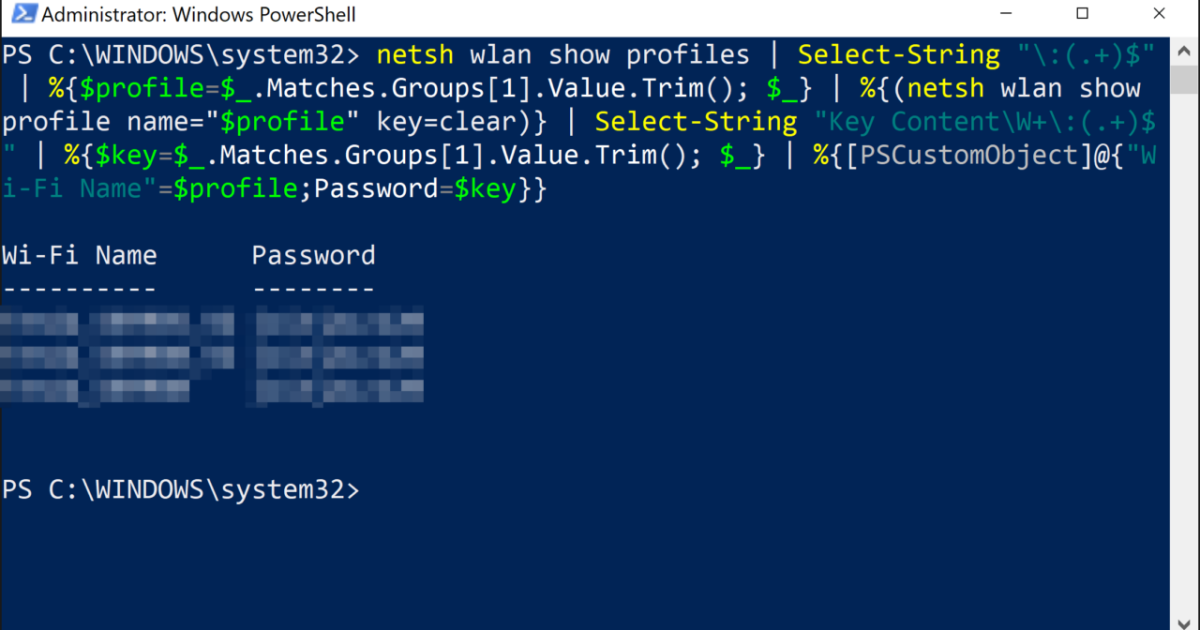
You know the feeling: a friend asks for your WiFi password, and you stare at the router like it’s ancient hieroglyphics. Or maybe you just set up a new device and can’t remember that 12-character mess you typed last year. If you’re on Windows, there’s a built-in way to dig up any saved WiFi password without installing a single tool—PowerShell. This guide is for anyone who’s comfortable running a few commands (don’t worry, I’ll hold your hand) and wants to recover their network key quickly. By the end, you’ll be able to pull the password for any WiFi network your PC has ever connected to.
PowerShell might look scary, but the commands we’ll use are simple and safe. No hacking, no sketchy downloads. Just a couple of netsh commands that reveal the password hidden in your system’s wireless profiles. You’ll learn how to list all saved networks and then extract the password for the one you need. Whether you want to jot it down for later or use it to connect another device, this method works on Windows 10 and 11. Let’s dive in.
What You’ll Need
- A Windows 10 or 11 PC that has connected to the WiFi network before
- Administrator access on that PC (you’ll need to run PowerShell as admin)
- The name (SSID) of the WiFi network you want to recover
That’s it. No USB drives, no Android phones, no QR codes. Just your Windows machine and a few minutes.
Step 1: Open PowerShell as Administrator
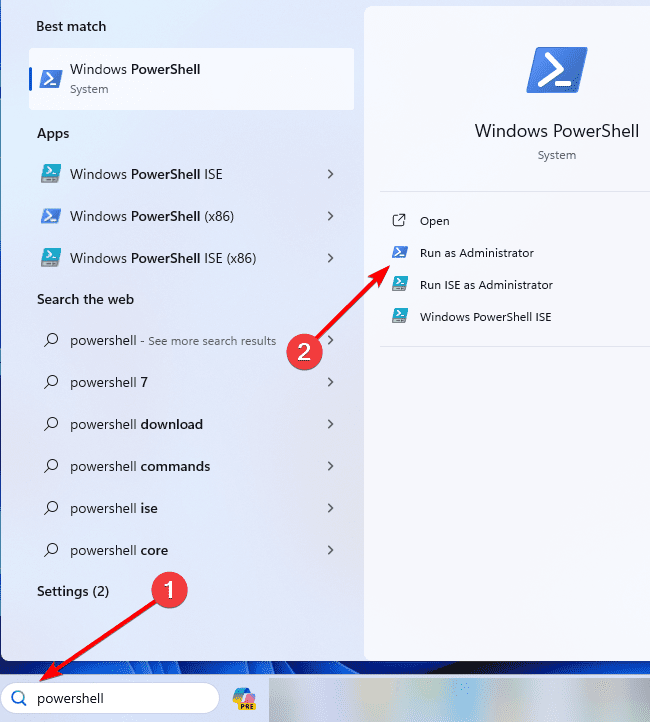
Click the Start button and type “PowerShell”. You’ll see “Windows PowerShell” appear in the search results. Instead of just clicking it, right-click and choose “Run as administrator”. A User Account Control (UAC) prompt will pop up—click “Yes” to allow. This gives PowerShell the permissions it needs to access the network security settings. If you skip this step, the next command will fail.
Step 2: List All Saved WiFi Profiles
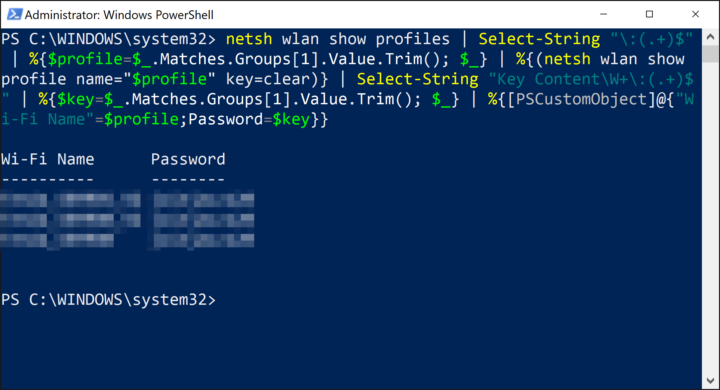
In the PowerShell window, type the following command and press Enter:
netsh wlan show profiles
This will display a list of every WiFi network your computer has connected to and saved. The names appear under “User profiles”. Look for the network whose password you want—note the exact spelling (case doesn’t matter, but spaces do). For example, if your SSID is “Home Sweet Home”, you’ll see that exactly.
Step 3: Get the Password for a Specific Network
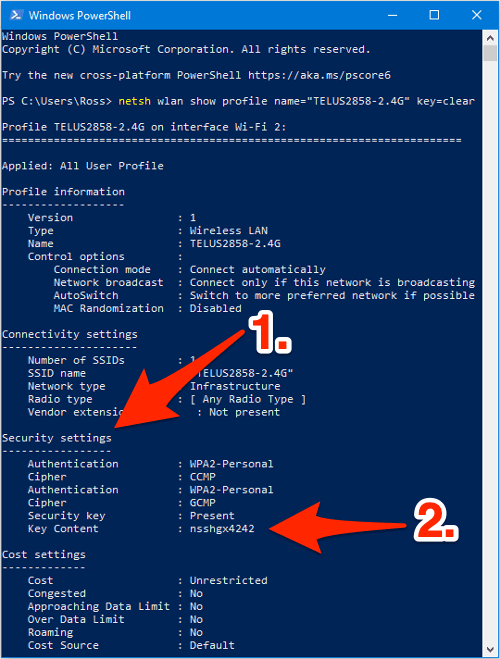
Once you have the exact SSID, run this command (replace “YourNetworkName” with the actual SSID):
netsh wlan show profile name=”YourNetworkName” key=clear
Scrolling through the output, look for the section “Security settings” (you’ll see it near the end). The password is displayed next to “Key Content”. For instance, it might show “Key Content : MyP@ssw0rd!”. That’s your WiFi password. Write it down or copy it—remember to keep it secure.
Common Pitfalls
- **PowerShell not running as admin**: If you skip the admin step, you’ll get an error: “The requested operation requires elevation.” Close PowerShell and reopen it as administrator.
- **Wrong profile name**: Spaces or special characters in the SSID matter. If the name has a space inside (e.g., “Home WiFi”), you must include the quotes. If you’re unsure, run ‘netsh wlan show profiles’ again and copy the exact name.
- **Outdated profile**: If the network’s password was changed since your PC last connected, this method shows the old saved password. In that case, you’ll need to use another approach, like checking the router or asking the owner.
Where to Next
Now that you’ve mastered the PowerShell trick, you might want to export wifi passwords windows to a file for backup. If you’re helping a friend or dealing with a different OS, check out our guide on how to recover forgotten wifi password on laptop for other methods. And if this felt a bit technical, our easy wifi password recovery software roundup might be more your speed.