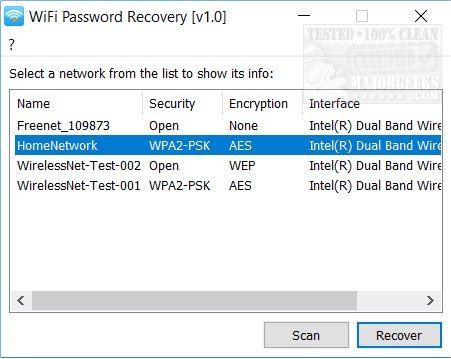
You’re sitting there, a friend comes over, and they ask for your WiFi password. Your mind goes blank. Maybe you set it years ago, or you let your router auto-generate a mess of characters. Don’t panic — your laptop already knows the password. In fact, it’s saved somewhere in the system, and you can pull it out in a few clicks (or commands). This guide is for anyone who uses a Windows or macOS laptop and has ever connected to their own WiFi network but forgotten the key. By the end, you’ll be able to view and share that password without resetting anything.
What You’ll Need
- A Windows PC (Windows 8/10/11) or a Mac (macOS 10.10 or later)
- Administrator access to your laptop (you probably have it if it’s your personal machine)
- The WiFi network you want the password for must have been connected at least once
- No extra software required – we’ll use built-in tools
Got those? Great. Let’s dive in.
Step 1: Find Your Network in Windows Settings
First, open your Windows Settings. Hit the Start button or press Win + i, then go to Network & Internet > Wi-Fi. On the right side, click ‘Manage known networks’. You’ll see a list of every WiFi network your laptop has ever connected to. Scroll down until you find the one you’re looking for. If you don’t see it, you might have to check another method (see Step 2). But if it’s there, you’re halfway home.

Step 2: Reveal the Password via Command Prompt (Windows)
Now for the magic. Right-click on the Start button (or press Win + X) and choose ‘Command Prompt (Admin)’ or ‘Windows PowerShell (Admin)’. A blue window will pop up. Type the following command and hit Enter:
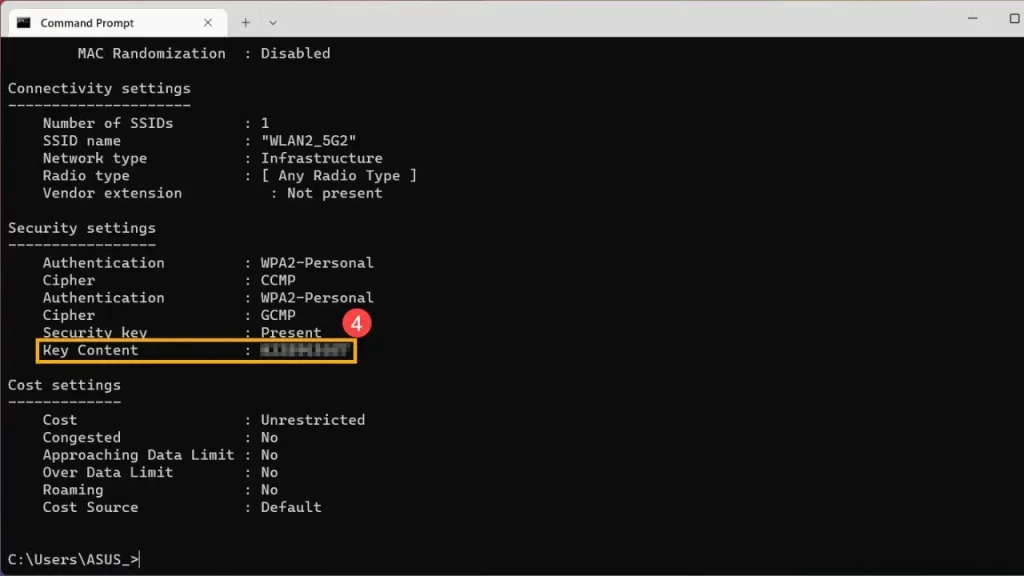
netsh wlan show profile name=”YourNetworkName” key=clear
Replace YourNetworkName with your actual WiFi name
Scroll through the output until you see a line labeled ‘Key Content’. That’s your WiFi password, in plain text. Write it down or copy it before closing the window. If you get an error like ‘Profile is not found’, double-check the network name – it’s case-sensitive.

Step 1 (Mac): Open Keychain Access
On a Mac, your saved passwords live in the Keychain app. Open Finder, go to Applications > Utilities, and double-click Keychain Access. Or just hit Cmd + Space, type ‘Keychain Access’, and press Enter. Look at the list on the left side – make sure ‘System’ is selected (or ‘login’ – but usually it’s under System).

Step 2 (Mac): Find and Reveal the Password
Search for your WiFi network name in the search bar at the top right. You’ll see an entry called ‘AirPort network password’ or something similar with your network’s SSID. Double-click that entry. A new window opens. Check the box that says ‘Show password’. You’ll be prompted to enter your Mac’s admin username and password. Type it in, then the password field will become visible. Copy it down or share it directly.

Common Pitfalls
- Wrong network name: If your network has spaces or special characters, make sure you type it exactly as it appears in the list. On Windows, use quotes around the name in the command.
- No admin rights: On a work or school laptop, you might not have admin access. In that case, you can’t run Command Prompt as admin or view Keychain passwords without the admin password. You’ll need to ask your IT department.
- Password changed after last connection: This trick only works for the password that was saved when you last connected. If the router’s password was changed afterward, your laptop still has the old one. You’ll need to connect again with the new password or reset the router.
Where to Next
Now that you’ve got your WiFi password back, maybe it’s time to set something you can actually remember. Log into your router’s admin panel (usually 192.168.1.1 or 192.168.0.1) and change the password to something simple but secure. Or, better yet, use a password manager to store all your network credentials so this never happens again. And if you’re sharing with guests, most routers have a guest network feature – set that up and keep your main network private. Good luck!