Ever needed to grab a WiFi password from your phone but couldn’t remember it? Maybe you want to share a network with a friend, or you just reset your router and need the old key. This guide is for anyone who’s ever connected to a WiFi network on their Android device and now wants to recover that password. By the end, you’ll know how to use the best tools to view saved WiFi passwords—even without root access.
We’ll cover both rooted and non-rooted methods. Root gives you easy access to system files, while the non-root way uses ADB backup or QR codes. Both work on modern Android versions, though Android 10+ has locked down some directories. Pick the method that fits your device and comfort level.
What You’ll Need
- An Android device (preferably running Android 6.0 or later)
- A computer (Windows/Mac/Linux) with USB cable (only for ADB method)
- Internet connection to download apps
- Root checker app (e.g., Root Checker Basic) from Google Play Store
- Optional: WiFi Password (ROOT) app by JKB Soft (for rooted devices)
- Optional: ADB and platform-tools installed on your computer (for non-root method)
Step 1: Check If Your Device Is Rooted
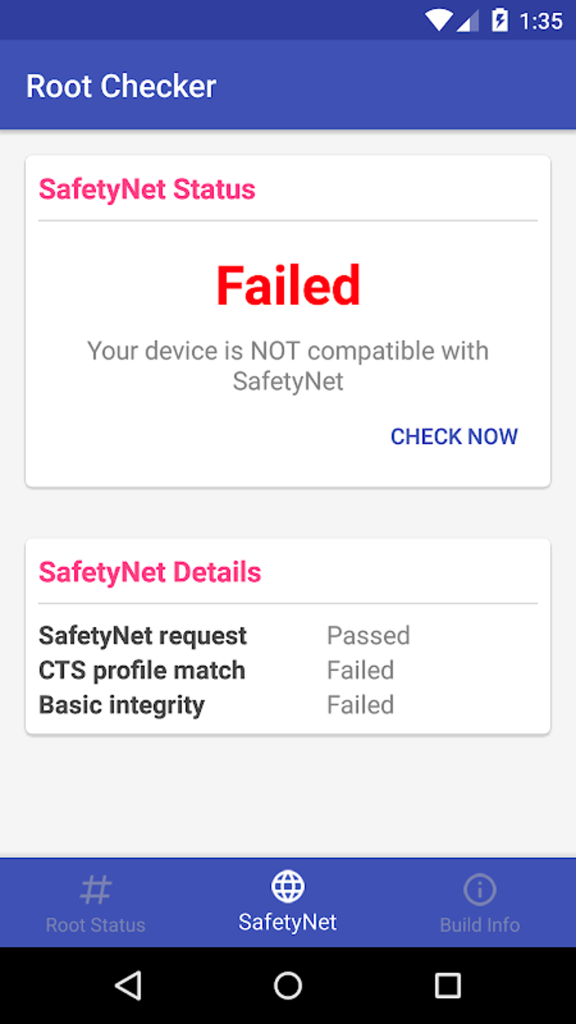
Before diving into password recovery, find out whether your phone is rooted. Root access lets you read the system file that stores WiFi passwords. Download a root checker app from the Play Store and run it. If it says ‘Root access is properly installed’, great. If not, don’t worry—skip to Step 3 for a non-root method.
Step 2: Install a WiFi Password Recovery App (Root Method)
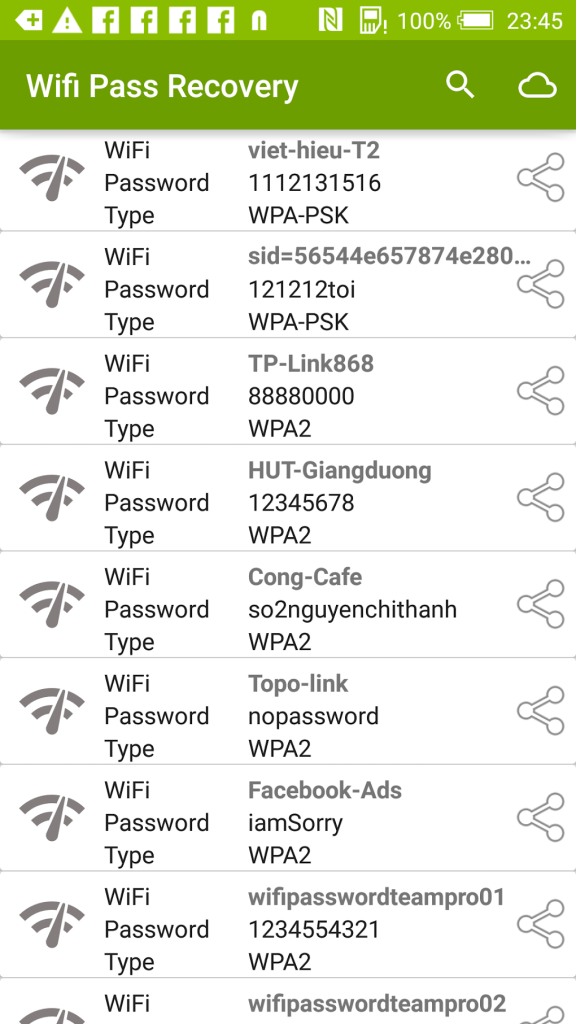
For rooted phones, the easiest tool is ‘WiFi Password (ROOT)’ by JKB Soft. It reads the wpa_supplicant.conf file and displays all saved networks with their passwords. Install it from the Play Store, open it, and tap ‘Grant’ when Superuser access is requested. You’ll see a list of networks. Tap any one to reveal the password in plain text. You can even copy it or share it as a QR code.
Step 3: Recover Passwords Without Root (Using ADB Backup)
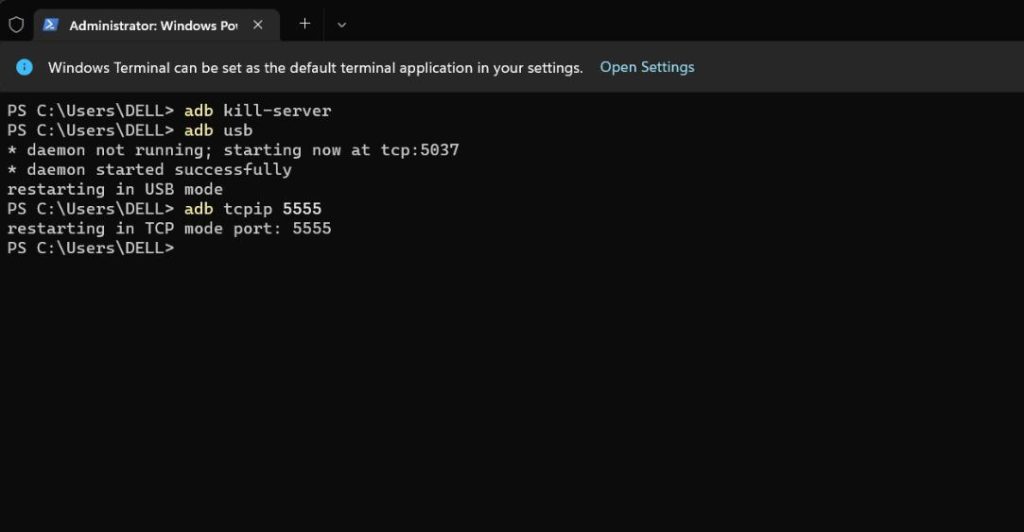
No root? No problem. You can pull the WiFi configuration from your device using an Android Debug Bridge (ADB) backup. First, enable USB debugging on your phone: go to Settings > About Phone > tap ‘Build Number’ 7 times, then go back to Settings > Developer Options > turn on ‘USB Debugging’. Connect your phone to your computer, open a terminal/command prompt in the platform-tools folder, and run:
On your phone, tap ‘Back up my data’ and don’t set a password. The file ‘wifi.ab’ will be saved on your computer. Next, download a tool like Android Backup Extractor (abe.jar) and convert the backup:
Extract the tar file, then find ‘settings.db’ in the apps/com.android.providers.settings/databases/ folder. Open it with a SQLite browser (like DB Browser for SQLite) and look at the ‘secure’ table. Search for ‘wifi_p2p_config’ or ‘wifi_config’ to find the network list. The password is stored in the ‘value’ field under a key like ‘wifi_ssid’ (SSID) and ‘wifi_password’.
Step 4: Alternative Non-Root: Use a QR Code Scanner
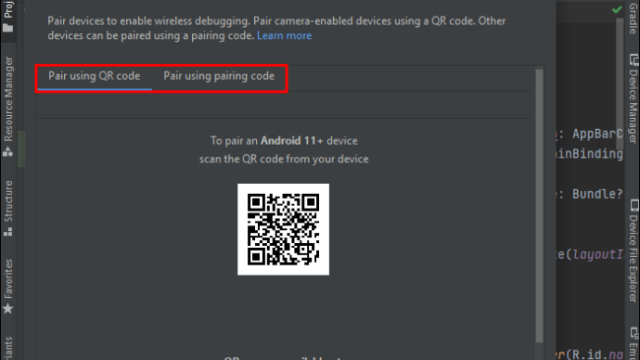
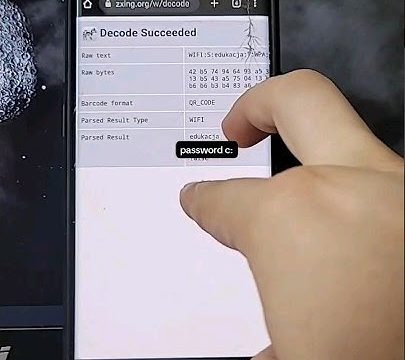
If you already have a device connected to the WiFi, you can generate a QR code from the network’s settings. On Android 10+, go to Settings > Network & Internet > WiFi, tap the gear icon next to the connected network, then tap ‘Share’ and you’ll see a QR code. Scan that code with another phone (using the camera) and it will automatically display the password. No app needed—just a second device.
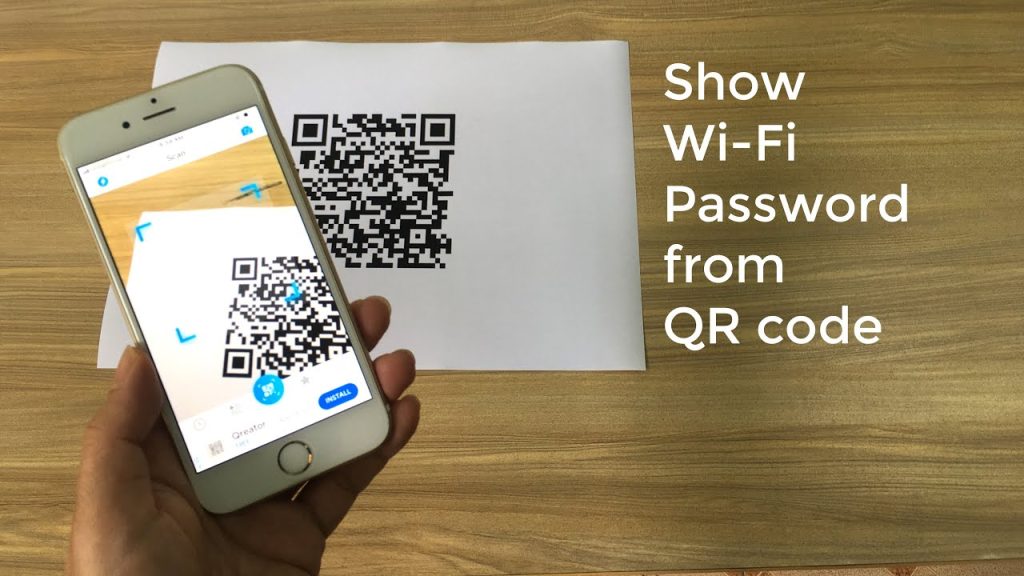
I used the QR scanner method and it worked instantly! No root, no ADB, just a quick scan.
Anonymous user
Common Pitfalls
- Root method doesn’t work on Android 10+ because Google changed the location of WiFi config files. Use the ADB or QR method instead.
- ADB backup may fail if you set a backup password. Always skip or leave it blank when prompted.
- The QR code method only works if you’re currently connected to the network. If you’ve forgotten the password and aren’t connected, you’ll need to use another device that is.
Where to Next
Now that you can recover WiFi passwords, consider tightening your network security. Change your default router password, enable WPA3 if available, and regularly review connected devices. If you’re interested in Android tweaking, explore automation tools like Tasker to backup your WiFi settings automatically. Happy surfing!