
You’re lounging on the couch, tablet in hand, and suddenly realize you’ve forgotten the WiFi password. Maybe you wrote it down somewhere, but who has time to dig through drawers? Or maybe you just got a new tablet and need to connect it to your home network. This guide is for anyone with an Android tablet or iPad who wants to recover a saved WiFi password without installing sketchy apps or rooting their device. By the end, you’ll have the password in plain text (or a QR code) and be back online in minutes.
Whether you’re using a Samsung tablet, a Lenovo, or an iPad, the steps are straightforward and use only built-in tools. We’ll cover the Android method first (works on Android 10 and up), then a quick workaround for older Android devices, and finally a method for iPad users via iCloud Keychain. If you’ve already checked our beginner’s guide to recovering WiFi passwords, this tablet-specific version will save you a few extra taps.
What You’ll Need
- Your tablet (Android or iPad) that is currently connected to the WiFi network (or was previously connected).
- For Android: The device’s unlock PIN, pattern, or password (required to view saved passwords).
- For iPad: A Mac computer logged into the same iCloud account, or access to iCloud Keychain (via iPhone or Mac).
- Optional: A QR code scanner app (most Android tablets have one built-in).
Step 1: Recover WiFi Password on Android Tablet (Android 10+)
Most modern Android tablets (Samsung, Pixel, Lenovo, etc.) running Android 10 or later have a built-in way to view the WiFi password. The exact menu names might vary slightly, but the path is similar. Here’s how:
Open the Settings app and tap on ‘Connections’ or ‘Wi-Fi’ (depending on your tablet’s skin). You’ll see a list of available networks and the one you’re currently connected to. Tap on the gear icon or the network name next to the connected network. In the network details screen, look for a ‘Share’ button or a QR code icon. Tap it, and you’ll be prompted to enter your tablet’s unlock PIN, pattern, or password. After authentication, a QR code appears along with the WiFi password displayed below the code. On some tablets (like Samsung), the password is shown directly; on others, you may need to scan the QR code with another device. If you don’t see the password text, use the built-in QR scanner or a third-party app to read the code, which contains the password in its data.

Step 2: Recover WiFi Password on Older Android Tablets (Without QR Code)
If your tablet is running Android 9 or older, or if the manufacturer removed the Share feature, you can still recover the password using a file explorer. This method requires that you are currently connected to the WiFi network. Open a file explorer app (like Files by Google or Solid Explorer) and navigate to /data/misc/wifi/. Look for a file named wpa_supplicant.conf. Open it with a text editor. You’ll see entries for each saved network, with the password (PSK) in plain text next to the SSID. Note: Accessing this folder may require root permissions on some devices. If you don’t have root, consider using a computer to run ADB commands or check our guide to recover your WiFi password on Android without root.

Step 3: Recover WiFi Password on iPad (Using iCloud Keychain)
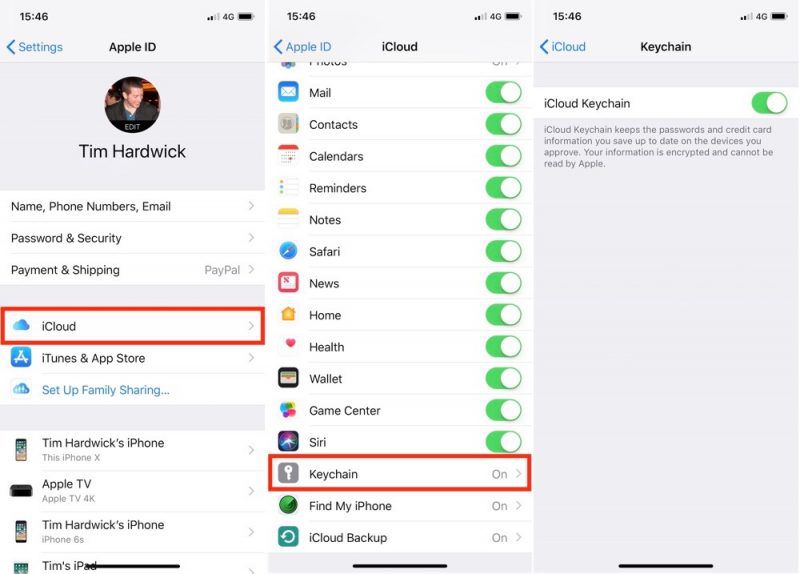
Apple doesn’t allow you to view WiFi passwords directly on the iPad, but you can retrieve them from your Mac or iPhone if they share the same iCloud account. On your Mac, open the Keychain Access app (search in Spotlight). In the search bar, type the name of the WiFi network. Double-click the entry, check the box ‘Show password’, and enter your Mac’s admin credentials. The password will appear. If you don’t have a Mac, you can use an iPhone that’s connected to the same network: go to Settings > Wi-Fi, tap the (i) icon next to the network, and then tap the password field to copy it (requires iOS 16+). For more options, check our wireless password recovery for Android and iOS guides.
Common Pitfalls
- Not connected to the network: You can only view the password for a network you’re currently connected to (or previously saved). If you’re not connected, try connecting from another device first, or reset the router and use the default password on the sticker.
- Forgotten tablet unlock code: Android requires your lock screen PIN/pattern to view the password. If you forgot it, you’ll have to reset the tablet (which wipes data) or use recovery mode. For iPad, you need a trusted Mac or iPhone.
- QR code without password text: Some manufacturers (like Xiaomi) don’t display the password as text under the QR code. Use a QR scanner app to decode the code—the password is usually in the format ‘WIFI:S:SSID;T:WPA;P:password;;’ or similar.
Where to Next
Now that you’ve recovered your WiFi password, consider backing it up. A complete WiFi password recovery solutions guide can help you keep all your network keys safe. If you ever reset your router, don’t panic—you can recover WiFi password after router reset using the default credentials. For Samsung tablet owners, our dedicated guide to recover WiFi password on Samsung has extra tips. And if you’re helping a friend, share this step-by-step with them. Happy surfing!



