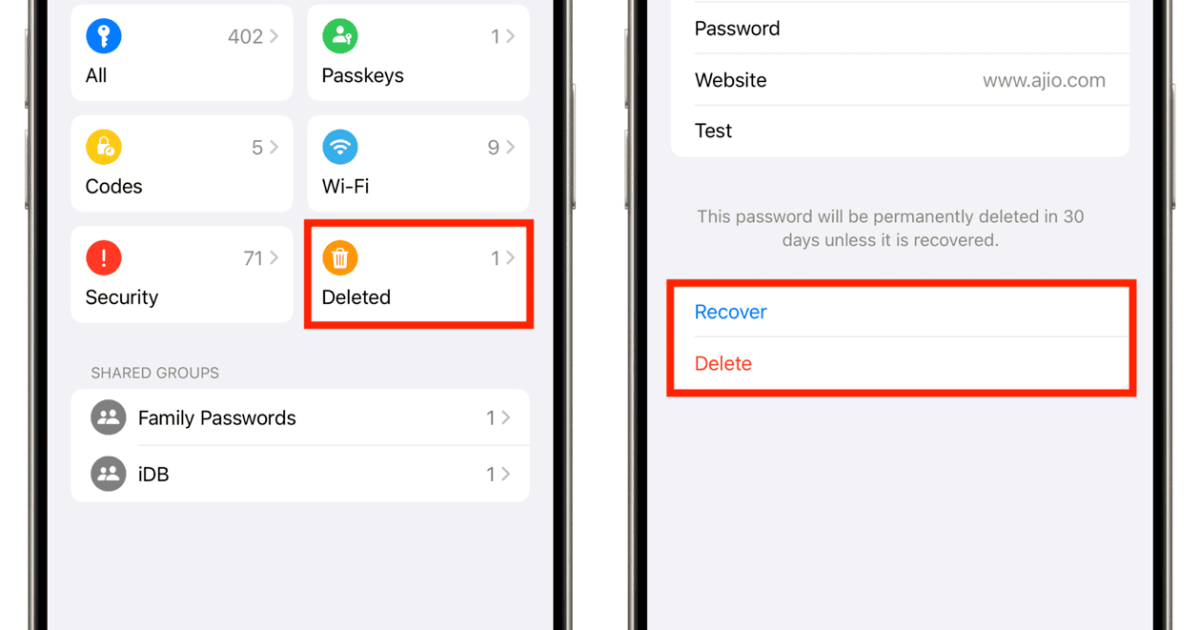
We’ve all been there: you’re at a friend’s house, or you just reset your router, and suddenly you need the WiFi password. If you’re on an iPhone, it used to be a pain to retrieve saved passwords natively. But with iOS 16 and later, Apple finally added a built-in way to view and even copy your WiFi password. This guide is for anyone who has an iPhone and wants to recover a forgotten WiFi password without jailbreaking, installing shady apps, or calling your ISP. By the end, you’ll know three solid methods to get that password back.
We’ll start with the easiest method – revealing the password directly on your iPhone (iOS 16+). If that doesn’t work, we’ll use your Mac’s Keychain Access (if you use iCloud Keychain). And as a last resort, we’ll log into your router’s admin page. Plus, I’ll share how to keep your passwords safe so you never get locked out again. If you’re new to this, check out our wifi password recovery for beginners guide for a broader overview.
What You’ll Need
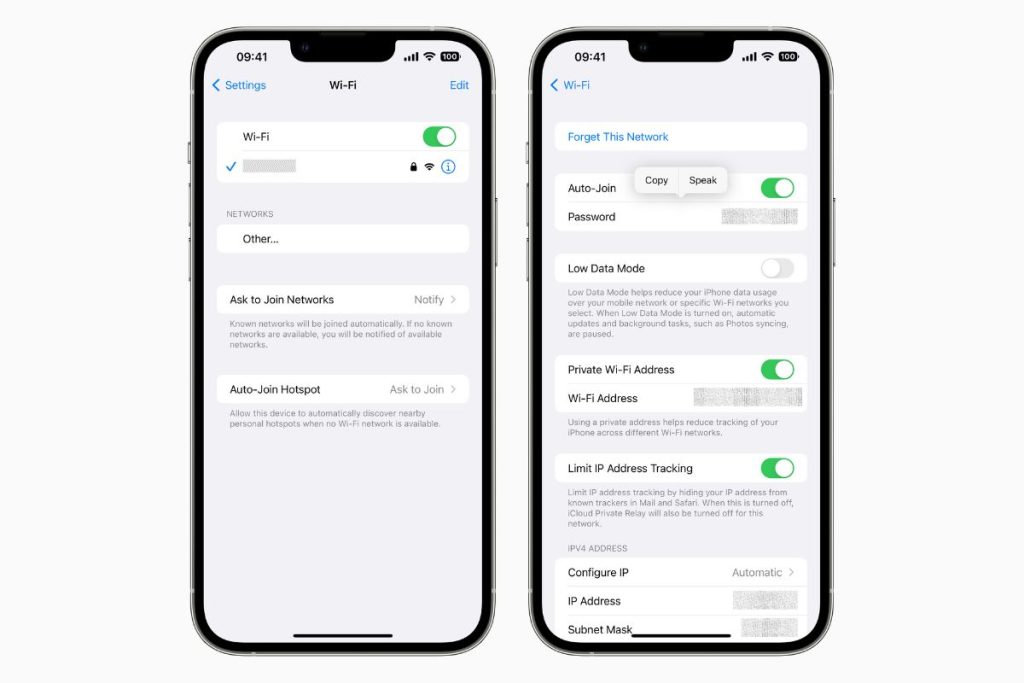
- Your iPhone (running iOS 16 or later for Method 1)
- A Mac (if you use the same iCloud account for Method 2)
- Access to your router’s admin page (you’ll need the router’s IP address and login credentials)
- Optional: a computer with a web browser for router method
Step 1: Reveal the Password on Your iPhone (iOS 16+)
Starting with iOS 16, Apple added a neat trick: you can view the password of any saved WiFi network directly from the Settings app. Here’s how:
- Open the Settings app and tap Wi-Fi.
- Find the network you’re currently connected to (or any saved network) – it will have a blue checkmark.
- Tap the blue “i” (info) icon next to the network name.
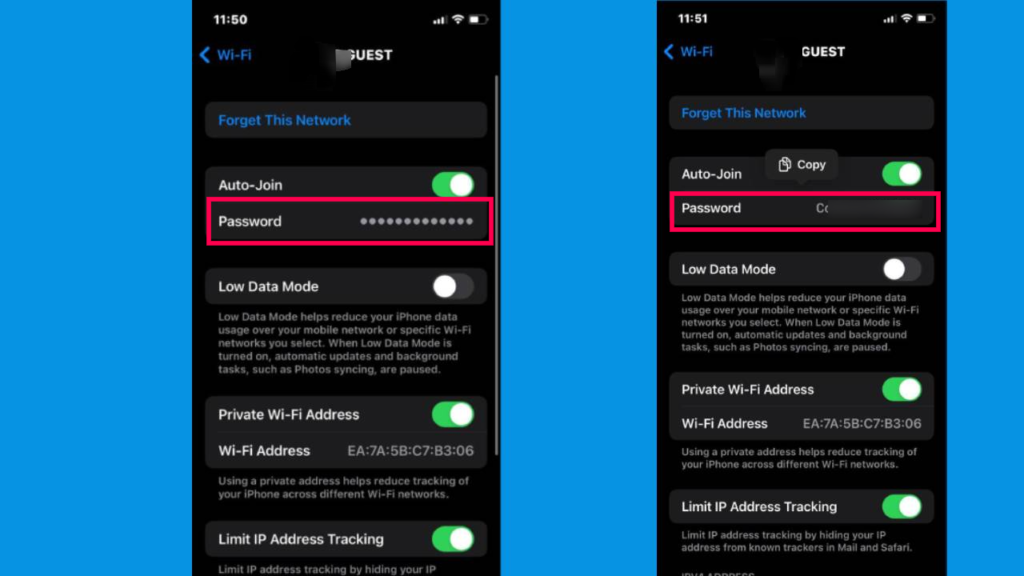
- You’ll see a field labeled “Password”. Tap on it – your iPhone will prompt you to authenticate with Face ID, Touch ID, or your passcode.
- Once authenticated, the password will be revealed. You can copy it by long-pressing the text and selecting Copy.
That’s it! If you’re not on iOS 16, you’ll need to update your iPhone first. For a deeper dive into other iPhone recovery methods, read our wifi password recovery app for iphone article.
Step 2: Use Mac’s Keychain Access (iCloud Sync)
If you use iCloud Keychain across your Apple devices, your WiFi passwords are synced to your Mac. This method works even if you’re not running iOS 16.
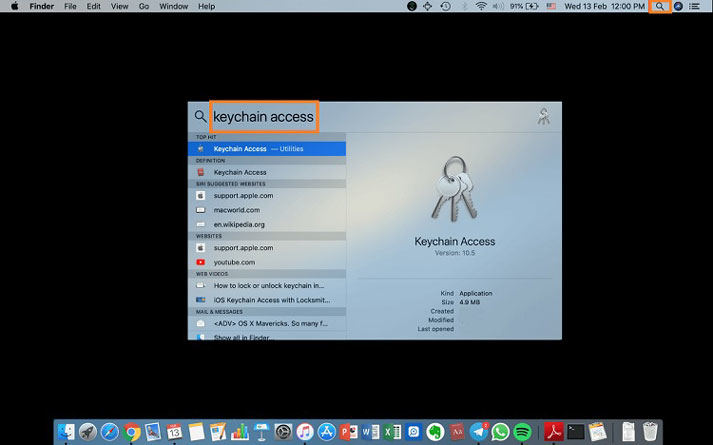
- On your Mac, open the Keychain Access app (found in Applications > Utilities or via Spotlight search).
- In the upper-left corner, make sure “login” keychain is selected under “Keychains” and “All Items” under “Category”.
- Type the name of your WiFi network in the search bar at the top right.
- Double-click the entry that matches your network name. A new window will pop up.
- Check the box “Show password” at the bottom. You’ll be prompted to enter your Mac’s admin username and password.
- Once entered, the WiFi password will be displayed in the text field. You can copy it to your clipboard.
This is one of the most reliable methods if you’re in the Apple ecosystem. For a comprehensive look at all recovery options, see our complete wifi password recovery solutions page.
Step 3: Log Into Your Router’s Admin Page
If you can’t access your iPhone’s password and don’t have a Mac, the router itself is your friend. You can view or change the WiFi password from the router’s settings.
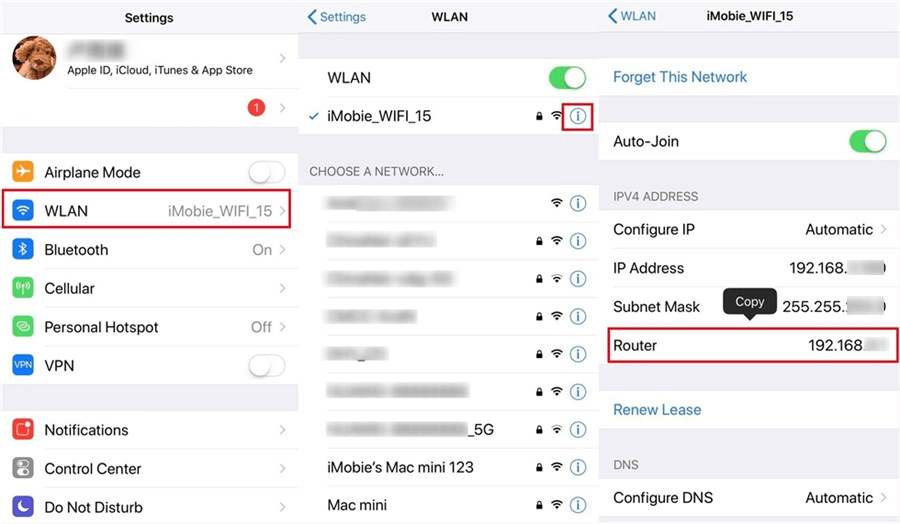
- Find your router’s IP address. Usually it’s 192.168.1.1, 192.168.0.1, or 10.0.0.1. You can check your iPhone’s network details: Settings > Wi-Fi > tap the info icon next to your network – the Router field shows the IP.
- Open a web browser on any device connected to the network and type the IP address into the address bar.
- Enter your router’s admin username and password. If you never changed them, look for a sticker on the router itself or check the manual. Common combos are admin/admin or admin/password.
- Once logged in, navigate to the Wireless or Wi-Fi settings section. Look for “Security” or “Wireless Security”.
- You’ll see the current WiFi password (often called “Passphrase” or “Network Key”). You can copy it or change it if needed.
This method works even if you don’t have your iPhone handy. And if you prefer a command-line approach on a Windows PC, check out our guide to view saved wifi password using cmd.
Common Pitfalls
- Method 1 requires iOS 16 or later. If your iPhone is older or can’t update, you’ll have to use Method 2 or 3.
- Keychain Access may show multiple entries for the same network. Make sure you pick the one that says “AirPort network password” or the correct SSID.
- Router admin credentials are often forgotten. If you have reset your router, you can perform a factory reset (press the reset button with a paperclip for 10 seconds) but that will erase all custom settings. For a safer approach, read our recover forgotten wifi password on desktop guide.
Where to Next?
Now that you’ve recovered your WiFi password, it’s a good idea to back it up. Write it down in a secure place or use a password manager. For ongoing tips on managing your network keys, check out our wifi password recovery maintenance guide. And if you ever need to recover passwords on Windows or Android, we’ve got guides for those too. Stay connected!



