Ever been that person staring at your phone, desperately trying to guess the WiFi password scribbled on a sticky note that fell off the fridge? Yeah, me too. This guide is for anyone who’s locked out of their own network or just wants to retrieve a password from a device they already own. By the end, you’ll know how to pull that password out of thin air from Windows, Mac, Linux, Android, iPhone, and even your router’s admin panel. No shady software required—just tools you already have.
We’ll cover the complete spectrum of recovery methods, from the quick CMD trick on Windows to using Keychain on macOS, tapping into your Android phone’s QR code, and if all else fails, resetting your router. Plus, I’ll throw in some advanced PowerShell moves for the geeks. Let’s get your WiFi back.
What You’ll Need
- A computer or phone that has previously connected to the WiFi network (or physical access to the router)
- Administrator / root access on Windows or Linux
- For Mac: your login password (for Keychain)
- For iPhone: a Mac (to use Keychain sync) or a jailbroken device
- A web browser (for router admin panel)
- Patience—especially if you’re resetting the router
Step 1: Recover WiFi Password on Windows Using CMD
This is the most straightforward method. Open Command Prompt as Administrator (search “cmd”, right-click, Run as administrator). Type the following command to list all saved WiFi profiles:
netsh wlan show profiles
Find your network name (SSID) in the list, then type (replace SSID with your network name):
netsh wlan show profile name=”SSID” key=clear
Look for “Key Content” under Security settings. That’s your password. If you want to backup the password, check out how to backup WiFi passwords to a USB drive for safekeeping. Also, you can view saved WiFi password using CMD anytime without admin? No, you need admin rights. But once you have the password, you can store it safely.
Step 2: Recover WiFi Password on macOS Using Keychain Access

On a Mac, open Keychain Access (from Applications > Utilities or Spotlight). In the search bar, type your WiFi network name. Double-click the entry that appears. Check the box “Show password” and enter your Mac’s login password. The password field will now display your WiFi password. That’s it—no terminal needed. If you’re on a newer MacBook Pro, the WiFi password recovery for MacBook Pro is exactly the same.
Step 3: Recover WiFi Password on Android (QR Code Method)
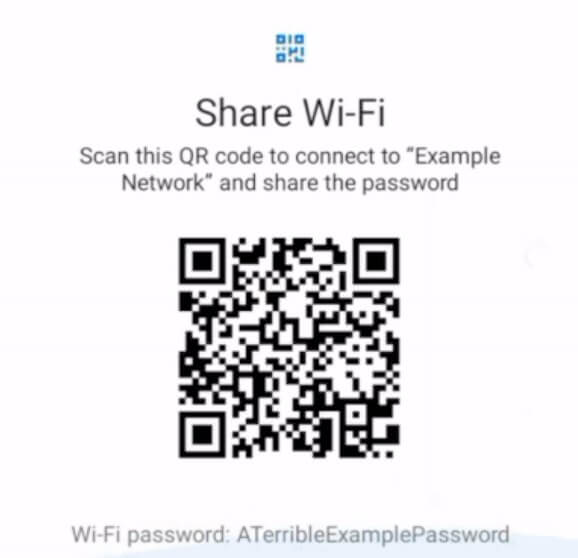
On Android 10 or later, go to Settings > Network & Internet > WiFi. Tap the gear icon next to your connected network. Select “Share” or “QR Code”. You’ll see a QR code—and below it, the password in plain text (on some phones, you need to scan the QR code with another device or use a QR scanner to decode it). If you have a Samsung phone, the process is similar but may be under “QR code” in the network details. This works even if the password is hidden by dots; the QR code reveals it.
Step 4: Recover WiFi Password on iPhone (If You Have a Mac)
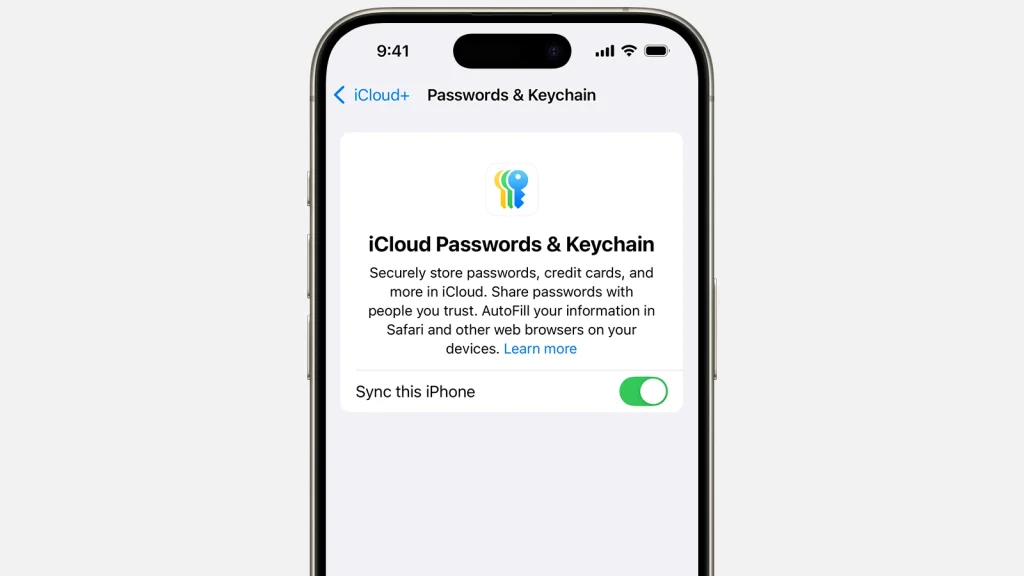
Apple doesn’t let you view the WiFi password directly on iPhone. But if you have a Mac with the same iCloud account, you can see it via Keychain Access (as in Step 2). If you don’t have a Mac, you can use a third-party tool like the best WiFi password recovery tool for iPhone, but that usually requires a computer. Another option: share the password via iCloud Keychain—on your iPhone, go to WiFi settings, tap the network, and tap the share icon (if available) to send the password to a nearby Apple device. That device then sees the password.
Step 5: Recover WiFi Password on Linux Using the Terminal
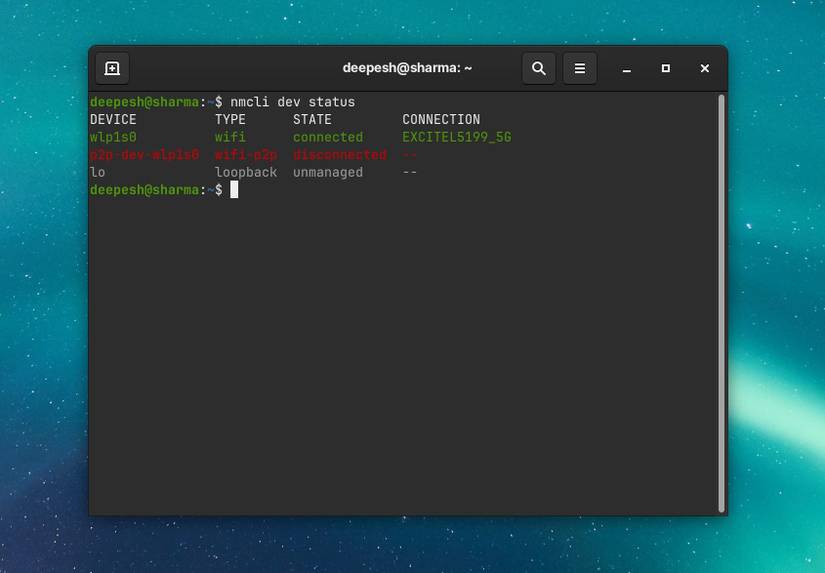
On Linux, saved WiFi passwords are stored in /etc/NetworkManager/system-connections/. But the easiest way is to use the wifi password recovery command for Linux: open a terminal and type:
sudo grep -r ‘psk=’ /etc/NetworkManager/system-connections/
This will show all passwords in plain text. Alternatively, use nmcli:
sudo nmcli -s connection show | grep 802-11-wireless-security.psk
Replace with your network name. This works on most distros including Ubuntu, Fedora, and even Kali Linux (if you’re into that).
Step 6: Recover WiFi Password from the Router (Last Resort)
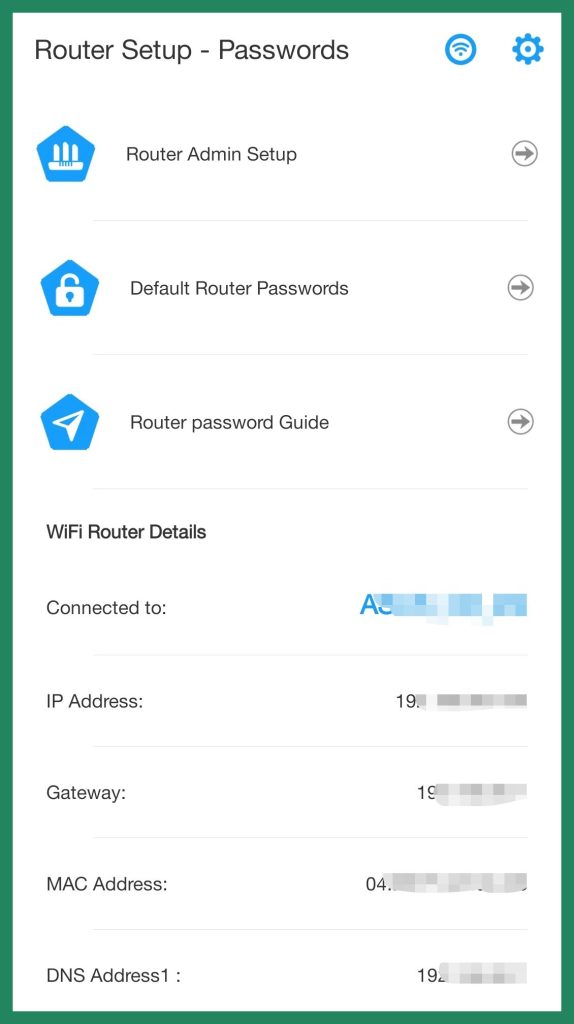
If you can’t get the password from any device, you can log into your router’s admin panel. First, find your router’s IP address (usually 192.168.1.1 or 192.168.0.1). Open a browser and enter that IP. Log in with the admin username and password (if you don’t know them, check the sticker on the router or the default credentials online). Once inside, look for a section called “Wireless”, “WiFi”, or “Security”. The password will be shown in plain text or as a hidden field you can reveal. If you’ve previously changed the admin password and forgot it, you’ll need to reset the router. After reset, you can recover WiFi password after reset by logging in with the default admin credentials (often admin/admin or admin/password). Then set a new WiFi password and reconnect all devices. For Asus routers, specifically, check out the guide for wifi password recovery for Asus.
Common Pitfalls
- Running CMD without admin rights – you’ll get an error. Always right-click and run as administrator.
- Keychain asking for login password but you don’t remember it – reset your Mac password first, or use a different method like a Windows computer that has connected to the network.
- Router admin password changed and forgotten – a factory reset is your only option. But know that it wipes all custom settings (like port forwarding). After reset, you can recover WiFi password after reset by logging in with default credentials.
A quick heads-up: if you’re using third-party software, read reviews first. Reddit communities often discuss which tools work—check the WiFi password recovery software Reddit threads for honest opinions. And if you’re into automation, the WiFi password recovery tutorial PowerShell method lets you export all passwords to a CSV file for easy backup.
Where to Next?
Now that you can recover any WiFi password, don’t lose them again. Back them up by following our guide on backup WiFi passwords to a USB drive. Or if you’re a Linux fan, explore the WiFi password recovery command for Linux to integrate into scripts. For Windows power users, the WiFi password recovery tutorial PowerShell can save you time. And if you ever need to share a password with a guest, just generate a QR code from your Android phone. Happy surfing!



