Ever been in that awkward spot where a friend asks for your WiFi password and you draw a blank? Or maybe you just set up a new device and can’t remember the long string of random characters your router spat out. If you’re on a Windows PC that has previously connected to that network, you’re in luck. There’s a quick way to pull up the password using Command Prompt — no third-party tools required.
This guide is for anyone who has a Windows computer (Windows 7, 8, 10, or 11) that is already connected to or has saved the WiFi network they need the password for. By the end, you’ll be able to reveal that hidden password in under a minute. Plus, I’ll point you to other methods like the PowerShell method if you prefer a different approach, and tips on keeping your network keys safe for future reference.
What You’ll Need
- A Windows PC (Windows 7, 8, 10, or 11) with administrator access.
- A WiFi network that this computer has connected to at least once.
- Basic comfort with typing commands (I’ll hold your hand, don’t worry).
Step 1: Open Command Prompt as Administrator
First, you need to launch Command Prompt with admin privileges. Without this, the password retrieval command won’t work. Click the Start button, type cmd or Command Prompt in the search bar, then right-click the result and choose Run as administrator. A User Account Control (UAC) prompt may pop up — click Yes to confirm.
Step 2: List All Saved WiFi Profiles
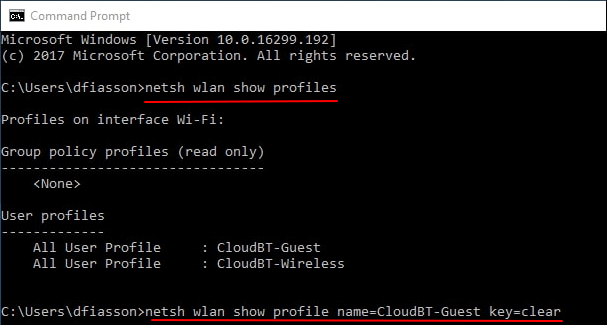
In the black Command Prompt window, type the following command and press Enter: netsh wlan show profiles. This will display a list of every WiFi network your computer has ever connected to and saved. Look for the name of the network whose password you want to recover — it’s listed under User profiles. If you have many, jot down the exact name (including spaces or capitals).
Step 3: Reveal the Password for a Specific Network
Now it’s time to dig into the details. Type the following command, replacing NETWORKNAME with the exact name from the previous step: netsh wlan show profile name="NETWORKNAME" key=clear. Make sure to include the quotes around the network name if it contains spaces. Hit Enter.
Step 4: Find the Password Under “Key Content”
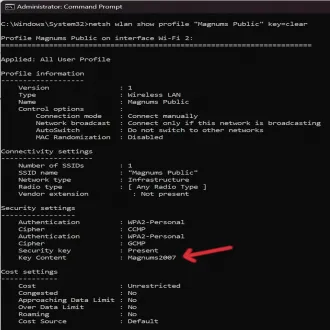
Scroll through the output until you see a section called Security settings. Right there, next to Key Content, you’ll find your WiFi password in plain text. It might look like a random string of letters and numbers — that’s your network key. You can copy it by selecting the text with your mouse and right-clicking (or pressing Ctrl+C after marking). Now you can share it or use it on another device.

Common Pitfalls
- **Not running CMD as administrator**: If you skip the admin rights, you’ll get an error like “The Wireless AutoConfig Service is not running” or simply no password shown. Always right-click and “Run as administrator”.
- **Typing the wrong network name**: Even a small typo or missing space will cause the command to fail. Use the exact name from the profile list. If your network name has spaces, enclose it in double quotes.
- **No saved profiles**: If you see an empty list, your computer has never connected to a WiFi network (or the profiles were deleted). In that case, you’ll need to recover forgotten WiFi password on desktop by other means, like logging into your router’s admin page.
Where to Next
Now that you’ve got your WiFi password back, consider saving it somewhere safe (like a password manager) to avoid future headaches. You can also check out related guides: learn how to recover WiFi password using CMD in more detail, or try the PowerShell method if you prefer a different syntax. If your router was reset, don’t panic — see how to recover WiFi password after a router reset. For a broader perspective, read about keeping your network keys safe in our maintenance guide. And if you’re on a different device, we have resources to recover forgotten WiFi password on desktop as well.



