
Ever needed to connect a new device to your home WiFi but realized you’ve forgotten the password? You’re not alone. This tutorial is for anyone using Windows who wants to recover saved WiFi passwords without installing extra software. By the end, you’ll know how to pull out network keys using PowerShell—a built-in tool. We’ll keep it casual and step-by-step.
This method works for all Windows versions from 7 to 11. It’s perfect for home users, IT newbies, or anyone who just wants to avoid resetting their router. Let’s dive into recovering those passwords.
What You’ll Need
- A Windows PC (laptop or desktop) — any version from Windows 7 onward.
- Administrator access — you’ll need to run PowerShell as admin.
- At least one saved WiFi network on your computer — that’s it!
If you’re more comfortable without command line, check out our guide for wifi password recovery no command line. But trust me, this is straightforward.
Step 1: Open PowerShell as Administrator
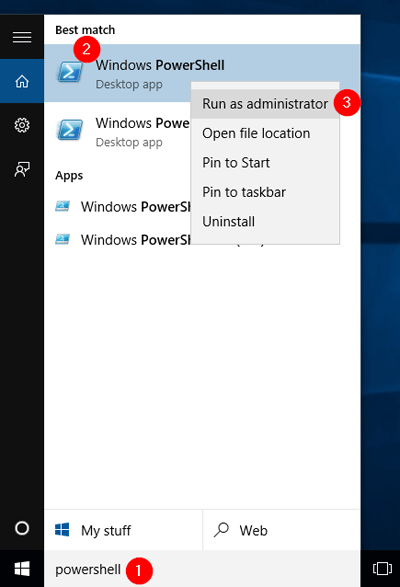
First, we need to launch PowerShell with elevated privileges. Click the Start button, type “PowerShell” in the search bar. You’ll see “Windows PowerShell” appear. Right-click it and select “Run as administrator”. If prompted by User Account Control, click “Yes”. A blue window with a blinking cursor will pop up — that’s our command line.
Step 2: List All Saved WiFi Profiles
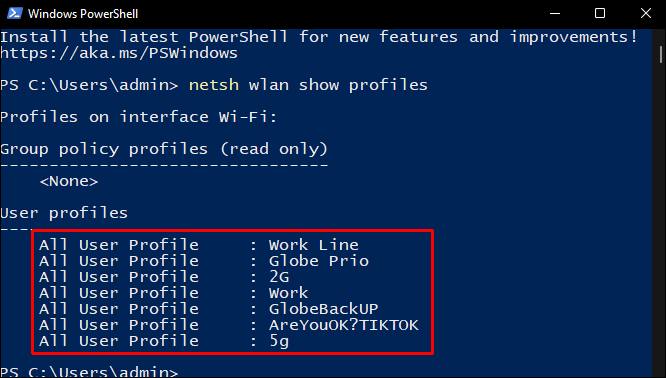
Now we’ll use two simple commands. First, type or paste the following and hit Enter: netsh wlan show profiles. This lists every WiFi network your computer has ever connected to. Look for the profile name of the network whose password you need — note it down exactly, including spaces and capitalization.
Step 3: Reveal the Password for a Specific Network
Once you have the profile name, run this command, replacing “YourNetworkName” with the actual name: netsh wlan show profile name="YourNetworkName" key=clear. Scroll through the output until you see “Key Content” under Security settings. That’s your WiFi password in plain text.

If you want to recover all passwords at once, you can chain commands. But if you prefer a more organized method, see our tutorial on how to recover wifi password on windows using alternative tools.
Step 4: Export All Passwords to a File (Optional)
Want to save all your WiFi keys for backup? Run this one-liner in PowerShell: netsh wlan show profiles | Select-String ":(.)$" | ForEach-Object { $_.Matches.Groups[1].Value.Trim() } | ForEach-Object { netsh wlan show profile name="$_" key=clear } | Select-String "Key Content" }. This prints every password. To export to CSV, check out our detailed guide on export wifi passwords with powershell.

Step 5: Recover Passwords for Encrypted Networks (Advanced)
Some networks use WPA-Enterprise or require a certificate. The netsh command won’t show those keys. For those, you’d need to dig into the registry. That’s a more advanced topic, but we cover it in our wifi password recovery powershell to csv article. For most home networks, the steps above work perfectly.

Common Pitfalls
- **Not running as administrator**: If you forget to run PowerShell as admin, you’ll get an “Access is denied” error. Always right-click and run elevated.
- **Typo in profile name**: The command is case-sensitive? Actually, it’s not, but spaces matter. If the name includes spaces, wrap it in quotes exactly.
- **No saved networks**: This method only works for networks your PC has connected to before. If you’re on a new computer, you’ll need to use the router login method instead.
I thought I’d lost my WiFi password forever, but this PowerShell trick saved me.
A Happy User
Where to Next
Now you’re a WiFi recovery pro! Next, you might want to back up your passwords in a safe place. If you’re traveling, check out our tips for wifi password recovery for travelers. Or if you’re on a Mac, we’ve got a guide for that too. Happy surfing!



