
Ever been stuck with a new device that needs WiFi, but you can’t remember the password? And to make it worse, you don’t have internet access to look it up online? That’s a frustrating spot, but don’t panic. If you already have a laptop, phone, or tablet that’s connected to that same network, you can pull the password from its settings — no internet required. This guide is for anyone who’s offline but still has a device that remembers the WiFi key. By the end, you’ll have the password copied down (or scanned) and be ready to connect anything else.
We’ll cover Windows, macOS, Android, and even the old-school router login method. You won’t need any extra software or a degree in networking. Just follow the steps that match your situation. Whether you’re at home, in a hotel, or working remotely, these tricks work every time. For travelers, we’ve also got a dedicated guide on travelers who need to recover passwords on the go.
What You’ll Need
- A device already connected to the WiFi network (Windows PC, Mac, Android phone/tablet, or iPhone/iPad)
- Access to that device’s settings (no admin password required for most methods)
- Optional: an Ethernet cable or physical access to the router if the WiFi isn’t saved anywhere
- A few minutes of patience — that’s it!
Step 1: Check Windows Network Settings
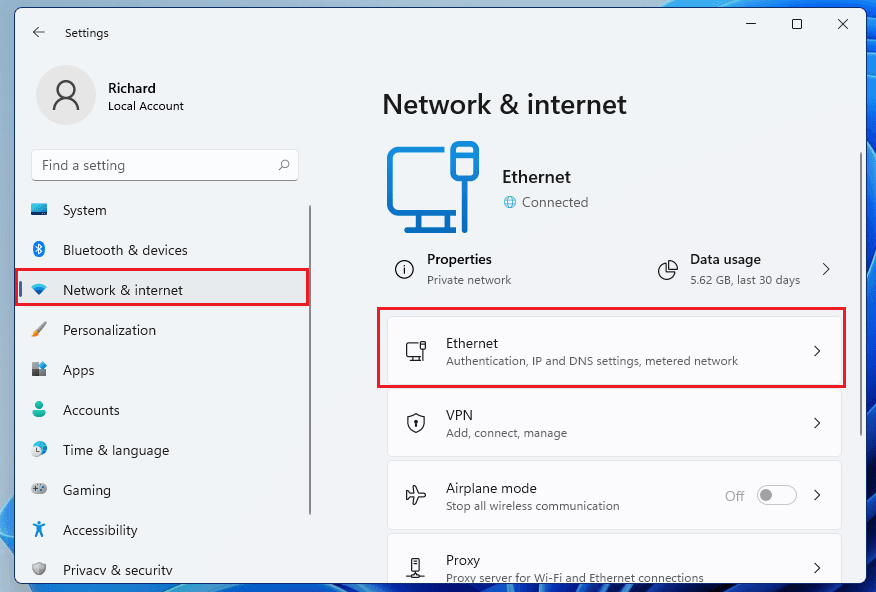
If you have a Windows laptop or desktop that’s currently connected to the WiFi (or has connected in the past), this is the easiest route. Click the network icon in the system tray, then select ‘Network & Internet settings’. Scroll down and click ‘Network and Sharing Center’. In the window that pops up, click on the name of your WiFi network next to ‘Connections’. A new window will appear — click the ‘Wireless Properties’ button, then switch to the ‘Security’ tab. Check the box that says ‘Show characters’, and your password will appear in the ‘Network security key’ field. Write it down or take a photo. If you need a more detailed walkthrough, check out our guide on how to recover wifi password on windows.
Step 2: Find Password on Mac Using Keychain
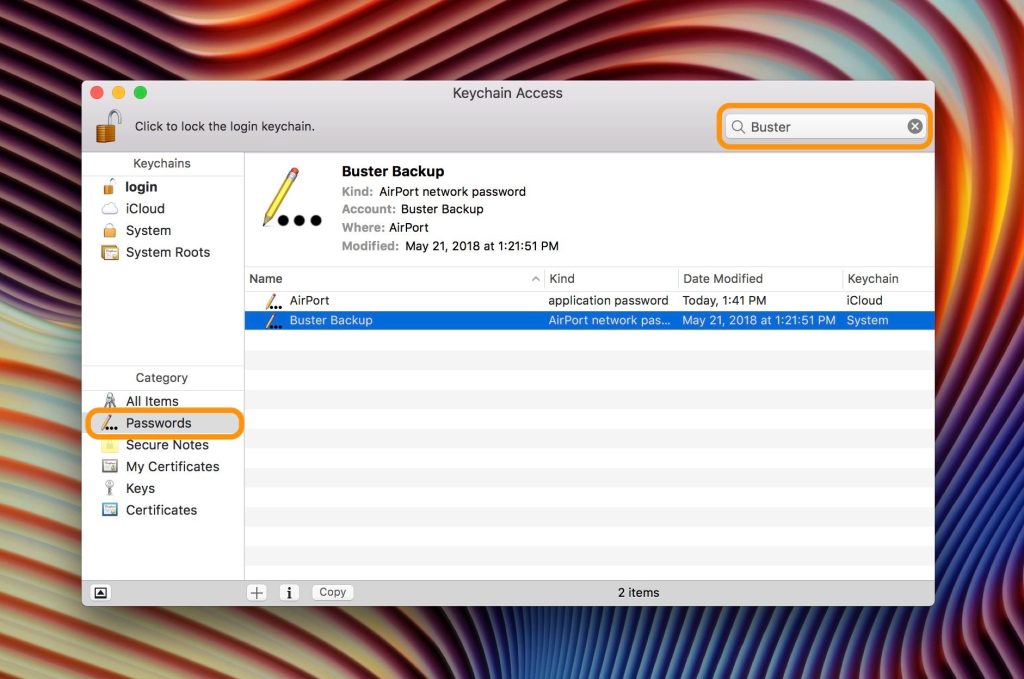
On a Mac, all saved passwords live in the Keychain Access app. Open it (you can find it via Spotlight search by pressing Cmd+Space and typing ‘Keychain Access’). In the search box at the top-right, type the name of your WiFi network (or just ‘AirPort’ to see all saved networks). Double-click on your network’s entry. A pop-up will appear — check the box ‘Show password’. You’ll be asked for your Mac’s login password (this is your user account password, not the WiFi key). Once entered, the WiFi password will be displayed. Write it down. For more details, see our guide to show wifi password on mac.
Step 3: View Saved Password on Android
On Android (version 10 and later), you can find the WiFi password directly in settings. Go to ‘Settings’ > ‘Network & Internet’ > ‘Internet’. You’ll see a list of saved networks — tap the gear icon next to your connected network. Then tap ‘Share’ (or the QR code icon). You may be asked for your PIN, pattern, or fingerprint. After authenticating, a QR code will appear on screen. The password is shown below the QR code in plain text (sometimes you need to tap ‘Show password’). If your phone doesn’t show the plain text, just scan the QR code with another phone to connect instantly. For older Android versions, you may need root access — but if you’d rather avoid that, we have a guide on iPhone or iPad without jailbreak that covers similar tricks.

Step 4: Access Router Admin Page (No Internet Needed)
If none of your devices have the WiFi saved (maybe you wiped your phone or it’s a new computer), you can still get the password by talking directly to the router. First, connect a device to the router using an Ethernet cable or join its default open network (if it has one). Then open a browser and type the router’s IP address — common ones are 192.168.1.1, 192.168.0.1, or 192.168.1.254. You’ll be greeted with a login screen. If you don’t know the router admin username/password, try the defaults: ‘admin/admin’, ‘admin/password’, or check a sticker on the router itself. Once inside, look for ‘Wireless’ or ‘WiFi’ settings. The password (often called ‘Pre-Shared Key’ or ‘Passphrase’) will be displayed there. For more help, read our dedicated post on logging into your router.

Step 5: Use Command Line on Windows (Advanced)
If you’re comfortable with the command line, you can extract the password even faster. Open Command Prompt as Administrator (right-click Start > Command Prompt (Admin) or Windows Terminal (Admin)). Type the following command to list all saved WiFi profiles: ‘netsh wlan show profiles’. Find the name of your network, then run: ‘netsh wlan show profile name=”YourNetworkName” key=clear’. Look for the line labeled ‘Key Content’ — that’s your password. This method is especially useful if you want to export wifi passwords with powershell for multiple networks.
Common Pitfalls
- The router’s admin password has been changed from the default. If you don’t know it, you won’t be able to access the settings. Try guessing common combinations or checking if the router has a reset button (but resetting will wipe all settings, including your WiFi password).
- On Android, if you’re running a version older than 10, the built-in QR code feature may not exist. In that case, you’ll need to root the phone or use third-party apps that require root — not recommended for beginners.
- If your Windows or Mac has never connected to that WiFi before (e.g., a new laptop), you won’t find the password in saved networks. You’ll need to rely on the router method or ask the network owner.
Where to Next
Now that you’ve recovered your WiFi password, you might want to take a few extra steps. Consider backing up your saved passwords using a password manager so you never get stuck again. If you often travel, our travelers guide covers how to stay connected on the road. For iOS users, learn how to recover passwords on an iPhone or iPad without jailbreak. And if you manage multiple networks, check out how to export wifi passwords with powershell to keep a handy list.



