Ever been at an airport lounge or a café, desperately trying to reconnect to a WiFi network you know you’ve used before, but can’t remember the password? We’ve all been there. As a traveler, you often connect to dozens of networks — hotel lobbies, co-working spaces, Airbnb routers — and relying on memory is a recipe for frustration. This guide is for anyone who needs to dig up a saved WiFi password quickly, without resetting the router or begging the front desk.
By the end of this tutorial, you’ll know exactly how to recover WiFi passwords on all your devices: Windows laptops, MacBooks, Android phones, iPhones, and even Linux machines. No command-line wizardry required (unless you want it). You’ll be back online in minutes.
What You’ll Need
- A device that has previously connected to the WiFi network (Windows, Mac, Android, iOS, or Linux)
- Administrator or root access (for Windows/Mac/Linux; usually your own account)
- Optional: a USB cable if you need to share the password from your phone to another device
- Patience and maybe a cup of coffee
Step 1: Recover WiFi Password on Windows
If you’re using a Windows laptop that’s connected or has connected to the network before, you can easily find the password through the Network & Internet settings. Open the Control Panel (search for it in the Start menu) and navigate to ‘Network and Sharing Center’. Click on your current WiFi connection name, then click ‘Wireless Properties’. Under the ‘Security’ tab, check ‘Show characters’ to reveal the password. For a more advanced method, you can also export WiFi passwords with PowerShell. This method works for Windows 10 and 11.
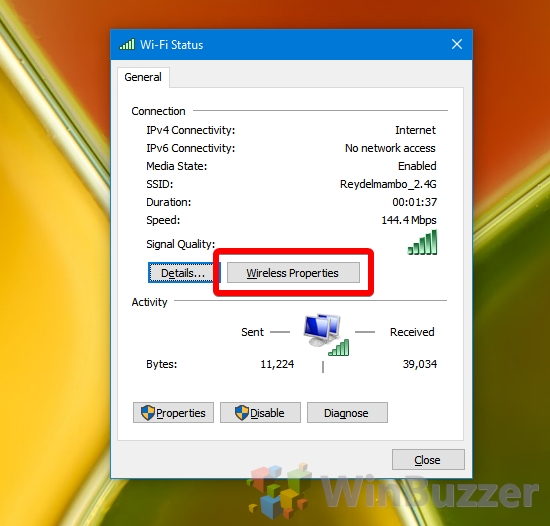
If you need to recover WiFi password on Windows but don’t have access to the network currently, check our detailed guide.
Step 2: Show Your WiFi Password on Mac
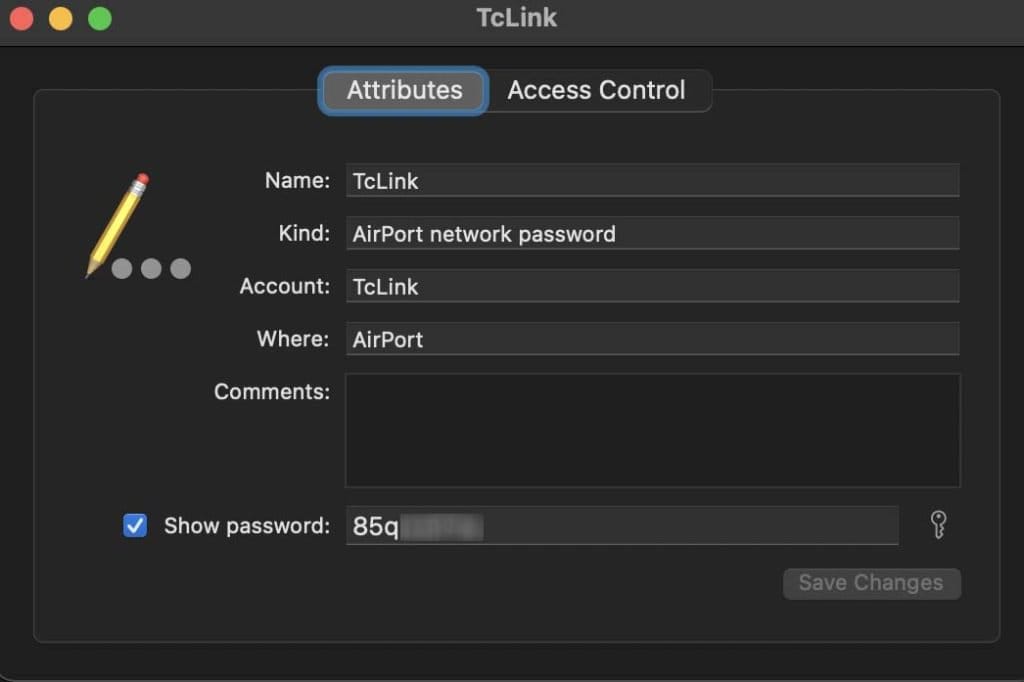
Mac users can use the Keychain Access app to view saved WiFi passwords. Open Keychain Access (from Applications > Utilities), search for the network name in the top-right search bar. Double-click the entry, check the box ‘Show password’, and enter your Mac’s admin username and password. The WiFi password will be displayed. If you’ve connected via an iPhone and synced through iCloud, the password might also be on your Mac. For a full walkthrough, check how to show your WiFi password on Mac.
Step 3: Recover WiFi Password on Android
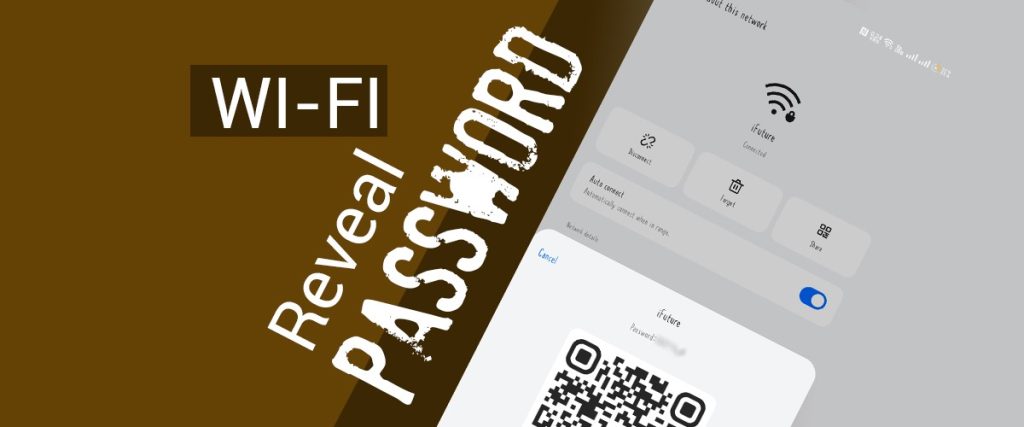
On Android (version 10 and above), go to Settings > Network & Internet > Wi-Fi. Tap on the saved network you want the password for. A QR code will appear — screenshot it. You can scan this QR with another device to connect, or in some Android versions, there’s a ‘Share’ option that reveals the password below the QR. If you have a rooted device, you can also browse the wpa_supplicant.conf file, but the QR method is easiest. This works on most modern Android phones.

Step 4: Recover WiFi Passwords on iPhone or iPad
Apple devices don’t natively expose saved WiFi passwords in plain text, but there are workarounds. If you have a Mac signed into the same iCloud account, you can find the password in Keychain Access (as in Step 2). Alternatively, on iOS 16+, you can go to Settings > Wi-Fi, tap the info (i) icon next to the network, and then tap the password field – it will authenticate with Face ID/Touch ID and reveal the password. For older iOS versions, you might need a third-party app or a computer. Learn how to recover WiFi passwords on iPhone without jailbreak.
Step 5: Recover WiFi Passwords on Linux
Linux users can view saved WiFi passwords from the terminal. Open a terminal and run: sudo cat /etc/NetworkManager/system-connections/[network-name] | grep psk. Replace [network-name] with the exact SSID. The password will be shown after ‘psk=’. Alternatively, use the GUI: go to Settings > Wi-Fi, click the gear icon next to the connected network, and look for ‘Security’ or ‘Password’. For a full guide, see how to recover WiFi passwords on Linux.

Common Pitfalls
- Router reset: If the router has been reset or the password changed, your saved password won’t work. Ask the host or check the router sticker.
- Admin access: On Windows and Mac, you need administrator privileges to view passwords. If you’re using a work or borrowed device, you might be locked out.
- Network not saved: If your device never connected before, you can’t recover it. You’ll need to ask someone who has the password or use a best WiFi password recovery app to scan QR codes nearby.
Where to Next
Recovering WiFi passwords is a handy skill for any traveler. If you want to take it further, check out our guides on how to recover WiFi password on Windows, show your WiFi password on Mac, recover WiFi passwords on iPhone, and recover WiFi passwords on Linux. For a universal solution, explore the best WiFi password recovery app for your device. Safe travels and happy surfing!



