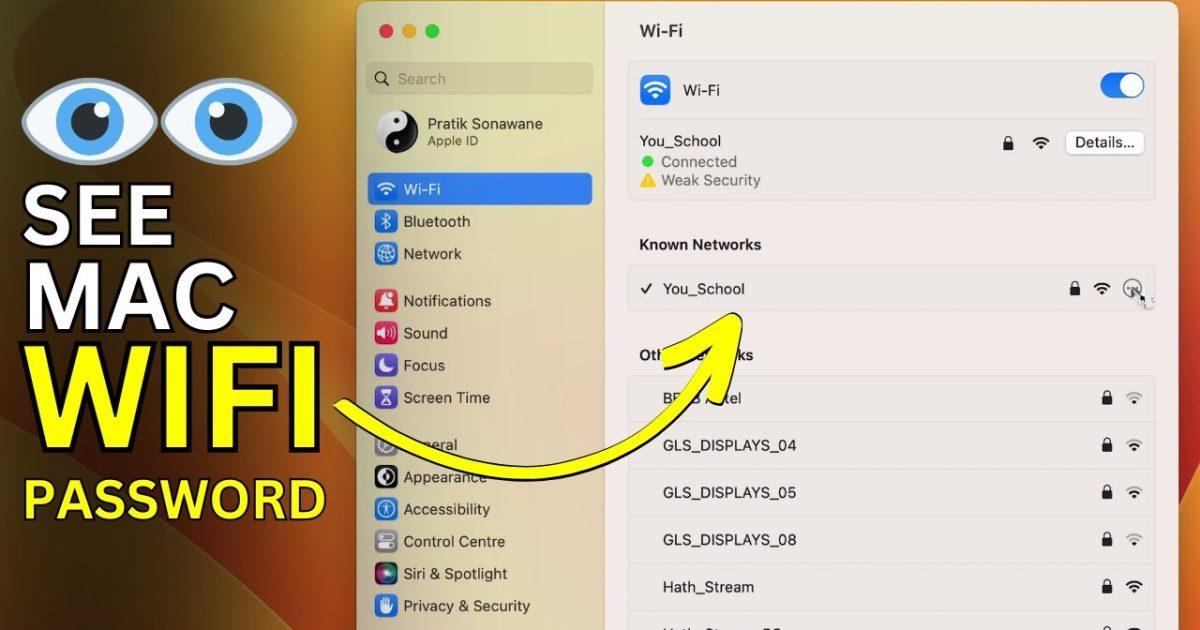
We’ve all been there: a friend comes over, wants to hop on your WiFi, and you blank on the password. Or maybe you just need to connect a new device and can’t find the sticker on the router. If you have a Mac that’s already connected to that network, you’re in luck—your Mac remembers the password, and it only takes a few clicks (or a single command) to reveal it. This guide is for anyone who uses a Mac and wants to recover a saved WiFi password without resetting the router or digging through old emails.
By the end of this tutorial, you’ll know two reliable ways to show your WiFi password on macOS: the friendly Keychain Access app and the speedy Terminal method. You’ll also learn what to do if things don’t go as planned. We’ll keep things casual and step-by-step so you can get back online fast.
What You’ll Need
- A Mac running macOS that has previously connected to the WiFi network in question.
- Your Mac’s admin username and password (the one you use to log in or install software).
- The exact name (SSID) of the WiFi network (e.g., “HomeSweetHome”).
That’s it. No third-party software required—everything is built into macOS.
Step 1: Open Keychain Access
Keychain Access is macOS’s built-in password manager. It stores all your saved passwords, including WiFi credentials. To open it, click the Spotlight icon (magnifying glass in the top‑right corner) or press Cmd+Space, type Keychain Access, and press Return.

Step 2: Find Your WiFi Network
In the Keychain Access window, make sure System is selected in the left sidebar under Keychains, and Passwords is selected under Category. Then, in the search box at the top‑right, type the name of your WiFi network (SSID). You should see an entry with a key icon and the network name.

Step 3: Reveal the Password
Double‑click the network entry to open its details. A pop‑up window will appear. Check the box next to Show password. You’ll be prompted to enter your Mac’s admin username and password. After you authenticate, the WiFi password will be displayed in plain text. Write it down or take a photo—just be careful not to share it with untrusted people.
Alternative Method: Use the Terminal
If you prefer the command line or need to retrieve the password quickly without clicking through menus, the Terminal is your friend. This method is also great for scripting or when you want to perform a wifi password recovery command line script across multiple networks.
Step 1: Open Terminal
Open Spotlight again, type Terminal, and press Return. You’ll see a black or white window with a command prompt.

Step 2: Run the Security Command
Type the following command, replacing YourNetworkName with the actual SSID of your WiFi network (keep the quotes):
security find-generic-password -wa “YourNetworkName”
Mac Terminal
Press Return. You’ll be asked for your Mac’s admin password. Type it (you won’t see any characters—that’s normal) and press Return again. The WiFi password will be printed on the next line.

Common Pitfalls
Even though the process is straightforward, a few things can trip you up. Here are the most common issues and how to fix them.
- Wrong Keychain selected. If you don’t see your network in the System keychain, check the iCloud keychain or the Local Items keychain. Your WiFi password might be stored there if you use iCloud Keychain sync. To check, click on the appropriate keychain in the left sidebar and repeat the search.
- Admin password problems. You need your Mac’s admin username and password to reveal the password. If you’re not the admin or have forgotten your admin credentials, you won’t be able to retrieve it this way. In that case, you might need to reset your Mac’s password or use a best wifi password recovery tool for mac as an alternative.
- Network not saved. If the WiFi network entry doesn’t appear in Keychain Access, your Mac may never have saved the password (e.g., if you used a captive portal or the network was forgotten). You’ll need to reconnect to the network first to save the credentials, or use a wifi password recovery without deleting profiles approach if you previously removed it.
Where to Next
Now that you know how to show your WiFi password on a Mac, you might want to back up all your saved passwords for safekeeping. Check out our wifi password recovery backup guide to learn how to export your Keychain entries. And if you ever need to retrieve a password on a different Apple device, we’ve got guides for recover wifi password on imac and even wireless password recovery mac for older macOS versions. For advanced users, our wifi password recovery command line script article shows you how to automate the process for multiple networks. Happy surfing!





