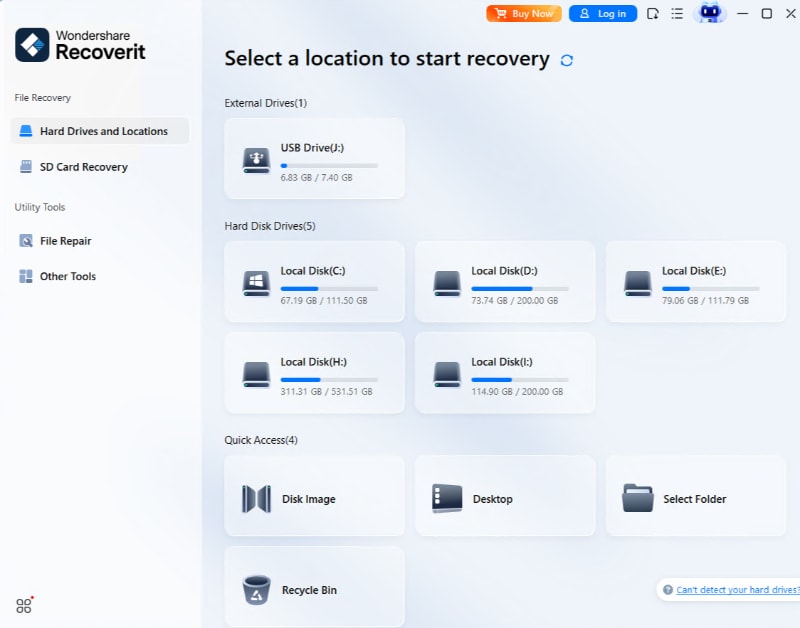
So you just replaced your old hard drive with a shiny new one—or maybe you switched to an SSD. Everything’s fresh, fast, and clean. But then you try to connect to your home WiFi and… nothing. The saved passwords are gone. Don’t panic. Whether you’re on Windows, macOS, or Linux, this guide will show you multiple ways to recover your WiFi passwords after a hard drive replacement. By the end, you’ll have all your saved networks back online, and you’ll even know how to back them up so this never happens again.
This tutorial is perfect for anyone who forgot to export their WiFi settings before upgrading their drive, or for those who picked up a used PC with a blank drive. We’ll cover router access, old drive data recovery, and free software tools. No advanced tech skills required—just a little patience and a few minutes of your time.
What You’ll Need
- Your router (or access to its admin page)
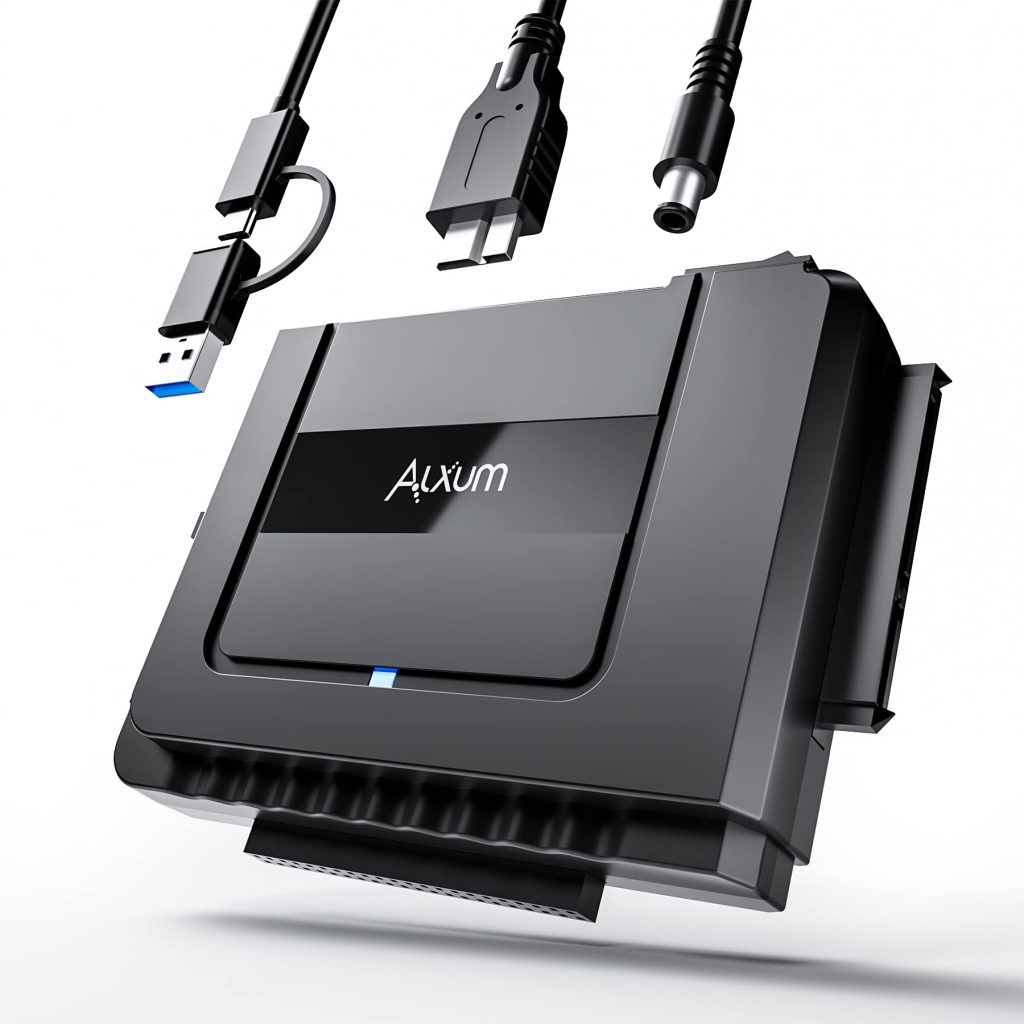
- The old hard drive (if you still have it) and a USB-to-SATA adapter or external enclosure
- A Windows PC (for PowerShell methods) or a macOS/Linux machine
- Optional: a USB drive to create a bootable recovery tool
- Patience and a notepad to jot down passwords
Step 1: Check Your Router for Saved WiFi Passwords
The simplest way to recover your WiFi password is to log into your router’s admin panel. Every router stores the WiFi network name (SSID) and password in its settings. Here’s how:
- Find your router’s IP address (usually 192.168.1.1 or 192.168.0.1). You can check a sticker on the router itself.
- Open a web browser and type that IP into the address bar.
- Enter the router’s admin username and password. If you never changed it, check the sticker or the manual (common defaults are ‘admin/admin’ or ‘admin/password’).
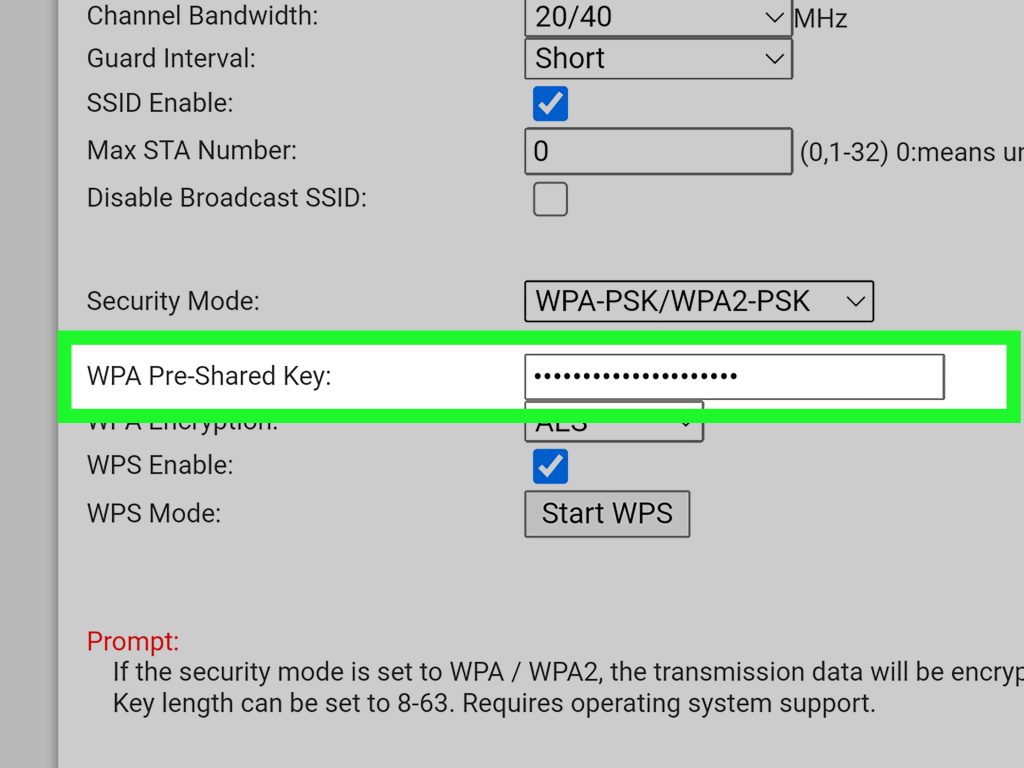
- Navigate to the Wireless or WiFi section. Look for ‘Wireless Security’ or ‘Security Settings’.
- The WiFi password will be displayed next to ‘Passphrase’, ‘Pre-Shared Key’, or ‘Wireless Password’. Write it down.
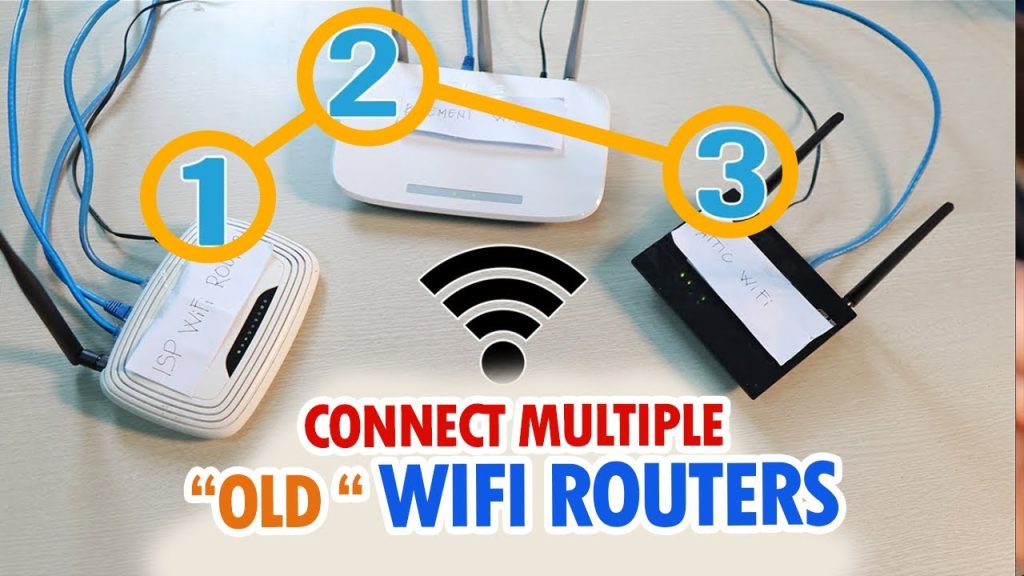
If you’ve changed your router password and forgotten it, you can reset the router by holding the reset button for 10 seconds. This will restore factory defaults (including the WiFi password to the one on the sticker). Then you can log in and set a new password. For more router-specific help, check out our guide to recover wifi password from zte router—the steps are similar for most brands.
Step 2: Recover Passwords from Your Old Hard Drive (Windows)
If you still have the old hard drive, you can extract the saved WiFi profiles from its Windows installation. You’ll need a USB-to-SATA adapter or an external enclosure to connect the old drive to your current computer.
- Connect the old drive to your PC via USB. It should show up as an external drive (e.g., D: or E:).
- Navigate to `D:WindowsSystem32configsystem-profileAppDataLocalMicrosoftWindowsWLAN` (replace D: with the correct drive letter).
- Look for files with the extension `.xml`. These contain your saved WiFi profiles. Copy them to a safe location.
- Open an elevated Command Prompt (Run as Administrator) and run: `netsh wlan add profile filename=”C:pathtoprofile.xml”` for each XML file.
- Then run: `netsh wlan show profiles` to list them, and `netsh wlan show profile name=”YourNetwork” key=clear` to reveal the password.
Alternatively, you can use a wifi password recovery software like WirelessKeyView to scan the old drive’s registry. Just run the portable version from your current PC and point it to the old drive’s `WindowsSystem32configSAM` file. This method works even if you can’t boot the old drive.
Step 3: Use PowerShell to Recover Saved Profiles (If You Have a Backup)
If you previously backed up your WiFi profiles using a wifi password recovery backup guide, you can restore them quickly. Even if you didn’t, you might still have a system image or a Windows.old folder from the drive replacement. Here’s a PowerShell method that scans for saved profiles:
- Open PowerShell as Administrator.
- Run: `netsh wlan show profiles` to see all saved profiles on the current system (likely empty after replacement).
- If you have a `Windows.old` folder from a previous installation, navigate to it and run: `netsh wlan add profile filename=”C:Windows.oldWindowsSystem32configsystem-profileAppDataLocalMicrosoftWindowsWLAN*.xml”`
- Then extract passwords with: `netsh wlan show profile name=”*” key=clear`
This is essentially a wifi password recovery powershell all profiles technique, perfect for bulk recovery. If you have an old system image, mount it as a virtual drive and follow the same steps.
Step 4: Use Third-Party Recovery Tools (Windows, macOS, Linux)
Several free and paid tools can scan your old drive or any accessible Windows installation for WiFi passwords. Most work without installing anything—just run them from a USB stick. For Windows, try WirelessKeyView or Cain & Abel (legacy). On macOS, use the Keychain Access app if you have a Time Machine backup. On Linux, the `wpa_supplicant` conf files are stored in `/etc/NetworkManager/system-connections/`.
- For a comprehensive solution, consider a wifi password recovery command line script that automates the extraction from registry hives.
- If you want to avoid formatting or reinstalling anything, check out our guide on wifi password recovery without formatting pc—it applies here too.
Common Pitfalls
- **Forgetting router credentials**: If you have custom router login and lost it, a physical reset (press reset button for 10+ seconds) is the only way. This resets all settings, including the WiFi password, so you’ll need to set up your network from scratch.
- **Old drive is encrypted or damaged**: If you used BitLocker or FileVault, you won’t be able to read the files without the recovery key. Similarly, a physically damaged drive may require professional data recovery—which can be expensive.
- **Overwriting Windows.old**: If you already deleted the Windows.old folder or formatted the old drive, you lose that recovery path. Always back up your WiFi profiles before replacing a hard drive, or use a wifi password recovery backup guide to export them.
Where to Next
Once you’ve recovered your WiFi passwords, save yourself future headaches by creating a backup. Export your profiles using netsh or a portable tool, and store them in a password manager or a secure cloud drive. For more tips, explore our complete library of wifi password recovery process for professionals—it covers everything from router tricks to advanced command-line methods. Happy surfing!



