Ever had that moment when a friend asks for your WiFi password and you draw a complete blank? You’re not alone. Whether it’s the default password printed on the router that you’ve long tossed, or a custom passphrase you set years ago, forgetting your WiFi password is a common headache. If you’re on a Mac and you’ve connected to that network before, the password is stored right in your system — you just need to know where to look.
By the end of this guide, you’ll have recovered your WiFi password using nothing but built-in macOS tools. No sketchy third-party downloads, no command-line wizardry required (though we’ll show you that as a bonus). You’ll learn how to use Keychain Access and the Terminal to pull up any saved WiFi password in seconds. Let’s dive in.
What You’ll Need
- A Mac running macOS 10.10 or later (Yosemite and up)
- Admin access to that Mac (you’ll need your login password)
- The WiFi network must have been saved in your Mac’s keychain
- Patience — just a few minutes
No extra software, no dongles, no hacks. Everything is already on your Mac.
Step 1: Open Keychain Access
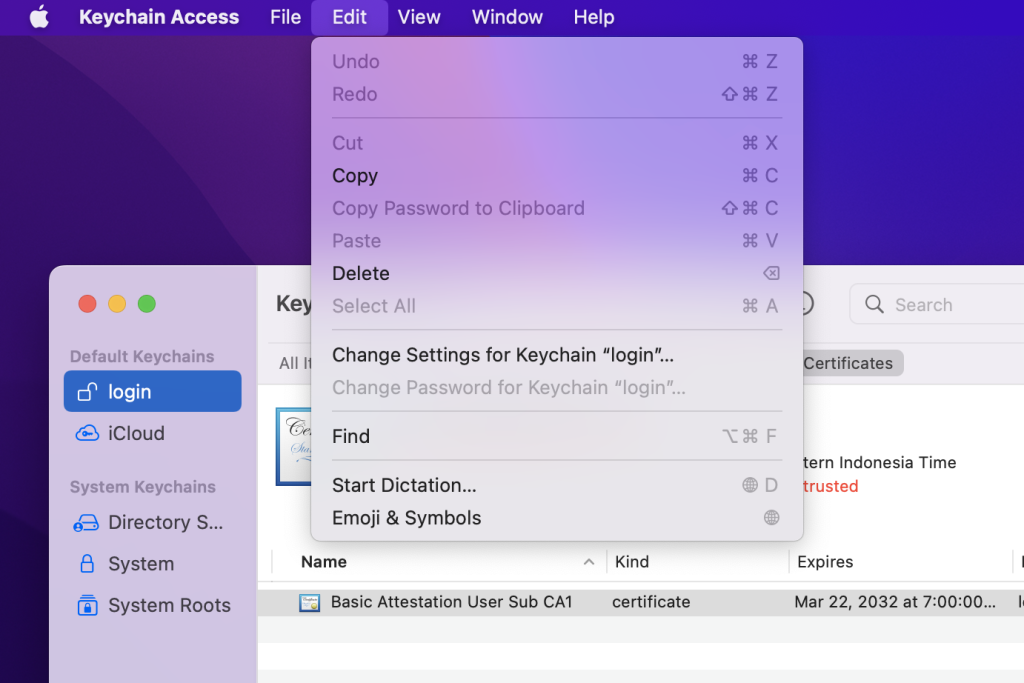
Keychain Access is macOS’s built-in password manager. You can find it in the Utilities folder inside Applications, or simply hit Cmd+Space and type “Keychain Access” to open it via Spotlight. Once it’s open, you’ll see a list of keychains on the left — make sure “login” is selected (it’s the default).
In the search bar at the top-right, type the name of your WiFi network (e.g., “HomeNetwork”). The results will filter as you type. Look for an entry with a kind of “AirPort network password” — that’s the one you want. Double-click it to open the details window.
Step 2: Reveal the Password
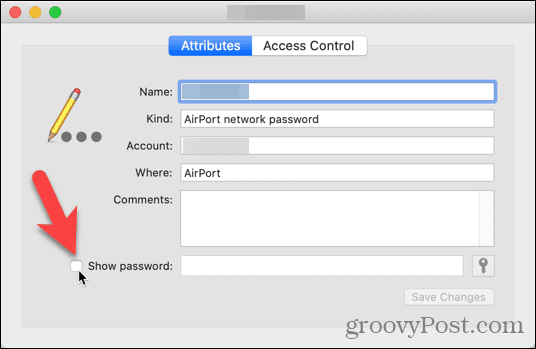
In the popped-up window, you’ll see a checkbox labelled “Show password”. Check it. Your Mac will prompt you for your login credentials — enter your username and password, then click Allow (or Always Allow if you’re feeling trusting). The password field will then display the plaintext WiFi password. Write it down, take a photo, or share it right from the screen.
That’s the quick and dirty method. If you’re managing multiple networks or want a faster approach, move on to Step 3.
Step 3: Use Terminal (The Power-User Way)
Open Terminal (again via Spotlight or in Utilities). For a single network, type the following command, replacing “YourNetworkName” with the actual SSID:
security find-generic-password -wa “YourNetworkName”
Terminal command
Hit Enter. You’ll be asked for your Mac’s password (this is the admin password you use to log in). Type it (you won’t see any characters — that’s normal) and press Enter again. The password will appear on the next line. Easy, right?
This method is especially handy if you need to recover multiple passwords quickly. For a more robust script that outputs all saved networks, check out our guide on the wifi password recovery command line script.
Step 4: Export All Saved WiFi Passwords (Optional)
Want a backup of every WiFi password your Mac remembers? You can dump them all in one go. In Terminal, paste this command:
security find-generic-password -l | grep -o ‘”acct”=”[^”]*”‘ | sed ‘s/.*=//;s/”//g’ | while read line; do echo -n “$line: “; security find-generic-password -wa “$line” 2>/dev/null; done
One-liner for all passwords
This will list each network name followed by its password. If you’d rather use a GUI tool, the best wifi password recovery tool for mac can do this with a few clicks. But honestly, the built-in methods are just as effective and keep your data private.
Common Pitfalls
- **Wrong network name**: If you can’t find the network in Keychain, double-check the exact spelling. WiFi names are case-sensitive. If you still can’t find it, the network might never have been saved to your keychain (e.g., you used a guest login). In that case, you’ll need to recover wifi password on imac from the router.
- **Permission denied**: Keychain will ask for your admin password. If you’re not an admin, you’re stuck — ask the machine’s owner. For Terminal, make sure you’re running the command without sudo, as security handles elevation automatically.
- **Terminal syntax errors**: The commands shown are for modern macOS (10.10+). Older versions might need different flags. If you get “command not found”, update to a newer macOS or use the Keychain method.
If you’re still having trouble, the wifi password recovery without deleting profiles article might help if you accidentally removed the network.
Where to Next?
Now that you’ve got your WiFi password back, consider backing it up so you never lose it again. Our wifi password recovery backup guide shows you how to keep a secure copy on your device. You can also retrieve the password directly from your router if you have admin access — check the wifi password recovery tutorial router for that. And if you’re helping a friend on a different device, we’ve got guides for Windows, Android, and iPhone too.



