
If you’re reading this, chances are you’ve forgotten the password to your own Wi‑Fi network and need to get back online on a new device or share it with a guest. Don’t worry — your Mac has been silently saving every Wi‑Fi password you’ve ever connected to, and with a few clicks you can pull them up. By the end of this guide you’ll be able to view any saved Wi‑Fi password using the built‑in Keychain Access tool, and you’ll also know about a third‑party option that makes the process even easier.
I’ll cover two methods: the free, no‑install approach using Keychain Access (perfect if you want to recover WiFi password without third-party software), and a dedicated app for bulk retrieval. Both work on macOS Ventura and later. Let’s dive in.
What You’ll Need
- A Mac running macOS Ventura, Sonoma, or Sequoia (older versions work too, but the interface may differ slightly).
- An administrator account (you’ll need your Mac’s login password).
- The exact name (SSID) of the Wi‑Fi network whose password you want to recover – it’s case‑sensitive.
- Optional: an active internet connection if you plan to download a third‑party app.
Step 1: Open Keychain Access
Keychain Access is Apple’s built‑in password manager. Open it by pressing Cmd+Space to bring up Spotlight, then type “Keychain Access” and hit Enter. Alternatively, you can find it in Applications > Utilities.

Step 2: Search for Your Wi‑Fi Network
In the top‑right search bar, type the name of your Wi‑Fi network (for example, “HomeWiFi”). Filter the results to show only passwords by clicking the Passwords category at the top of the window. You should see a list item with the network’s name and the kind “AirPort network password.”

Step 3: Reveal the Password
Double‑click the network entry. A dialog window will pop up. Check the box next to Show password. You’ll be prompted to enter your Mac’s administrator username and password (this is your Mac login, not the Wi‑Fi password). After authenticating, the password will appear in plaintext. Write it down or copy it — you can also use this moment to backup your WiFi passwords by noting them elsewhere.

Step 4: (Optional) Use a Third‑Party Tool for Bulk Recovery
If you need to recover multiple passwords or prefer a graphical list, consider a dedicated app like WiFi Password Recovery (available on the Mac App Store). These apps scan your keychain and display all saved networks with their passwords in one view. They’re great if you frequently forget your network credentials. However, if you’d rather stick with built‑in tools, the Keychain method above works perfectly and ensures WiFi password recovery without deleting profiles.
Step 5: Export Your Passwords (Advanced)
For IT admins or power users, you can use Terminal to export all Wi‑Fi passwords into a text file. Run the command security find-generic-password -wa 'SSID' for each network, or use a script to loop through all saved SSIDs. This is especially handy if you want to export all your WiFi passwords with a script for backup purposes.

Common Pitfalls
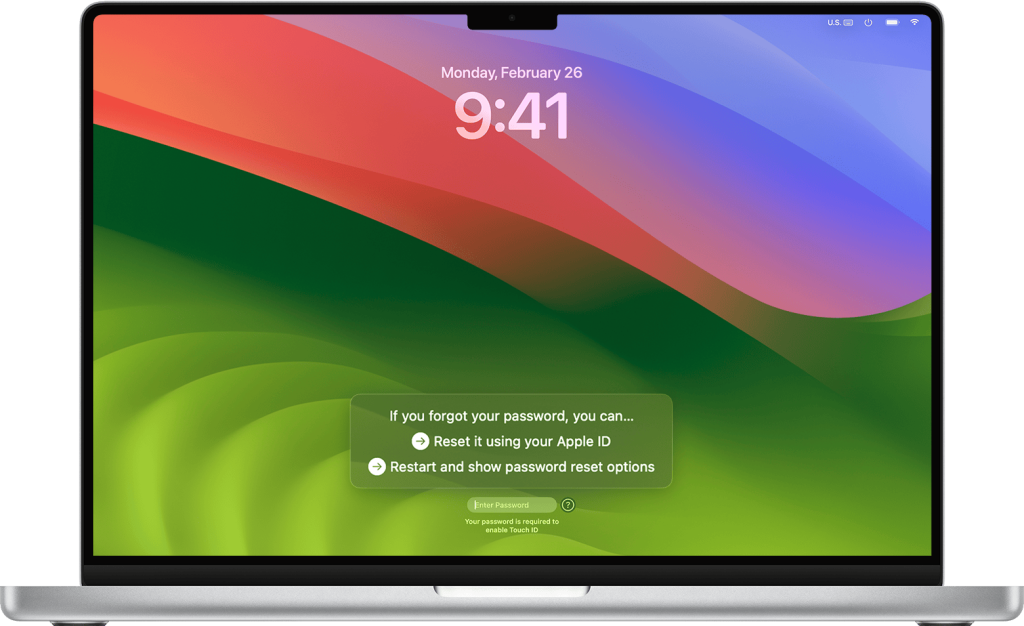
- Forgot your Mac admin password? Without it you can’t reveal passwords in Keychain Access. Reset it via Recovery Mode or Apple ID if you’ve enabled that option.
- Network name not found? The SSID must exactly match what your Mac saved (check your router’s sticker). Also, the network must have been connected to at least once – if it was a guest network that auto‑expired, it may not appear.
- Third‑party apps with ads or malware? Only download from the official Mac App Store or reputable developers. Some free apps bundle adware. Stick with built‑in tools if you’re unsure.
Where to Next
Now that you’ve recovered your Wi‑Fi password, you might want to check out our professional WiFi password recovery guide for more advanced techniques, or learn how to recover your password directly from your router. If you ever need to pull passwords on other devices, we’ve got you covered with guides for Windows and Linux as well.



