
Ever needed to quickly grab all your saved WiFi passwords? Maybe you’re setting up a new laptop, backing up before a reformat, or just want a plaintext list you can search through. Manually clicking through each network is a drag—especially if you’ve got dozens saved. That’s where a simple script comes in. By the end of this guide, you’ll have a working one-liner (or two) that dumps every WiFi password on your machine into a clean text file. No third-party software, no sudo loops, just a few commands.
This tutorial is for anyone comfortable opening a terminal or command prompt. We’ll cover Windows (with netsh), macOS (with the security command), and Linux (with nmcli). On Windows you can also use a PowerShell script to export everything in one go. If you’re on a corporate-managed device you might hit permission walls, but for personal machines this works like a charm.
What You’ll Need
- A computer running Windows, macOS, or Linux
- Administrator / root access (to view stored passwords)
- A text editor (Notepad, nano, etc.)
- A few minutes of time

Step 1: Export WiFi Passwords on Windows (Netsh + PowerShell)
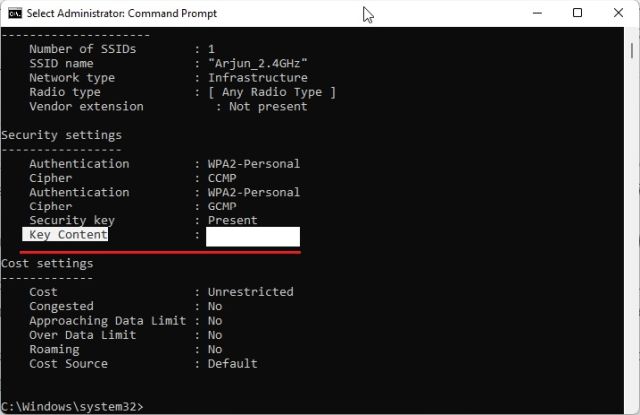
Windows stores WiFi profiles with their passwords (in encrypted form) under the local machine store. You can extract them using the built-in netsh command. First, open Command Prompt as Administrator (right-click Start → Command Prompt (Admin) or Windows Terminal (Admin)). To see all saved profiles, run:
netsh wlan show profiles
For each profile, you can grab the key with:
netsh wlan show profile name=”PROFILE_NAME” key=clear
Scrolling through each profile manually is tedious, so let’s script it. Open Notepad and paste the following batch file:
@echo off
for /f “tokens=2 delims=:” %%a in (‘netsh wlan show profiles ^| find “All User Profile”‘) do (
set “profile=%%a”
call :export “%%profile:~1%%”
)
goto :eof
:export
netsh wlan show profile name=”%~1″ key=clear >> wifi_passwords.txt
Save as export_wifi.bat and run as Administrator. It will create wifi_passwords.txt in the same folder with every network and its password. If PowerShell is more your style, you can use a script that does the same—many users prefer the one-liner approach for its simplicity. For a more polished output, check out the wifi password recovery with netsh command page, which includes a PowerShell version that formats everything neatly.
Step 2: Export WiFi Passwords on macOS (Security Command)
macOS stores WiFi passwords in the Keychain. The built-in security command can dump them, but you’ll need to know the exact SSID. First, get a list of known networks by opening Terminal and running:
defaults read /Library/Preferences/SystemConfiguration/com.apple.airport.preferences.plist | grep SSID
Then for each SSID, run:
security find-generic-password -wa “SSID_NAME”
To automate, use this bash loop:
for ssid in $(defaults read /Library/Preferences/SystemConfiguration/com.apple.airport.preferences.plist | grep -o ‘”SSID_STR”‘ | tr -d ‘”‘ | sort -u); do
password=$(security find-generic-password -wa “$ssid” 2>/dev/null)
echo “$ssid: $password” >> wifi_passwords.txt
done
Run that in Terminal. It’ll prompt for your Mac password once (for Keychain access) and then write the results to wifi_passwords.txt. No root needed, but you do need to be an admin user. This method is a great example of wifi password recovery without root because it accesses the Keychain using your own credentials.

Step 3: Export WiFi Passwords on Linux (nmcli)
On Linux with NetworkManager (most distros), you can use nmcli to list connections and then show their secrets. First, list all saved connections:
nmcli connection show
Then for each connection name, run:
nmcli -s connection show “CONNECTION_NAME” | grep ‘^802-11-wireless-security.psk:’
To export all at once, use this bash script:
#!/bin/bash
for conn in $(nmcli -t connection show | cut -d: -f1); do
password=$(nmcli -s connection show “$conn” | grep ‘802-11-wireless-security.psk:’ | cut -d: -f2)
echo “$conn: $password” >> wifi_passwords.txt
done
Make it executable (chmod +x) and run it. You’ll need root (sudo) to see the passwords. If you’re not using NetworkManager, check saved wifi password recovery linux for alternative methods using wpa_supplicant or iwd.

Common Pitfalls
- **Running without administrator/root** – On Windows, netsh won’t show keys without admin. On macOS, you need to unlock Keychain; on Linux, sudo is required. Always run your script with elevated privileges.
- **Space or special characters in SSID names** – Batch scripts can choke on spaces.Quote the profile name properly. In PowerShell, use double quotes and escape as needed.
- **Outdated commands** – On older Windows, netsh syntax differs slightly. On newer macOS, the plist location might change. Test with one profile first, then run the full export.

Where to Next
Now that you have your passwords in a text file, you can import them into another device or simply keep them safe. If you want a more portable solution, consider building a wifi password recovery portable USB toolkit. And if you ever need to grab just one network instead of all, the view saved wifi password windows guide is your quick reference.
For Android users, we’ve also covered export wifi passwords android via QR codes. And if you prefer a GUI-based approach without scripting, the export wifi passwords to text file method using third-party tools might be easier. Happy exporting!



