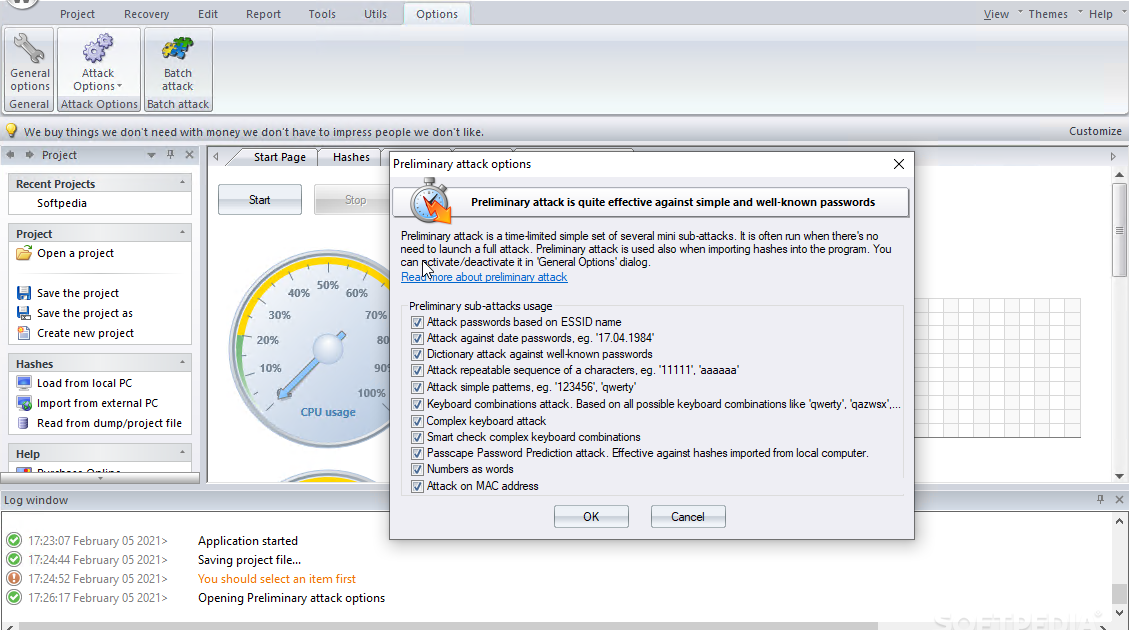
Ever needed to connect a new device to your WiFi but couldn’t remember the password because it’s been auto-saved on your laptop for years? You’re not alone. This guide is for anyone who wants to quickly retrieve a forgotten WiFi password using dedicated wireless password recovery software. By the end, you’ll have a straightforward, reusable method to pull out any saved WiFi password from your Windows PC.
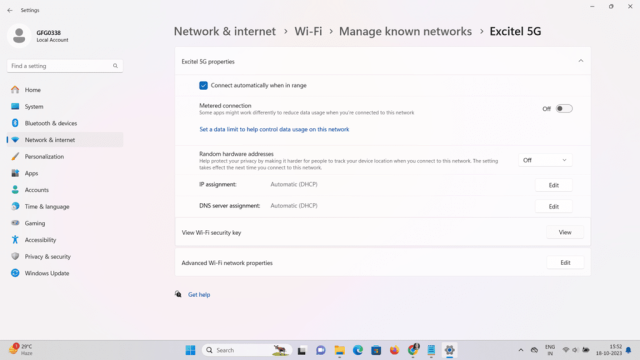
Wireless password recovery tools are lightweight programs that scan your system for stored network credentials and display them in plain text. They work with all current Windows versions and require zero technical skills. We’ll walk through downloading, running, and exporting your passwords — plus how to avoid common hiccups. If you prefer a manual method, you can also view saved WiFi passwords on Windows without extra software, but for bulk recovery or export, a dedicated tool is faster.
What You’ll Need
- A Windows PC (Windows 7, 8, 10, or 11) — though some software also works on Mac/Linux, this guide focuses on Windows.
- An active WiFi adapter (built-in is fine) — the PC must have connected to the WiFi network at least once.
- Administrator privileges on your Windows account — required to access stored credentials.
- Internet connection to download the recovery software (only needed once).
- Optional: A USB drive if you plan to make a portable version (see our wifi password recovery portable guide for that).
Step 1: Download a Reliable Wireless Password Recovery Tool
Start by choosing a trustworthy tool. Popular options include NirSoft’s WirelessKeyView (free, portable) or Magical Jelly Bean WiFi Password Revealer. Avoid sketchy downloads — stick to the developer’s official site or a reputable mirror. For this tutorial, we’ll use WirelessKeyView because it’s lightweight and doesn’t require installation.

Once on the download page, grab the ZIP file (for 64-bit or 32-bit Windows — most modern PCs are 64-bit). Save it to your Desktop or a folder you can easily find.
Step 2: Run the Software as Administrator
Extract the ZIP file contents. Inside, you’ll see an executable (e.g., WirelessKeyView.exe). Right-click it and select “Run as administrator”. This is crucial — without admin rights, the tool won’t be able to access the stored password hashes. If you get a User Account Control prompt, click Yes.
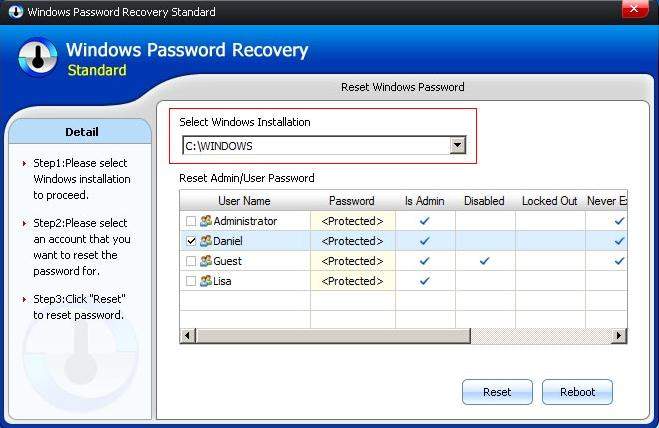
The software will immediately scan your system’s wireless profiles. Depending on how many networks you’ve connected to, it may take a few seconds.
Step 3: Locate Your Target Network
After the scan, a list appears showing all saved WiFi networks. Columns include Network Name (SSID), Key (Password), and Encryption type. Find the network whose password you want to recover. You can sort by clicking column headers if the list is long.
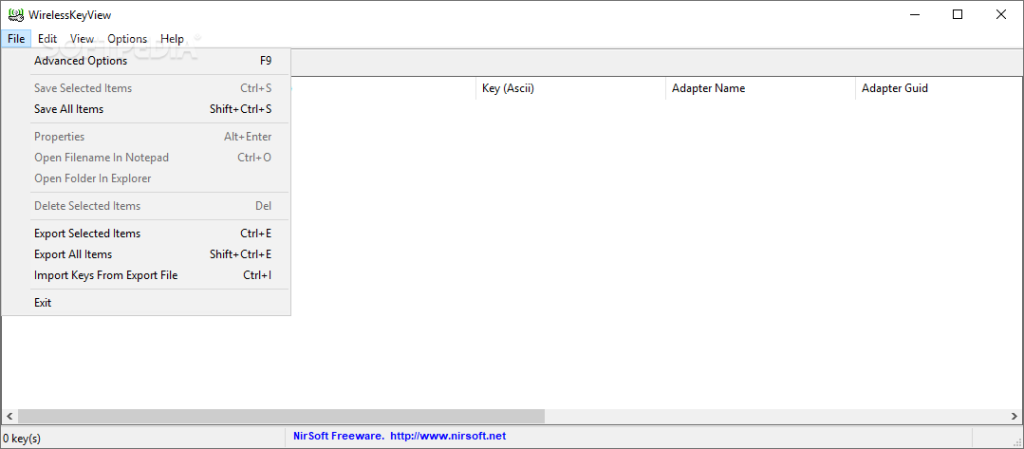
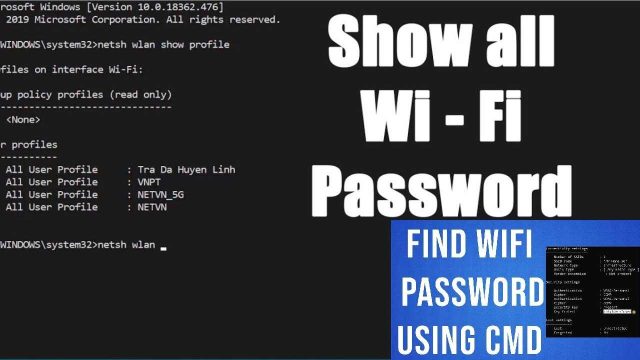
The password is displayed in plain text in the “Key (Ascii)” column. You can highlight it and press Ctrl+C to copy, or write it down. If the field is empty, the network might be using a different authentication method (like enterprise) — in that case, try a different tool or use the recover WiFi password using the Netsh command method.
Step 4: Export All Passwords (Optional)
If you want to save all your WiFi passwords to a file for backup or transfer, go to the File menu (or right-click in the list) and choose “Export Selected Items” or “Save Selected Items”. You can export as a TXT, CSV, or HTML file. The TXT format is simplest — it creates a plain text file with all network names and passwords.
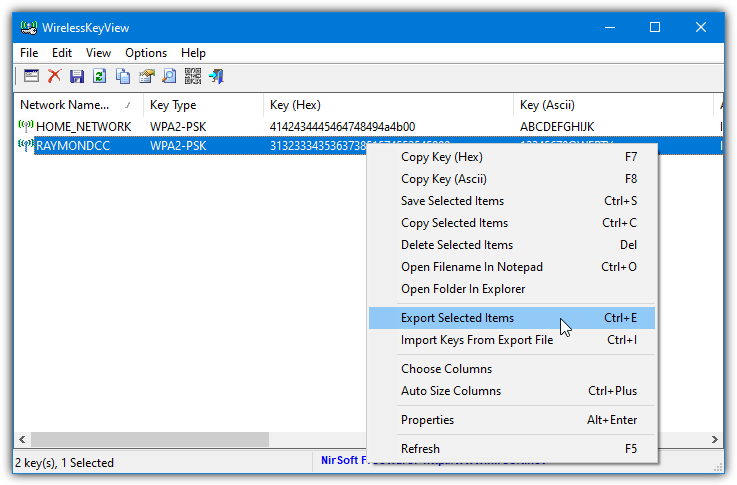
This is especially handy if you’re migrating to a new PC. You can then use that file to quickly re-enter passwords on new devices. If you need more options, check our guide on how to export WiFi passwords to a text file.
Common Pitfalls
- Antivirus false positives: Many password recovery tools are flagged as potentially unwanted programs (PUPs) or even malware because they access sensitive system data. This is a false positive. Before running, temporarily disable your antivirus or whitelist the tool’s folder. Download only from the official source.
- Not running as administrator: If you skip the “Run as administrator” step, the tool will either show empty results or error out. Always right-click and select that option.
- Windows 11 changes: Some older tools haven’t been updated for the latest Windows versions. If WirelessKeyView doesn’t work, try a newer alternative like WiFi Password Revealer (by Magical Jelly Bean). For a manual method that always works, you can use the free WiFi password recovery for Windows built-in command line.
Where to Next?
You’ve now got a reliable method to recover WiFi passwords using software. If you want to dive deeper, check out the best WiFi password recovery tool for Windows for a comparison of top options. Or, if you prefer a hardware approach, learn how to recover WiFi password from your router via its web interface. And for mobile users, we have guides on Android and iPhone recovery too.
Remember: only recover passwords for networks you own or have permission to access. Respect privacy and network security.
WiFi Password Recovery Ethics