
Ever needed to connect a new device to your WiFi but couldn’t remember the password? If you’re on Linux, the password is already saved on your machine — you just need to know where to look. This guide is for anyone who has ever successfully connected to a WiFi network from a Linux computer (desktop or laptop) and now needs to retrieve that password. By the end, you’ll be able to view any saved WiFi password using nothing but a terminal and a couple of commands. No root access is required in most cases, but we’ll cover both scenarios.
We’ll focus on two common network managers: NetworkManager (used by Ubuntu, Fedora, Mint, and most modern distros) and wpa_supplicant (used by Arch, some lightweight setups). Whether you’re trying to recover a password for a home network or an office connection, these methods work. Let’s dive in and turn that forgotten password into something you can copy and paste.
What You’ll Need
- A Linux computer that is currently connected to (or has previously connected to) the WiFi network
- A terminal emulator (like GNOME Terminal, Konsole, or xterm)
- Basic familiarity with the command line (typing commands, using sudo if needed)
- Optional: a text editor to save the password to a file
Step 1: Identify Your Network Manager
Most Linux distributions use NetworkManager by default. To check if you’re running NetworkManager, run this command in your terminal: systemctl status NetworkManager. If you see ‘active (running)’, you’re good. If not, you might be using wpa_supplicant directly. Don’t worry — we cover both methods. For wpa_supplicant users, continue to Step 2’s alternative section.

Step 2: View Saved Passwords with NetworkManager (No Root Needed)
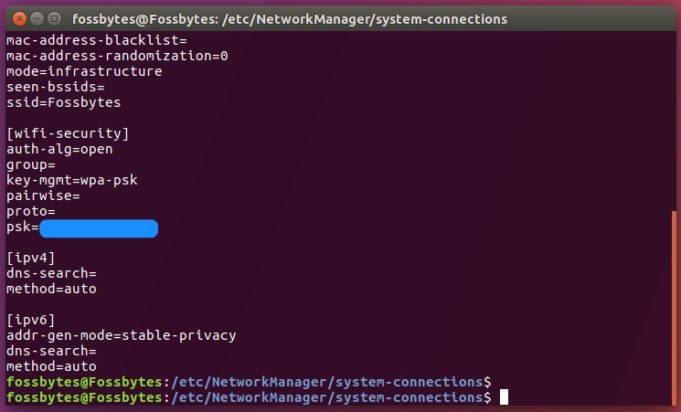
NetworkManager stores connection details in files located at /etc/NetworkManager/system-connections/. However, you don’t need to dig through those files manually — the nmcli command can show you the password. First, list your saved connections:
You’ll see a list of connection names (the SSIDs). To view the password for a specific network, use:
Replace YourNetworkName with the actual SSID from the list (keep the quotes if the name has spaces). The output will show something like 802-11-wireless-security.psk: mypassword123. That’s your WiFi password! If the command returns empty, you may need to view the file directly (see Step 3).

If the above doesn’t work (some older versions of nmcli hide the psk), try viewing the connection file directly:
For non-root users, you can also use nmcli -t -f name,802-11-wireless-security.psk connection show but it may still require root for the secrets. If you prefer a root-less alternative, check the next section.
Step 2 Alternative: Using wpa_supplicant (Root Required)
If your system uses wpa_supplicant (common on Arch or minimal installs), the password is stored in a configuration file, often /etc/wpa_supplicant/wpa_supplicant.conf or under /etc/wpa_supplicant/ with a .conf extension. View it with:
Look for the psk line. Note that the password is usually in plaintext if you didn’t encrypt it when first connecting. If you see a hash (starting with psk=), that’s a hash, not the original password. You’d need the original network key or a brute-force approach — but that’s beyond this guide.

Step 3: Save the Password to a File (Optional)
Once you have the password, you might want to export it for later use. Use the export wifi passwords to text file method with a simple redirect:
Replace the SSID and password. Now you have a handy text file with all your saved passwords. You can also do this for multiple networks.
Common Pitfalls
- **Forgetting to use quotes for SSIDs with spaces**: If your WiFi name has spaces (e.g., ‘Home WiFi’), always enclose it in double quotes in commands.
- **Permissions denied**: Some files require root access. If you get ‘Permission denied’, prepend
sudoto the command but be careful with file modifications. - **Password stored as hash**: If the password appears as a long hex string instead of plaintext, it’s hashed. You cannot recover the original password without the network’s pre-shared key.
Where to Next
Now you know how to recover your saved WiFi passwords on Linux. For more advanced recovery methods, check out our guide on restore wifi passwords linux or wifi password recovery without root. If you’re also using other operating systems, we have tutorials for wifi password recovery from pc and export wifi passwords to text file. Happy networking!





