
Ever needed to quickly grab all your saved WiFi passwords and back them up? Maybe you’re switching to a new laptop or just want a plain-text list you can keep in a safe place. This guide is for anyone who has ever forgotten a network password and wanted an easy way to export them all at once. By the end, you’ll have a .txt file containing every WiFi network name (SSID) and its password (network security key) that your computer has ever connected to. No fancy software, no digging through router settings—just built-in tools on Windows and macOS.
We’ll cover two main methods: one for Windows using Command Prompt or PowerShell, and one for macOS using Terminal and Keychain Access. Both are free and don’t require any third-party downloads. If you’re on Windows, you’ll be writing a simple script that automatically exports all profiles. On Mac, you’ll use the `security` command to dump keychain entries. If you just need a single password quickly, check our guide to view saved WiFi passwords on Windows. For more advanced recovery, see our best WiFi password recovery tool for Windows review.
What You’ll Need
- A Windows PC (Windows 7 or later) or a Mac (macOS 10.6+)
- Administrator access on Windows (or sudo on Mac)
- A text editor (Notepad on Windows, TextEdit on Mac)
- Optional: A USB drive to transfer the export file
Step 1: Open Command Prompt as Administrator (Windows)

Press the Windows key, type “cmd”, right-click on “Command Prompt” (or “PowerShell”) and select “Run as administrator”. Click “Yes” on the User Account Control prompt. This gives you the permissions needed to extract the WiFi keys from the system.
Step 2: List All Saved WiFi Profiles
In the Command Prompt window, type the following and press Enter:
This will display a list of all WiFi networks your PC has ever connected to. Note the exact profile names – we’ll use them in the next step. If you see spaces in the names, you’ll need them in quotes later.
Step 3: Create a Batch Script to Export All Passwords
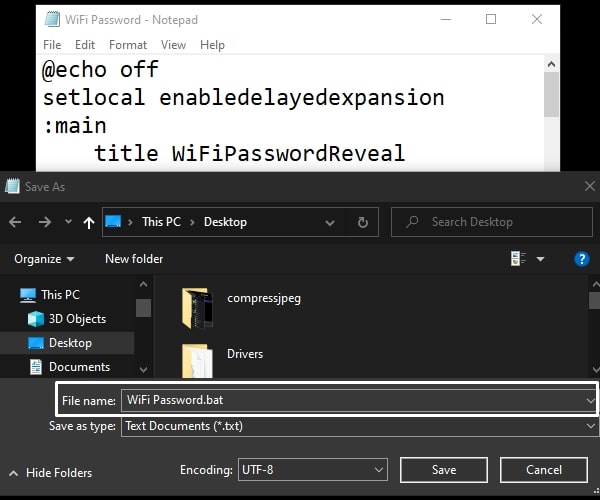
Open Notepad and paste the following script. This will loop through each profile and extract the password, then save everything to a text file on your desktop.
Save the file as “export_wifi.bat” (make sure it’s .bat, not .txt). Then close Notepad.
Step 4: Run the Script to Generate the Text File
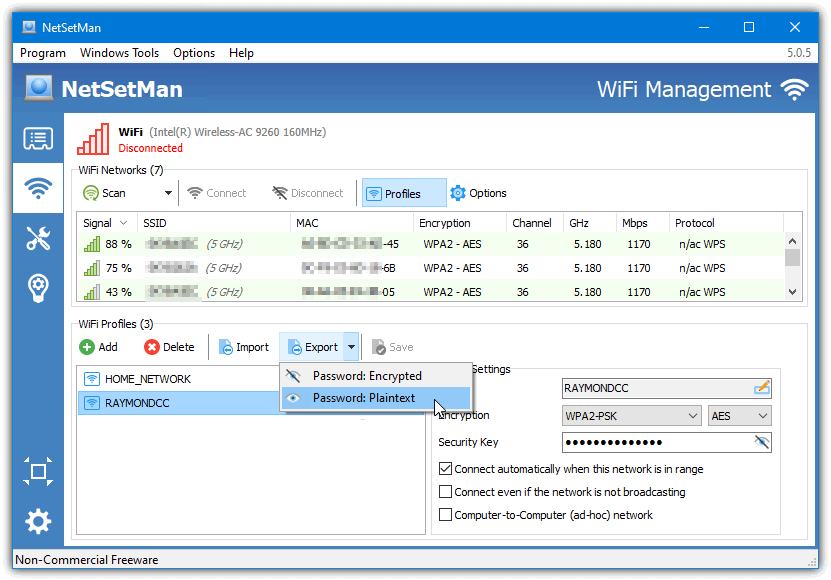
Go back to your Command Prompt (still as admin), navigate to where you saved the .bat file (e.g., the desktop) using the `cd` command, then type the script name and press Enter:
The script will run and create a file called WiFiPasswords.txt on your desktop. Open it – you’ll see each network name followed by its password. If you prefer a different location, edit the script’s path.
Step 5: Export WiFi Passwords on macOS

If you’re on a Mac, the process is even simpler. Open Terminal (Finder > Applications > Utilities > Terminal). Then run the following command to list all saved WiFi networks:
This lists SSIDs. To export passwords for all of them, we’ll use a one-liner that pipes each into the password retrieval command. Copy this into Terminal:
Press Enter. You’ll be prompted for your Mac’s password (the one you log in with) – this is to authorize Keychain access. After that, a file called WiFiPasswords.txt will appear on your desktop containing all network names and passwords.
Step 6: Verify Your Text File

Double-click the WiFiPasswords.txt file to open it. You should see entries like:
If something’s missing, double-check that you ran the script with administrator/sudo privileges and that the profile names are spelled correctly. For additional methods, see our show WiFi password using Command Prompt guide or the netsh command for WiFi recovery tutorial.
Common Pitfalls
- **Not running as Administrator**: On Windows, you must run Command Prompt as an admin. Otherwise you’ll get an “Access Denied” error when trying to retrieve the key.
- **Profile names with spaces**: If a WiFi name contains spaces (e.g., “My Home Network”), the batch script automatically handles it with quotes, but if you’re manually typing commands, always wrap the name in double quotes.
- **Special characters in passwords**: Some passwords contain characters like `!`, `@`, or `#`. These are exported correctly in the text file, but be aware that certain text editors may display them oddly. Always open the file in a plain text editor like Notepad.
Where to Next
Now that you have a clean text file of all your WiFi passwords, consider storing it in a secure password manager. If you ever lose access to your router or need to recover a password on a different device, check out our WiFi password recovery from PC guide. For advanced users, the netsh command for WiFi recovery can be tweaked to export in different formats. And if you’re on Android, we also have a guide to export wifi passwords android.



