
Ever been at a friend’s house, or just reset your router, and realized you have no idea what the WiFi password is? Don’t worry – if you’ve got a Windows laptop or PC that has connected to that network before, you can pull the password right out of the system in under a minute. No third‑party tools, no weird hacks, just a built-in command called netsh.
By the end of this guide, you’ll know exactly how to dig up any saved WiFi password on your Windows machine. Whether you need it to connect a new device, help a friend, or just stop hunting for that sticky note, this method works like a charm. Let’s jump in.
What You’ll Need
- A Windows PC or laptop (Windows 7, 8, 10, or 11 – all work).
- The computer must have connected to the WiFi network at least once and saved the profile.
- Administrator access to the PC (if it’s your personal machine, you’re good).
- No internet connection required – everything is done offline.
Step 1: Open Command Prompt as Administrator
The netsh command needs admin rights to read the password from the system. Here’s how to open the right kind of Command Prompt:
- Press the Windows key on your keyboard, type
cmdorCommand Prompt. - Right‑click the Command Prompt result and select Run as administrator.
- If a User Account Control prompt appears, click Yes to allow.
You’ll see a black window with a blinking cursor. That’s your golden ticket. If you skip the admin step, the next command won’t show the password – you’ll just get an error.
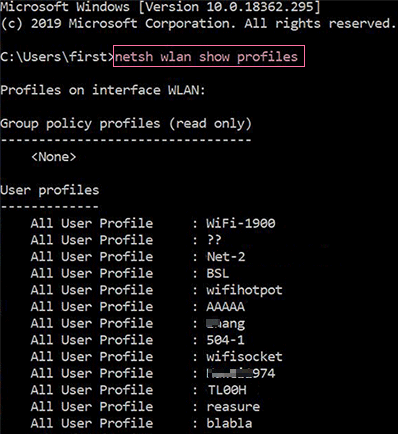
Step 2: List All Saved WiFi Profiles
Now type (or copy‑paste) this command and press Enter:
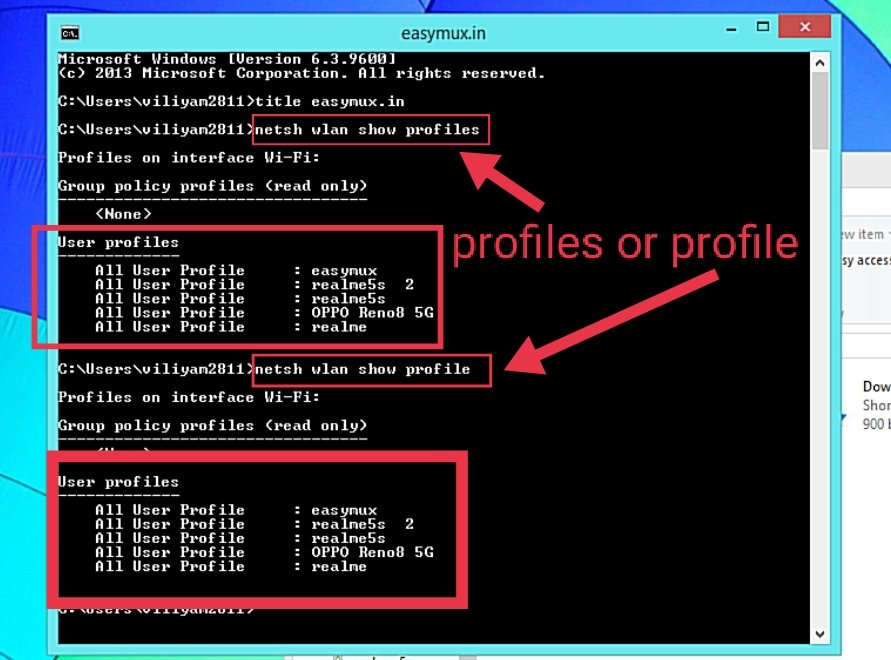
The output will show a list of every WiFi network your computer has ever connected to and saved. Look for the name (SSID) of the network whose password you want to recover – write it down exactly as it appears, including any spaces or special characters.
Step 3: View the Password for a Specific Profile
Once you have the exact profile name, run this command (replace ProfileName with the actual name):
For example, if your network is called “HomeNetwork”, you’d type: netsh wlan show profile name="HomeNetwork" key=clear.
Scroll through the results until you find a section called Security settings. Look for the line that says Key Content – that’s your WiFi password, displayed in plain text.
Common Pitfalls
- “Access denied” or empty Key Content – You didn’t run Command Prompt as administrator. Close it and reopen with admin rights.
- Profile not found – The network name is misspelled or the PC never saved the profile. Double‑check the exact name from step 2.
- Password shows as “none” – The network uses enterprise authentication (like at a school or office). Netsh on a personal machine usually can’t recover those passwords.
Where to Next?
If you also want to show wifi password command prompt for other networks, repeat steps 2-3 with different profile names. For a more visual method, check out our wifi password recovery via control panel guide. If you’re on macOS or Linux, we have a separate tutorial for view saved wifi password using terminal. And if you need to recover a password from a router directly, the wifi password recovery no login required approach might be what you’re looking for. For a complete breakdown of all methods, see our wifi password recovery step by step guide tailored for wifi password recovery for windows users.





