Ever needed to connect a new device to your WiFi but couldn’t remember the password? You’re not alone. We’ve all been there. Instead of resetting the router or asking your roommate, you can pull up the saved password directly from your computer’s terminal. This guide is for anyone who’s comfortable opening a command line and wants a quick, no-fuss way to retrieve that forgotten password. By the end, you’ll know the exact commands to run on Windows, macOS, and Linux to reveal saved WiFi passwords in plain text.
This method works without installing any third-party apps, so it’s safe and reliable. Whether you’re on a work laptop or a personal machine, these steps will get you back online. Let’s dive in.
What You’ll Need
- A computer running Windows, macOS, or Linux.
- Access to a terminal (Command Prompt, PowerShell, Terminal app).
- Administrator or sudo privileges (you’ll need to run commands with elevated permissions).
- A WiFi network you’ve previously connected to.
Step 1: Windows — Use netsh in Command Prompt
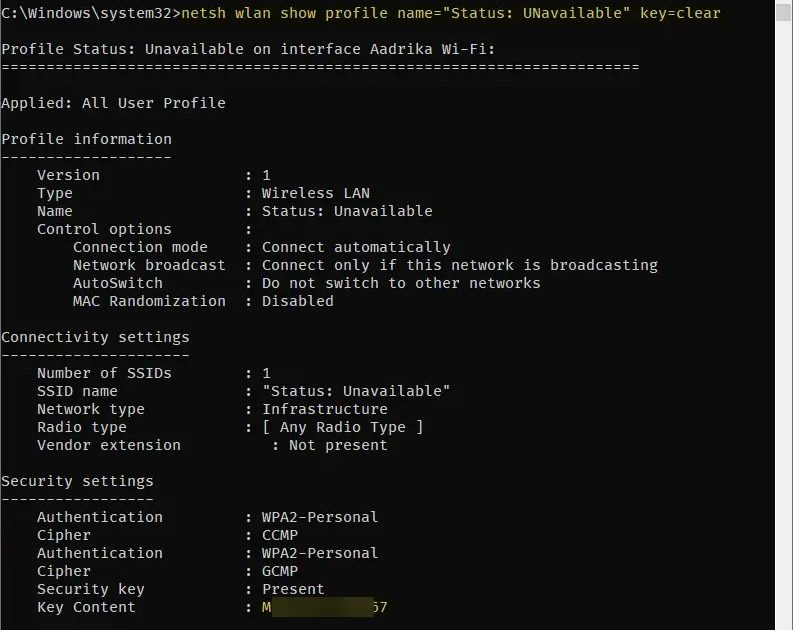
On Windows, the built-in `netsh` command can list all saved WiFi profiles and show the password (key) for any of them. Open Command Prompt as Administrator: hit Start, type “cmd”, right-click and select “Run as administrator”. Then run the following commands.
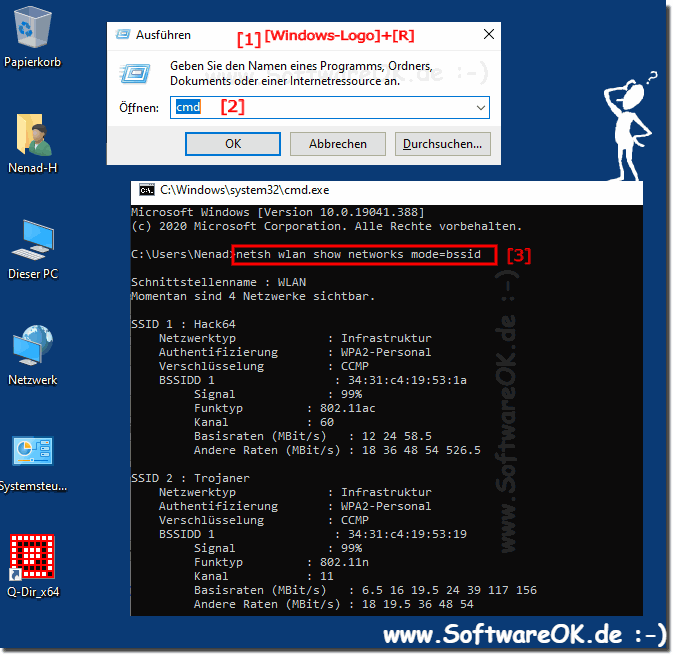
First, list all saved profiles:
netsh wlan show profiles
Command
Look for the network name (SSID) you want the password for. Then run:
netsh wlan show profile name=”YOUR_NETWORK_NAME” key=clear
Command
Replace YOUR_NETWORK_NAME with the actual SSID. In the output, find the line that says “Key Content”. That’s your wifi password.
Step 2: macOS — Use security command in Terminal
macOS stores passwords in the Keychain, which you can access with the `security` command. Open Terminal from Applications > Utilities. Then run:
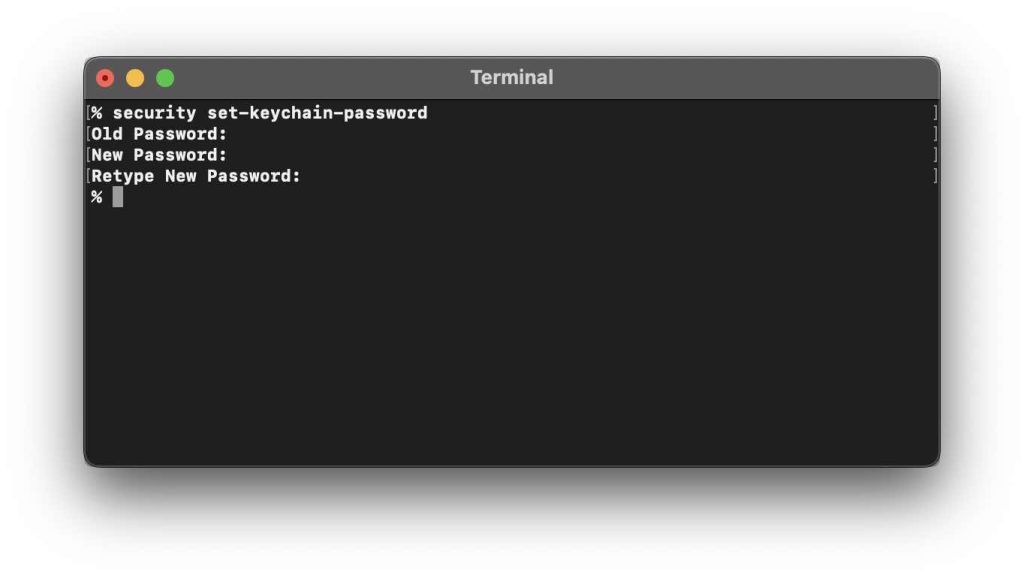
security find-generic-password -wa “YOUR_NETWORK_NAME”
Command
Replace YOUR_NETWORK_NAME with your WiFi SSID. You’ll be prompted to enter your Mac’s admin password (the one you use to log in). After that, the password appears right in the terminal. If you’ve used our view saved wifi password mac guide before, this is the same trick.
For a full list of saved networks, use:
security find-generic-password -a “YOUR_NETWORK_NAME” -s “AirPort” -w
Alternate command
Step 3: Linux — Check NetworkManager config files
Most Linux distributions store WiFi passwords in plain text (or easily decoded) inside NetworkManager’s configuration files. Open a terminal and run:
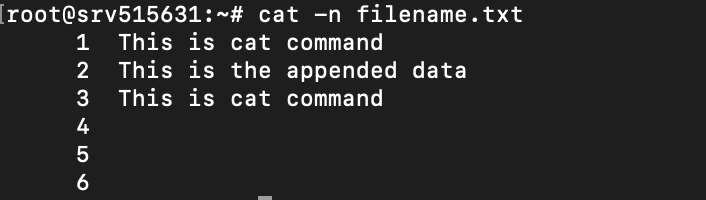
sudo cat /etc/NetworkManager/system-connections/YOUR_NETWORK_NAME
Command
Replace YOUR_NETWORK_NAME with the exact SSID (case-sensitive). You’ll see a block of text; look for the line starting with `psk=`. That’s your wifi password. If the file doesn’t exist, try:
sudo grep -r ‘psk=’ /etc/NetworkManager/system-connections/
Alternative command
This searches all saved connections. Note that some newer distros encrypt the password, but the above usually works on Ubuntu, Fedora, and Debian-based systems. For the complete lowdown, check the wifi password recovery ultimate guide.
Common Pitfalls
- No admin rights: On a managed computer (work/school), you may not be able to run commands as admin. In that case, you’ll need the IT department’s help or use alternative methods like the router admin page.
- Wrong network name: Typos are common. Make sure you type the SSID exactly as it appears, including spaces and special characters. Surround it with quotes if it contains spaces.
- Encrypted passwords on Linux: Some Linux distributions (like newer versions of Ubuntu with systemd) store passwords in a keyring instead of plain text. You might need to use `seahorse` or `gnome-keyring` GUI to extract them.
Where to Next
You’ve just reclaimed your WiFi password using nothing but the terminal. If you ever lose it again (or upgrade your OS and forget to back up), remember these commands. For more advanced recovery techniques—like restoring from a backup or using a dedicated app—browse our forgotten wifi password recovery command guide. Also, if you need to restore wifi passwords after upgrade, we’ve got you covered. And for a personal wifi password recovery routine, check out the linked article. Happy surfing!





