Ever needed to connect a new device but realized you forgot your WiFi password? You’re not alone. If you’re on a Mac that already connects to that network, you can easily view the saved password — no router reset required. This guide walks you through two simple methods: Keychain Access and Terminal. By the end, you’ll be able to pull up any saved WiFi password in under a minute.
This tutorial is for anyone who owns a Mac and wants to retrieve a forgotten WiFi password without resetting the router or calling the ISP. Whether you’re a beginner or a tech enthusiast, these steps are straightforward and safe. We’ll cover the built-in tools that macOS provides, so no extra software is needed. For more advanced techniques, check out our comprehensive wifi password recovery ultimate guide.
What You’ll Need
- A Mac running macOS 10.10 or later (most modern Macs)
- The WiFi network must have been connected at least once
- Administrator access (your login password)
- Optional: a second device to type in the password
That’s it. No downloads, no extra tools. Both Keychain Access and Terminal come pre-installed on every Mac.
Step 1: Open Keychain Access
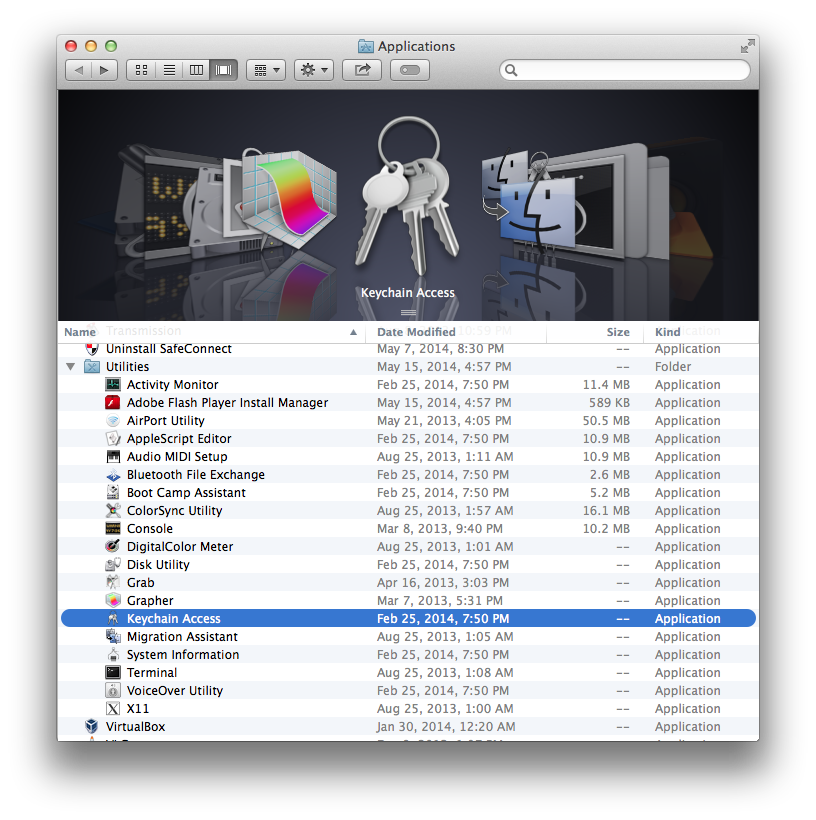
Keychain Access is macOS’s built-in password manager. It stores all your saved passwords, including WiFi network keys. To open it:
- Click the Finder icon in the Dock.
- Go to Applications > Utilities.
- Double-click Keychain Access (or search for it with Spotlight: Cmd+Space, type ‘Keychain Access’).
Step 2: Find Your WiFi Network
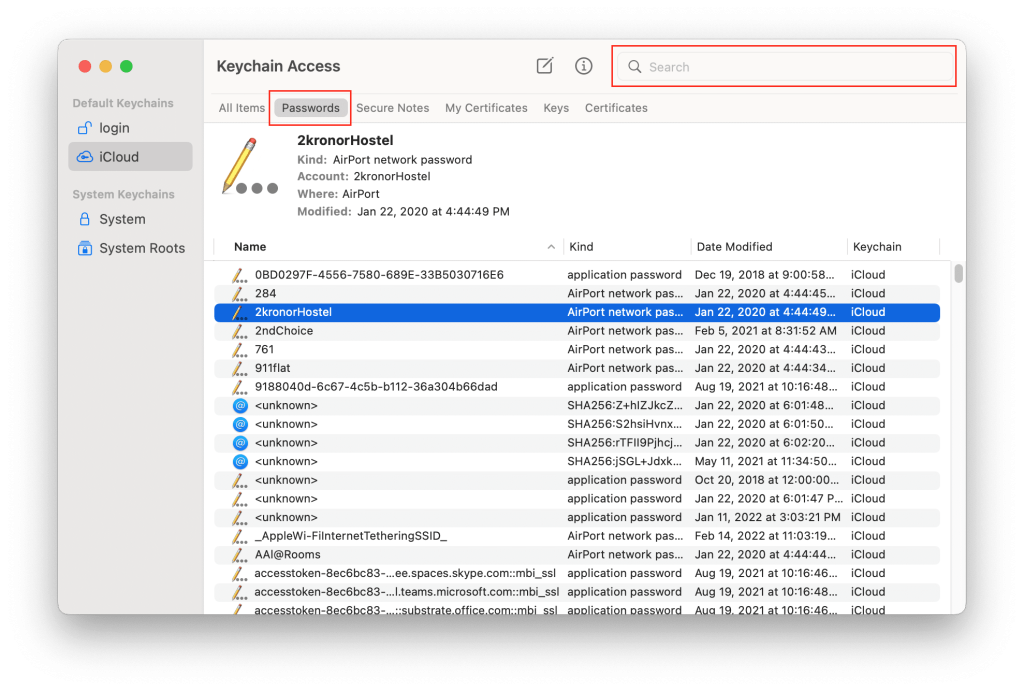
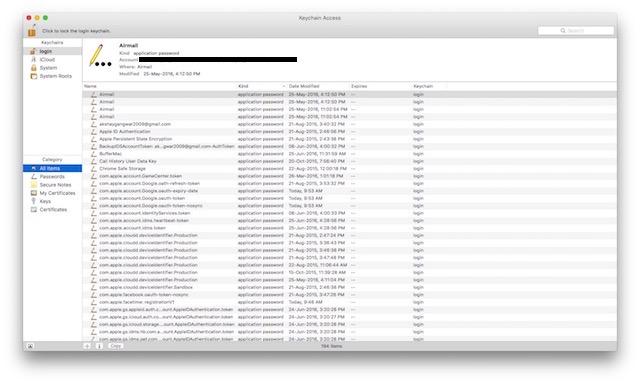
In the Keychain Access window, make sure you’re looking at the ‘login’ keychain (it should be selected by default). Then:
- In the search box (top-right), type the name of your WiFi network (SSID).
- Look under the ‘Name’ column for an entry that matches your network name. It might have a small lock icon.
- Double-click that entry to open its properties.
Step 3: Reveal the Password
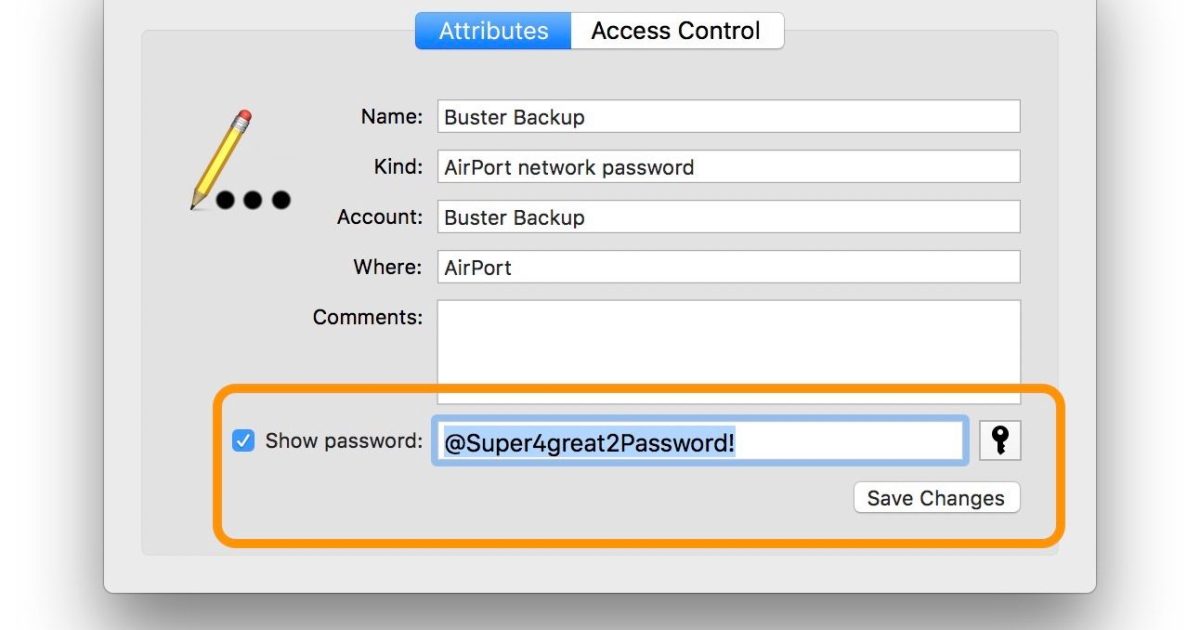
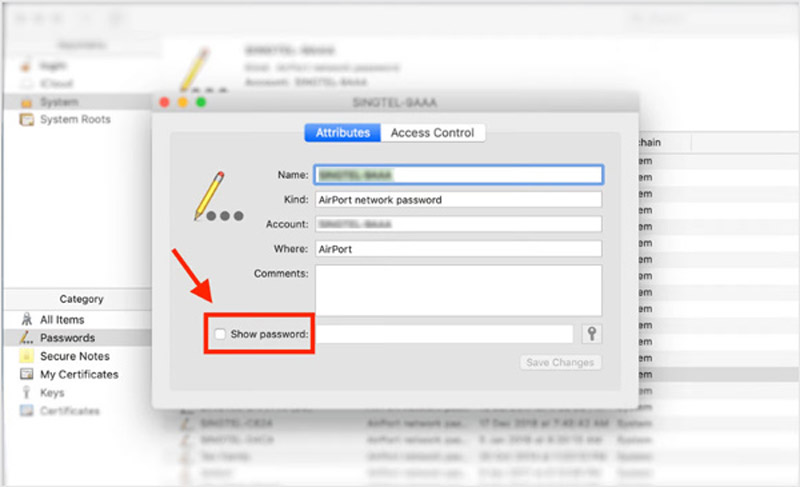
A dialog box will pop up with details about that network. To see the password:
- Check the box ‘Show password’ at the bottom.
- It will ask for your Mac’s login (administrator) username and password.
- Enter your credentials and click Allow (or OK).
- The password will appear in the text field.
Write it down or take a photo. You can now use it on other devices. If you need to recover passwords on older Macs or after a system update, check out our guide on recovering passwords on macbook air.
Step 4: Alternative Method Using Terminal
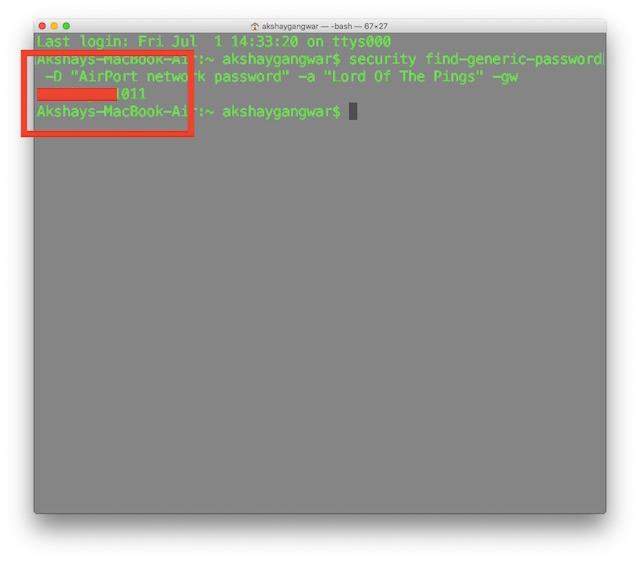
If you prefer the command line or need to quickly export multiple passwords, Terminal is faster. Open Terminal from Applications > Utilities. Then type the following command (replace ‘YourNetworkName’ with your actual SSID):
security find-generic-password -wa ‘YourNetworkName’
macOS Terminal command
Press Enter. You’ll be prompted for your Mac’s password (not the WiFi password). Type it and press Enter again. The WiFi password will appear in plain text on the next line.
This method works for any saved network. For a deeper dive into command-line password tools, see our free wifi password recovery for mac article.
Step 5: Copy or Share the Password
Once you have the password, you can copy it from the Terminal or Keychain Access dialog. On a recent Mac, you can also share the password wirelessly using AirDrop or by scanning a QR code — though that requires separate steps. For more sharing options, explore our free wifi password recovery no install guide.
Common Pitfalls
- Wrong Keychain: If you don’t see the network, make sure you’re looking at the ‘login’ keychain, not ‘System’ or ‘iCloud’. Saved WiFi passwords are almost always in login keychain.
- Spelling Matters: When using Terminal, the SSID is case-sensitive. Double-check uppercase/lowercase letters. If the network name has spaces, enclose it in quotes.
- Permission Denied: If you get an error, you might need to grant Terminal full disk access. Go to System Settings > Privacy & Security > Full Disk Access, and check Terminal.
Still stuck? Our wifi password recovery without reinstalling macos guide can help if Keychain won’t cooperate. And if you’d rather not fuss with software, you can always recover wifi password without reset by checking your router’s sticker.
Where to Next
You’ve now mastered viewing saved WiFi passwords on your Mac. Next, you might want to learn how to share passwords with guests using a QR code, or how to back up your Keychain so you never lose passwords again. For more tips, browse our library of Mac tutorials — and don’t forget to check out our complete wifi password recovery ultimate guide for everything you need.





