You’re sitting there, staring at your phone that just disconnected from WiFi, and you realize you have no clue what the password is. Sound familiar? It happens to all of us. But here’s the good news: if you have any device already connected to that network — a Windows laptop, a MacBook, or an Android phone — you can dig up that password in a few minutes. No need to reset the router or call your ISP.
By the end of this guide, you’ll have the secret string of characters you need to reconnect any device. I’ll walk you through four simple methods, from the built‑in tools on your computer to the QR‑code trick on Android. Let’s get your internet back without the headache.
What You’ll Need
- A device (Windows PC, Mac, or Android phone) that is already connected to the WiFi network you want to recover the password for.
- For the router method: admin login credentials (usually printed on the router or set by someone else).
- For the Android QR method: an Android device running Android 10 or newer.
Step 1: Recover WiFi Password on Windows
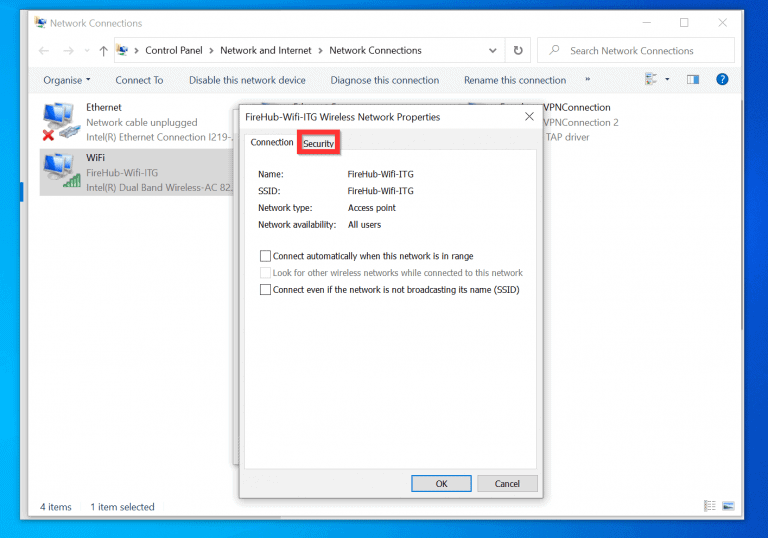
If you have a Windows laptop or desktop connected to the WiFi, this is the fastest method.
- Right-click the WiFi icon in the system tray (bottom-right) and select “Open Network & Internet Settings”.
- Click “Network and Sharing Center” (in Windows 11 you may need to scroll down or search for it).
- Next to “Connections”, click the name of your WiFi network.
- In the pop-up window, click “Wireless Properties”.
- Go to the “Security” tab and check the box that says “Show characters”.
- Your WiFi password will appear in the “Network security key” field.
That’s it — copy it down or take a photo. For a command-line alternative, check out our wifi password recovery powershell script guide.
Step 2: Recover WiFi Password on Mac
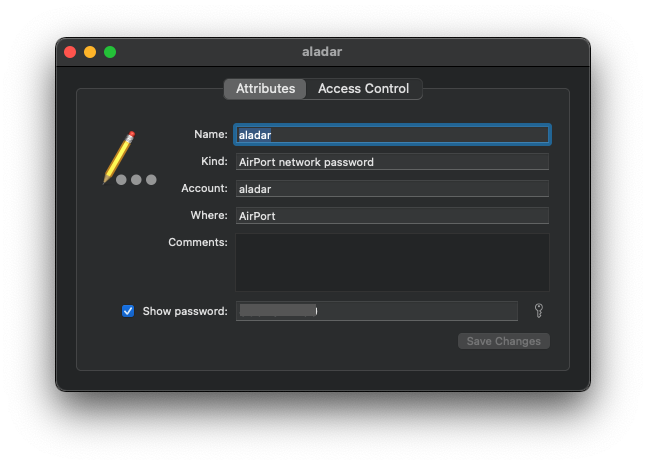
On a Mac, all saved passwords are stored in Keychain Access. Here’s how to find your WiFi one.
- Open “Keychain Access” from Applications > Utilities (or use Spotlight with Cmd+Space).
- In the search bar, type the name of your WiFi network (SSID).
- Double-click the entry for your network. A window will open.
- Check the box “Show password”. You’ll be prompted for your Mac admin username and password.
- Enter your Mac credentials, and the WiFi password will be revealed.
If this is your personal Mac, you probably already know the admin password. For a deeper dive, see our personal wifi password recovery post.
Step 3: Recover WiFi Password on Android (QR Code Method)
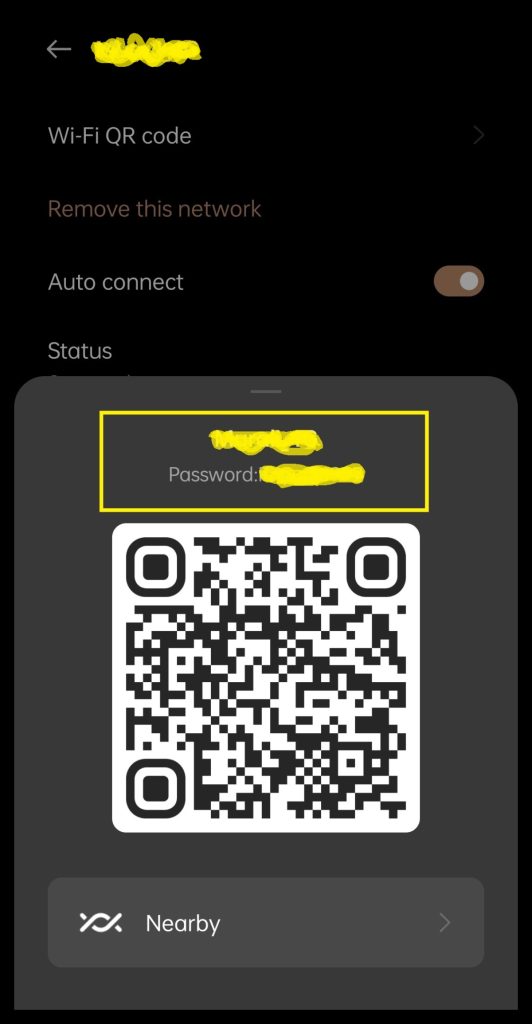
On Android 10 and newer, Google built a QR code sharing feature that also reveals the password. No root needed.
- Open “Settings” and go to “Network & Internet” then “Internet” (or “WiFi”).
- Tap the gear icon next to the connected network’s name (not the switch).
- Tap the “Share” button or QR code icon. You may need to authenticate with your PIN/pattern.
- A QR code will appear with the password written below it in plain text. Copy, screenshot, or memorize it.
This is by far the easiest Android method. For a step‑by‑step with photos, read our wifi password recovery with android qr share guide.
Step 4: Recover WiFi Password from Router’s Web Interface
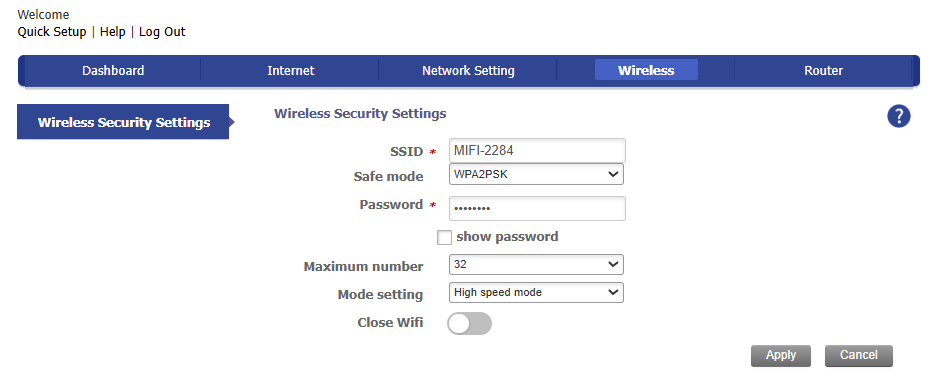
If you have admin access to the router (username and password), you can log in and view the WiFi password directly.
- Open a browser and enter your router’s IP address (usually 192.168.1.1 or 192.168.0.1).
- Log in with the admin credentials. If you never changed them, look on the router sticker or check the manual.
- Find the wireless settings section (often labeled “Wireless”, “WiFi”, or “Security”).
- Look for a field like “Passphrase”, “Network Key”, or “Pre-Shared Key”. It may be masked; look for a “Show” option.
Not all routers show the password in plain sight — some display a show/hide toggle. If yours doesn’t, you may need to reset the router. But that’s a last resort. Check our how to recover wifi password without reset for more options.
Common Pitfalls
- Device isn’t connected anymore. These methods only work if the device is actively connected or has the password saved. If none of your devices are connected, you’ll need the router method or a reset.
- Admin password unknown. For the router method, you need the router’s admin password, not the WiFi password. That’s a different credential; check the router sticker or reset it if forgotten.
- Android QR code won’t show. Some Samsung or Xiaomi phones hide the QR option. Try long-pressing the network name or updating to a newer version of Android. Our free wifi password recovery no install guide has workarounds.
Where to Next
Now that you’ve recovered your password, don’t lose it again! Consider using a password manager that supports cloud sync, or save a secure note in your phone. For a complete overview of all recovery methods, check out the wifi password recovery ultimate guide. And if you often help friends or family with their networks, bookmark our free tools — you never know when you’ll need them.



