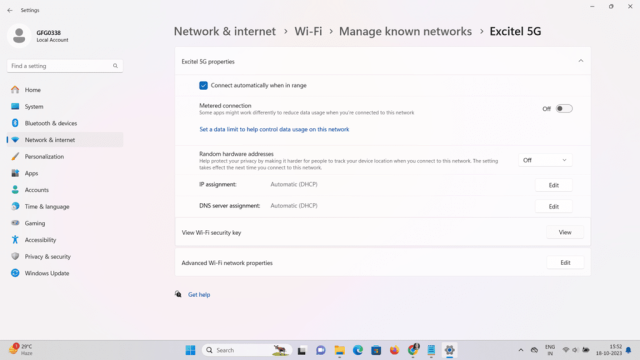
Ever been locked out of your own WiFi because you forgot the password? Don’t worry – you don’t need to download any sketchy software or reset your router. Whether you’re on Windows or Mac, your computer already remembers that password. This guide will show you how to dig it out using built-in tools, no install required. By the end, you’ll have your WiFi password in plain text, ready to share or re-enter.
This is perfect for when you need to connect a new device, help a friend, or just want to stop hunting for that sticky note. We’ll cover methods for both Windows (using Command Prompt) and Mac (using Keychain Access). Plus, we’ll throw in a bonus router trick if you want a backup plan. No downloads, no fees, just simple steps.
What You’ll Need
- A Windows PC or Mac that’s currently connected to the WiFi network (or has connected before)
- Administrator access on Windows (or your user password on Mac)
- A few minutes of patience
Step 1: Open Command Prompt (Windows)
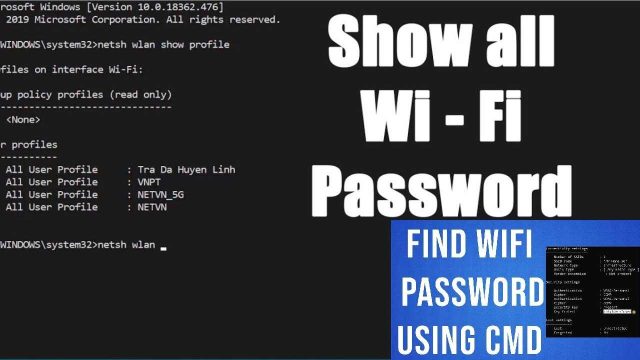
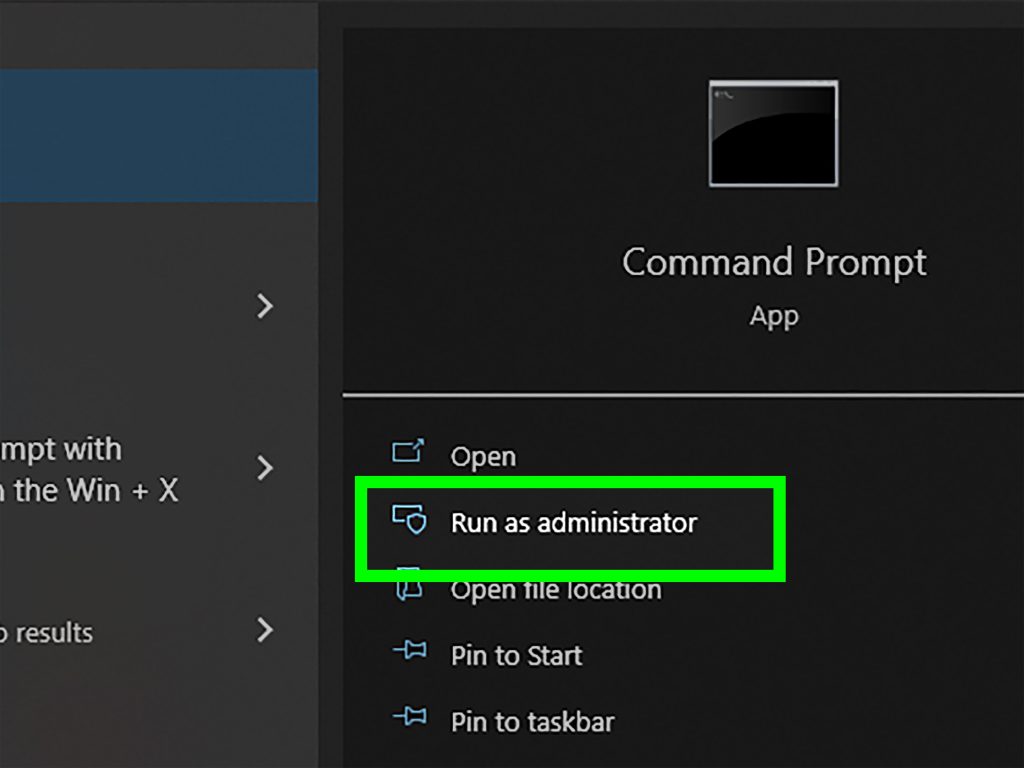
On Windows, the easiest way to view stored WiFi passwords is through the Command Prompt. Press the Windows key, type ‘cmd’, then right-click on ‘Command Prompt’ and select ‘Run as administrator’. This is crucial – if you don’t run as admin, the command won’t show the password.
Step 2: List All Saved WiFi Networks
In the Command Prompt window, type the following command and press Enter: netsh wlan show profiles. This will display a list of all WiFi networks your computer has ever connected to. Look for your network name (SSID) – it’s usually in the ‘User profiles’ section.
Step 3: Get Your WiFi Password
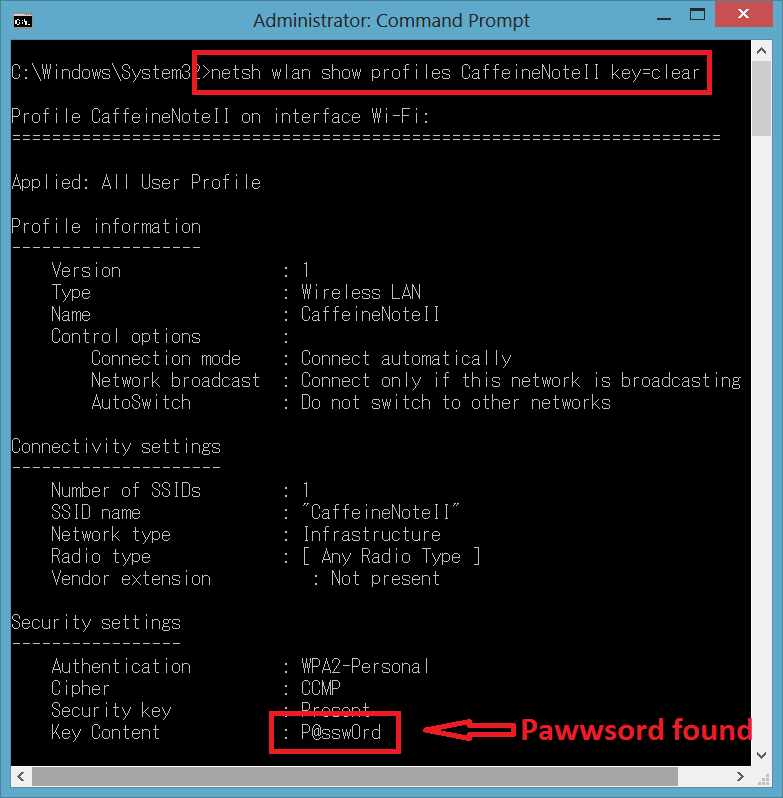
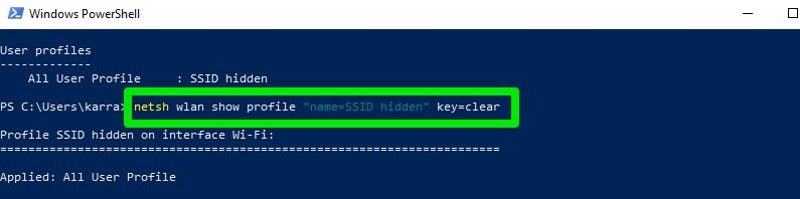
Once you’ve identified your network name (say, ‘MyHomeWiFi’), type the following command: netsh wlan show profile name=MyHomeWiFi key=clear (replace ‘MyHomeWiFi’ with your actual SSID). Look for the line labeled ‘Key Content’ – that’s your password in plain text.
Step 4: Find Saved Passwords on Mac (Keychain Access)
On a Mac, open ‘Keychain Access’ (you can find it via Spotlight with Cmd+Space). In the search bar, type your WiFi network name. You should see an entry for ‘AirPort network password’ or your network name. Double-click it.
Step 5: Reveal the Password on Mac
In the pop-up window, check the box ‘Show password’. You’ll be asked for your Mac login password. Enter it, and your WiFi password will appear in the field. You can now copy it or write it down.
Bonus: Use Your Router’s Admin Page
If you can’t access a computer that’s already connected, you can always log into your router’s admin page. Open a browser, enter your router’s IP (usually 192.168.1.1 or 192.168.0.1), and log in with the admin credentials (often printed on the router). Look for the ‘Wireless’ or ‘WiFi’ section – the password will be there. This method also requires zero installs.
Common Pitfalls
- Not running Command Prompt as administrator – you’ll get an error or no password shown. Always right-click and run as admin.
- Typing the wrong network name – Wi-Fi names are case-sensitive. Use the exact spelling from the ‘netsh wlan show profiles’ list.
- On Mac, forgetting your login password – you’ll need it to reveal the WiFi password. If you’ve changed your Mac password recently, use the current one.
Where to Next
Now that you’ve got your password, check out related guides: you can also recover WiFi passwords with PowerShell, view saved WiFi passwords without admin, or recover your WiFi password from a saved network. For advanced users, learn how to export WiFi passwords with Command Prompt to back them up. Mac users can explore free WiFi password recovery for Mac for more tips.