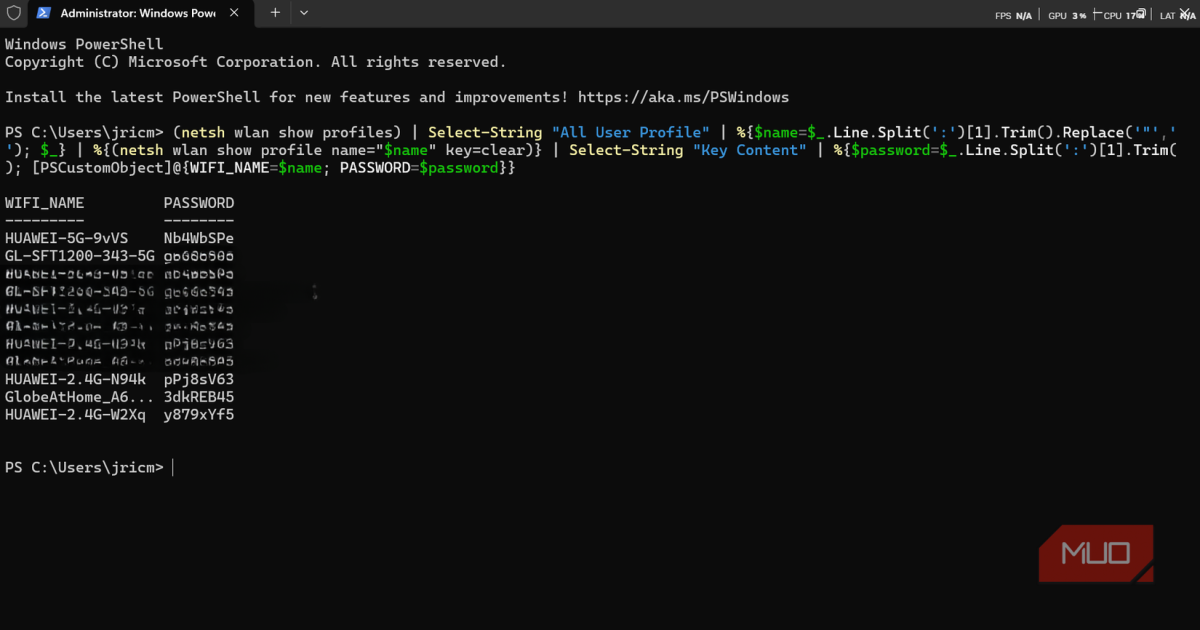
Ever needed to connect a new device to your WiFi but couldn’t remember the password? If you’ve got a Windows laptop that’s already connected, you’re in luck. This guide shows you how to recover any saved WiFi password using a quick PowerShell script. No third-party tools required—just built-in Windows commands.
By the end, you’ll have a reusable script that dumps all your saved WiFi passwords into a neat list. Perfect for backing up before a reset or sharing with family. Let’s get started.
What You’ll Need
- A Windows PC (Windows 7, 8, 10, or 11)
- Administrator access (or a workaround—we’ll cover both)
- At least one saved WiFi network on that PC
- PowerShell (comes pre-installed on Windows)
If you’re on a school or work network, you might run into restrictions. For those cases, check out our guide on view saved wifi password without admin for alternative methods.
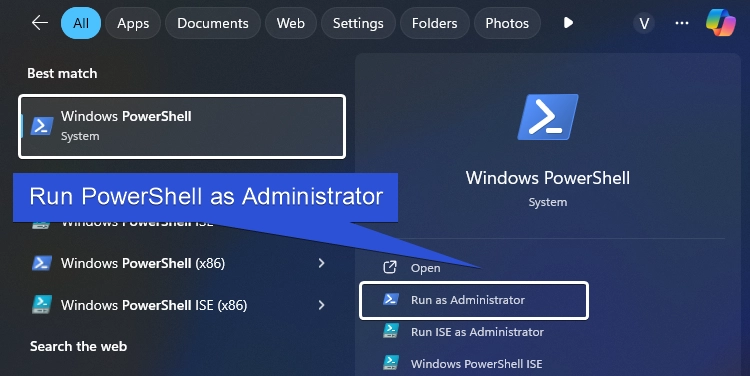
Step 1: Open PowerShell as Administrator
Press the Windows key, type “PowerShell”, right-click on “Windows PowerShell”, and select “Run as administrator”. If prompted by UAC, click Yes. This gives you the permissions needed to access network profiles.
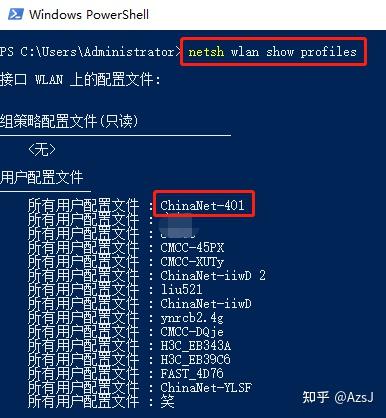
Step 2: List All Saved WiFi Profiles
Run the following command to see every WiFi network your PC has ever connected to:
`netsh wlan show profiles`
You’ll get a list of profile names. Note the exact name of the network whose password you want—case matters.
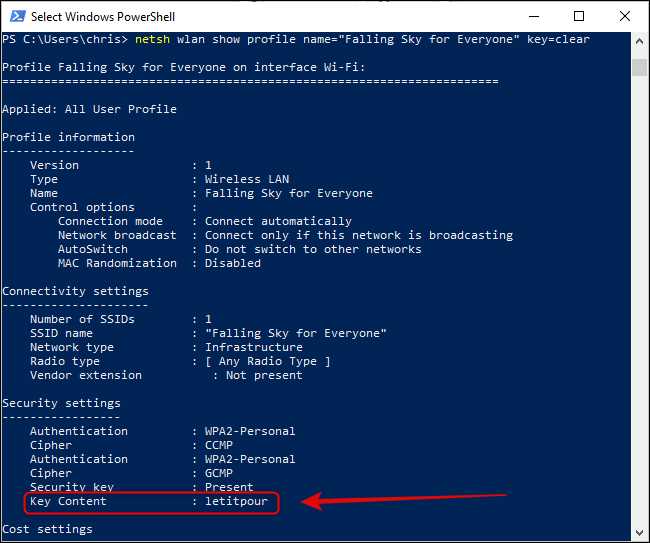
Step 3: Extract the Password for One Network
Replace `NETWORKNAME` with the exact profile name from Step 2 and run:
`netsh wlan show profile name=”NETWORKNAME” key=clear`
Look for the “Key Content” line—that’s your WiFi password. This method is essentially the wifi password recovery command for windows that works without extra software.
Step 4: Automate with a PowerShell Script
Instead of doing one at a time, use this script to extract all passwords at once. Paste the following into your PowerShell (as admin):
`$profiles = netsh wlan show profiles | Select-String “All User Profile” | ForEach-Object { ($_ -split “:”)[1].Trim() }
foreach ($profile in $profiles) {
$result = netsh wlan show profile name=”$profile” key=clear
$password = ($result | Select-String “Key Content”) -replace “.*: “, “”
Write-Output “$profile : $password”
}`
This loops through every profile and prints the network name and password. For a cleaner export, redirect to a text file: append ` | Out-File -FilePath C:wifi_passwords.txt`.
If you prefer a ready-made solution, check out our wifi password recovery powershell export guide for a downloadable script. For a similar approach using the classic command prompt, see export wifi passwords with cmd.
Common Pitfalls
- **Not running as Administrator** – Many commands will fail with “Access denied.” Always right-click PowerShell and run as admin. If you can’t get admin rights, try the view saved wifi password without admin workaround.
- **Network name with spaces** – The `name=` parameter needs quotes. Always use `name=”NETWORKNAME”` to avoid errors.
- **No saved profiles** – If `netsh wlan show profiles` returns nothing, your PC hasn’t connected to any networks. In that case, consider saved wifi password recovery tutorial for other devices like routers.
For ongoing protection, wifi password recovery with cloud sync can keep your passwords accessible across devices.
Where to Next?
Now you have a simple PowerShell script to recover any forgotten WiFi password. Use it to back up your network credentials before a reset or share with friends. Want to go further? Look into exporting passwords from your router’s admin panel or using a recovery application. Happy browsing!



