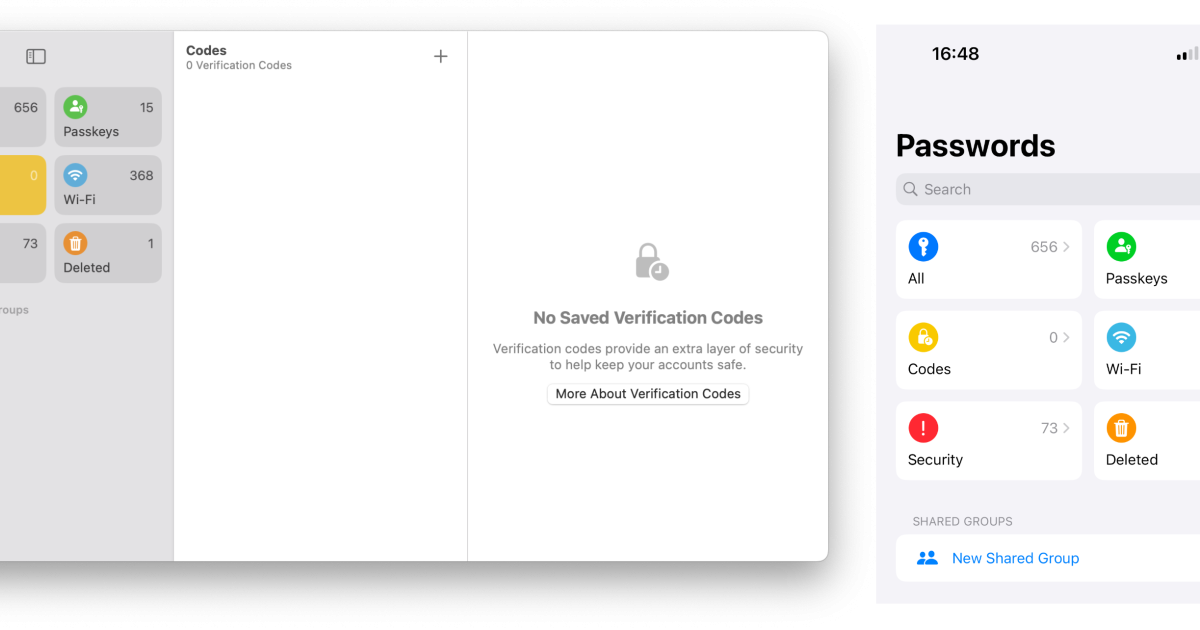
Have you ever reset your phone or reinstalled Windows only to realize you’ve forgotten the WiFi password for every network you’ve ever joined? It’s a pain, but if you’ve enabled cloud sync, you can get them all back in minutes. This guide is for anyone who wants to recover saved WiFi passwords and keep them synced across devices using built-in cloud services. By the end, you’ll know how to enable sync on Windows, macOS, and Android, and how to retrieve passwords when you need them.
We’ll focus on the native cloud sync options that come with your device: Microsoft account for Windows, iCloud Keychain for macOS, and Google Backup for Android. No third-party apps needed, and no manual typing of long random passwords. Let’s get your network keys safely in the cloud so you’re never locked out again.
What You’ll Need
- A Windows PC with a Microsoft account (or local account linked to Microsoft)
- A Mac with an Apple ID and iCloud Keychain enabled
- An Android device with a Google account and backup turned on
- Access to the same cloud account on another device for testing
- Optional: Admin privileges on Windows if recovering old passwords
Step 1: Enable WiFi Password Sync on Windows
Windows can automatically sync your WiFi passwords to the cloud if you sign in with a Microsoft account and turn on sync settings. If you’ve already done this, skip to the recovery step. If not, here’s how to activate it.
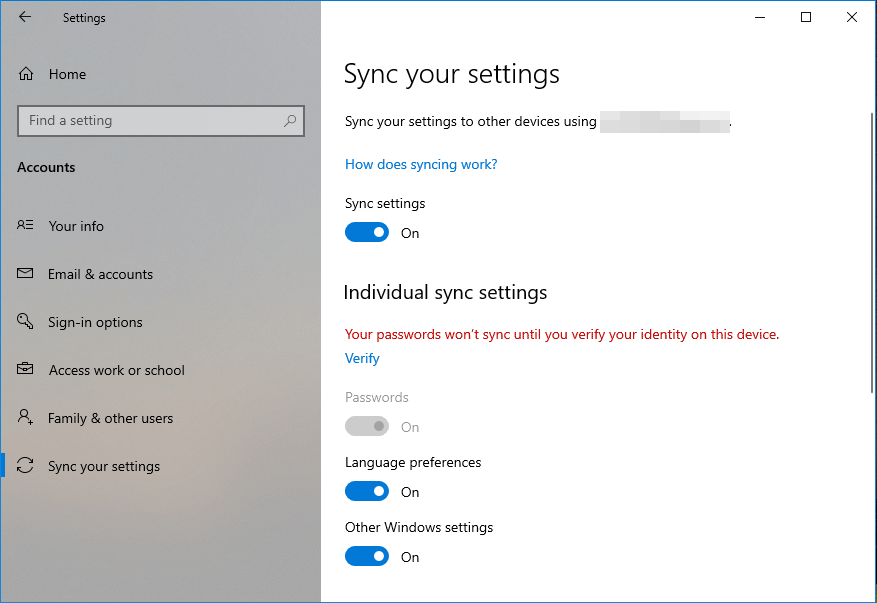
Go to Settings > Accounts > Your info and make sure you’re signed in with a Microsoft account. Then navigate to Settings > Accounts > Sync your settings. Toggle on “Sync settings” and verify that “Passwords” under “Individual sync settings” is enabled (Windows 10/11). Once set, every new WiFi network you connect to will be uploaded to your Microsoft account. For existing networks, you might need to reconnect once to trigger the sync. If you need to recover passwords stored locally before sync, check out our guide on how to backup wifi passwords before reset.
Step 2: Enable WiFi Password Sync on macOS (iCloud Keychain)
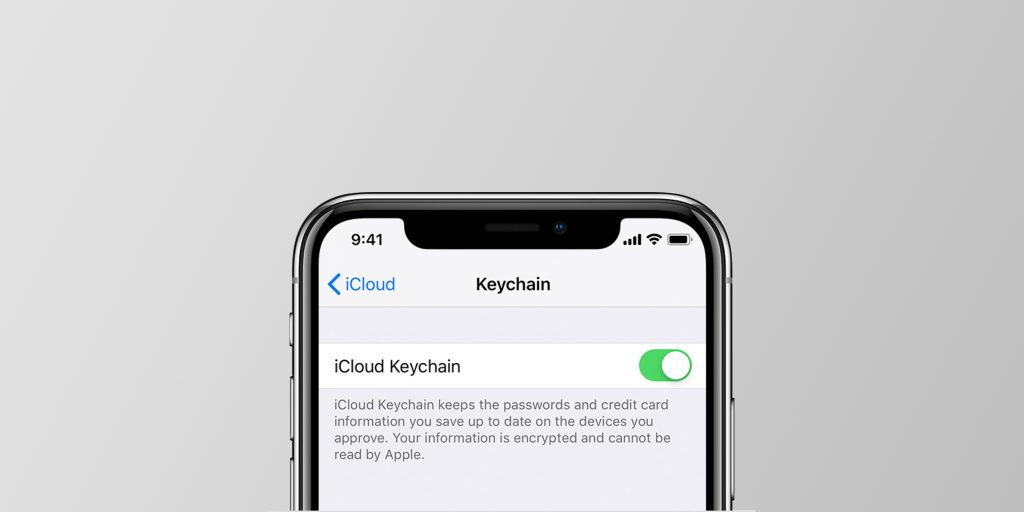
Mac users can use iCloud Keychain to sync WiFi passwords (and other credentials) across Apple devices. This works on iPhone, iPad, and Mac as long as you’re signed into the same Apple ID.
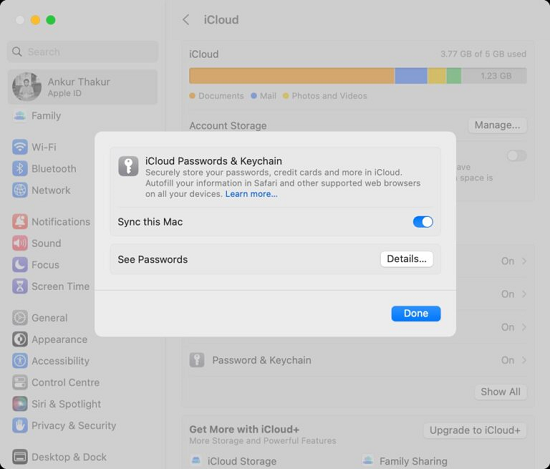
Open System Settings (or System Preferences on older macOS) and click on your Apple ID. Select iCloud, then click “Passwords & Keychain.” Turn on “Sync this Mac.” You’ll be prompted to enter your Apple ID password and a device verification code. Once enabled, your Mac will automatically share WiFi passwords with your other Apple devices. You can view saved networks in the Keychain Access app, but for a simpler method, see our saved wifi password recovery tutorial for Mac.
Step 3: Enable WiFi Password Sync on Android
Android has a built-in backup feature that saves your WiFi passwords to your Google account. It’s part of the Google Backup service, and it requires minimal setup.
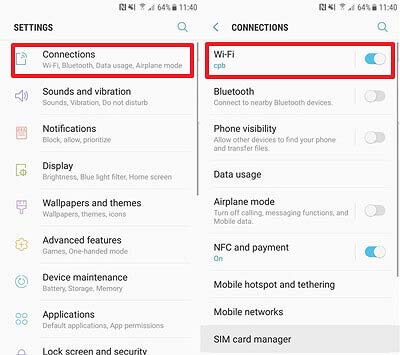
Open your device’s Settings and go to Google > Backup (on stock Android; exact path may vary by manufacturer). Ensure “Back up to Google Drive” is turned on. Under “Google Account data,” check that “Wi-Fi passwords” is included. If not, tap “Account sync” and enable it. Your saved networks are now backed up. When you set up a new Android phone with the same Google account, you’ll be prompted to restore WiFi passwords during initial setup. For individual password retrieval without restoring everything, you can use a QR code method described in our wifi password recovery using network settings post.
Step 4: Recover WiFi Passwords from Cloud Sync
Once sync is enabled on your devices, recovering a password is straightforward.
On Windows: Open Settings > Network & Internet > Wi-Fi > Manage known networks. Select the network, click “Properties,” then next to “View Wi-Fi security key,” click “View” and authenticate. This password is from the local machine, but if you haven’t synced yet, you can also check your Microsoft account’s password list by going to account.microsoft.com/security, signing in, and looking under “Saved passwords.” On macOS: Open Keychain Access, search for the network name, double-click it, check “Show password,” enter your Mac password. On Android: Go to Settings > Network & internet > Wi-Fi, tap the saved network, then the gear icon, and select “Share” to see a QR code if the password is hidden, or you can view it directly on some devices under “View password.” If you need more methods, our view saved wifi password without admin guide covers workarounds for restricted accounts.
Step 5: Export WiFi Passwords for Manual Backup (Optional)
Cloud sync is great, but sometimes you want a local copy. If you’re planning to reset your device or switch to a different cloud provider, exporting your passwords gives you an extra safety net.
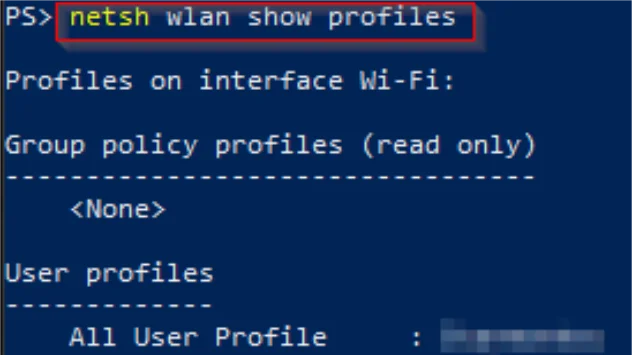
On Windows, you can use Command Prompt or PowerShell to export all known WiFi profiles as XML files. Open PowerShell as Admin and run: `netsh wlan export profile key=clear folder=C:WiFiBackup`. This exports each profile with the password in plain text. For a detailed walkthrough, see our wifi password recovery powershell export guide. On macOS, you can use Keychain Access to export individual entries, but it’s not batch-friendly. For a cross-platform approach, consider saving passwords to a password manager that syncs across devices. And if you’re comfortable with the command line, our export wifi passwords with cmd tutorial covers the Windows CLI method in depth.
Common Pitfalls
- Cloud sync is disabled or not fully set up – Double-check that sync is turned on for passwords specifically. Many users assume cloud sync is active when it’s only syncing other data.
- Using a different account on your new device – You must sign in with the exact same Microsoft, Apple, or Google account that was used when you saved the passwords. A separate account won’t bring them over.
- Restoring from a backup that doesn’t include WiFi passwords – On Android, for example, the restore option during setup may only restore apps and settings; ensure WiFi passwords are included by checking backup settings before you wipe.
Where to Next?
Now that your WiFi passwords are safely synced to the cloud, you can move freely between devices without worrying about lost credentials. If you ever need to recover a password from a specific router or a network you didn’t connect to, check out our guides on recovering from a fiber modem or a school network. And if you want to back up your passwords before a factory reset, remember to run through the steps we covered. Happy syncing!



