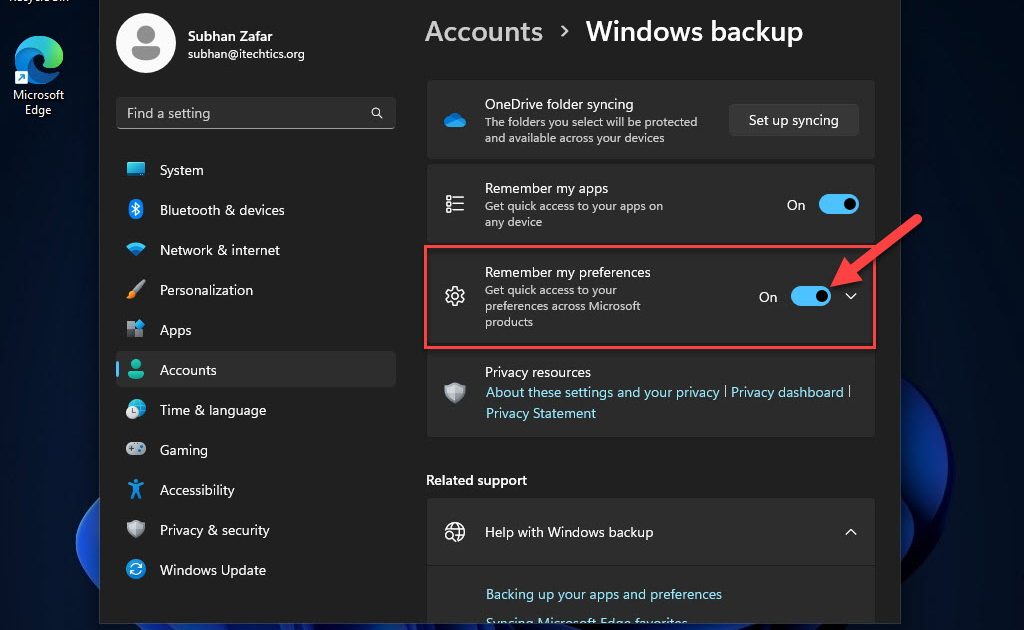
So you’re about to factory reset your phone, reinstall Windows, or wipe your Mac. That’s great for a fresh start, but it also means all those saved WiFi passwords — the ones you haven’t typed in years — will vanish. Suddenly you’re stuck hunting for sticky notes or calling your ISP. I’ve been there, and it’s a headache you don’t need.
This guide is for anyone who wants a quick, no-hassle backup of their WiFi credentials before hitting the reset button. By the end, you’ll have a text file (or a cloud note) containing every network name and password your device remembers. No router logins, no third-party apps required — just the tools already on your device. Let’s get your passwords safe.
What You’ll Need
- A Windows, Mac, Android, or iPhone (whichever you’re resetting)
- Admin access on your computer (for password viewing)
- A USB drive or cloud storage to save the backup
- Optional: a text editor or password manager for organizing
Step 1: Export WiFi Passwords from Windows
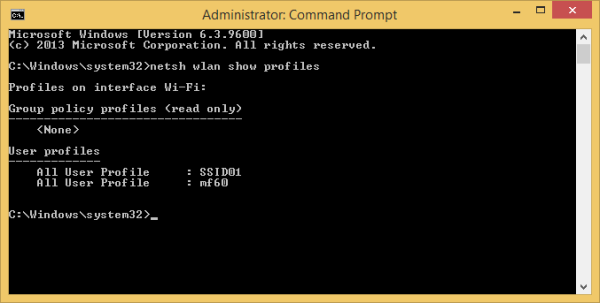
Windows stores WiFi passwords in the credential manager, and you can extract them via Command Prompt or PowerShell. If you’re on Windows 11, check out our detailed wifi password recovery tutorial windows 11 for extra tips. Here’s the core method:
- Open Command Prompt as Administrator (press Win + X, then select ‘Command Prompt (Admin)’ or ‘Terminal (Admin)’).
- Type the command:
netsh wlan show profilesand press Enter. This lists all saved networks. - For each network you want to back up, type:
netsh wlan show profile name="NETWORK_NAME" key=clear(replace NETWORK_NAME with the actual name). - Look for the ‘Key Content’ line — that’s the password. Copy it into a text file.
To speed things up, you can also use the one-liner that exports all passwords at once. For that, see our guide on how to export wifi passwords with cmd — it saves you time.
Step 2: Export WiFi Passwords from macOS
On a Mac, passwords are stored in Keychain Access. The easiest way to get them out is via the Keychain Access app. This method is similar to the wifi password recovery using network settings, but we’ll do a bulk export.
- Open Keychain Access from Applications > Utilities.
- In the search bar, type ‘AirPort’ or ‘Wi-Fi’ to filter network entries.
- Select all the relevant entries (Cmd+click each).
- Right-click and choose ‘Copy Password’ — but you’ll have to enter your Mac admin password each time.
A faster way is to use the Terminal. Run the command: security find-generic-password -wa "NETWORK_NAME" for each network. Alternatively, check our saved wifi password recovery tutorial for a script that automates this.
Step 3: Export WiFi Passwords from Android
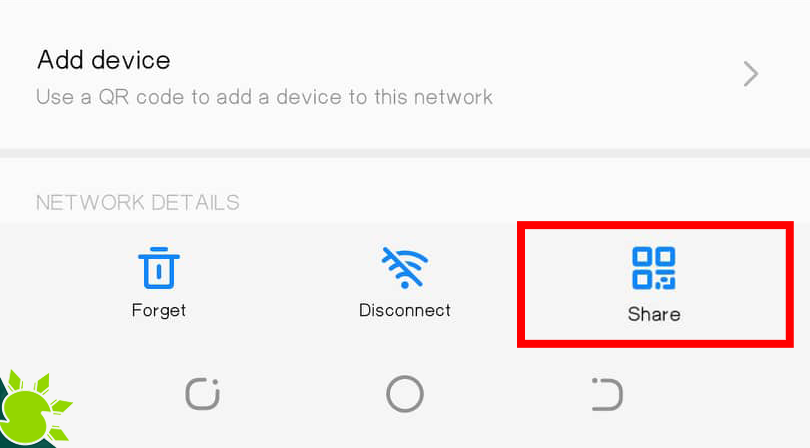
Android 10 and later have a built-in QR code sharing feature that reveals the password. For older versions, you may need to go rootless — but here’s the no-root method that works on most devices.
- Go to Settings > Network & Internet > Wi-Fi.
- Tap the saved network you want to export.
- Tap ‘Share’ (or the QR code icon). You’ll be prompted for your PIN, pattern, or password.
- Screenshot the QR code, or tap the ‘Show password’ option that appears below the code. Write it down.
For multiple networks, you’ll need to repeat this. Some Samsung phones also have a ‘Wi-Fi password’ option in Settings under ‘Connections’ that lists all passwords in plain text. This is arguably the easiest wifi password recovery method on Android.
Step 4: Export WiFi Passwords from iPhone (iOS)
Apple makes it a bit trickier. On iOS 16+, you can view passwords in Settings > Wi-Fi, but only for the current network. For a full list, you need iCloud Keychain synced to a Mac, or use the new ‘Wi-Fi Password’ feature in Settings > Passwords (authenticate with Face ID).
- Open Settings > Wi-Fi.
- Tap the blue info icon (i) next to a saved network that’s currently connected.
- Tap the ‘Password’ field and authenticate to reveal it. Copy it manually.
- For all saved networks, go to Settings > Passwords > Wi-Fi — here you’ll see every network you’ve ever joined. Tap one to see the password.
If you’re planning to reset your iPhone completely, consider syncing your passwords to a password manager before the wipe. For older iOS versions, you might need to use a Mac to extract them via Keychain — similar to our wifi password recovery command without admin approach, but on a computer.
Common Pitfalls
- Forgetting to run command prompt as admin — if you skip this, netsh won’t show the passwords. Always right-click and choose ‘Run as administrator’.
- Not verifying the backup file before reset — it’s easy to export a blank file or miss networks. Double-check that your text file contains actual passwords, not just profile names.
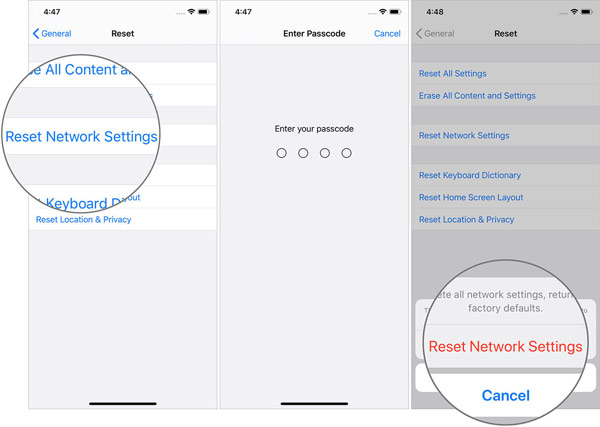
- Assuming all networks are recoverable after reset — once you reset, those passwords are gone unless you’ve backed them up or use a cloud sync like iCloud Keychain. Don’t rely on ‘remembering’ them later.
Where to Next
Now that your passwords are safely saved, you’re ready to reset without fear. If you ever lose that backup or need to recover passwords from a device that’s already been wiped, check out our guides on wifi password recovery after OS reinstall or recovering from a fiber modem. For a hassle-free experience, consider storing your passwords in a dedicated manager — you’ll thank yourself later.



