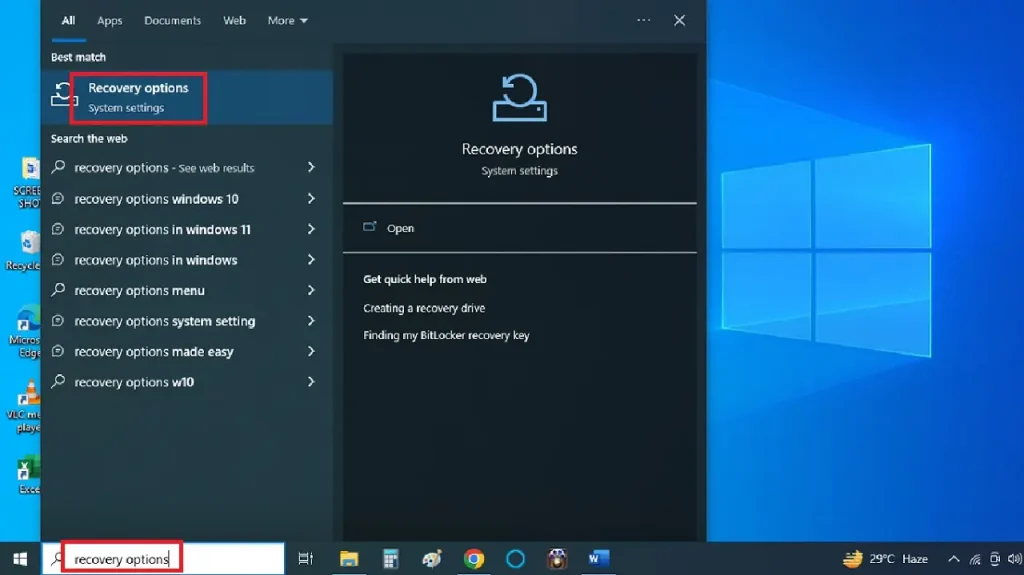
So you just reinstalled Windows, macOS, or Linux and realized you’ve lost all your saved WiFi passwords. Don’t panic—you’re not locked out forever. This guide is for anyone who performed a clean OS install and now needs to reconnect to their home, office, or university network. By the end, you’ll have your WiFi password back without resetting your router or calling your ISP.
We’ll cover multiple recovery methods: checking your router’s default password, logging into the admin panel, using another device that still has the password saved, and tapping into a password manager. Even if you don’t have another device handy, the router method works—provided you know or can recover the admin credentials. Let’s dive in.
What You’ll Need
- A computer or phone with a web browser (to access your router)
- Router admin password (default or one you set—if forgotten, we’ll handle that)
- Another device that still has the WiFi network saved (optional but helpful)
- A password manager (optional, if you use one)
- Patience—especially if you need to reset the router
Step 1: Check the Router’s Default Password

Most routers have a sticker on the bottom or back that lists the default WiFi network name (SSID) and password. If you never changed the WiFi password, this is your quickest way back online. Look for a label that says “Wireless Password” or “Network Key”. If the sticker is faded, try using a flashlight to read it. This method won’t work if you already changed the password, but it’s worth checking first.
Step 2: Log Into Your Router’s Admin Panel

If the default password has been changed, you’ll need to access the router’s admin interface. Open a browser and enter your router’s IP address—typically 192.168.1.1, 192.168.0.1, or 10.0.0.1. You can find the exact address by checking another device that’s still connected (or look it up online for your router model). Enter the admin username and password (if you don’t know them, try the default credentials from the sticker—often “admin” for both). Once inside, look for a section like “Wireless” or “WiFi Settings”. There, you’ll see the current WiFi password, often masked but with a “show” toggle. Copy it down and you’re set.
If you’re on Windows and have another PC that didn’t get wiped, you can also use the command line to recover saved networks. For a detailed walkthrough, check out our guide to wifi password recovery command for windows.
Step 3: Recover Using Another Device
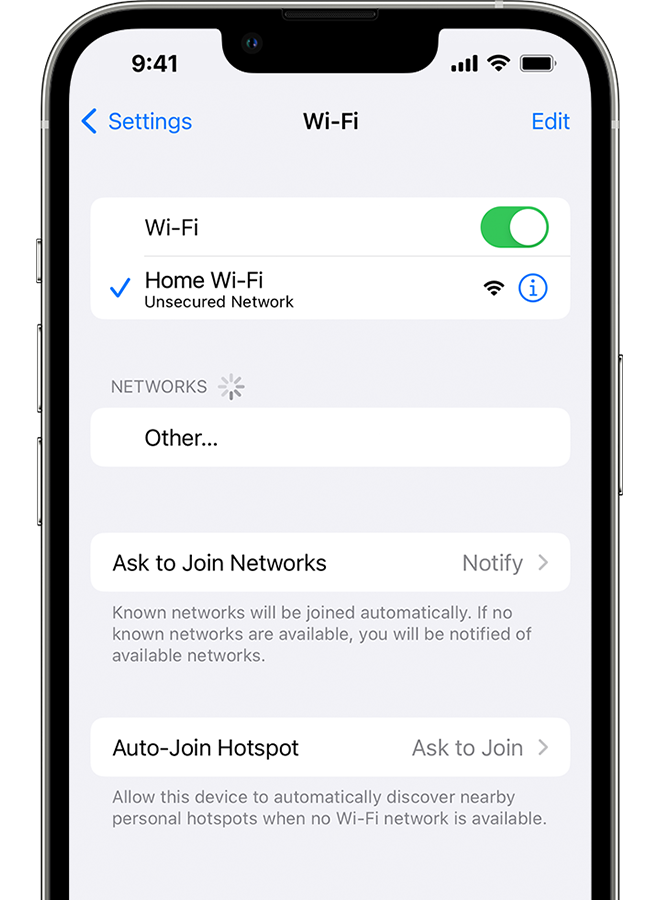
Do you have another device—phone, tablet, or laptop—that already connects to the same WiFi network? Great. On an iPhone, go to Settings > Wi-Fi, tap the info icon next to the network, and use Face ID or Touch ID to reveal the password. On Android, go to Settings > Network & Internet > Wi-Fi, tap the saved network, and look for a share or QR code option (the password is often shown below the code). On another Windows PC, you can open Command Prompt as admin and use the “netsh wlan show profile” command. For the full steps, see our saved wifi password recovery tutorial.
Mac users have it easy: open Keychain Access, search for the network name, and double-click to show the password (you’ll need your Mac admin password). This is one of the quickest wifi password recovery using network settings methods.
Step 4: Use a Password Manager

If you use a password manager like LastPass, 1Password, or Bitwarden, you might have saved the WiFi password there. Most managers have a dedicated section for Wi-Fi networks—or you can search for the network name. If you synced your vault before the reinstall, you’re golden. This is arguably the easiest wifi password recovery method if you already have a password manager in place.
Step 5: Router Reset (Last Resort)
If you can’t access the admin panel and don’t have another device, you can reset the router to factory settings. Look for a tiny reset button on the back or bottom—usually a pinhole. Use a paperclip or sim eject tool to press and hold it for 10-30 seconds until the lights flash. This will erase all custom settings, including the admin password and any custom WiFi password, reverting to the defaults on the sticker. After reset, you can log in with the default credentials and set a new WiFi password. Note: this also resets any port forwarding, QoS, or parental controls, so use it only when necessary.
Common Pitfalls
- Router admin password forgotten and no reset button accessible (some ISP routers disable the reset function—check with your provider).
- Sticker worn off or incorrect default password (try common defaults like admin/password or search your model online).
- Another device’s WiFi password viewing option blocked (e.g., some Android skins hide the share option; use a QR code scanner instead).
For more help with tricky situations, refer to our wifi password recovery troubleshooting guide.
Where to Next
You’re back online. Now, to avoid this hassle in the future, consider writing down your WiFi password in a secure place or storing it in a password manager. If you need to recover passwords from other networks (like at a university or office), check our guides on wifi password recovery on university network and office wifi password recovery. Also, if you ever need to export multiple passwords from a Windows PC before a reinstall, learn how to export wifi passwords with cmd.
Hopefully, one of these methods worked for you. If not, don’t give up—there’s always the option of connecting an Ethernet cable and poking around the router settings further. Good luck!



