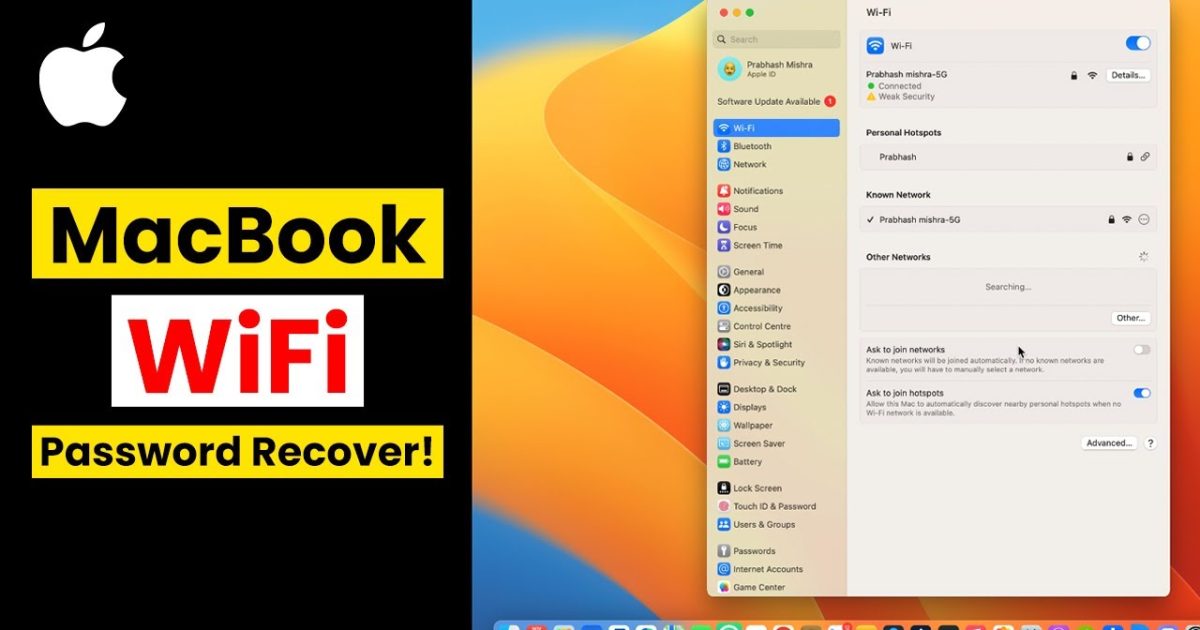
Ever been that person staring at a guest’s laptop, trying to remember the WiFi password you set up months ago? We’ve all been there. If you own a MacBook Air and you’ve connected to a network at least once, your Mac has saved that password in a secure vault called Keychain. This guide is for anyone who needs to dig that password out — whether it’s for a friend’s device, a new gadget, or just because you forgot to write it down. By the end, you’ll be able to view any saved WiFi password from your MacBook Air, no third-party tools required.
We’ll cover two methods: the friendly Keychain Access app (recommended for most people) and the Terminal approach if you like command lines. Both work on any modern macOS version, from Big Sur to Ventura and beyond. You don’t need to be a tech wizard — just follow these simple steps and you’ll have your password in under a minute.
What You’ll Need
- Your MacBook Air (any model running macOS 10.10 or later)
- The WiFi network you want to recover must have been connected at least once
- Your Mac’s login password (admin privileges)
- Optional: A second device to test the recovered password
Step 1: Open Keychain Access
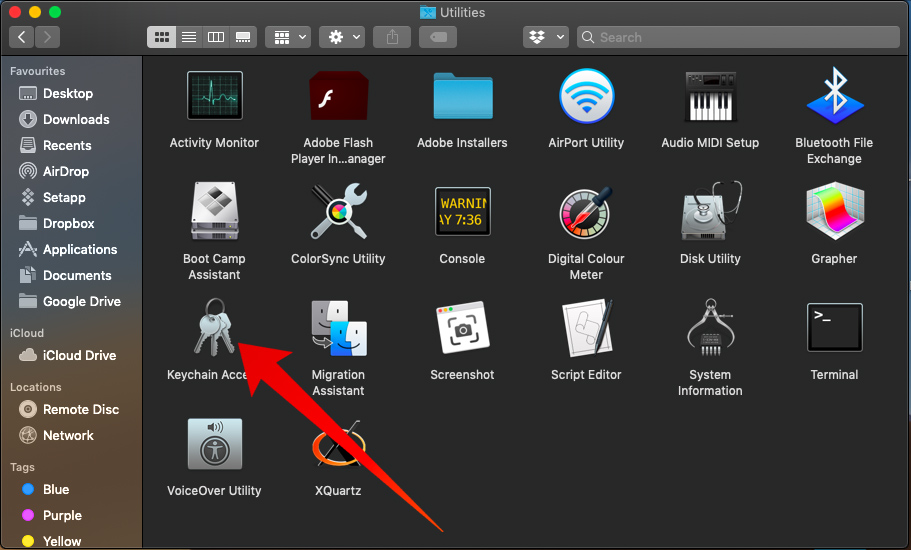
Keychain Access is macOS’s built-in password manager. It stores everything from website logins to WiFi passwords. To open it, click the Finder icon in your Dock, then go to Applications > Utilities > Keychain Access. Alternatively, press Command + Space to open Spotlight Search, type “Keychain Access,” and hit Enter.
Step 2: Find Your WiFi Network Name
In Keychain Access, you’ll see a list of all your saved passwords. To narrow it down, use the search bar in the top-right corner. Type the name of your WiFi network (SSID). For example, if your network is called “HomeSweetHome,” type that in. The list will filter automatically. Look for an entry with a small lock icon under the “Kind” column — it should say “AirPort network password.”
Step 3: Show the Password
Double-click the network name. A new window will pop up with details about that network. Check the box that says “Show password” (it might be labeled differently in older macOS versions — look for a checkbox near the password field). You’ll be prompted to enter your Mac’s login username and password. Type them in and click Allow. Voilà — the password is now visible in plain text. Write it down or copy it somewhere safe.
Step 4: (Alternative) Recover WiFi Password Using Terminal
If you’re comfortable with the command line, Terminal can get the job done even faster. Open Terminal from Applications > Utilities (or Spotlight search). Type the following command:
security find-generic-password -wa “YourNetworkName”
Replace “YourNetworkName” with the actual SSID of your network (e.g., “HomeSweetHome”). Hit Enter. You’ll get a dialog asking for your Mac’s password. Enter it, and the WiFi password will appear in the Terminal window. That’s it!
Common Pitfalls
- **Network not in Keychain**: If you never connected to the network from this Mac, or you clicked “Forget This Network,” the password won’t be stored. Reconnect at least once first.
- **Wrong admin credentials**: You must use the login password of the admin user account that originally saved the password. Guest accounts won’t work.
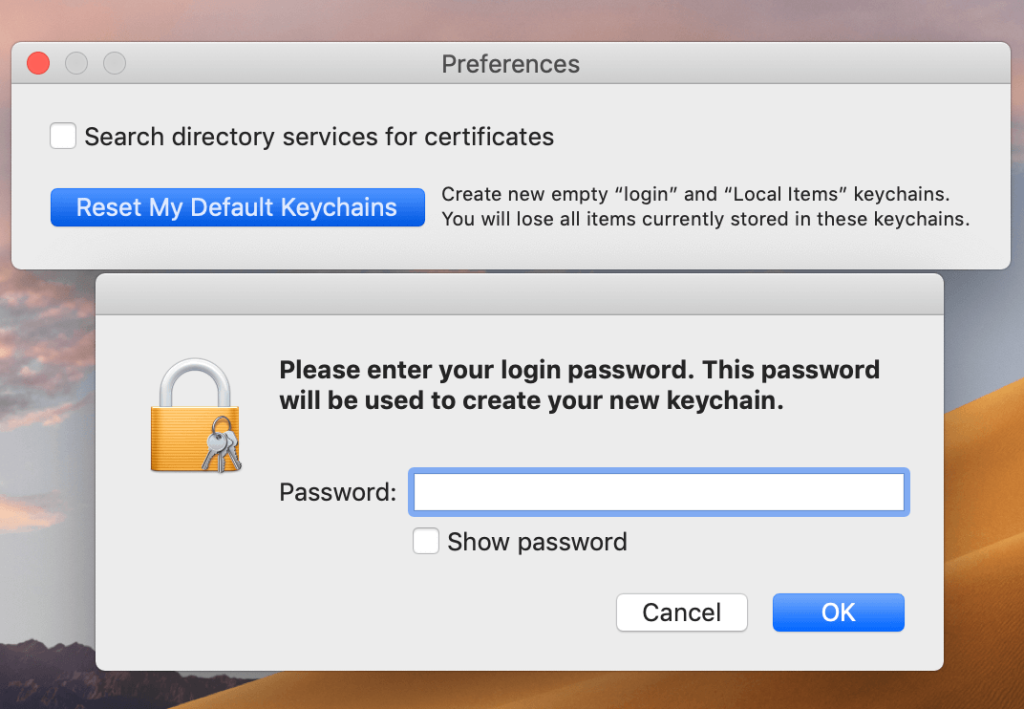
- **Password field greyed out**: This happens if the keychain is locked. Unlock it by selecting the “login” keychain on the left sidebar and entering your Mac password again.
Where to Next
Now that you’ve recovered your WiFi password, you might want to check out our other guides. If you need to view saved WiFi passwords on Android or Windows, we’ve got you covered. For a deeper dive into password management, consider using a dedicated wifi password recovery application or setting up wifi password recovery with cloud sync to never lose a password again. And if you’re helping a friend on a different device, our saved wifi password recovery tutorial covers the rest.



