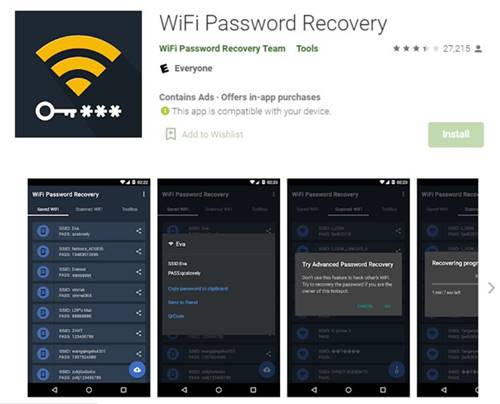
Ever needed to connect a new device to your WiFi but completely blanked on the password? Or maybe you have a friend over who wants to hop on your network, and you don’t want to crawl under the desk to check the router sticker. A WiFi password recovery application can pull up that forgotten password in seconds from your computer or phone. This guide is for anyone who has a device that already knows the WiFi password – be it a Windows PC, a Mac, or an Android phone – and wants to extract it without resetting anything. By the end, you’ll be able to recover your WiFi password using a simple app, and you’ll have a few pro tips just in case something goes wrong.
We’ll focus on free, safe applications that work on the most common platforms. If you’re on Windows, we’ll use a lightweight tool called WirelessKeyView. On macOS, the built-in Keychain Access does the job perfectly. Android users can grab WiFi Password Viewer or use a Quick Response (QR) code method. The steps are straightforward – you won’t need any special skills beyond clicking a few buttons. Let’s dive in.
What You’ll Need
- A Windows PC, Mac, or Android device that is currently connected to (or has previously connected to) the WiFi network.
- Administrator privileges on Windows (or the password to an admin account).
- For macOS: your user account password (the one you log in with).
- For Android: file manager access and permission to install APKs if using a third-party app.
- A few minutes of patience.
- Optional: a USB drive if you need to transfer the password to another device.
Step 1: Choose the Right Recovery App for Your Device
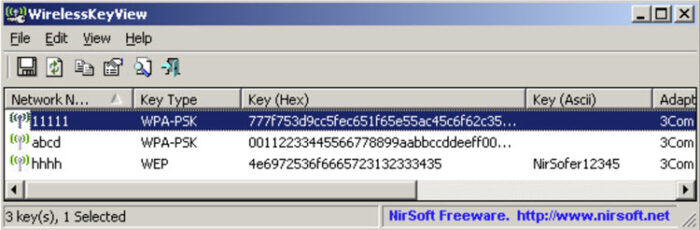
Not all recovery apps are created equal. On Windows, the gold standard is WirelessKeyView from NirSoft. It’s tiny (no installation required) and shows every saved WiFi network with its password in plain text. On macOS, you don’t need a third-party app – the built-in Keychain Access stores all passwords. For Android, apps like WiFi Password Viewer (or a QR code scanner) work well, but you’ll need to grant special permissions. If you want a more comprehensive solution, check out our guide on saved WiFi password recovery for cross-platform methods.
Step 2: Download and Install (or Open) the App
For Windows: Go to the NirSoft website and download WirelessKeyView (it’s a ZIP file). Extract it anywhere on your desktop. No installation needed – just double-click the executable. For macOS: Open the Applications folder, then Utilities, and launch Keychain Access. For Android: Enable ‘Install from unknown sources’ in Settings, then download WiFi Password Viewer from a trusted source (or use a QR code generator if your phone supports it). Once installed, open the app.
Step 3: Scan for Saved Networks
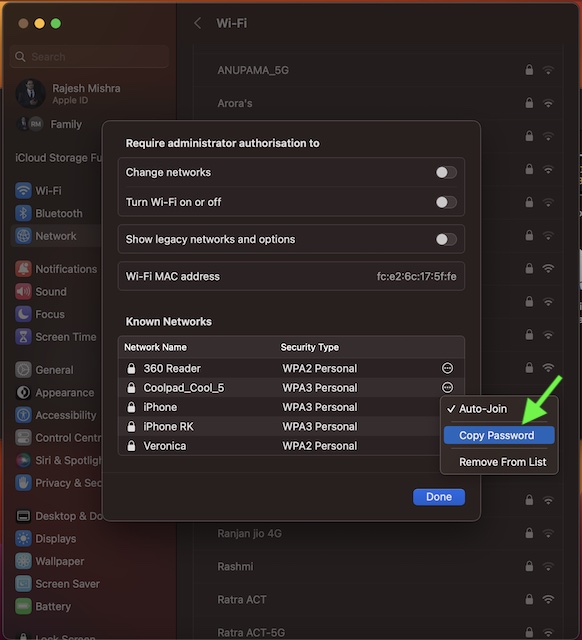
On Windows: WirelessKeyView automatically scans all saved WiFi profiles and lists them. You’ll see columns like Network Name, Key (Hex), and Key (Ascii). The Ascii column shows your password in plain text. On macOS: In Keychain Access, type the name of your WiFi network in the search bar (or look under ‘System’ keychains). Double-click the network entry, then check the ‘Show password’ box. Enter your Mac login password when prompted. On Android: The app will display a list of saved networks. Tap on your network to see the password, often represented as a QR code for easy sharing.

Step 4: Copy or Share the Password
Once the password is visible, you can copy it to your clipboard. On Windows, right-click the entry and select ‘Copy Key (Ascii)’. On macOS, copy the password from the password field. On Android, the app often provides a ‘Copy’ button or a QR code that others can scan. If you want to transfer the password to another device, writing it down or sending it through a secure message works fine. For a more detailed breakdown of similar methods, including using the command line, read our WiFi password recovery command for Windows guide.

Alternative: Use Network Settings Instead of an App
If you’re not comfortable downloading a third-party app, you can use built-in network settings. On Windows 10/11, go to Network & Internet > Status > Network and Sharing Center. Click the WiFi name, then Wireless Properties > Security tab and check ‘Show characters’. On macOS, the Keychain Access method is essentially the same as above. For a full walkthrough, see our post on WiFi password recovery using network settings. It works without any extra software and is equally reliable.
Common Pitfalls
- Antivirus blocking the app: Some antivirus software flags WirelessKeyView as a potential threat because it accesses stored passwords. It’s safe, but you may need to temporarily disable real-time protection or add an exception. If you’re unsure, use the built-in network settings instead.
- Need admin rights on Windows: WirelessKeyView requires administrator privileges. If you run it without admin rights, it will show blank columns. Right-click the executable and select ‘Run as administrator’.
- App not detecting networks on Android: Some Android versions restrict access to saved WiFi passwords unless you have root access. If the app shows no networks, your device may not be compatible. In that case, try using a QR code scanner (if your phone supports it) or check our guide to find saved WiFi password on iPhone if you’re switching platforms.
Where to Next
Recovering a WiFi password with an app is quick and painless. If this method didn’t work for you – maybe because of locked-down corporate networks or an older router – don’t worry. Check out our WiFi password recovery without router reset guide for alternative approaches. For those who prefer command-line tools, we have a tutorial on WiFi password recovery command for Windows. And if you ever lose access again, you now know the easiest WiFi password recovery method – just come back to this page. Happy connecting!



