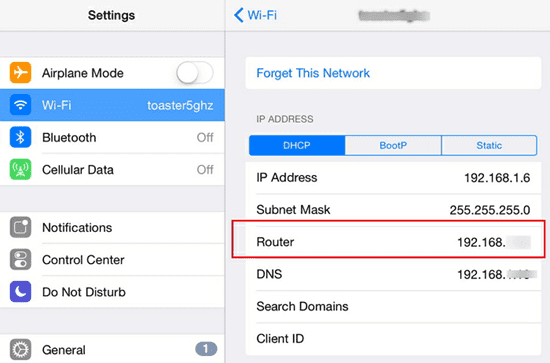
Hey, ever needed to grab that WiFi password your iPhone saved but forgot? Maybe you’re setting up a new device or sharing it with a friend. On iOS 16 and later, Apple finally made it easy to view saved WiFi passwords directly on your iPhone. No more digging through router settings or resetting the network. By the end of this guide, you’ll know exactly how to find and copy any saved WiFi password on your iPhone.
This tutorial is for anyone who has an iPhone running iOS 16 or newer. If you’re on an older version, don’t worry—I’ll also cover a workaround using iCloud Keychain on a Mac. You’ll walk away with a clear method that works every time.
What You’ll Need
- An iPhone running iOS 16 or later (check in Settings > General > About > iOS Version)
- The WiFi network must be currently saved on your iPhone (you’ve connected at least once)
- Face ID or Touch ID enabled on your iPhone (or your device passcode)
- (Optional) A Mac with macOS Monterey or later if you need to use iCloud Keychain for older iOS devices
Step 1: Open the Wi-Fi Settings
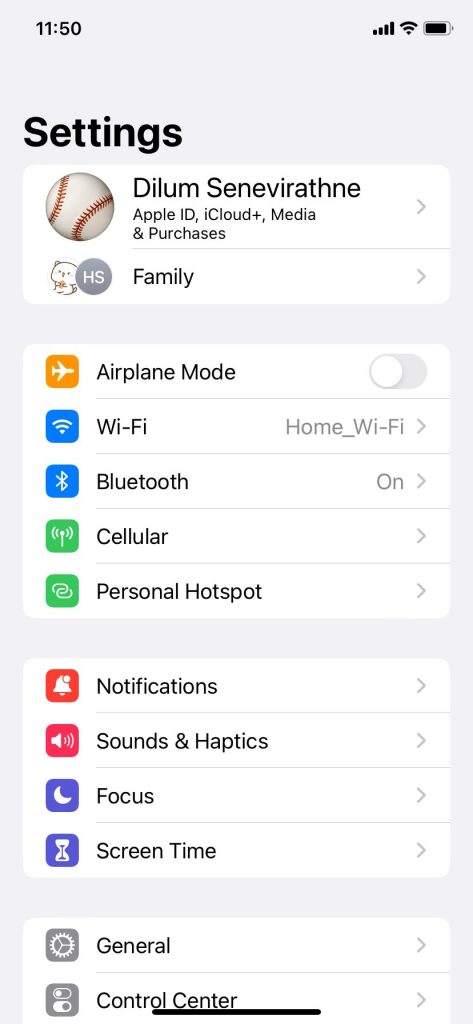
Unlock your iPhone and go to the Settings app. It’s the gray gear icon on your home screen. Tap on Wi-Fi. If Wi-Fi isn’t already turned on, toggle it on—you need to be connected to a network (or at least have one saved) to see its password.
Step 2: Tap the Info Button Next to Your Network
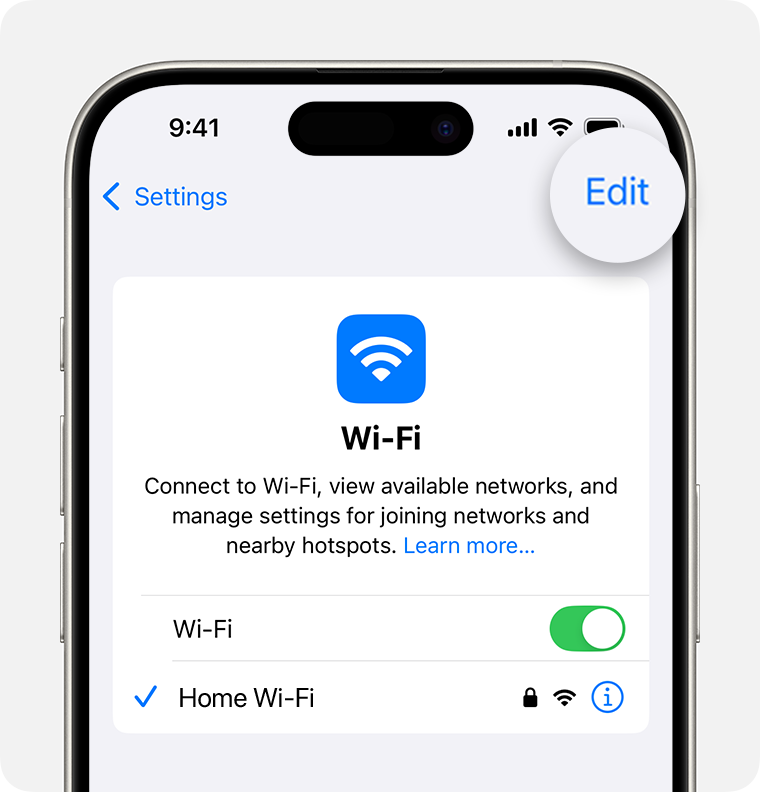
Look for the network whose password you want. It’ll be under ‘My Networks’ or currently connected. Tap the blue ‘i’ (info) icon on the right side of the network name. This opens the network details screen.
Step 3: Reveal the Password
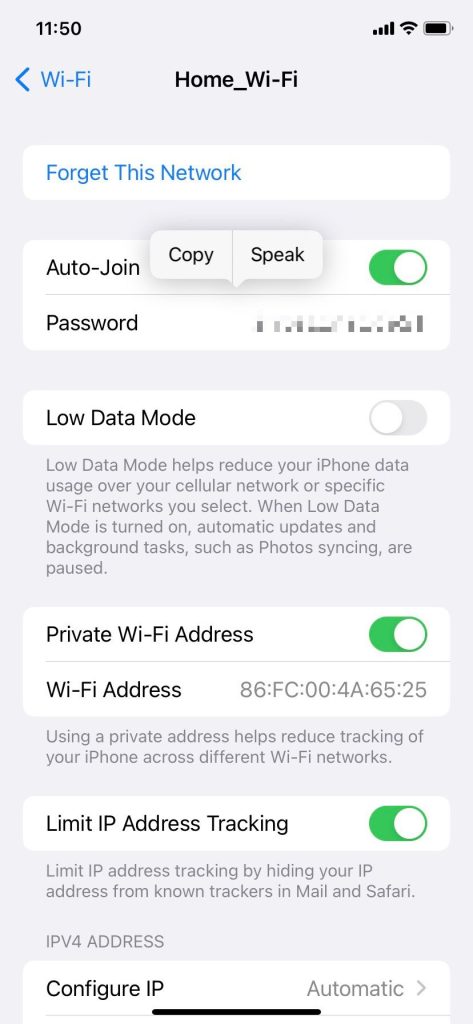
On the network details screen, you’ll see a field labeled ‘Password’. It’s hidden by dots. Tap that field. Your iPhone will prompt you to authenticate with Face ID, Touch ID, or your passcode. Once verified, the password will be displayed in plain text.
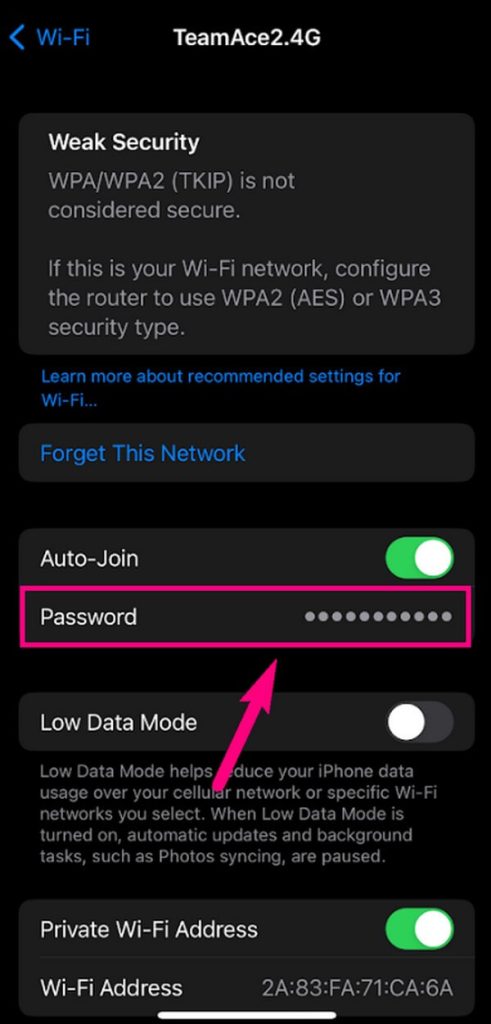
You’ll see a pop-up like ‘Authenticate to view password.’ Hold your iPhone steady so Face ID can work, or place your finger on Touch ID. Enter your passcode if neither works. The password then appears, and you can tap ‘Copy’ to copy it to your clipboard.
Step 4: Share or Copy the Password
Once the password is visible, you have a couple of options. Tap ‘Copy Password’ to save it to your clipboard—then you can paste it anywhere. Or, if you have nearby Apple devices, you might see a ‘Share Password’ option (using AirDrop) to send it directly to someone.
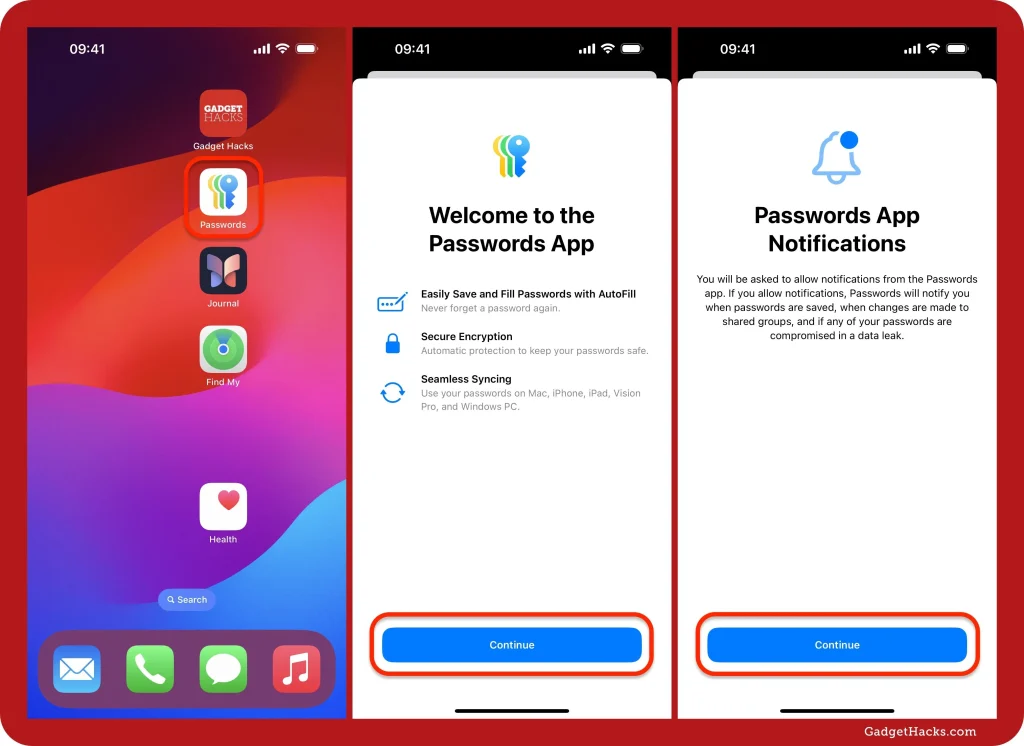
That’s it! The password is now in your hands. If you’re sharing, make sure the other person’s device is nearby and has Wi-Fi and Bluetooth on.
Step 5: Alternative Method Using iCloud Keychain on Mac (for iOS 15 or earlier)
If your iPhone is running iOS 15 or older, the built-in password viewer isn’t available. But if you have a Mac (macOS Monterey or later) signed into the same Apple ID with iCloud Keychain enabled, you can retrieve the password. On your Mac, open Keychain Access (from Applications > Utilities), search for the WiFi network name, double-click the entry, and check ‘Show password.’ You’ll need your Mac’s admin password. The password will appear, and you can type it on your iPhone.
Common Pitfalls
- Your iPhone is on iOS 15 or earlier — the Settings method won’t work. Use the Mac Keychain Access workaround instead or update your iPhone.
- The network isn’t saved — If you only connected via a captive portal (like at a hotel) and never actually saved the network, the password won’t be stored. You’ll need to ask the provider or use the router password.
- Face ID or Touch ID fails repeatedly — Go to Settings > Face ID & Passcode and make sure it’s set up correctly. If you disabled biometric authentication for password viewing, you’ll only get the passcode prompt.
Where to Next
Now that you’ve got your WiFi password, maybe you want to check out our iPhone WiFi password viewing guide for more tips, or dive into recovering WiFi passwords on iPhone if you need additional methods. For broader issues, see our WiFi password troubleshooting guide. And if you ever find yourself locked out without a computer, remember password recovery without resetting the router is possible with the right apps. Stay connected!



