
Ever needed to share your home WiFi password with a friend but couldn’t remember it? Or wanted to connect a new device and realized you forgot the password? If you’ve got an iPhone running iOS 16 or later, you’re in luck — Apple finally made it easy to view saved WiFi passwords directly in Settings. No more digging through router labels or resetting your network.
This tutorial is for anyone who has connected their iPhone to a WiFi network and wants to see that password again. By the end, you’ll know exactly how to pull up any saved WiFi password in a few taps, and even copy it to share. If you need to recover wifi password on iphone for an older iOS version, we’ve got you covered there too — but this guide focuses on the built‑in method.
What You’ll Need
- An iPhone running iOS 16 or later (check in Settings > General > About)
- A saved WiFi network (you must have connected to it at least once)
- Your device passcode, Face ID, or Touch ID enabled
Step 1: Open the Settings App
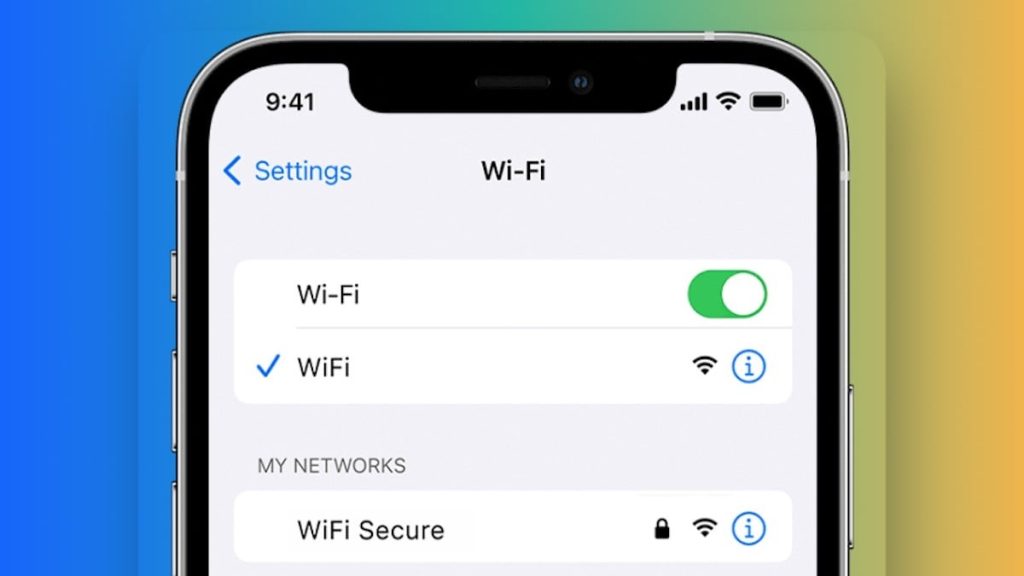
Unlock your iPhone and tap the Settings gear icon. It’s usually on the home screen — if you can’t find it, swipe down and use Spotlight search.
Step 2: Tap Wi-Fi
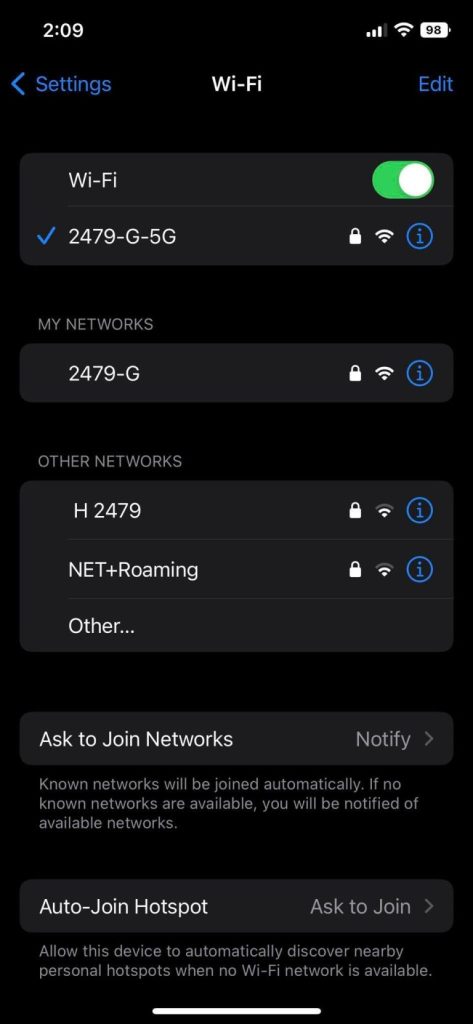
In the Settings menu, tap “Wi‑Fi” (the second option, right below Airplane Mode). You’ll see a list of available networks and the one you’re currently connected to.
Step 3: Tap the Blue “i” Icon Next to Your Network
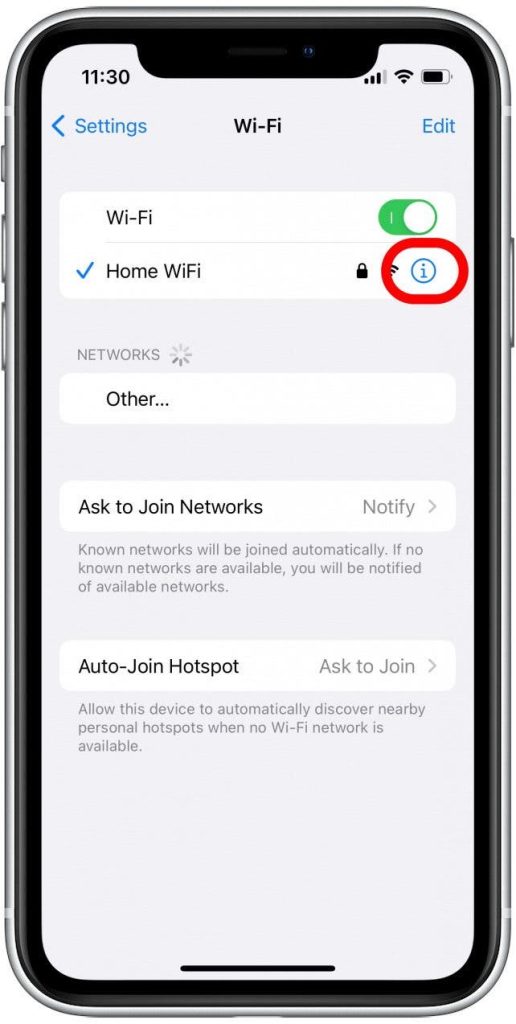
Find the saved network whose password you want. It will have a blue information icon (a lowercase “i” inside a circle) to the right. Tap that icon to open the network details screen.
Step 4: Tap the Password Field
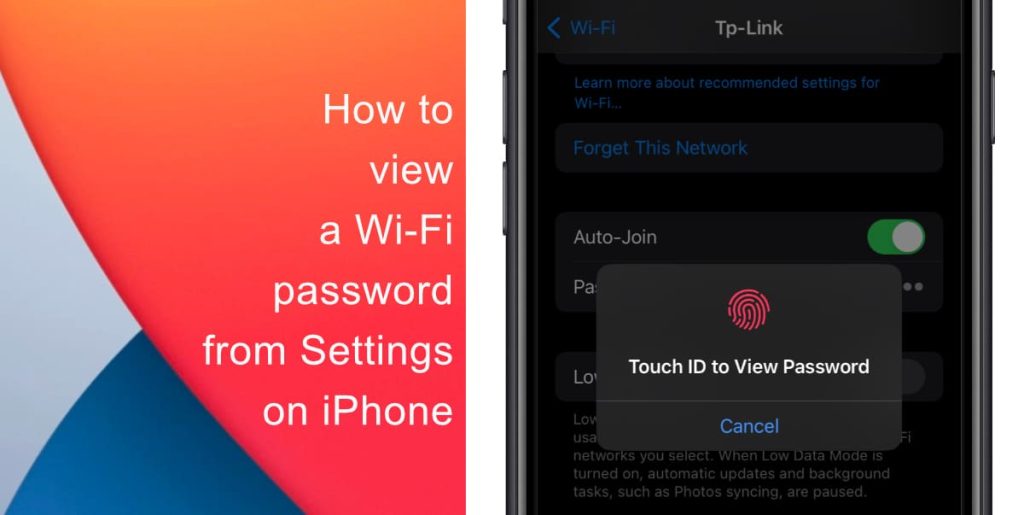
On the network details screen, you’ll see a field labeled “Password” with dots hiding the actual password. Tap that field. Your iPhone will prompt you to authenticate using Face ID, Touch ID, or your passcode. Do that, and the password will be revealed.
Step 5: View and Copy the Password

Once authenticated, the password appears in plain text. You can tap and hold it to select and copy it, then paste it wherever you need — like in a text message or a new device’s WiFi settings. That’s it! If you need to view passwords for multiple networks, just repeat the steps for each one.
Common Pitfalls
- You’re on an older iOS version (pre‑iOS 16). The built‑in password viewer only exists in iOS 16 and later. For older versions, you’ll need to use iCloud Keychain or a Mac — check our guide on router wifi password recovery for workarounds.
- The network isn’t saved. If you’ve never joined the network before, or you’ve joined but it’s not appearing under Wi‑Fi settings, it may have been forgotten. You’ll need to reconnect first or try export wifi passwords automatically from a Mac.
- Face ID or Touch ID isn’t set up. The password field requires biometric or passcode authentication. If your device doesn’t have a passcode, you won’t be able to view the password. Set one up in Settings > Face ID & Passcode.
Where to Next
Now that you know how to grab saved passwords directly from your iPhone, you might also need to recover a password for a network you haven’t connected to yet — that’s where wifi password recovery without router reset comes in handy. If you’re managing multiple devices, consider setting up automatic password syncing with our export wifi passwords automatically method. Happy connecting!



