Ever needed to share your home WiFi password with a friend but you can’t remember it because it’s saved on your iPhone? Or maybe you just switched from an old router and need to dig up the password to configure a new device. Whatever the reason, recovering a WiFi password from an iPhone is totally doable—no jailbreaking or shady apps required. By the end of this guide, you’ll know exactly how to view any WiFi network password that your iPhone has ever saved (as long as you have a Mac or the right settings enabled). We’ll cover the built-in methods using iCloud Keychain and macOS, so you can get back online quickly.
This guide is for anyone with an iPhone running iOS 16 or later (the steps are slightly different for older versions) and a Mac for the most reliable recovery. If you don’t have a Mac, don’t worry—we’ll also show you a workaround using iCloud for Windows. Just follow along step by step, and in five minutes you’ll have that password ready to go.
What You’ll Need
- Your iPhone (with the saved WiFi network you want to recover)
- A Mac (optional but makes it much easier)
- iCloud Keychain enabled on both iPhone and Mac (Settings > [your name] > iCloud > Passwords & Keychain on iPhone; System Settings > Apple ID > iCloud > Passwords & Keychain on Mac)
- Your iPhone passcode (or Face ID/Touch ID) for authentication
- An internet connection (to sync iCloud Keychain if needed)
Step 1: View the Password Directly on iPhone (If Currently Connected)
If the WiFi network is the one you’re currently connected to, you can grab the password right from your iPhone without needing a Mac. This is the fastest method. Here’s how:
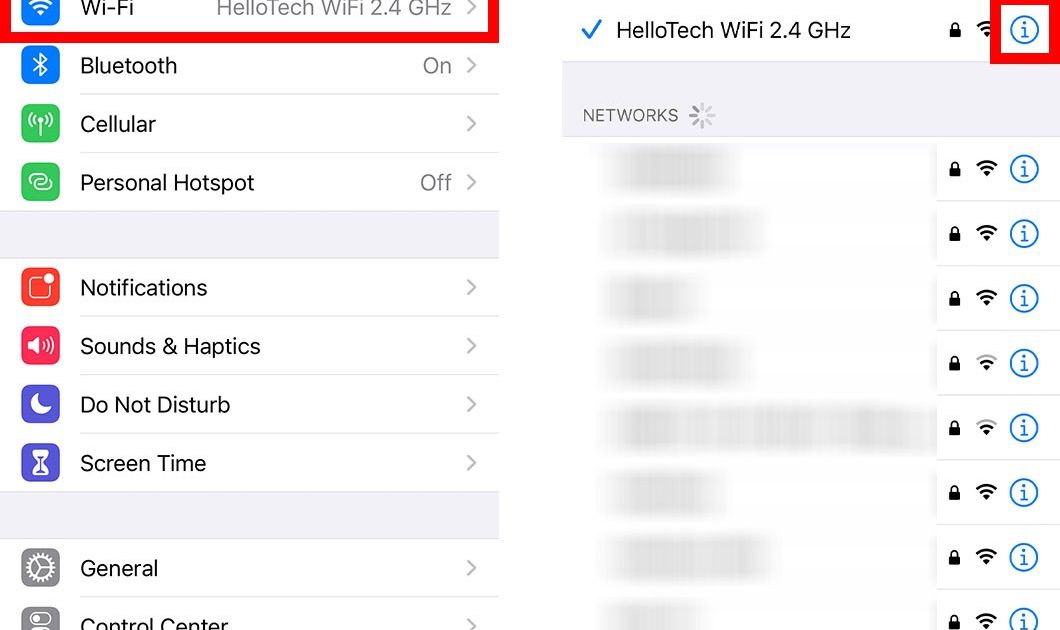
- Open the Settings app on your iPhone.
- Tap on Wi-Fi.
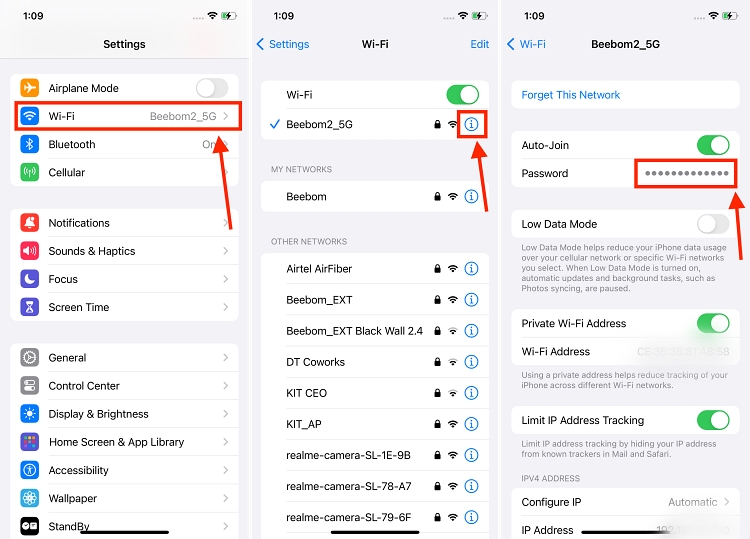
- Find the network you’re connected to (it will have a blue checkmark) and tap the blue “i” icon next to it.
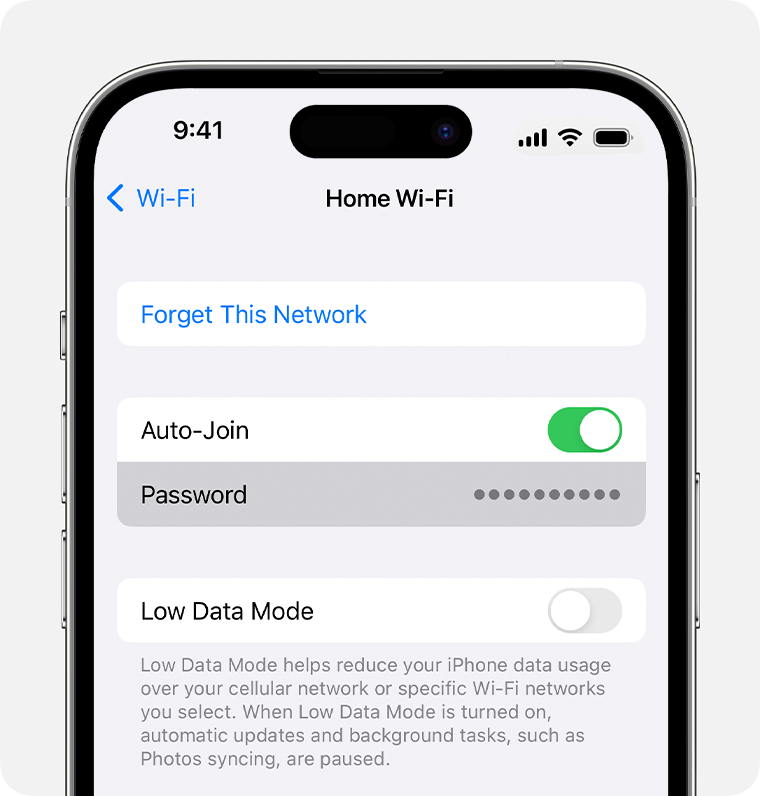
- Tap on the Password field (it will show dots initially).
- Your iPhone will prompt you to authenticate with Face ID, Touch ID, or your passcode. Do that.
- The password will appear in plain text. Tap and hold on the password text, then tap Copy to save it to your clipboard.
That’s it! You can now paste the password anywhere—Messages, AirDrop, or even write it down. This works for any network your iPhone is currently connected to, not just your home one.
Step 2: Recover an Old WiFi Password via iCloud Keychain on Mac
What if you need a password for a network your iPhone connected to months ago, but it’s not currently in range? That’s where your Mac comes in. As long as both devices have iCloud Keychain enabled, the password syncs to your Mac automatically. Here’s how to retrieve it:
- On your Mac, click the Apple menu and go to System Settings (or System Preferences on older macOS).
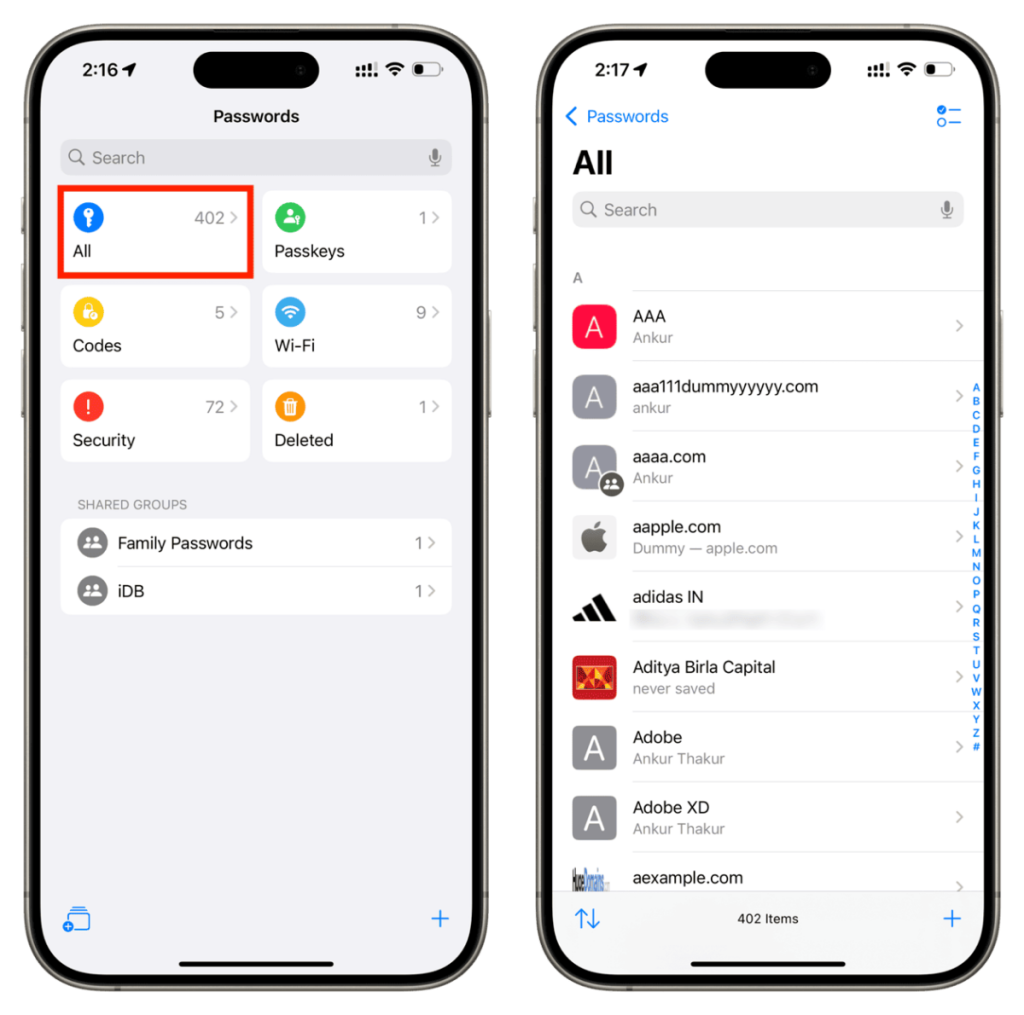
- Click on Passwords (or Passwords & Accounts on older versions).
- Authenticate with your Mac’s password or Touch ID.
- In the search box, type the name of the WiFi network (e.g., “HomeNetwork”).
- Click on the network entry. A window will pop up showing the password. Click the show password checkbox (or click the eye icon) and enter your Mac password again if prompted.
- The password will appear. You can copy it or write it down.
This method works because iCloud Keychain stores all your saved WiFi passwords across devices. If you’ve ever used the iCloud Keychain recovery process before, you’ll find this familiar. For a broader overview, check out our how to recover your WiFi password guide that covers these steps in more detail.
Step 3: Use Keychain Access (Alternative Mac Method)
If System Settings didn’t have the password, or if you’re on an older Mac, you can use the Keychain Access app directly. It’s a more technical route, but still straightforward:
- Open Keychain Access from Applications > Utilities folder.
- In the top-right search bar, type the exact name of your WiFi network.
- You should see an entry with a kind column saying “AirPort network password.” Double-click it.
- A window will appear. Check the box that says “Show password” (you’ll need to enter your Mac administrator password first).
- The WiFi password will be revealed in the “Show password” field.
This method is especially useful if you need to find saved WiFi password on a laptop that’s not syncing with iCloud properly. It’s also a great trick to know if you’re helping a friend who has a Mac but no iPhone.
Step 4: No Mac? Use iCloud for Windows
Don’t have a Mac? If you have a Windows PC, you can still recover your iPhone’s WiFi passwords by installing iCloud for Windows and enabling the Passwords app. Here’s the quick rundown:
- Download and install iCloud for Windows from Apple’s website or the Microsoft Store.
- Sign in with the same Apple ID you use on your iPhone.
- Make sure Passwords (or Passwords & Keychain) is checked in iCloud settings.
- Open the iCloud Passwords app (it will appear in the Start menu).
- Authenticate with a verification code sent to your iPhone.
- Search for the WiFi network name and click to view the password.
This is a reliable alternative for WiFi password recovery without admin access—no need to beg your IT department or router admin for help. Just note that iCloud for Windows requires Windows 10 or later and a relatively recent version of macOS/iOS for the sync to work smoothly.
Common Pitfalls
- iCloud Keychain not syncing: If your iPhone and Mac are both using the same Apple ID but the password doesn’t show up, make sure iCloud Keychain is enabled on both devices. Also check that both are connected to the internet. Sometimes toggling Keychain off and on again forces a sync.
- Network password not saved: If you never actually connected to the network with your iPhone (only entered the password but didn’t complete the connection), it may not be saved. Also, some corporate or enterprise networks don’t store passwords in the keychain for security reasons.
- Using an outdated iOS or macOS: The direct view password feature on iPhone requires iOS 16 or later. On Mac, the System Settings method works on macOS Ventura or later. If you’re on older software, fall back to Keychain Access or update your device.
If you run into none of the above, you might want to check out our WiFi password recovery complete guide for additional troubleshooting tips, or the dedicated section on WiFi password recovery without admin access.
Where to Next
You’ve got your WiFi password back! Now you can connect any device to the network. But if you need to recover passwords for other devices—like an Android phone or a Windows laptop—we’ve got you covered. Check out our guide on how to recover your WiFi password for a cross-platform approach, or if you’re managing multiple networks, the complete guide to WiFi password recovery has all the methods in one place.



