Ever had that moment where a friend asks for your WiFi password and you draw a blank? You know it’s saved on your Windows 7 PC somewhere, but digging it out seems like a hassle. Don’t worry—this tutorial is for anyone who just needs a quick, no-fuss way to recover a forgotten WiFi password. By the end, you’ll be able to pull up any saved network’s password using the built-in Windows tools, no extra software required.
We’ll cover two methods: the graphical Network and Sharing Center (easiest for most people) and the Command Prompt trick for when you want to feel like a pro. Both are safe, free, and work on any version of Windows 7. If you need a more general overview, check out our wifi password recovery complete guide for other devices.
What You’ll Need
- A Windows 7 computer that has previously connected to the WiFi network.
- Administrator access on that computer (you usually have this if it’s your personal machine).
- Optional: The Command Prompt method requires you to be comfortable typing commands.
Step 1: Open Network and Sharing Center
Click the Start button (the Windows logo in the bottom-left corner). In the search box, type “Network and Sharing Center” and click on the result. You can also find it by going to Control Panel > Network and Internet > Network and Sharing Center.

Step 2: View Your Active Networks
In the Network and Sharing Center window, look for the section that says “View your active networks.” You’ll see the name of your current WiFi network listed next to “Connections.” Click on the wireless network name (it’s a link, usually blue).

Step 3: Open Wireless Properties
A small Wi-Fi Status window will pop up. Click the “Wireless Properties” button. This opens a new window with tabs like “Connection” and “Security.” Don’t worry—we’re almost there.

Step 4: Reveal the Password
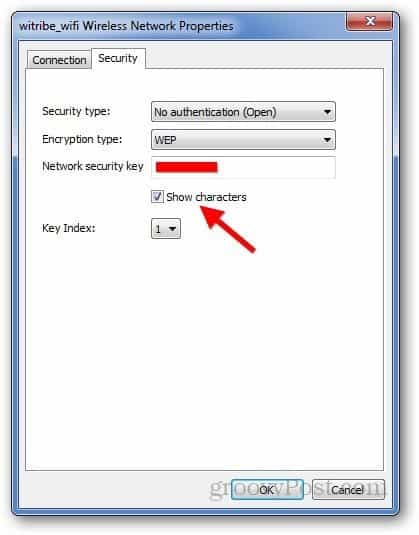
In the Wireless Network Properties window, go to the “Security” tab. You’ll see a field for “Network security key” with dots hiding your password. Check the box that says “Show characters.” Instantly, your WiFi password appears in plain text. Jot it down or take a photo—you’ve got it!

Alternative Method: Command Prompt (Quick & Geeky)
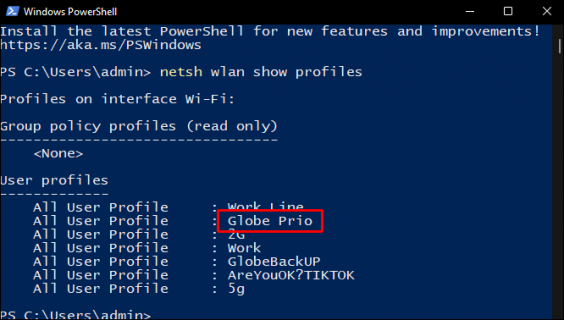
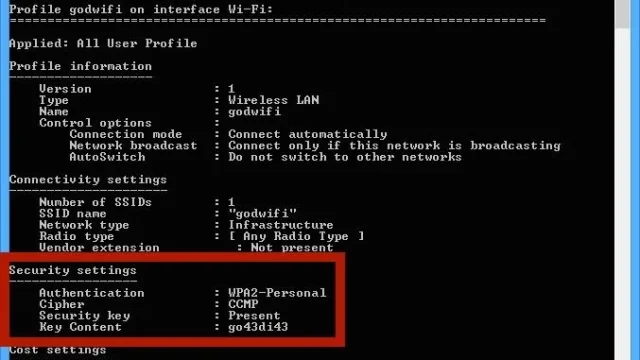
If you prefer keyboard shortcuts or the GUI method isn’t working, you can use the Command Prompt. Open the Start menu, type “cmd,” right-click “cmd.exe” and select “Run as administrator.” Then type the following command and press Enter: netsh wlan show profile name="YourNetworkName" key=clear. Replace “YourNetworkName” with the actual WiFi network name. Look for the line labeled “Key Content”—that’s your password. For more details, see our wifi password recovery using cmd tutorial.

Common Pitfalls
- Not logged in as administrator: If you see a grayed-out “Show characters” checkbox or get an “Access denied” error in Command Prompt, you don’t have admin rights. Log in with an administrator account or ask the computer’s owner.
- Network not saved on this PC: The instructions only work for networks your Windows 7 machine has connected to before. If you’ve never joined the network from this computer, you can’t recover the password here. Instead, try our forgotten wifi password recovery guide for other approaches.
- Hidden or non-broadcasting SSID: If the network name doesn’t appear in the list, it might be hidden. You’ll need to know the exact name to use the Command Prompt method, or access the router directly—check our recover wifi password from tp link router guide.
Where to Next
Now that you’ve got your password back, you might want to save it somewhere safe or share it with family. If you need to recover passwords on other devices, check out our wireless password recovery guide for a cross-platform approach. For the absolute quickest method across all systems, our fastest wifi password recovery method can save you time. Happy surfing!