So you’ve forgotten the WiFi password for your TP-Link router. Maybe you wrote it down somewhere and lost it, or maybe you just never bothered to memorize it. Either way, you’re stuck staring at that login screen on your new device, and you really don’t want to reset the whole router and lose all your custom settings. Don’t worry—you’re in the right place. This guide is for anyone who needs to recover their TP-Link WiFi password quickly, without any extra software or tech wizardry.
By the end of this tutorial, you’ll have your WiFi password back in your hands. We’ll cover several methods: logging into your router’s admin panel (the most direct way), pulling the password from a Windows or Mac computer that’s already connected, and even using the TP-Link Tether app. No matter which device you have handy, we’ve got you covered. If you want a broader overview of techniques, check out our guide on wifi password recovery methods – but right now, let’s focus on your TP-Link router.
What You’ll Need
- A device (phone, tablet, or computer) that is currently connected to your TP-Link network, OR physical access to the router.
- The router’s IP address (usually 192.168.0.1 or 192.168.1.1).
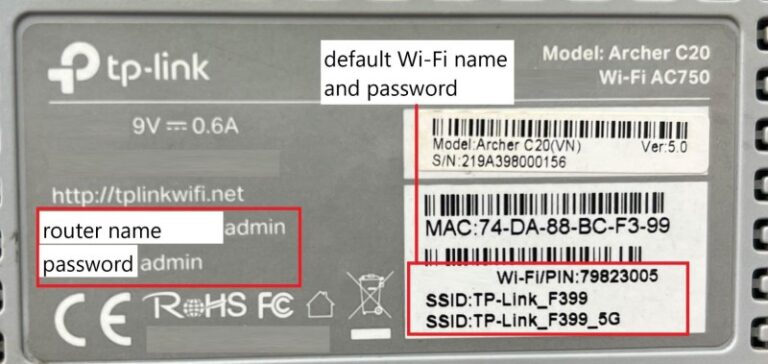
- The router’s admin username and password. If you haven’t changed them, try “admin” for both (common defaults for TP-Link).
- Optional: A Windows PC or Mac that once connected to the network, to retrieve the saved password from system settings.
- Optional: The TP-Link Tether app installed on your phone, if you’ve previously paired it with the router.
Step 1: Log into Your TP-Link Router
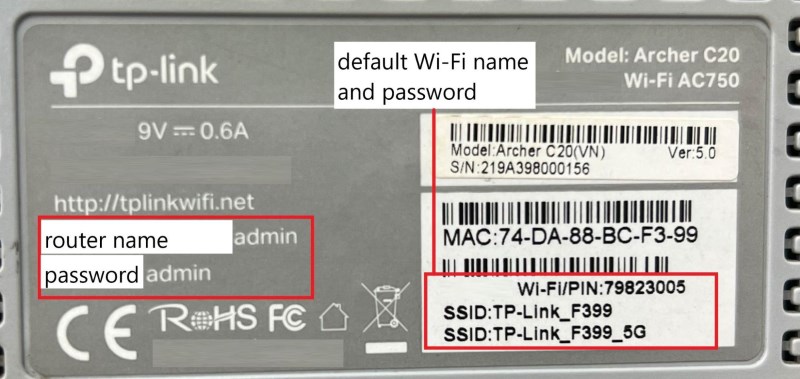
First, you need to access the router’s admin interface. Connect your device to the network (either via WiFi or an Ethernet cable). Open a web browser and type your router’s IP address into the address bar. For most TP-Link routers, you can try 192.168.0.1 or 192.168.1.1. If neither works, check the sticker on the bottom of your router – it usually lists the default IP and login details. You’ll see a login page like the one below.
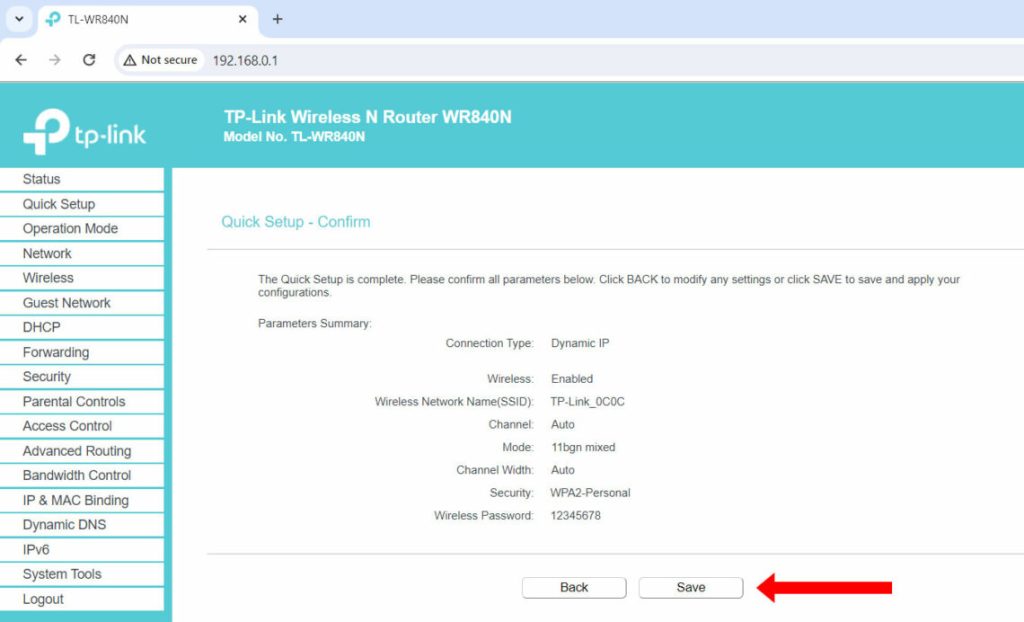
Enter the admin username and password. If you’ve never changed them, the defaults are typically “admin” for both. If that doesn’t work, you might have changed them at some point – try any passwords you commonly use. Still stuck? You may need to reset the router later, but that’s a last resort.
Step 2: Locate the Wireless Settings
Once logged in, you’ll see the router’s main dashboard. Look for a menu item called “Wireless” or “WiFi” – it may be under “Advanced Settings” or on the sidebar. On most TP-Link interfaces, you’ll find it easily. Click on it to expand the wireless options.
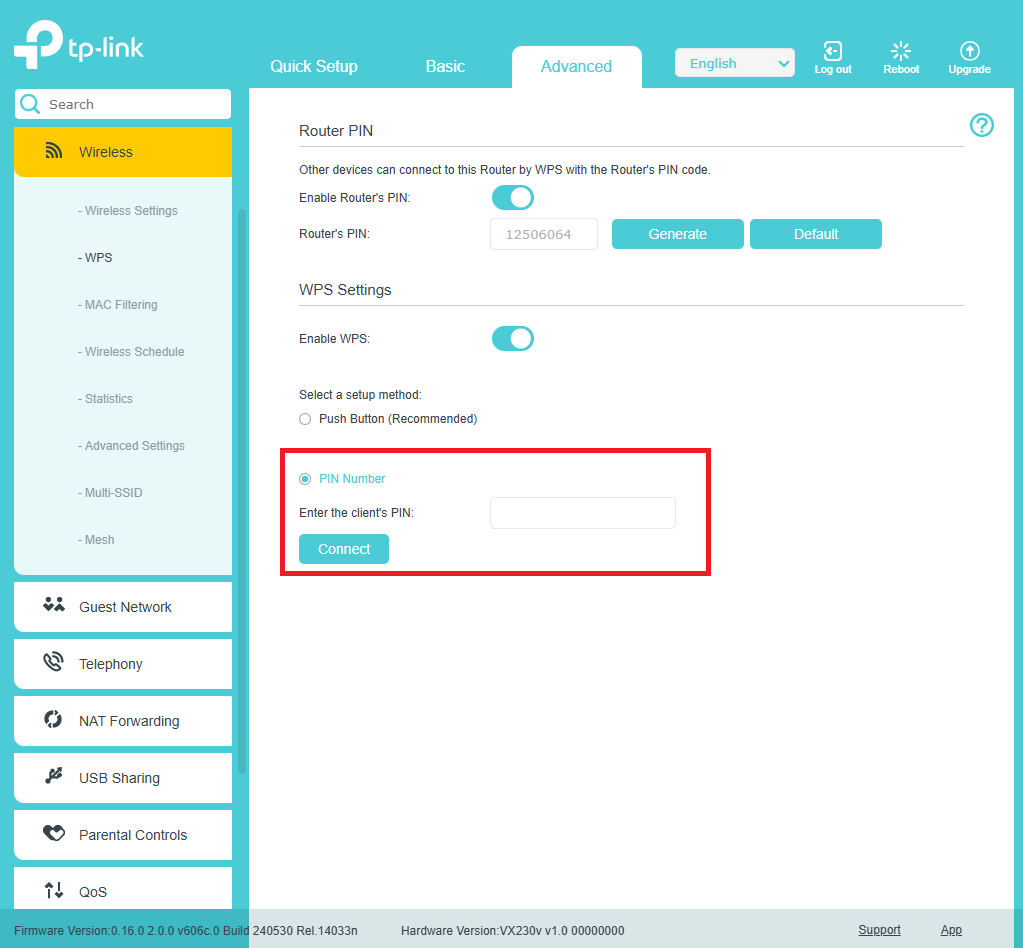
If you have a dual‑band router, you’ll see separate sections for 2.4GHz and 5GHz networks. The password is usually the same for both, but you can check each if needed.
Step 3: Reveal Your WiFi Password
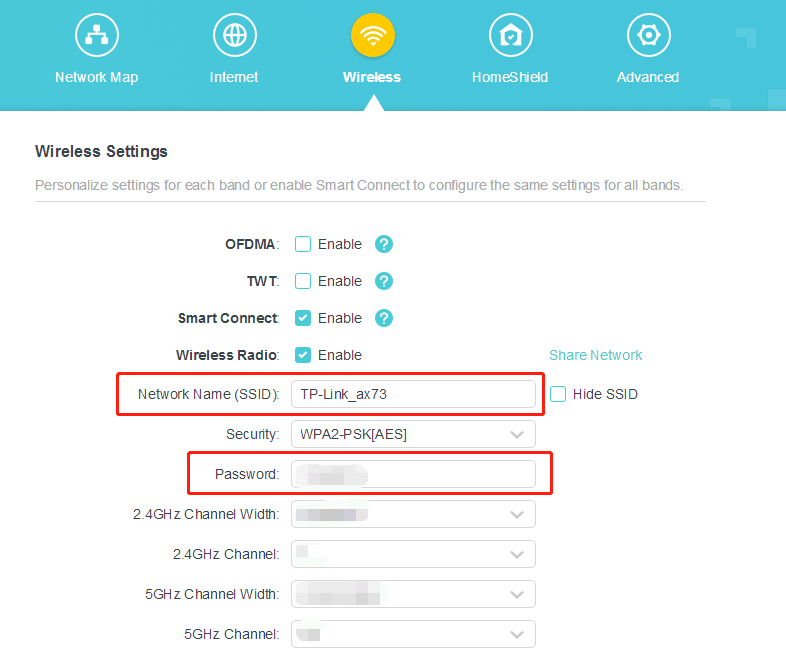
Inside the Wireless settings, look for “Wireless Security” or “Security” tab. Here you’ll see the encryption type (e.g., WPA2‑PSK) and a field labeled “Password,” “Passphrase,” or “Wireless Key.” On many TP-Link routers, the password is masked with dots – but you can click the “Show” or “eye” icon next to it to reveal the plain text. Copy it down or take a photo. That’s your WiFi password!
If you can’t find the reveal option, try using the “Save” or “Apply” button (don’t worry, you’re not changing anything – the current password stays). Some older TP-Link models display the password as plain text right away. If you’re still having trouble, you can try the simplest wifi password recovery method (which works for any router) – but for TP-Link, this step should do it.
Step 4: If You Can’t Access the Router – Recover from a Connected Windows PC
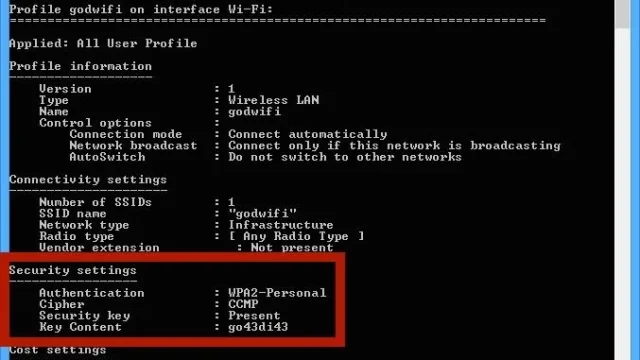
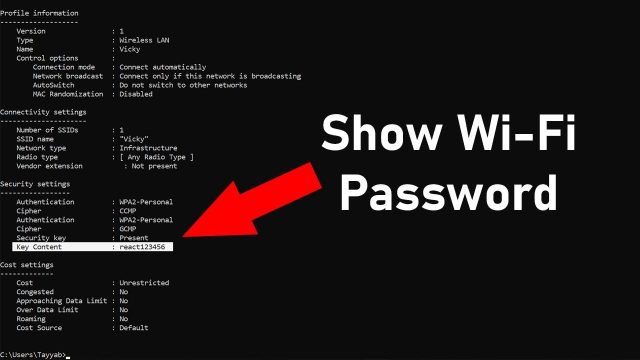
Maybe you don’t have the admin password, or you’re away from home but still have a Windows laptop that once connected to the network. No worries – Windows remembers saved WiFi passwords. Open the Network & Internet settings, go to “WiFi” then “Manage known networks.” Find your TP-Link network, click “Properties,” then look for “View network security key” under the WiFi password section. Alternatively, use the Command Prompt method (type netsh wlan show profile name="YourNetworkName" key=clear). This is one of my favorite find saved wifi password on pc tricks.
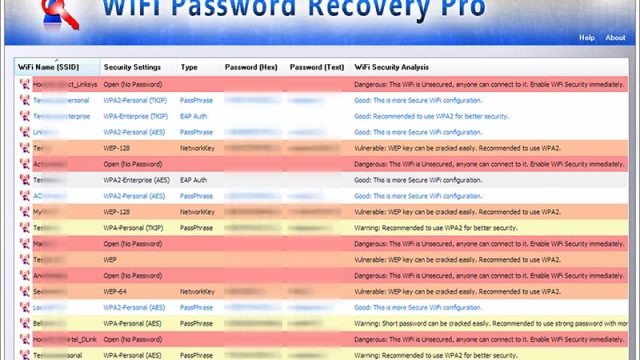
If you prefer a simple tool, there are lightweight utilities that can extract saved WiFi passwords effortlessly. But the built-in method works perfectly without any extra downloads.
Step 5: Recover from a Connected Mac
On a Mac that has previously connected to your TP-Link network, you can retrieve the password using Keychain Access. Open “Keychain Access” from Utilities (or search with Spotlight). In the search bar, type your network’s name (SSID). Double-click the entry, then check the box “Show password.” You’ll need to enter your Mac’s administrator username and password to reveal it. This wifi password recovery with mac keychain method is quick and reliable.
Step 6: Use the TP-Link Tether App (Optional)
If you have the TP-Link Tether app installed on your smartphone and it’s already paired with the router, you can view the WiFi password from the app. Open Tether, log in with your TP-Link ID or the router’s admin credentials, and navigate to the “Wireless” section. The password is displayed there and can be copied or shared. This is convenient if you’re already using the app for management.
Common Pitfalls
- **Forgot the router admin password?** If you changed the admin password and can’t remember it, you’ll need to factory reset the router by holding the reset button for 10 seconds. This wipes all settings, so only do this as a last resort. Then you can log in with the default credentials and set up everything fresh.
- **Wrong IP address?** Some TP-Link routers use 192.168.0.1 or 192.168.1.1, but if someone changed the LAN settings, the IP could be different. To find the exact IP on Windows, open Command Prompt and type
ipconfig; look for “Default Gateway.” On Mac, go to System Preferences → Network → Advanced → TCP/IP; the router’s IP is listed as “Router.” - **Password not shown in admin panel?** Some older TP-Link firmware hides the password behind a read-only field. In that case, use the Windows or Mac recovery methods described above. Alternatively, you can temporarily set a new password (but note it will disconnect all devices until they re-enter the new password).
Where to Next
Congratulations – you’ve successfully recovered your TP-Link WiFi password! Now that you have it, consider backing it up for the future. You might also want to explore our other tutorials, like how to recover passwords from iPhones or enterprise networks. If you’re interested in automation, check out our guide on saved wifi password recovery tool methods. And if you ever need to find a password from a Mac or Windows device again, you already know where to look. Stay connected!