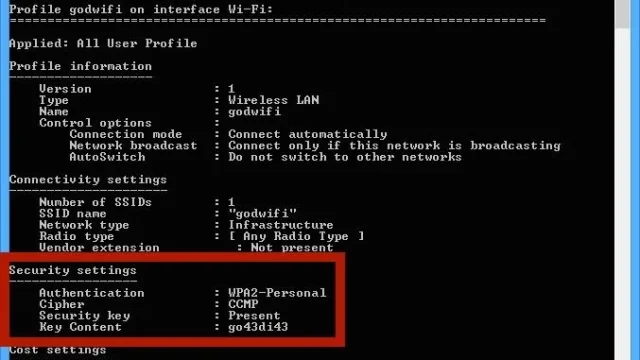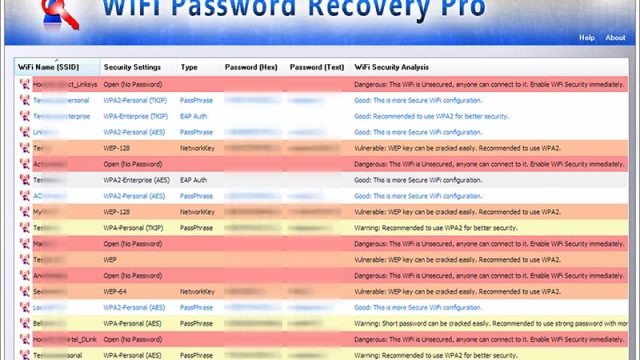
Ever needed to join a new device to your home WiFi but couldn’t find the sticker on the router? Or maybe you just switched phones and want to avoid asking the roommate for the password again. If you’re an Android user, you’re in luck — your phone stores every WiFi password you’ve ever connected to. This guide walks you through multiple ways to recover those passwords, both with and without root access. By the end, you’ll have your WiFi credentials in plain text, ready to share or save.
We’ll cover four methods: the simple QR code trick (works on Android 10+), a more technical ADB approach for older devices, a root-only file explorer method, and root apps that do the heavy lifting. Along the way we’ll link to other wifi password recovery methods you might find useful. No matter your skill level, there’s a way that works for you.
What You’ll Need
- An Android phone with at least one saved WiFi network
- A USB cable (for ADB method) or a QR code scanner (built-in, no install)
- Optionally: a file explorer app like Solid Explorer (for root method), or a dedicated WiFi password recovery app (root)
- Root access (only for method 3 and 4) — check with an app like Root Checker if unsure
Step 1: View WiFi Password via QR Code (No Root, Android 10+)
This is the simplest wifi password recovery method and works on any device running Android 10 or newer. No apps, no root, no computer. Just a few taps.
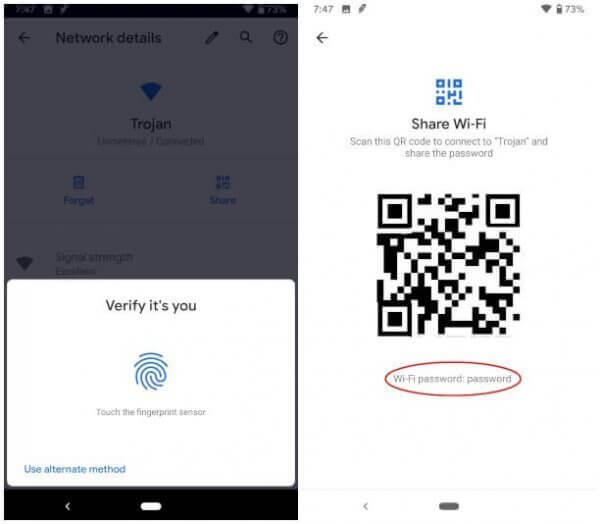
That’s it. For networks you’re not currently connected to, Android may still show the QR code if they are saved. This trick is part of the broader wifi password recovery tricks collection.
Step 2: Use ADB to Extract Saved Passwords (No Root, Pre-Android 10)
If your phone is stuck on Android 9 or older, the QR code method won’t work. But you can still get passwords using a computer and Android Debug Bridge (ADB). This is a bit technical but completely safe.
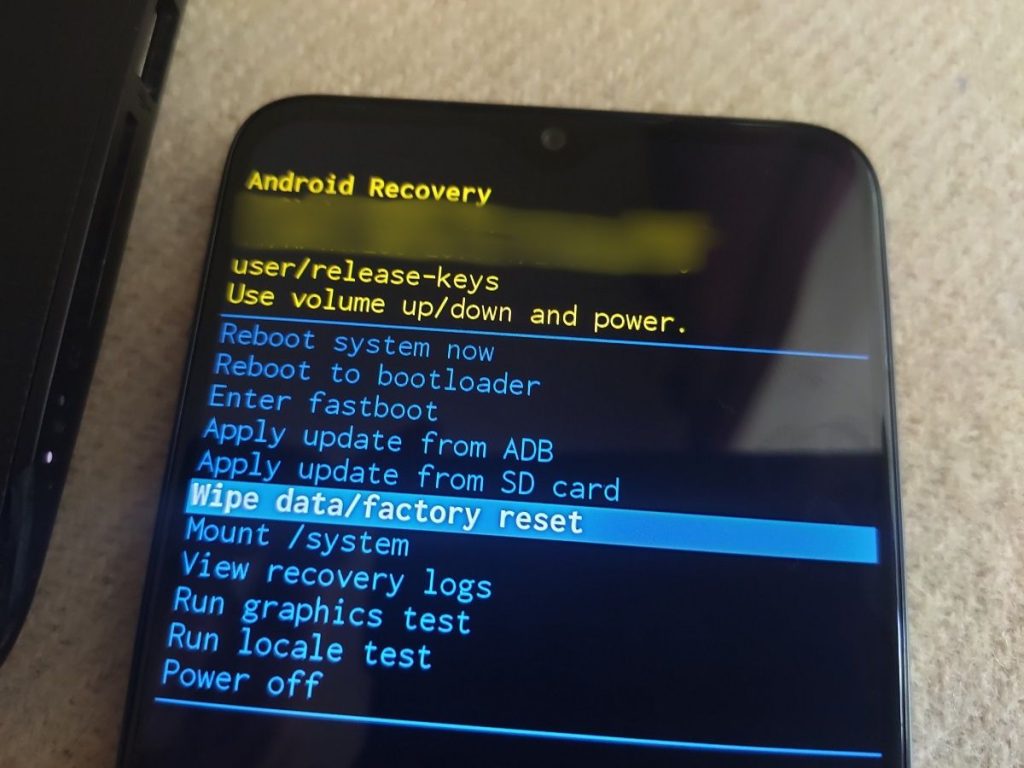
Note: On some Android versions the file path differs — try /data/misc/apexdata/com.android.wifi/WifiConfigStore.xml instead. This method is a staple in many wifi password recovery methods.
Step 3: Root Access — View via File Explorer
If your phone is rooted, you can read the WiFi configuration file directly. This gives access to all saved networks without a computer.
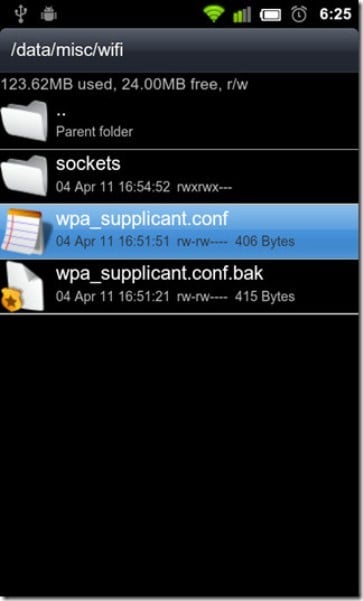
If your password shows as hex or encrypted, use a dedicated app like ‘WiFi Password Viewer’ (root) to decode it. That approach is covered in the wifi password recovery restore guide.
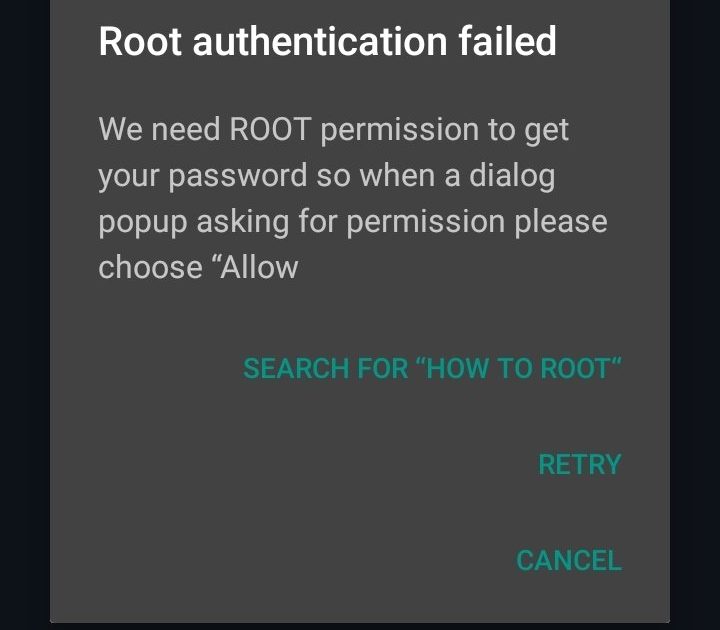
Step 4: Root Access — Use a WiFi Password Recovery App
For a more user-friendly experience, install a dedicated app from the Play Store that reads the saved config and displays passwords in a clean list. These apps require root.

This method is the most convenient if you’re already rooted and need quick access. For a full exploration of options, check out the wifi password recovery tutorial for other platforms too.
Common Pitfalls
- QR code method not appearing: If you don’t see the Share button, your phone may be on Android 9 or lower. Use ADB or root methods instead.
- ADB file not found: Some manufacturers (Xiaomi, Huawei) store configs in different locations. Try alternative paths or check device-specific forums.
- Encrypted passwords: Modern Android versions may encrypt the
pskfield. In that case, you’ll need a root app that can decrypt them, or use a tool like the saved wifi password recovery tool referenced earlier.
Where to Next
Now that you’ve recovered your WiFi password, consider backing it up for future use. Our wifi password recovery restore guide shows how to save all credentials offline. If you’re also on a PC, don’t miss the guide to find saved wifi password on pc — you’ll thank yourself later.