
Ever been in that situation where you need to connect a new device to your WiFi, but you’ve completely forgotten the password? Or maybe you just formatted your computer and now you’re locked out of your own network. Don’t worry — this guide is for you. By the end, you’ll know exactly how to recover and restore your WiFi password on any device, no matter what happened.
We’ll cover the most common scenarios: recovering saved passwords on Windows and macOS, finding them on Android and iPhone, and even pulling the password directly from your router. You don’t need any special software — just a few minutes and access to a device that’s already connected (or your router’s admin panel). Let’s dive in.
What You’ll Need
- A computer or phone that has connected to the WiFi network before (or router admin access)
- Administrator privileges on your computer (if using Windows or macOS)
- Your router’s IP address and admin login (usually on a sticker on the router)
- A USB drive if you want to backup passwords for future restoration
Step 1: Recover WiFi Password on Windows
If you have a Windows PC that’s already connected to the network, this is the easiest method. Go to Control Panel > Network and Internet > Network and Sharing Center. Click on your WiFi network name (next to ‘Connections’). In the pop-up, click ‘Wireless Properties’, then go to the ‘Security’ tab. Check the box that says ‘Show characters’ and your password will appear. For a more detailed walkthrough, check out our wifi password recovery in 5 minutes guide.

Step 2: Recover WiFi Password on macOS
On a Mac, open ‘Keychain Access’ from the Utilities folder (or search for it in Spotlight). In the search bar, type the name of your WiFi network. Double-click the entry for your network, then check the box ‘Show password’. You’ll need to enter your Mac’s admin username and password to reveal it. For a complete step-by-step, see our recover wifi password on macOS article.

Step 3: Recover WiFi Password on Android
On Android 10 and later, go to Settings > Network & Internet > WiFi. Tap the gear icon next to your connected network, then tap ‘Share’. You’ll be prompted to verify your lock screen pattern, PIN, or password. After that, a QR code appears — below it (or on some devices, behind a ‘Show password’ toggle) you’ll see the plain-text password. Older Android versions may require a file explorer app to access saved passwords via root, but this built-in method works on most modern phones.

Step 4: Recover WiFi Password on iPhone (iOS 16+)
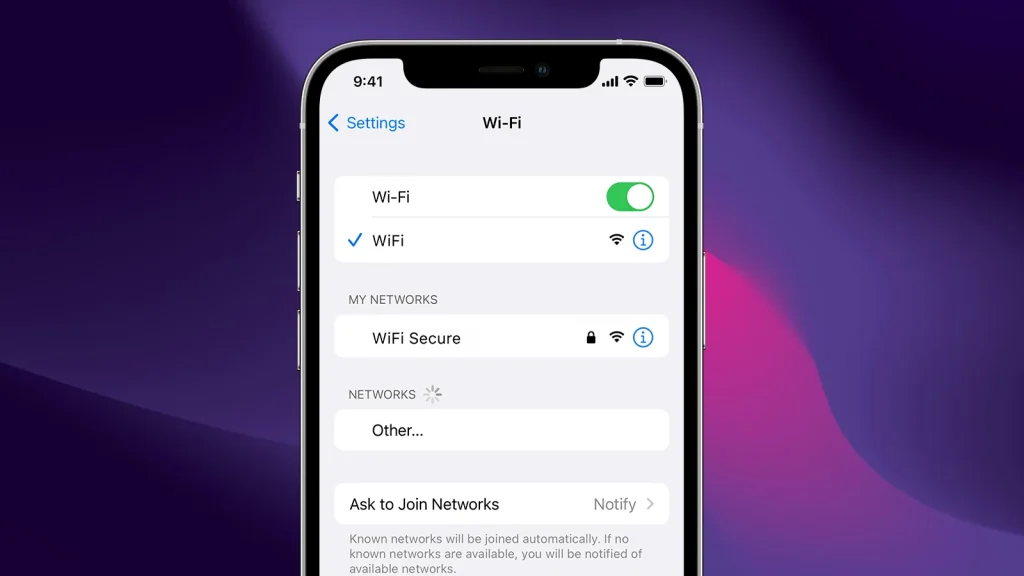
Starting with iOS 16, Apple added the ability to view saved WiFi passwords. Go to Settings > WiFi, tap the ‘i’ icon next to your network, then tap the password field. Authenticate with Face ID, Touch ID, or your passcode, and the password will be revealed. For earlier versions, you’ll need a Mac with Keychain syncing or use iCloud Keychain. Our saved wifi password recovery on iPhone guide covers all methods.
Step 5: Recover WiFi Password Directly From Your Router
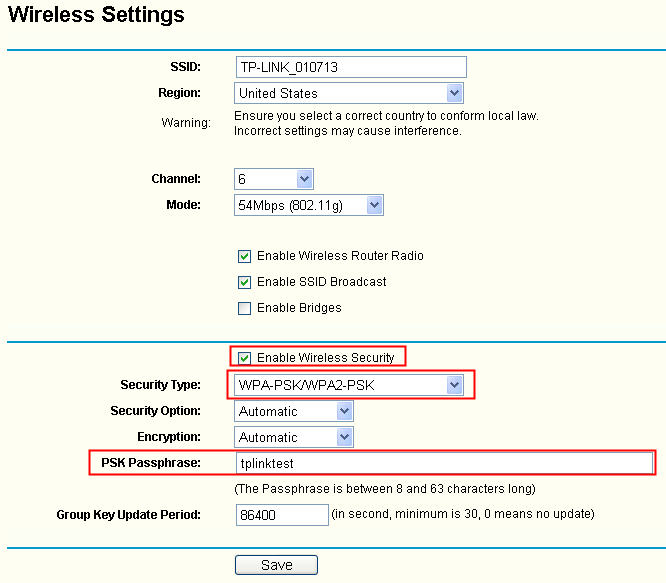
If you can’t access any connected device, you can always get the password from your router. Open a web browser and enter your router’s IP address (often 192.168.1.1 or 192.168.0.1). Log in with the admin username and password (check the sticker on the router or the manual). Look for a section like ‘Wireless’ or ‘WiFi Settings’ — the password (or ‘Passphrase’) will be displayed. For more details, check out our recover wifi password from router guide.
Step 6: Restore WiFi Passwords After a Format or Reinstall
If you previously backed up your WiFi passwords using a tool or by exporting the saved profiles, you can restore them after a fresh OS install. On Windows, you can use the `netsh` command to export profiles to an XML file and later import them. On macOS, you can backup and restore the Keychain file. For Android, you can use a backup app that saves WiFi configurations. Our restore wifi passwords after format guide walks you through the process. Also, consider using a backup wifi passwords to a USB drive for future-proofing.
Common Pitfalls
- Forgot router admin password — most routers have a physical reset button. Press and hold it for 10 seconds to factory reset, but note this also resets your WiFi password.
- Phone not showing ‘Share’ option — ensure you’re on Android 10+ and connected to the network. For older devices, you may need third-party apps or root access.
- Mac Keychain entry missing — check if the network was added to iCloud Keychain. If not, only the Mac that connected originally will have the entry.
Where to Next
Now that you’ve recovered your WiFi password, consider writing it down or saving it in a password manager for next time. If you frequently switch devices, learn how to recover wifi password from router so you never get stuck. For more advanced recovery scenarios, check out our guides on wifi password recovery after motherboard replacement or after a software update. Stay connected!



