
Ever been at a friend’s house and needed the WiFi password, but they mumbled it so fast you didn’t catch it? Or maybe you just forgot the password to your own home network after a long time. If you’re on a Mac, you’re in luck – macOS remembers every WiFi network you’ve ever joined, and the password is stored in your Keychain. This tutorial will show you two dead-simple ways to recover any saved WiFi password on your Mac: using the graphical Keychain Access app and using the Terminal. By the end, you’ll have that password in plain text, ready to share or type in.
This guide is for anyone with a Mac running macOS Catalina or later, but the steps work on older versions too. Whether you need the password for a new device, a guest, or just want to write it down before you forget it again, these methods are quick and require no third-party software. Let’s dive in.
What You’ll Need
- A Mac that has previously connected to the WiFi network
- Your Mac’s login password (admin privileges)
- The name (SSID) of the WiFi network you want to recover
That’s it. No additional downloads, no USB drives, no router access required. If you’ve connected to the network at least once, the password is stored locally.
Step 1: Open Keychain Access
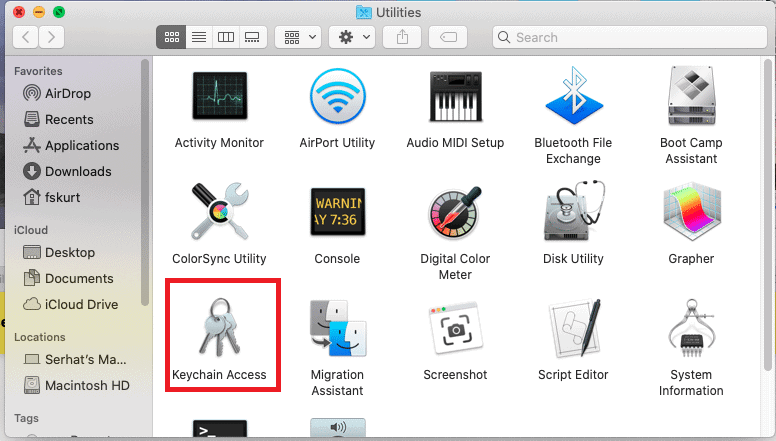
Keychain Access is macOS’s built-in password manager. You can find it by opening Finder, going to Applications > Utilities > Keychain Access. Alternatively, press Command + Space to open Spotlight, type “Keychain Access”, and hit Enter.
Step 2: Search for Your WiFi Network

In the Keychain Access window, make sure the “System” keychain is selected on the left sidebar (you can also check “iCloud” if you sync passwords). In the top-right search bar, type the name (SSID) of your WiFi network. You’ll see a result named something like “AirPort Network” with your SSID next to it. Double-click that entry.
Step 3: Reveal the Password
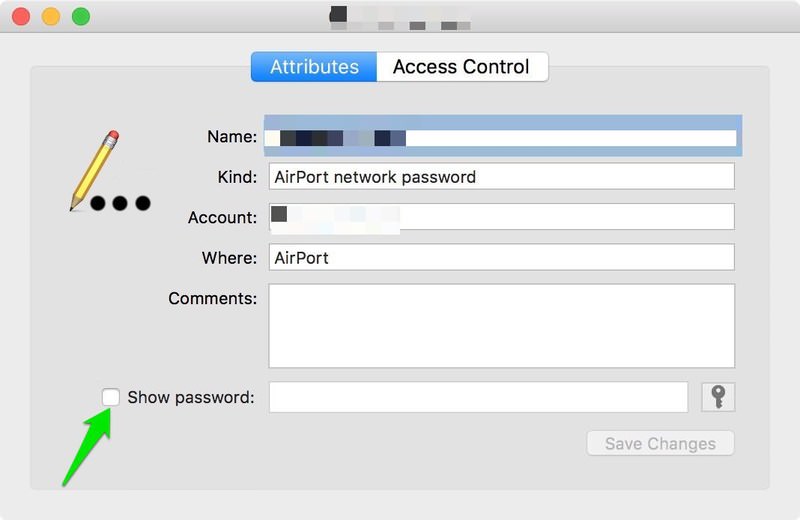
A dialog box will open showing details about the network. Check the box next to “Show password”. macOS will prompt you for your Mac’s admin username and password. Enter your login credentials (the same ones you use to log into your Mac). After that, the password field will reveal the plain text WiFi password. You can copy it or write it down.
Step 4: Alternative – Use Terminal (Even Faster)
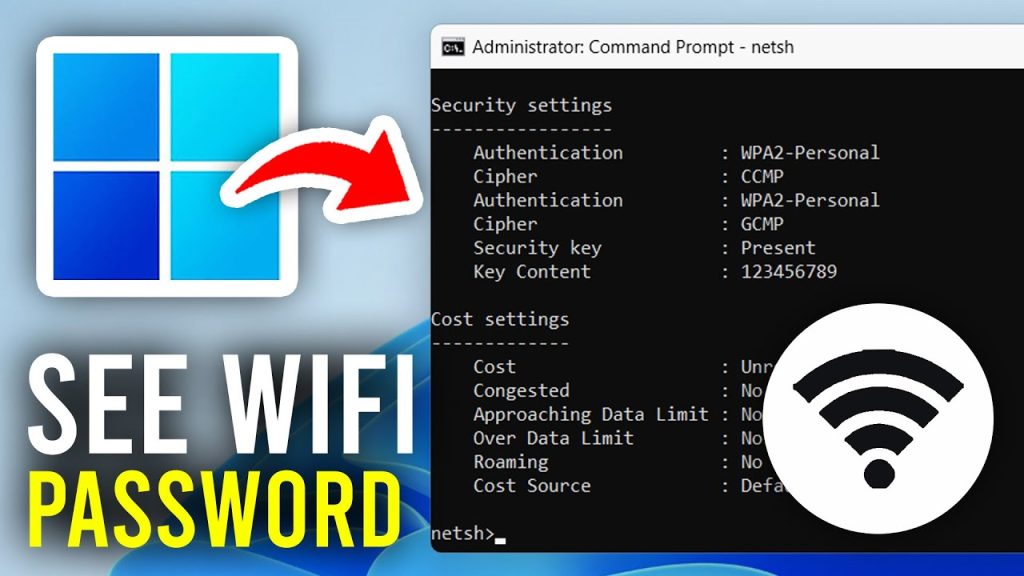
If you prefer the command line, open Terminal (also in Utilities > Terminal) and type the following command, replacing “YourNetworkSSID” with the actual network name:
security find-generic-password -wa “YourNetworkSSID”
Terminal command
Press Enter. You’ll be asked for your Mac’s password (it won’t show as you type). After that, the WiFi password will be printed right there in the terminal. If you get an error like “could not be found”, make sure you spelled the SSID correctly and that you’ve connected to that network before.
Common Pitfalls
- Keychain is locked or requires admin password: If you can’t reveal the password, make sure you’re using the correct admin credentials. If you’ve forgotten that, you’ll need to reset your Mac account password first.
- Network not in your history: This method only works for networks your Mac has previously connected to. If you’ve never joined the network, you can’t recover it this way – you’ll need to ask the router owner or check the router’s settings (see our wifi password recovery from router guide).
- Mixed up SSID case or hidden characters: Typos in the network name are a common issue. Double-check the exact SSID, including spaces and capitalization. You can see a list of known networks in System Preferences > Network > WiFi > Advanced > Known Networks.
Where to Next
Now that you’ve recovered your WiFi password, consider backing it up so you never lose it again. Check out our guide on how to backup wifi passwords to usb for a foolproof method. You might also want to learn how to restore wifi passwords after format if you ever wipe your drive. And if you’re curious about recovering passwords on other devices, our wifi password recovery tutorial covers Windows and Android too. Happy surfing!



