
We’ve all been there – you need to connect a new device to your WiFi, but the password is long gone from memory. Maybe it’s written on a sticky note that fell off, or maybe you just never bothered to memorize that jumble of letters and numbers. Instead of resetting your router and reconfiguring every device, you can use a lightweight wifi password recovery tool to pull the password directly from your computer. This guide is for anyone who has a Windows, Mac, or Linux machine that’s already connected to the network.
By the end of this tutorial, you’ll have your WiFi password in plain text without touching your router. You’ll learn how to use a small, portable utility that reads the saved network credentials from your system. No admin tricks or coding required – just a few clicks or commands. Let’s dive in.
What You’ll Need
- A computer (Windows, macOS, or Linux) that is currently connected to the WiFi network you want to recover.
- Administrator (admin) access on that computer – you’ll need it to view stored passwords.
- For Windows: a lightweight tool like WirelessKeyView (portable, no install).
- For macOS: built-in Keychain Access – no extra software needed.
- For Linux: the nmcli command-line tool (usually pre-installed).
- A few minutes of your time.
Step 1: Download a Lightweight WiFi Password Recovery Tool
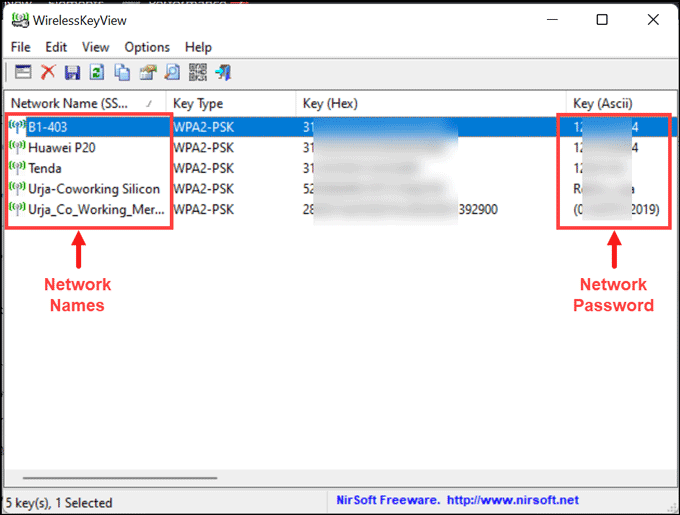
The easiest way to recover a WiFi password is by using a dedicated tool. For Windows, I recommend WirelessKeyView – it’s a tiny, portable utility that reads all saved WiFi credentials. You can grab it from the official NirSoft website. It doesn’t require installation; just download the zip file and extract it. For macOS, you already have Keychain Access built in, so skip to Step 2. On Linux, open your terminal and ensure you have NetworkManager’s command-line tool by typing nmcli -v. If it’s missing, install it via your package manager. If you prefer to recover without installing anything, there are methods using the command prompt, but a dedicated tool is faster.
Step 2: Run the Tool and Find Your Network
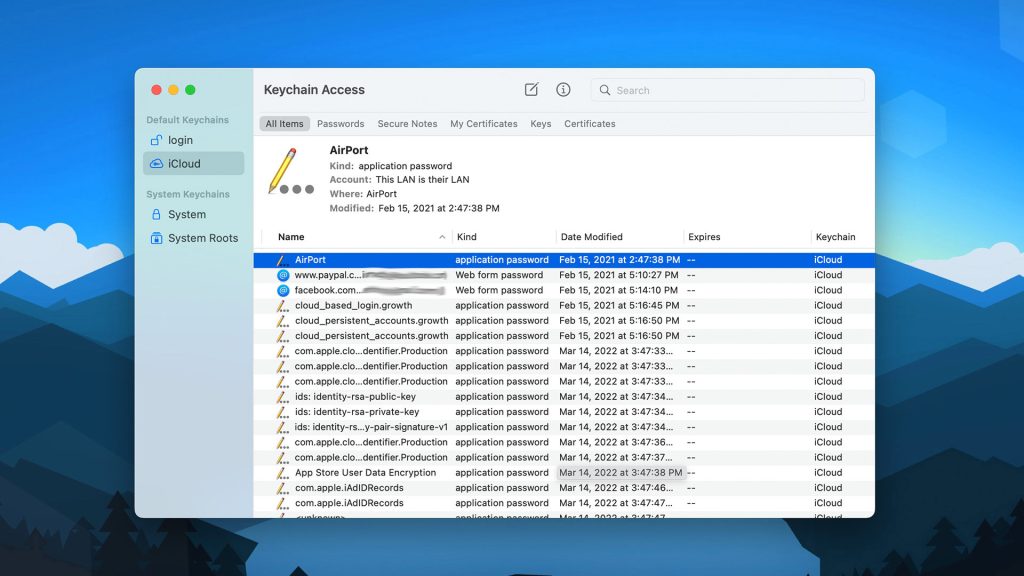
On Windows, right-click the WirelessKeyView executable and select ‘Run as administrator.’ Accept the UAC prompt. The window will populate with a list of all saved WiFi networks. Look for your network’s SSID (name). The password is displayed in the ‘Key (Ascii)’ column. On macOS, open Keychain Access (Finder > Applications > Utilities). Search for your network name, double-click it, and check the ‘Show password’ box. You’ll need to enter your Mac admin password to reveal it. On Linux, type nmcli device wifi show-password – the password appears under ‘PASSWORD.’ You’ll see the same info as the tool version.
Step 3: Copy or Write Down the Password
Once the password is visible, copy it to your clipboard or write it down somewhere safe. For Windows, you can right-click the entry and choose ‘Save Selected Items’ to export a text file. On macOS, you can copy the password from the Keychain window. On Linux, just highlight the password and copy it. Now you can connect your other devices. If you ever lose access to this computer, you can also recover it from the router’s admin panel or follow our modem wifi password recovery guide for alternative methods. Remember, this tool only shows networks the computer has connected to before.
Common Pitfalls
- Antivirus false positives: Some lightweight wifi password recovery software may be flagged by antivirus because it accesses system memory. Whitelist the tool or temporarily disable your antivirus during recovery.
- Need admin rights: If you can’t see the passwords, make sure you’re running the tool as administrator (Windows) or have admin privileges on Mac/Linux. Otherwise, you’ll get blank fields.
- No saved network: If the computer never connected to the network in question, the tool won’t find it. You’ll need to use the router’s admin panel or try a different method.
Where to Next?
Now that you’ve got your WiFi password back, consider backing it up. You can restore WiFi passwords on Windows after a format or reinstall by exporting them with tools like WirelessKeyView. On Mac, you can back up your Keychain. For Android users, check out how to backup wifi passwords android. If you ever need to recover a password without a computer, the router’s admin panel is your friend. Happy surfing!



